To check whether you can earn money from Facebook Reels, open Professional dashboard > Monetization in the Facebook mobile app, then inspect Content Monetization. If Facebook invites you, follow the onboarding shown for your account. If an interest form is available, you can complete it, but expressing interest does not mean that you have been approved.
This guide covers Facebook’s Content Monetization program as documented in October 2026. You need a Facebook Page or a profile with professional mode for the relevant creator tools. Posting a Reel, reaching a particular follower count, or turning on professional mode does not by itself activate earnings.
Check Your Access on a Phone
- Open Facebook and select the Page or professional-mode profile whose Reels you want to monetize. Check its name before proceeding.
- Open Professional dashboard, then Monetization.
- Look for Content Monetization and read its status. An available program can display Ready to set up and a Set up button.
- If the program says Not yet eligible, open it to review the criteria shown for that account. If an interest form is offered, use that form rather than looking for an old ads switch.
- When invited, review the program’s onboarding requirements and terms before deciding whether to join. Complete any required payout setup through Facebook’s own interface.
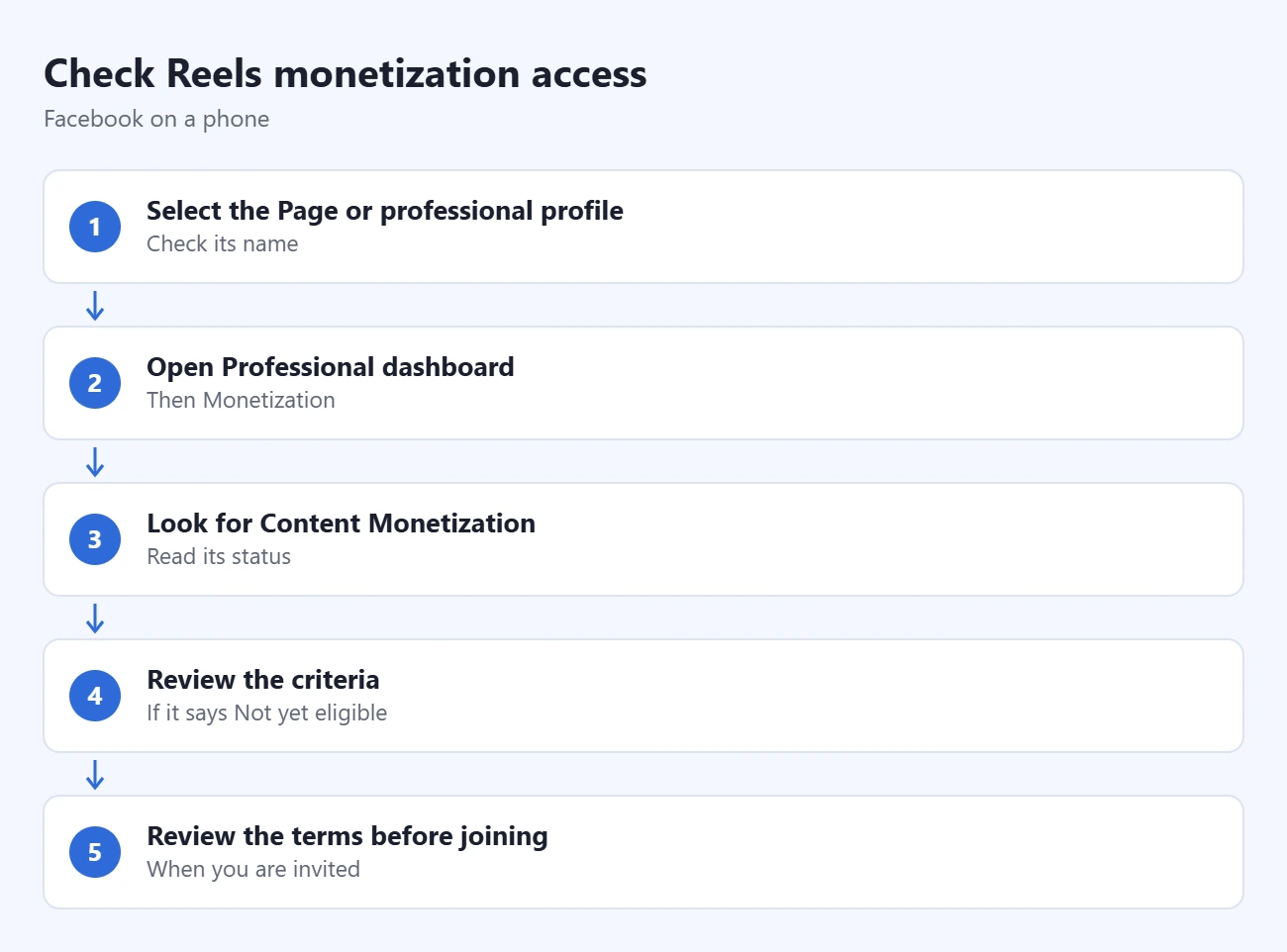
Meta’s monetization eligibility instructions explain the dashboard status labels. Its current Content Monetization page says the program is invite-only and identifies the in-app interest form. An invitation, enrollment, eligible content, and a completed payout setup are separate things to check.
Check a Page on a Computer
For a Facebook Page, open Meta Business Suite on a computer and select the correct Page. Choose Monetization on the left. If it is missing from that menu, Meta documents All tools > Monetization under Sell products and services.
In Status, choose View Page eligibility. Review any violations and the programs offered to that Page. Programs you can join appear separately from other programs for which you are not currently eligible. Use the mobile Professional dashboard route for a professional-mode profile rather than assuming this Page-specific route covers every account.
For an invited Page, Meta’s current setup instructions give Monetization > Content monetization > Sign up in Business Suite. Review the terms and finish payout onboarding if you decide to join. The mobile Page instructions may label the dashboard section Monetize.
If you are still deciding how to publish as a creator, our Facebook Page versus professional-mode profile guide explains why creating a Page is different from converting or replacing your existing profile.
Why Older Reels Monetization Tutorials Differ
Meta introduced Content Monetization to combine In-stream ads, Ads on Reels, and Performance Bonus. Its program announcement explains the combined approach. Instructions that tell every creator to enable in-stream ads in an older Creator Studio menu are not a reliable enrollment procedure for the current program.
Meta’s current setup guidance says those three older programs ended on August 31, 2025. Check the program actually offered to your account. Do not apply a follower requirement copied from another product or an older program as if it guaranteed Content Monetization access. An interest form records your interest; it does not let you bypass an invitation.
Make Content That Can Qualify
The Partner Monetization Policies govern creator eligibility, including eligible surfaces and countries. The Content Monetization Policies govern the content. A post can be allowed on Facebook while still being unsuitable for monetization. Read the current requirements and any account-specific notice before relying on a Reel for income.
Meta’s original content guidelines distinguish work you produce from third-party material with only minor edits. Reposting another creator’s video with a border, subtitle, watermark, or speed change does not necessarily make it original. Meaningful new analysis or storytelling differs from merely describing someone else’s clip. Originality also does not replace the need for appropriate rights to the material.
Meta’s current setup guidance lists a 10-second minimum for Reels and says a watch time below five seconds does not qualify. It also identifies boosted content, inauthentic engagement, unsupported languages, and certain ownership claims as potential earnings exclusions. These are eligibility conditions, not a promise that a video meeting the minimum will earn.
A useful starting project is a short demonstration you film yourself: show the problem, the steps, and the result. That gives viewers a reason to watch and gives you a clear subject to improve in later videos. Keep notes about which topic, opening, and explanation you changed so that you can compare your own posts without guessing what caused a difference. If you save an unfinished Reel or Page post to complete later, here is how to find your Facebook drafts.
If you are ready to publish your own video, our guide to making a reel on Facebook covers the mobile and computer routes, audience choices, drafts and upload checks. Publishing a reel remains separate from qualifying for earnings.
Understand Earnings and Missing Payments
Meta’s 2026 monetization update describes performance-based earnings and three metrics: qualified views, earnings rate per 1,000 qualified views, and non-qualified views. Total plays and qualified views are different measures. A view count alone cannot establish what a Reel earned.
Use your earnings insights for the specific content and period you are reviewing. If a Reel has views but no earnings, first check whether your account is enrolled and whether that content has an eligibility issue. If earnings appear but a payment is missing, inspect payout setup and any payment-status notice separately. Avoid changing the content repeatedly before reading the explanation Facebook provides.
There is no single earnings figure this guide can promise for 1,000 views. For example, two videos with the same total plays may have different qualified views. Keep a record of your displayed earnings and the relevant date range instead of multiplying every public view by a rate found elsewhere.
If the Program or Setup Button Is Missing
- Wrong identity: confirm that the dashboard belongs to the intended Page or professional-mode profile.
- Page navigation differs: use the documented All tools route in Meta Business Suite.
- No invitation: check for the interest form; do not mistake its completion for enrollment.
- Eligibility or policy notice: open the specific program or status notice and address the issue it identifies. More followers alone may not resolve it.
Finish by confirming that the program shows your enrolled status and that you can find its earnings information. Publishing regularly may help you learn what your audience wants, but it does not guarantee access, distribution, or income. Review the dashboard again when Facebook changes your status, and keep your next decision tied to the account’s actual information.

Matthew Burleigh is the founder, head writer, and editor of Solve Your Tech, which he launched in 2012. He has written technology tutorials since 2008 and worked in IT since 2003, including small-business support, IT management, and consulting. He holds Bachelor’s and Master’s degrees in Computer Science from Arizona State University.
Matthew writes practical guides for Windows, iPhone and iPad, Microsoft Office, Outlook, Google apps, and Android. Solve Your Tech’s guides are tested on current devices or checked against official product documentation, with clear steps, sources, and update dates.
Read more about Matthew and how Solve Your Tech writes and updates its guides, or report a correction.