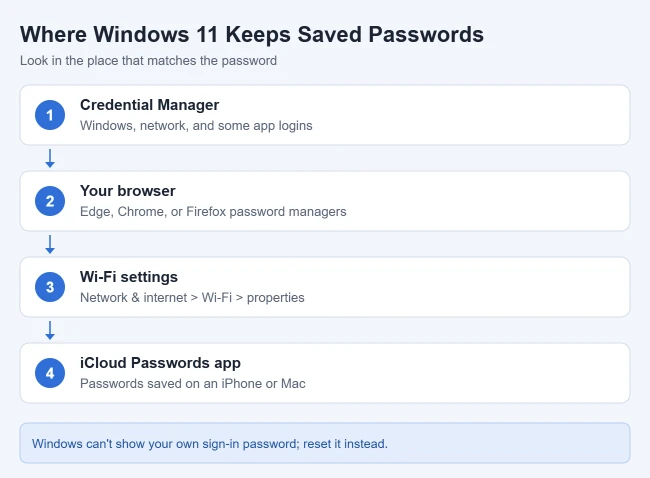
To find saved passwords on Windows 11, search for Credential Manager and open Web Credentials or Windows Credentials. For website passwords, check your browser’s password manager, and for Wi-Fi passwords, check the network’s properties in Settings. There is no single screen that shows every password on your PC, so start with the type of password you need.
Where Are Saved Passwords Stored in Windows 11?
Before opening Credential Manager, identify the kind of password you need. This saves time because modern browsers and Windows do not keep every credential in the same place.
- Windows, app, server, shared-folder, or network credentials: Check Credential Manager.
- Passwords saved in Microsoft Edge: Check Microsoft Password Manager in Edge.
- Passwords saved in Google Chrome: Check Google Password Manager in Chrome.
- Passwords saved in Firefox: Check Passwords in the Firefox menu.
- Wi-Fi passwords: Check the Wi-Fi network’s properties in Windows Settings.
- Your Windows or Microsoft account password: Windows doesn’t have a screen that shows your current account password. If you’ve forgotten it, reset it or use account recovery. Both account types are covered in finding your Windows 11 username and resetting a forgotten password.
- Windows Hello PIN: Your PIN is different from your Microsoft account password. You can change or reset it from Windows sign-in settings, but Windows does not display the existing PIN.
How to Find Saved Credentials in Windows 11
Use Credential Manager when you are looking for credentials Windows has saved for connected apps, websites, network shares, servers, and other resources.
Microsoft’s Credential Manager overview describes what it stores.
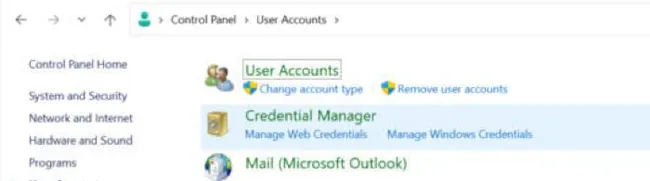
- Select the Search box or icon on the taskbar, type Credential Manager, and open it. You can also go to Control Panel > User Accounts > Credential Manager.
- Select Web Credentials for website sign-ins saved through Windows, or Windows Credentials for apps, network shares, and servers.
- Select an entry to expand it. For many Web Credentials entries, select Show next to the password and confirm with your PIN or account password. Windows Credentials entries usually offer only Edit and Remove.
If Windows is asking you to enter network credentials for another PC, here is which user name and password it expects.
How to Find Passwords Saved in Microsoft Edge
Passwords that you saved while browsing in Microsoft Edge are managed through Microsoft Password Manager. These steps match Microsoft’s guide to viewing passwords in Microsoft Password Manager.
- Open Microsoft Edge, select Settings and more (the three dots) in the upper-right corner, and choose Settings.
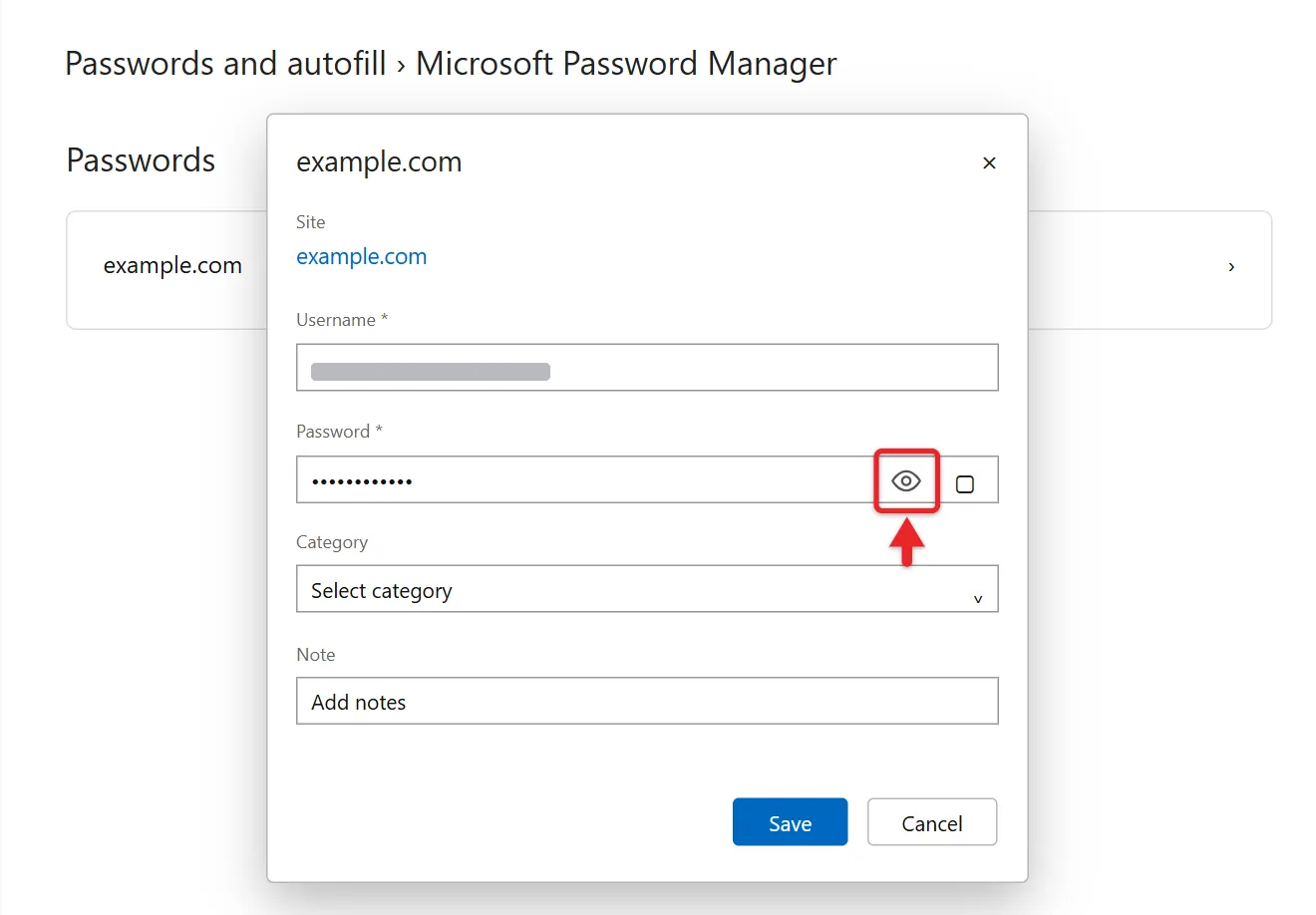
- Select Passwords and autofill, then Microsoft Password Manager.
- Select the arrow beside the website or account you need.
- Select the eye icon to show the password. Edge may ask you to verify with your PIN, password, or Windows Hello.
If you use Edge sync with a personal Microsoft account, saved passwords can also be available on other devices where you use the same Edge profile.
How to Find Passwords Saved in Google Chrome
Chrome manages its saved website passwords through Google Password Manager rather than Windows Credential Manager. Google covers the same steps in its Chrome password help page.
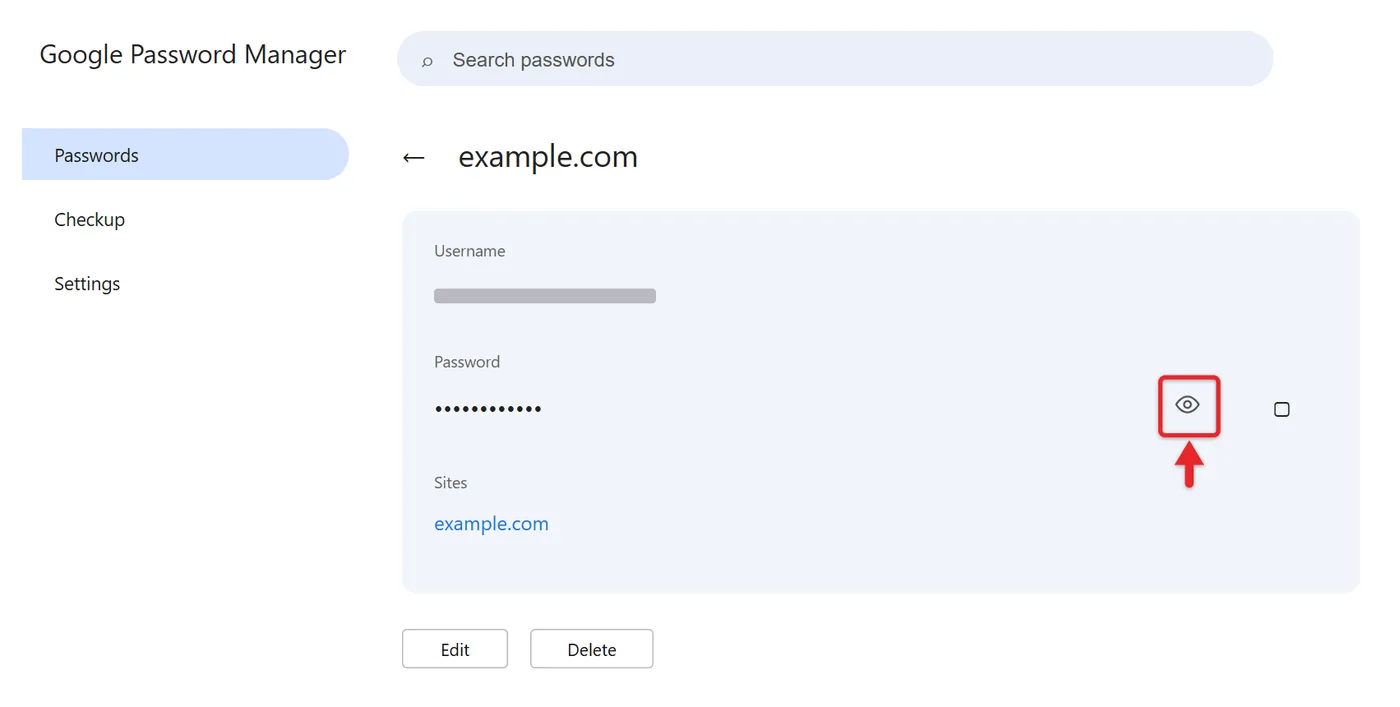
- Open Chrome, select the three-dot menu in the upper-right corner, choose Passwords and autofill, then Google Password Manager.
- Under Passwords, select the website or account.
- Select Show password (the eye icon). Chrome may ask for your Windows PIN, password, or Windows Hello first.
If you are signed in to Chrome and password sync is enabled, some saved passwords may be associated with your Google Account and available on your other signed-in devices as well. You can also manage those at passwords.google.com, as explained in this Google Password Manager guide.
How to Find Passwords Saved in Firefox
Firefox keeps its own list of saved logins. Mozilla lists these steps in its Firefox Password Manager help page.
- Open Firefox and click the menu button (three lines) in the upper-right corner.
- Click Passwords. The about:logins page opens in a new tab.
- Select a website from the list on the left, or type its name in the Search Passwords box.
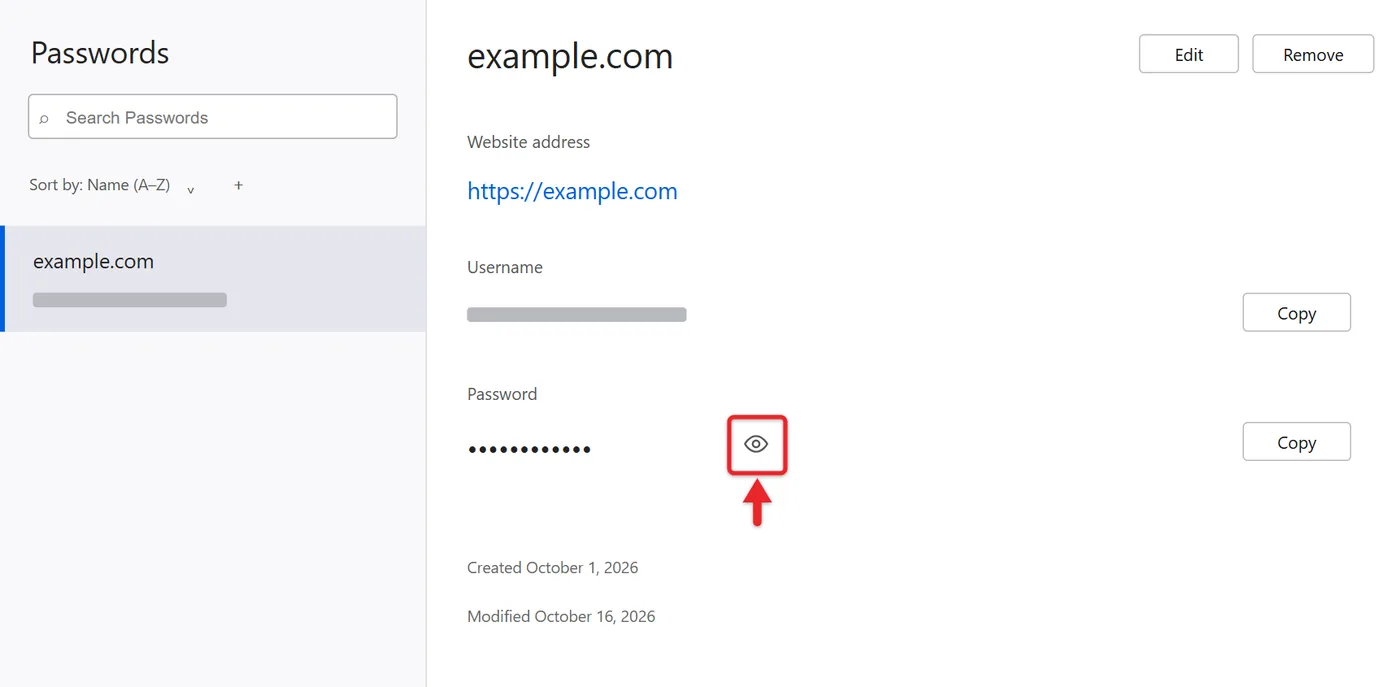
- Click the eye icon to reveal the password. Windows may ask for your PIN or account password first.
How to Find a Saved Wi-Fi Password in Windows 11
Windows 11 provides a separate way to view passwords for Wi-Fi networks that your computer knows.
- Open Settings and select Network & internet.
- Select Properties for the Wi-Fi network you’re connected to.
- Find Wi-Fi network password and select Show. Windows shows the password and may show a QR code another device can scan to join.
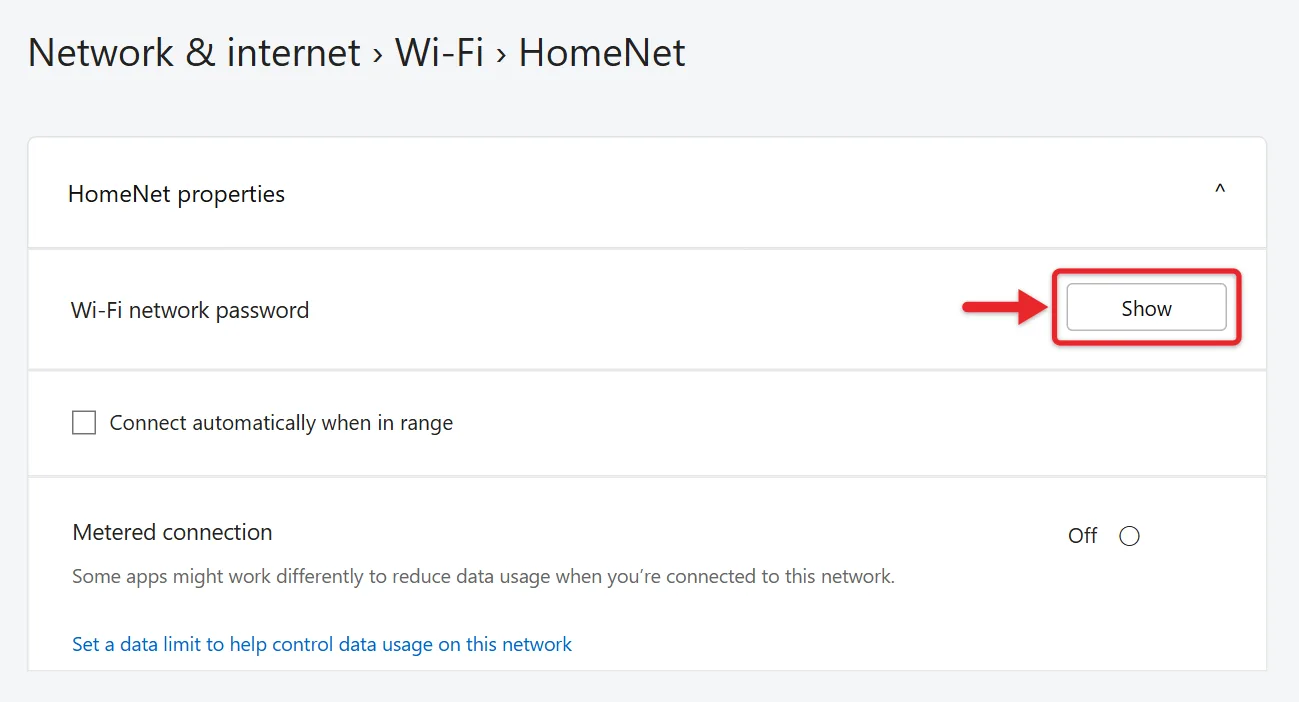
On Windows 11 version 23H2 and earlier, the setting is named View Wi-Fi security key, and the button is View. You can check your version under Settings > System > About.
Find the Password for Another Saved Network
For another network your PC has previously joined, go to Settings > Network & internet > Wi-Fi > Manage known networks, select the network, and use Show next to its Wi-Fi network password when that option is available. Check the password there before you forget a Wi-Fi network in Windows 11, because forgetting deletes it from the PC.
Other Way: Control Panel
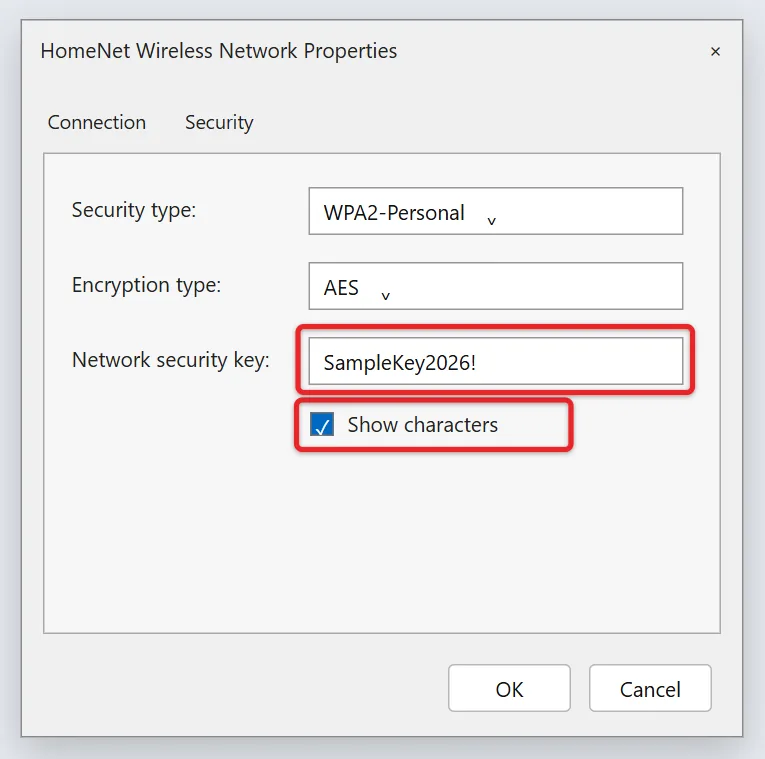
While connected to the network, open Control Panel > Network and Internet > Network and Sharing Center, select your Wi-Fi network name next to Connections, and select Wireless Properties. On the Security tab, check Show characters to reveal the Network security key.
Not sure where Control Panel is? Here’s how to open Control Panel in Windows 11.
Other Way: Command Prompt
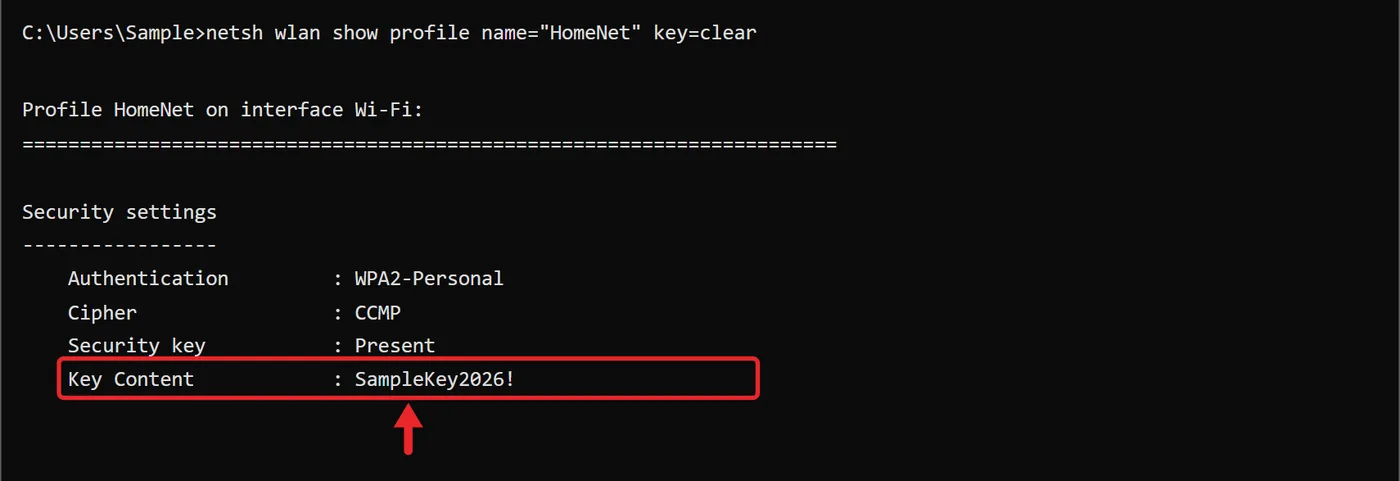
To see any saved network, open Command Prompt or Terminal and run netsh wlan show profiles to list saved networks. Then run netsh wlan show profile name="NetworkName" key=clear, replacing NetworkName with the network’s name. The password is shown next to Key Content.
How to Delete a Saved Password
Before removing a saved login, make sure you know the password or can recover it. Deleting the saved copy doesn’t change the website’s password or delete its account. Account or browser sync can also remove that saved entry from other devices, so check which profile and password store you are using.
For a Windows or network credential, search for Credential Manager, choose Web Credentials or Windows Credentials, expand the entry, and select Remove. Confirm only that entry, then check that it is gone. Microsoft’s Credential Manager guide covers these stores. The next connection may ask you to sign in again.
For Chrome, open More > Passwords and autofill > Google Password Manager. Under Passwords, select the website and login, then select Delete. Check the account and confirm if asked. Google’s Chrome password instructions document individual deletion. Clearing cache or cookies is not the same operation.
For Firefox, use the separate Firefox saved-password deletion guide. For Edge or another password manager, open that app’s own saved-login controls rather than Windows Sign-in options. To remove a saved Wi-Fi connection instead, forget the network; that is separate from deleting a website password.
What About Passkeys?
A passkey is not a password that Windows can show as text. If you use passkeys, manage them through the service that stores them. Using passkeys in Windows 11 explains the storage and sign-in choices. Windows lists passkeys saved on the PC under Settings > Accounts > Passkeys, while browser password managers and other providers can store their own.
Why Can’t I Find the Password I’m Looking For?
If a password is missing from Credential Manager, that does not necessarily mean it was never saved. The most common reason is that you are looking in the wrong password store.
- Website login missing: Check the password manager in the browser you normally use.
- Network or server login missing: Check Windows Credentials in Credential Manager.
- Wi-Fi password missing: Check Windows Wi-Fi settings instead of Credential Manager.
- Passwords saved on an iPhone or Mac: install iCloud for Windows and turn on Passwords and Keychain. You can then see them in the iCloud Passwords app or a browser extension, as shown in the iCloud Passwords for Windows guide. To check them on the phone itself, view saved passwords on iPhone.
- Password manager user: Open the third-party password manager where you saved the login.
- Password was never saved: You may need to reset the password through the website, app, network administrator, or account provider.
Frequently Asked Questions
Does Windows 11 have a list of all passwords saved on my computer?
No. Credentials can be split among Windows Credential Manager, browser password managers, Wi-Fi settings, third-party password managers, and other credential providers. Start with the location associated with the type of password you need.
Does Credential Manager show my Chrome passwords?
No. Chrome keeps its passwords in Google Password Manager, not in Credential Manager. Open them from Chrome as shown above. Chrome can also stop offering to save passwords if you’d rather it not store new logins.
Why does Windows ask for my PIN before showing a saved password?
Password managers can require device authentication before revealing sensitive credentials. Depending on your configuration, that verification can use a Windows Hello PIN, device password, biometric sign-in, or another supported method.

Matthew Burleigh is the founder, head writer, and editor of Solve Your Tech, which he launched in 2012. He has written technology tutorials since 2008 and worked in IT since 2003, including small-business support, IT management, and consulting. He holds Bachelor’s and Master’s degrees in Computer Science from Arizona State University.
Matthew writes practical guides for Windows, iPhone and iPad, Microsoft Office, Outlook, Google apps, and Android. Solve Your Tech’s guides are checked step by step against the device or app maker’s own documentation and tested on his own devices whenever he has the hardware or software, with clear steps, sources, and update dates.
Read more about Matthew and how Solve Your Tech writes and updates its guides, or report a correction.