To add someone to your VIP list in iPhone Mail, open an email from that person, tap their name at the top of the message, tap View Contact Card if a small panel opens, then tap Add to VIP. A star appears next to their name, and their messages also show up in the VIP mailbox.
These steps are for Apple’s built-in Mail app on iOS 26, and they match iOS 27 and iPadOS. VIP works with any account you’ve added to Mail, including iCloud, Gmail, Outlook, and Yahoo. It doesn’t add anything to the separate Gmail or Outlook apps.
What VIP Does and Doesn’t Do
- It marks the sender. Messages from a VIP show a star beside the sender’s name in your message lists and in the message itself.
- It adds a VIP mailbox. The VIP mailbox gathers messages from your VIPs across every account in Mail. It’s a view, not a folder, so messages stay in their original inbox and nothing is moved or copied.
- It doesn’t turn on alerts by itself. VIP Alerts are a separate setting, covered below.
- It isn’t a priority filter. Every message from a VIP’s address counts, including newsletters or group replies they send.
- The person isn’t told. Your VIP list lives in your Mail app and is never shared with the sender.
Apple doesn’t publish a limit on how many VIPs you can add. A short list of the people you really can’t miss, such as family, a manager, or a school, keeps the VIP mailbox and its alerts useful.
Add a VIP From an Email
This method works for anyone who has emailed you, even if they aren’t saved in Contacts. Apple describes it in its guide to using mailboxes in Mail on iPhone.
- Open Mail and tap a message from the person you want to add.
- Tap the sender’s name or email address next to From at the top of the message. If a small panel opens, tap View Contact Card. The sender’s contact card appears.
- Check the email address on the card, then tap Add to VIP.
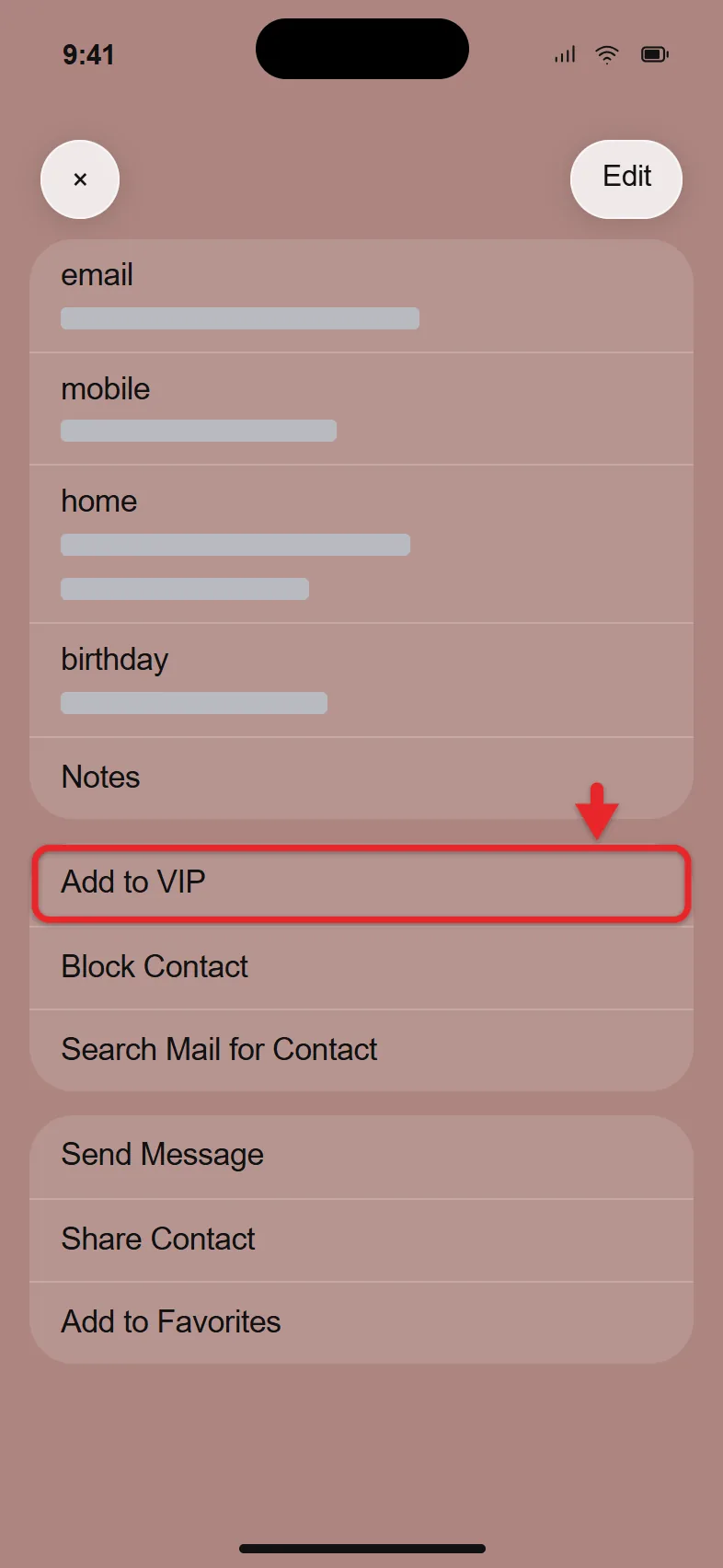
- Tap the back arrow to return to the message. A star now appears beside the sender’s name.
- Go back to Mailboxes and tap VIP to see this person’s messages listed there.
Checking the address in step 3 matters when a display name is shared by several people, or when a scammer borrows a familiar name. VIP follows the address, not the name.
Senders can also learn when you open a message through remote pictures, and you can stop loading email pictures on the iPhone to limit that.
Add a VIP From Your Contacts
Use this method when you know the person but don’t have an email from them handy. They need to be saved in Contacts with an email address.
- Open Mail and tap the back arrow in the top-left corner until the screen title is Mailboxes.
- Tap the Info button (a small “i” in a circle) next to VIP. If you’ve never added a VIP, tapping VIP may open the same screen.
- Tap Add VIP. Your contacts list opens.
- Tap the search field, type the person’s name, and tap their contact.
- Check that the name appears in the VIP list, then tap Done.
If the person doesn’t appear, open their card in the Contacts app, tap Edit, add their email address, and try again. Or use the email method above.
Show the VIP Mailbox If It’s Missing
- Go to the Mailboxes screen in Mail.
- Tap Edit.
- Select the circle next to VIP.
- Tap Done.
The VIP mailbox now shows in your list. While you’re on the Edit screen, you can drag the handle next to VIP to move it near the top. Hiding the VIP mailbox later only removes the view; your VIP list and messages stay as they are.
The same Edit screen controls the other shortcuts too. To see where each account’s own folders appear, read about showing folders in iPhone Mail.
Turn On VIP Alerts
Adding a VIP doesn’t change your notifications. To get an alert when a VIP writes:
- On the Mailboxes screen, tap the Info button next to VIP.
- Tap VIP Alerts. The VIP notification settings open.
- Make sure notifications are allowed, then choose where alerts show up (Lock Screen, Notification Center, and Banners) and pick a Sound.
You can reach the same screen from Settings > Apps > Mail > Notifications > Customize Notifications > VIP. If nothing there can be changed, turn on Allow Notifications at the top of the Mail Notifications screen first. Apple covers the wider options in its guide to email notifications on iPhone.
Get Alerts Only From VIPs
If Mail alerts are too noisy, you can keep VIP alerts and quiet everything else. In Customize Notifications, tap each email account and turn off its alerts, but leave VIP turned on. Your inbox still fills up as usual, and you only hear from the people on your list. The red badge number is controlled separately. If you want to change it too, read about the red number on the Mail app.
Remove Someone From Your VIP List
- From an email: open a message from the person, tap their name, open the contact card, and tap Remove from VIP.
- From the VIP list: tap the Info button next to VIP, tap Edit, tap the red minus button next to the person, tap Delete, then tap Done. You can also swipe left on a name and tap Delete.
Removing VIP status doesn’t delete their email or block them. To stop a sender’s mail entirely, block the email sender on iPhone.
VIPs on iPad and Mac
On an iPad, the steps are the same as on the iPhone. In Mail on a Mac, move the pointer over the sender’s name in an open message, click the arrow that appears, and choose Add to VIPs. If you use the same Apple Account on several devices, check the VIP list on each one after a few minutes. If someone is missing on one device, add them there too.
If You Don’t See Add to VIP
- You don’t see Add to VIP. You may have tapped a name in the To or Cc line. Tap the name next to From. Also make sure you’re in Apple’s Mail app, not the Gmail or Outlook app.
- The VIP mailbox is empty or missing messages. The person may write from more than one address. Open a message from each address and check that the star appears; if not, add that address from the message.
- VIP Alerts don’t arrive. Check Allow Notifications for Mail and the VIP settings in Customize Notifications. A Focus such as Sleep or Do Not Disturb can also hold alerts back; open Settings > Focus, choose the Focus, and add Mail to its allowed apps.
- Alerts appear but make no sound. Check that the Ring/Silent switch or Action button hasn’t set your iPhone to Silent, and that the VIP Sound isn’t set to None.
VIP Mail Questions
Does the person know they are on my VIP list?
No. The VIP list lives in your own Mail app, and the sender is never notified. It only changes how their messages are grouped and, if you turn on VIP Alerts, how you’re notified.
Does VIP work with Gmail and Outlook accounts?
Yes, as long as the account is added to Apple’s Mail app. The VIP mailbox combines messages from every account in Mail. It has no effect inside the separate Gmail or Outlook apps.
Does adding a VIP move their messages out of my inbox?
No. Messages stay in the inbox where they arrived. The VIP mailbox is a second way to view them.
How do I stop VIP messages from showing on my Lock Screen?
Open the VIP notification settings and turn off Lock Screen. For more detail, read about turning off VIP Mail Lock Screen messages.
Add your two or three most important senders now, then turn on VIP Alerts so their messages reach you even when the rest of your inbox is quiet.

Matthew Burleigh is the founder, head writer, and editor of Solve Your Tech, which he launched in 2012. He has written technology tutorials since 2008 and worked in IT since 2003, including small-business support, IT management, and consulting. He holds Bachelor’s and Master’s degrees in Computer Science from Arizona State University.
Matthew writes practical guides for Windows, iPhone and iPad, Microsoft Office, Outlook, Google apps, and Android. Solve Your Tech’s guides are checked step by step against the device or app maker’s own documentation and tested on his own devices whenever he has the hardware or software, with clear steps, sources, and update dates.
Read more about Matthew and how Solve Your Tech writes and updates its guides, or report a correction.