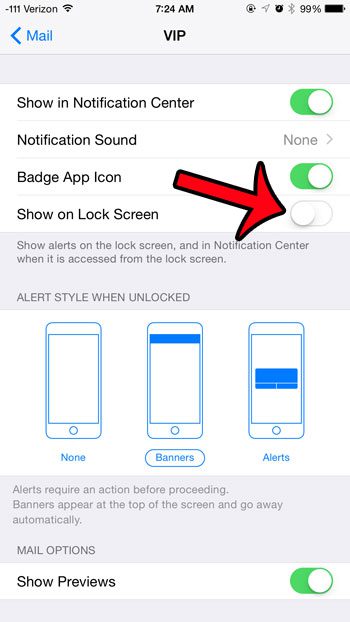
How to Turn Off VIP Mail Lock Screen Messages

To stop VIP email from showing on your iPhone Lock Screen, open the Mail app, go to the Mailboxes list, tap the Info button (the small circled i) next to VIP, tap VIP Alerts, and turn off the alerts you do not want. If you want no email at all on the Lock Screen, go to Settings > Notifications > Mail and turn off Lock Screen under Alerts.

A VIP is a sender you have marked as important in the Mail app. Mail puts a star next to that person in the message header, collects their messages in a VIP mailbox, and lets you give those messages their own alert settings. That is useful until the alerts start lighting up a phone that is sitting on a desk where other people can read it.

Older versions of iOS had a single Show on Lock Screen switch inside the VIP notification menu. Current versions arrange the settings differently, so the menu names in older instructions may not match what you see. This guide follows the paths Apple documents now.

What You Need Before You Start

  • An iPhone that uses Apple’s built-in Mail app. The same Apple instructions cover the iPad.
  • At least one sender on your VIP list. If the list is empty, there are no VIP alerts to change. You can add a contact to your VIP list in iPhone Mail first.
  • A recent version of iOS. Apple’s current instructions put Mail settings under Settings > Apps > Mail. On iOS 17 and earlier there is no Apps menu, and Mail is listed directly on the main Settings screen. The Settings > Notifications > Mail path exists either way.

These settings only control the Mail app. If you read email in a different app, such as Gmail or Outlook, that app has its own entry under Settings > Notifications and its own in-app notification options, and it does not use the Mail VIP list.

Turn Off VIP Alerts From the Mail App

This is the route Apple gives for changing VIP alerts. It only affects mail from your VIPs, so the rest of your email keeps the settings it already has.

  1. Open the Mail app.
  2. Go to the Mailboxes list. If Mail opens to an inbox or a message, tap the back arrow at the top left until you see the list of mailboxes.
  3. Find VIP in the list and tap the Info button next to it. Tapping the word VIP opens the mailbox instead, so aim for the button at the right side of the row.
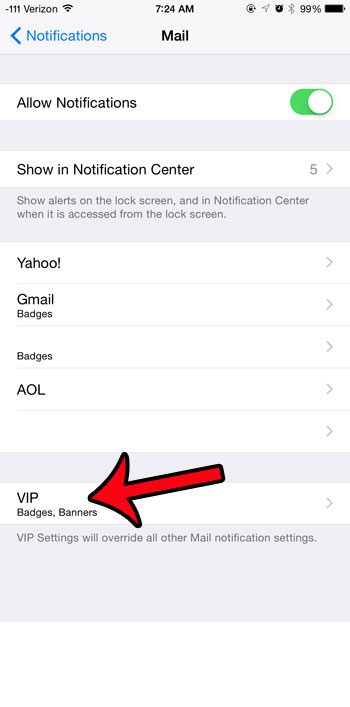
  4. Tap VIP Alerts. This opens the notification settings that apply only to VIP mail.
  5. Select the alerts you want. To stop VIP messages from producing a visible notification, turn off Alerts. Leave Badges on if you still want the unread count on the Mail icon.
Path to the VIP Alerts setting in the iPhone Mail app: Mail, Mailboxes, Info button next to VIP, VIP Alerts
Illustration: where the VIP Alerts setting lives in the iPhone Mail app.

Apple’s instructions for this screen say only to select the alerts you want, and its instructions for email accounts name Alerts and Badges as the options. If your VIP Alerts screen shows different labels, use the switch that controls visible alerts. Apple does not currently document a separate Lock Screen switch that applies only to VIPs, so do not expect to find the old Show on Lock Screen toggle here.

Before you turn VIP alerts off, keep in mind what the VIP list is for. If you rely on it to catch mail from a boss, a client, or a family member, turning off the alert means those messages arrive silently. If privacy is the real concern, hiding the preview text (covered below) may suit you better than removing the alert.

Reach the Same Settings Through the Settings App

You can get to the Mail notification types from Settings as well. Apple documents this path for email accounts:

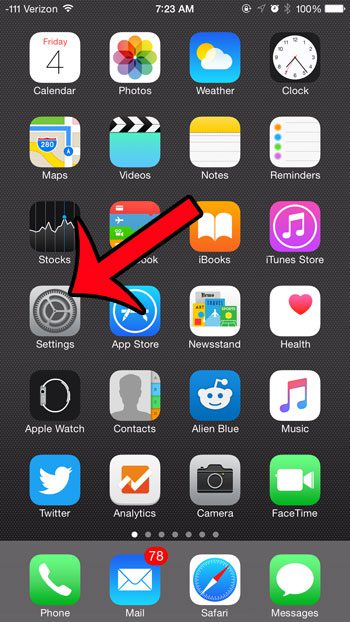
  1. Open Settings.
  2. Tap Apps, then tap Mail.
  3. Tap Notifications and make sure Allow Notifications is on. If it is off, Mail sends no notifications of any kind and the remaining options are unavailable.
  4. Tap Customize Notifications.
  5. Tap the item you want to change, then set Alerts and Badges the way you want them.

Apple’s article describes tapping an email account on the Customize Notifications screen. On many iPhones the same screen also lists VIP, and tapping it opens the same options as the VIP Alerts button in Mail. If you do not see a VIP row there, use the Mail app route above.

Keep All Mail Off the Lock Screen

If you would rather keep every email off the Lock Screen, VIP or not, change where Mail notifications are allowed to appear. This does not turn Mail notifications off. It only removes them from the Lock Screen.

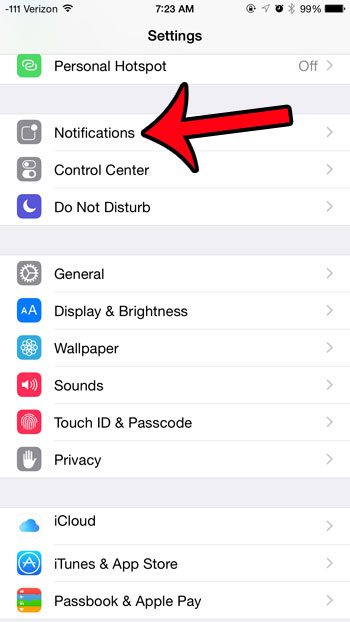
  1. Open Settings and tap Notifications.
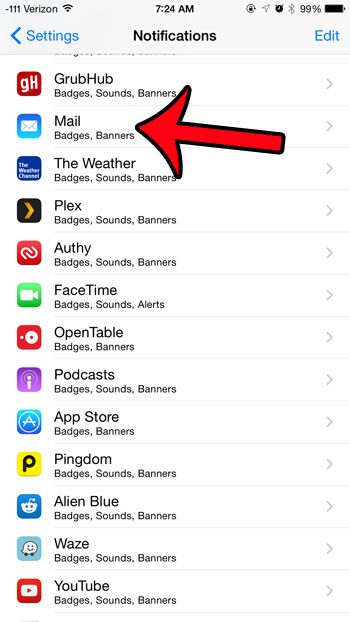
  2. Under Notification Style, tap Mail.
  3. Under Alerts, turn off Lock Screen.
  4. Leave Notification Center and Banners selected if you still want to see new mail there.

Notification Center is the list of recent notifications that you open by swiping down from the top left of the screen. A banner is the alert that drops in at the top of the screen while you are using the phone. With only Lock Screen turned off, you still get both of those.

Hide the Message Text Instead of the Notification

Many people who search for this setting do not mind knowing that a VIP wrote to them. They just do not want the subject line and first sentence readable on a locked phone. A preview is that snippet of content inside the notification, and you can hide it without losing the alert.

  1. Open Settings and tap Notifications.
  2. Tap Mail under Notification Style.
  3. Tap Show Previews.
  4. Choose When Unlocked to show the content only after the iPhone is unlocked, or Never to keep the content out of notifications entirely.

The Show Previews option at the top of the main Notifications screen sets the default for every app. The setting inside Mail overrides that default for Mail only.

Comparison of two iPhone Mail settings: turning off Lock Screen alerts versus setting Show Previews to When Unlocked
Illustration: hiding the whole notification compared with hiding only the preview text.

Which Option Should You Pick?

GoalSetting to changeWhat it affects
Stop alerts for VIP mail onlyMail > Mailboxes > Info button next to VIP > VIP AlertsVIP messages only
No email on the Lock ScreenSettings > Notifications > Mail > Alerts > Lock ScreenAll Mail notifications
Notification stays, text is hiddenSettings > Notifications > Mail > Show PreviewsAll Mail notifications
Quiet one busy conversationOpen a message in the thread, tap the More button, then MuteThat thread only
Quiet everything for a whileA Focus or Scheduled SummaryAll apps you include

Change Mail Alerts Straight From the Lock Screen

When a Mail notification is already on the Lock Screen, you can manage it from there. Swipe left over the notification and tap Options. Apple lists these choices: Mute for 1 Hour, Mute for Today, View Settings, and Turn Off.

Be careful with Turn Off. These options manage alerts for the app, not for one sender, so that choice affects Mail notifications in general and not just VIP mail. View Settings is the safer pick because it opens the Mail notification screen, where you can change only the Lock Screen option.

How to Confirm the Change and Undo It

Lock the iPhone, then have a VIP sender email you, or send a message to yourself from a second address that is on your VIP list. Wait for Mail to fetch it. If you turned off VIP alerts or the Lock Screen option, the Lock Screen should stay clear. If you changed Show Previews, the notification should appear without the message text.

Nothing here is permanent. To reverse it, go back to the same screen and turn Alerts back on in VIP Alerts, reselect Lock Screen under Alerts, or set Show Previews back to Always. No email is deleted or moved by any of these settings, and your VIP list stays as it was.

Troubleshooting

There is no VIP row in the Mailboxes list

The VIP mailbox can be hidden. In the Mailboxes list, tap Edit, make sure VIP is selected, and then tap Done. The row and its Info button should then appear.

I cannot find Apps in Settings

The Apps menu was added in iOS 18. On iOS 17 and earlier, scroll down the main Settings screen and tap Mail, or use Settings > Notifications > Mail, which works on both old and new versions.

The Lock Screen, Sounds, or Customize options are missing

Check that Allow Notifications is turned on for Mail. When it is off, the other notification options are not shown because Mail is not allowed to notify you at all.

VIP mail still shows up after the change

Check which item you changed. An email account and the VIP list have separate alert settings on the Customize Notifications screen, so turning off alerts for an account does not necessarily turn them off for VIPs. Also check whether you asked to be notified about a specific thread. Mail has a Notify Me option for individual conversations, and it works independently of the VIP list.

Mail notifications stopped completely

If you used Turn Off from the Lock Screen, Mail notifications were switched off for the app. Go to Settings > Notifications > Mail and turn Allow Notifications back on. A Focus, such as Do Not Disturb, can also hold notifications back. Our guide on how to fix notifications silenced on iPhone covers that situation.

Other Ways to Cut Down on Mail Interruptions

  • Mute a thread. Open a message in a busy conversation, tap the More button, and tap Mute. You can choose what happens to muted messages under Settings > Apps > Mail > Muted Thread Action.
  • Use a Scheduled Summary. Go to Settings > Notifications > Scheduled Summary to have notifications from chosen apps delivered together at set times instead of one by one.
  • Set up a Focus. A Focus lets you allow or silence notifications from specific people and apps during work, sleep, or personal time.
  • Change the Lock Screen layout. Under Settings > Notifications, pick Count to show only the number of waiting notifications on the Lock Screen (iOS 16 or later).

Mail is rarely the only noisy app. If accessory alerts are also a problem, see how to turn off AirPod notifications.

Frequently Asked Questions

Is there still a Show on Lock Screen switch just for VIPs?

Not in Apple’s current documentation. The VIP Alerts screen controls the alerts for VIP mail, and the Lock Screen choice is made for the whole Mail app under Settings > Notifications > Mail > Alerts. To keep only VIP mail away from the Lock Screen, turn off alerts in VIP Alerts.

Does turning off VIP alerts remove people from my VIP list?

No. The alert setting and the list are separate. Your VIPs keep their star in message headers, and their mail still collects in the VIP mailbox. Only the notification behavior changes.

Will I still get a sound for VIP mail?

Apple says the option to customize sounds is available when Alerts is turned on, so with alerts off you should not expect a sound for VIP mail. A silenced iPhone does not play notification sounds either way.

Can I hide the preview for VIP mail only?

Apple documents Show Previews as a setting for all apps or for one app, not for one group of senders. Setting it for Mail hides the content of every Mail notification, including VIP mail.

Do these steps work on an iPad?

Yes. Apple’s Mail notification and VIP instructions are written for both iPhone and iPad, and the menu names are the same.

Next Step

Decide whether you want VIP alerts gone or only hidden from view, make the one change that matches, and test it with a message from a VIP. For a wider look at what appears on a locked phone, read how to show or hide notifications on the iPhone Lock Screen.

Apple’s own instructions are in Use mailboxes to organize email messages on your iPhone or iPad, Customize your Mail notifications on your iPhone or iPad, and Change notification settings on iPhone.

Join Our Free Newsletter

Featured guides and deals

You may opt out at any time.
Read our Privacy Policy