To update an Apple TV, open Settings > System > Software Updates, select Update Software, and then select Download and Install if an update is available. The Apple TV downloads the new version of tvOS, restarts, installs it, restarts again, and returns to the Home Screen. To skip the manual check in the future, turn on Automatically Update in the same menu.
These steps apply to every Apple TV that runs tvOS: the Apple TV 4K (all generations) and the Apple TV HD. They follow Apple’s Update your Apple TV support article and its guide to updating Apple TV 4K software. The newest version is tvOS 27, released in September 2026. tvOS 27 doesn’t support the Apple TV HD or the Apple TV 4K (1st generation), so the version you can get depends on your model.
Which tvOS Version Can Your Apple TV Get?
| Apple TV model | Latest tvOS |
|---|---|
| Apple TV 4K (4th generation, 2026) | tvOS 27 |
| Apple TV 4K (3rd generation, 2022) | tvOS 27 |
| Apple TV 4K (2nd generation, 2021) | tvOS 27 |
| Apple TV 4K (1st generation, 2017) | tvOS 26 |
| Apple TV HD (2015) | tvOS 26 |
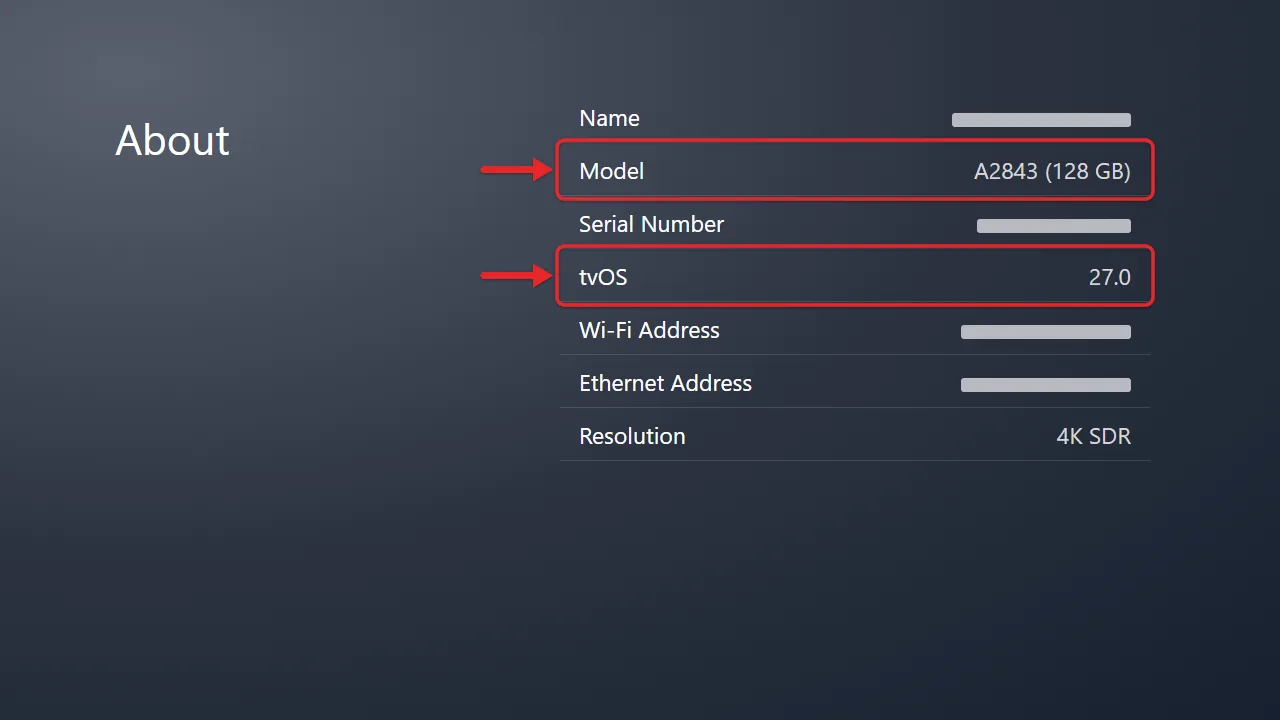
The Apple TV 4K (1st generation) and Apple TV HD stay on tvOS 26. The new Apple TV 4K (4th generation), announced by Apple on October 13, 2026, goes on sale November 13. To see which model and version you have, open Settings > General > About and check the Model and tvOS Version rows. Apple’s Identify your Apple TV model page matches model numbers to each generation.
Older boxes (Apple TV 3rd generation and earlier) don’t run tvOS and haven’t received software updates in years, so the steps below won’t match their menus.
Before You Start
Connect the Apple TV to Wi-Fi or Ethernet, and finish any network sign-in page first (common in hotels and dorms). Keep it plugged into power until the update is complete, so avoid a switched power strip. Leave the TV on the Apple TV’s input so you can see the progress screens, and plan on 15 to 30 minutes.
Update Apple TV Software
- On the Home Screen, open Settings (the gray gear icon).
- Select System.
- Select Software Updates.
- Select Update Software. The Apple TV checks with Apple for a newer version.
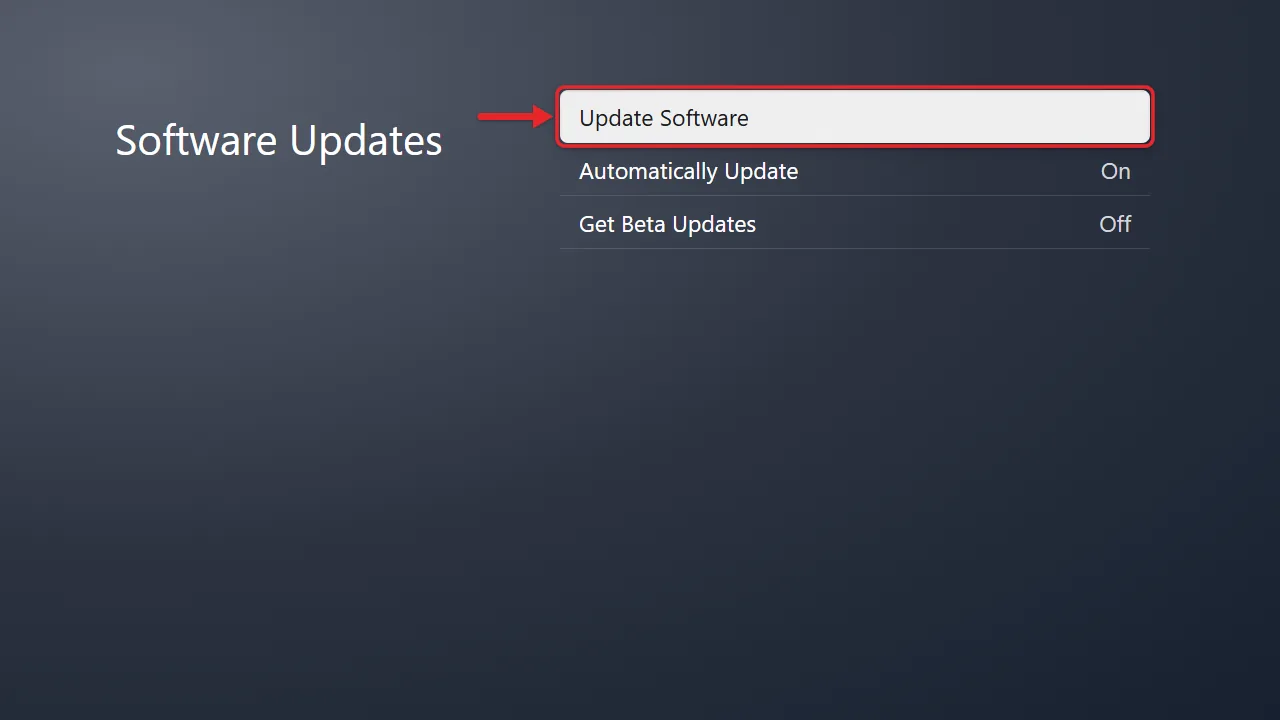
- If an update is available, a message describes it. Select Download and Install.
- Wait while the update downloads.
- When the download finishes, the Apple TV restarts, shows Preparing Update and then Applying Update, and restarts again. The screen may go dark, and the status light on the front of the box may flash slowly. Don’t unplug the Apple TV during this time.
- When the Home Screen comes back, the update is finished.
If you see a message that your software is up to date, your Apple TV already has the newest version available for its model.
To confirm the update worked, open Settings > General > About and check the tvOS Version row, or run Update Software again and make sure it no longer offers the same update.
Each Apple TV updates on its own, so repeat these steps on every box in the house.
Once the Apple TV is current, you can play Apple Music on your Apple TV in the Music app or stream it from your iPhone.
Turn On Automatic Updates
- Open Settings > System > Software Updates.
- Select Automatically Update so it shows On.
With this on, the Apple TV downloads and installs new versions of tvOS on its own. It still needs power and an internet connection, so leave it plugged in and connected. Apple releases updates gradually, so an automatic update may arrive a few days after a release. Run Update Software manually if you want it right away.
To stop automatic updates, select it again so it shows Off.
Update From Your iPhone or iPad in the Home App
With iOS 27 and iPadOS 27, the Home app can also install tvOS updates for an Apple TV that’s added to your home. Apple’s Apple TV help pages still describe only the on-screen method, so use that if your Apple TV isn’t listed.
- On your iPhone or iPad, open the Home app.
- Tap the More button, then tap Home Settings.
- Tap Software Update. Your HomePod speakers and Apple TV are listed here.
- If an update is listed for your Apple TV, tap Update.
Update Apps on Apple TV
Updating tvOS doesn’t update your apps. Apps update on their own by default. To check or change that:
- Open Settings > Apps.
- Make sure Automatically Update Apps is set to On.
To update a single app sooner, open the App Store on the Apple TV, select Purchased, find the app, and select Update if it appears.
If kids use this Apple TV, you can also block purchases and rentals on Apple TV so new apps and in-app items need your passcode.
Keeping YouTube updated on both devices helps when you cast YouTube from your iPhone to Apple TV.
Troubleshooting
No update appears
- Your model is already current. An Apple TV 4K (1st generation) or Apple TV HD tops out at tvOS 26, so it won’t be offered tvOS 27.
- The release hasn’t reached you yet. Wait a day and run Update Software again.
- The Apple TV is offline. Open Settings > Network and check that the status shows a connection. If it doesn’t, connect the Apple TV to Wi-Fi or check the Ethernet cable.
The update won’t download or shows an error
Write down any error message, then try these in order:
- Check the network as described above. A weak Wi-Fi signal is the most common cause of a failed download. An Ethernet cable is more reliable if your router is nearby.
- Restart the Apple TV in Settings > System > Restart, or unplug it for 15 seconds and plug it back in. There are other ways of restarting the Apple TV too.
- Run Update Software again.
- Make sure there’s room for the update. If storage is nearly full, delete apps you don’t use from Settings > General > Manage Storage, then try again.
- If errors continue, reset the Apple TV as described below.
The update seems stuck
What to do depends on the screen you see. Apple’s advice:
- Stuck on Preparing Update or Applying Update: give it more time. If more than an hour has passed, contact Apple Support before you restart or unplug the Apple TV.
- Stuck on a progress bar under the Apple logo with no text: if more than an hour has passed, unplug the Apple TV, plug it back in, and try the update again. If it still won’t update, contact Apple Support.
Reset and Update as a last resort
Reset and Update erases the Apple TV and installs the newest tvOS. Your apps, accounts, and settings are removed, so you’ll need to set it up again and sign back in to your apps. Apple’s reset instructions list two choices:
- Open Settings > System > Reset.
- Choose Reset and Update to erase the Apple TV and install software updates (this needs an internet connection), or Reset to erase it without updating.
- Keep the Apple TV plugged in until it finishes, then follow the setup screens.
The TV shows an iPhone next to an Apple TV
This image means an Apple TV HD or later running tvOS 17 or later needs recovery. Unlock an iPhone running iOS 17 or later, hold it close to the Apple TV, and follow the prompts on the iPhone. Keep the Apple TV plugged in until recovery finishes. Apple’s recovery article suggests trying a 2.4GHz Wi-Fi network on the iPhone if recovery fails.
A warning symbol appears, or the Apple TV won’t start
Unplug the Apple TV, plug it back in, and try the update again. If that doesn’t fix it:
- Apple TV 4K: a warning symbol or a black screen with a flashing light can mean the box needs service. Contact Apple Support.
- Apple TV HD: you can restore it from a computer. Unplug the HDMI and power cables, connect a USB-C data cable from the port on the back of the Apple TV to the computer, and plug the power back in. Open Finder on a Mac, or the Apple Devices app or iTunes on a Windows PC, select the Apple TV, and click Restore Apple TV. Apple’s warning symbol article has the full steps.
Frequently Asked Questions
Will updating my Apple TV erase my apps or settings?
No. A normal software update keeps your apps, settings, and accounts. Only Reset and Reset and Update erase the Apple TV. Some streaming apps may ask you to sign in again after an update.
Can I update the Apple TV with my iPhone?
With iOS 27 or iPadOS 27, you can try the Home app: tap More > Home Settings > Software Update and tap Update next to the Apple TV if it’s listed. If it isn’t listed, update from the Apple TV itself. Your iPhone can also act as a remote through Control Center if you can’t find your Siri Remote.
Should I turn on beta updates?
No, unless you want to test unfinished software. The Get Beta Updates option in Software Updates installs prerelease versions of tvOS that can have bugs. Leave it off on an Apple TV your household depends on.
How do I change when my Apple TV goes to sleep?
That’s a separate setting under Settings > General > Sleep After, and here’s how to use it to stop Apple TV from going to sleep.

Matthew Burleigh is the founder, head writer, and editor of Solve Your Tech, which he launched in 2012. He has written technology tutorials since 2008 and worked in IT since 2003, including small-business support, IT management, and consulting. He holds Bachelor’s and Master’s degrees in Computer Science from Arizona State University.
Matthew writes practical guides for Windows, iPhone and iPad, Microsoft Office, Outlook, Google apps, and Android. Solve Your Tech’s guides are checked step by step against the device or app maker’s own documentation and tested on his own devices whenever he has the hardware or software, with clear steps, sources, and update dates.
Read more about Matthew and how Solve Your Tech writes and updates its guides, or report a correction.