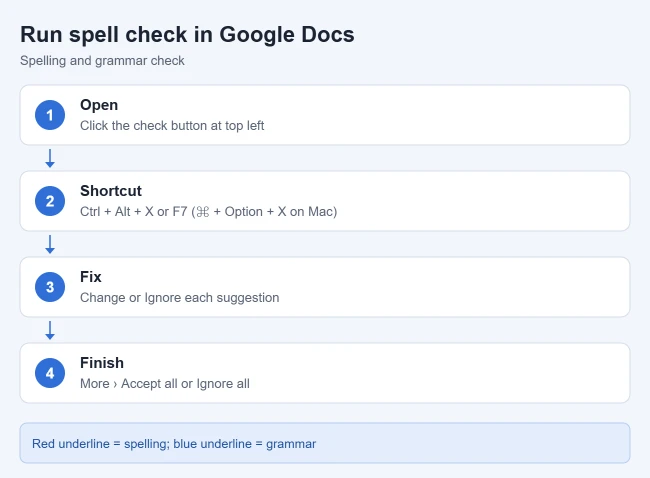
To run spell check in Google Docs on a computer, open the document and click the Spelling and grammar check button at the top left, or press Ctrl + Alt + X (Command + Option + X on a Mac). A box opens in the top right corner. Click Change to use a suggestion or Ignore to skip it.
This guide follows Google’s Check your spelling & grammar in Google Docs help page and its Google Docs keyboard shortcuts list, both checked in October 2026. It covers Google Docs in a web browser on a computer first, then the Android app, and explains what Google says about iPhone and iPad.
Before you start
- You need edit access. Accepting a suggestion changes the text, so you need to be able to edit the document. If a file opens as view only, ask the owner for edit access or make your own copy with File > Make a copy.
- The language matters. Google says spelling and grammar suggestions are available in English, Spanish, French, German, Portuguese, and Italian.
- The full tool is on a computer. The Android app has a simpler Spellcheck option. For iPhone and iPad, Google’s help page says to use docs.google.com from a computer.
How to run spell check in Google Docs on a computer
A full check walks you through every suggestion in the document, one at a time, so nothing gets missed.
- Open the document in Google Docs.
- In the top left, click Spelling and grammar check. It is the toolbar button that shows a letter A with a checkmark. You can also press Ctrl + Alt + X or F7 on Windows, or Command + Option + X or Fn + F7 on a Mac.
- Look at the box that opens in the top right corner. It shows the first word or phrase Docs has a suggestion for.
- Click Change to use the suggestion, or Ignore to leave your text as it is. The box then moves to the next suggestion.
- To deal with everything at once, click More (the three dots) and choose Accept all or Ignore all.
Warning: Accept all applies every suggestion without showing them to you first. Names, product terms, and words from another language can be changed to something you did not mean. For anything important, go through the suggestions one by one.
Button names can vary a little between updates. If your box shows Accept where Google’s help page says Change, it does the same job.
How to fix words as you type
You do not have to run a full check every time. When spelling and grammar suggestions are turned on, Docs underlines misspelled words in red and grammar suggestions in blue while you write.
- Press Tab to accept the suggestion.
- Or right-click the red or blue underline. Click the corrected word to accept it, or click Ignore to keep your version.
- If a suggestion is wrong, right-click it and choose Feedback on suggestion to report it to Google.
- If Docs keeps fixing a word you misspell often, right-click the word and choose Always correct to followed by the right spelling. Docs then fixes it automatically from that point on.
Spell check keyboard shortcuts
These shortcuts come from Google’s own list. They let you jump between problem words without scrolling.
| Action | Windows | Mac |
|---|---|---|
| Open spelling and grammar check | Ctrl + Alt + X or F7 | Command + Option + X or Fn + F7 |
| Move to next misspelling | Ctrl + ‘ | Command + ‘ |
| Move to previous misspelling | Ctrl + ; | Command + ; |
| Open dictionary | Ctrl + Shift + Y | Command + Shift + Y |
Chromebook keyboards can differ. To see every shortcut for your own keyboard, press Ctrl + / (Command + / on a Mac) inside a document.
How to add or remove a personal dictionary word
The personal dictionary is your own list of words that Docs should treat as correct, such as names, brand terms, or job jargon.
To add a word that is already underlined:
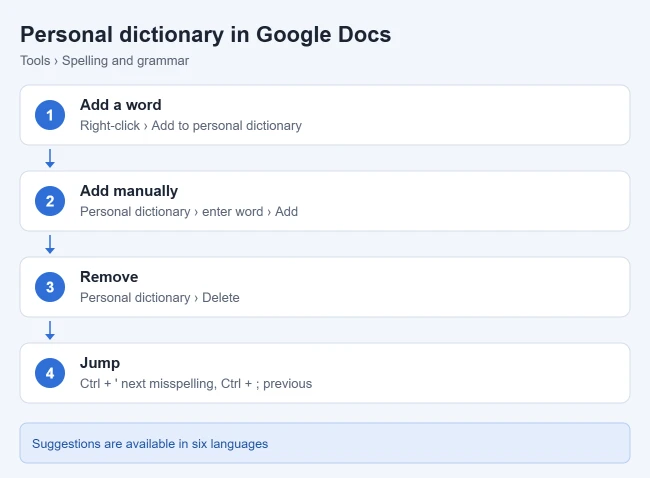
- Right-click the word that is underlined in red.
- Click Add to personal dictionary.
To add a word ahead of time:
- At the top, go to Tools > Spelling and grammar > Personal dictionary.
- Type the word.
- Click Add.
To undo this, open Tools > Spelling and grammar > Personal dictionary again, find the word, and click Delete to the right of it. Docs goes back to flagging it. Check the spelling carefully before you add anything, because a typo saved in the dictionary will stop being underlined.
How to spell check in the Google Docs app on Android
The Android app has its own tool, called Spellcheck. Google’s Android instructions describe spelling suggestions only, and do not mention the personal dictionary.
- Open the Google Docs app, then open a document.
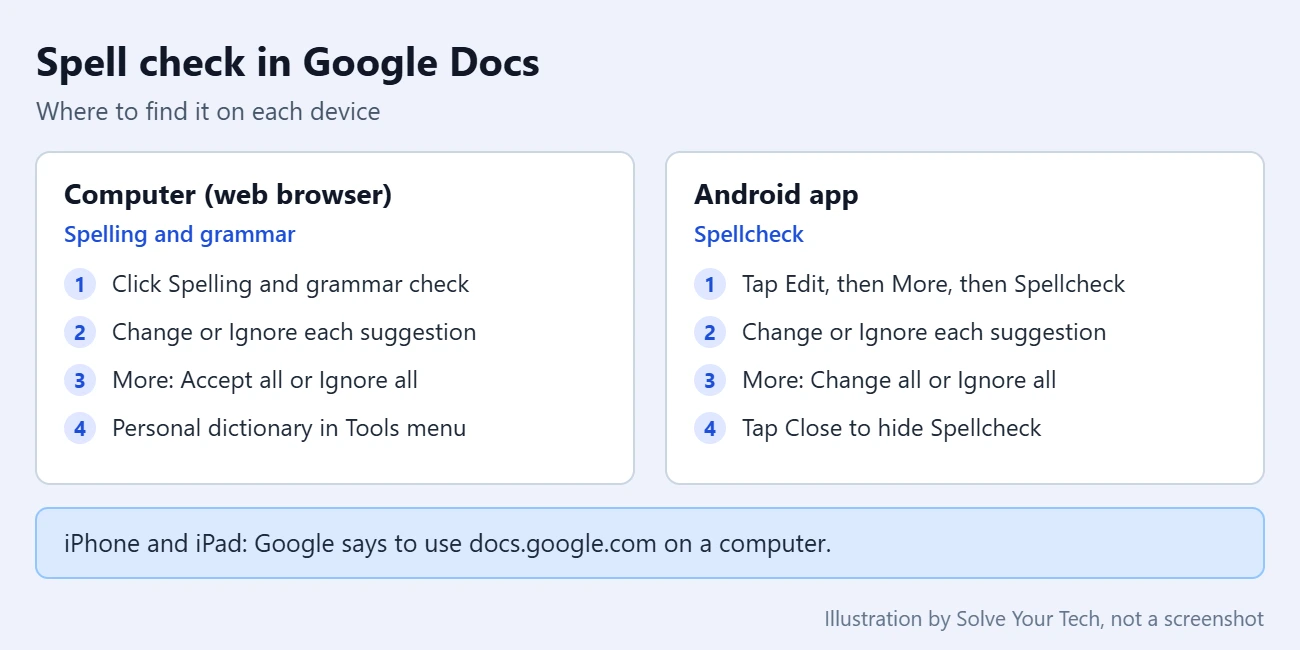
- Tap Edit (the pencil).
- In the top right, tap More (the three dots), then tap Spellcheck.
- Spelling suggestions appear at the bottom of the screen. Tap Change to use a suggested spelling, or Ignore to skip it.
- To apply a fix everywhere the word appears, tap More > Change all. To skip every instance of the word, tap More > Ignore all.
- Tap Close to hide Spellcheck when you are done.
Spell check on iPhone and iPad
Google’s help page for iPhone and iPad does not list a spell check tool in the app. It says: “To spellcheck a document, go to docs.google.com from a computer.” Your iPhone or iPad keyboard may still underline or correct words as you type, but that comes from the device’s own keyboard settings, not from Google Docs.
How to confirm the check is finished
On a computer, the box in the top right corner stops offering new suggestions once Docs has gone through the document. Close the box, then scan the page for any remaining red or blue underlines. If you changed something by mistake, press Ctrl + Z (Command + Z on a Mac) to undo it. Spell check edits are also saved in the version history like any other edit, so you can go back through File > Version history if you need an earlier copy.
Spell check will not catch everything. A word that is spelled correctly but used in the wrong place, such as “form” instead of “from”, may not be flagged, so read important documents through once yourself.
Troubleshooting
- No red or blue underlines appear: suggestions may be turned off. Open Tools > Spelling and grammar and look for the options that show spelling suggestions and grammar suggestions. These are commonly labeled Show spelling suggestions and Show grammar suggestions, although Google’s current help page does not print the exact labels. Running the full check from the toolbar button still works either way.
- Correct words are flagged, or suggestions are in the wrong language: set the document language. Go to File > Language and pick the language you are writing in. Suggestions are only offered in the six languages listed above.
- A name or technical term keeps getting flagged: add it to your personal dictionary.
- Docs changes words on its own: that is Autocorrect, a separate feature. Go to Tools > Preferences > Substitutions and uncheck Spelling corrections, then click OK. See how to turn off AutoCorrect in Google Docs for the other options in that window.
- The Tools menu looks different or items are missing: you may be editing a Microsoft Word file, which shows a .DOCX badge next to the file name. Some Docs features need the file in Google Docs format. Use File > Save as Google Docs and try again in the new copy.
- The shortcut does nothing: click inside the document text first, then press it again. On a Mac, F7 may need the Fn key held down.
Frequently asked questions
Is there a spell check shortcut in Google Docs?
Yes. Google lists Ctrl + Alt + X or F7 on Windows, and Command + Option + X or Fn + F7 on a Mac. Either one opens the spelling and grammar box in the top right corner.
Does Google Docs check grammar too?
Yes, on a computer. The same Spelling and grammar check tool covers both. Misspelled words are underlined in red and grammar suggestions are underlined in blue. Google notes that suggestions are based on your text and do not represent Google’s views.
Does spell check work in Google Docs on my phone?
On Android, yes: open a document, tap Edit, then More > Spellcheck. For iPhone and iPad, Google says to spellcheck the document at docs.google.com from a computer.
Which languages does Google Docs spell check support?
Google’s help page says spelling and grammar suggestions are available in English, Spanish, French, German, Portuguese, and Italian. Set the document language under File > Language so Docs knows which one to use.
How do I stop Google Docs from flagging a name?
Right-click the name while it is underlined in red and click Add to personal dictionary. To remove it later, go to Tools > Spelling and grammar > Personal dictionary and click Delete next to the word.
Can I undo Accept all?
You can press Ctrl + Z (Command + Z on a Mac) right away to undo recent changes. If you notice a problem later, File > Version history lets you look at earlier versions of the document.
Next step
Once the spelling is clean, you may want to control what Docs changes automatically. See How to Turn Off AutoCorrect in Google Docs (Capitals, Links, Smart Quotes). Using Microsoft Word instead? See how to turn on spell check in Word.

Matthew Burleigh is the founder, head writer, and editor of Solve Your Tech, which he launched in 2012. He has written technology tutorials since 2008 and worked in IT since 2003, including small-business support, IT management, and consulting. He holds Bachelor’s and Master’s degrees in Computer Science from Arizona State University.
Matthew writes practical guides for Windows, iPhone and iPad, Microsoft Office, Outlook, Google apps, and Android. Solve Your Tech’s guides are tested on current devices or checked against official product documentation, with clear steps, sources, and update dates.
Read more about Matthew and how Solve Your Tech writes and updates its guides, or report a correction.