If you need to print something urgently and there is no printer nearby, save it as a PDF first. A PDF is a file that keeps the page looking the way it would on paper, so you can print it later from any computer, phone, library, or print shop. On Windows 10 or Windows 11, press Ctrl + P, choose Microsoft Print to PDF as the printer, select Print, then name the file and select Save.
That takes care of the urgent part, which is capturing the page before it disappears. After that, getting it onto paper is just a matter of carrying or emailing the file to a place that has a printer. This guide covers both halves: how to make the PDF on Windows, Mac, iPhone, and Android, and where you can get it printed the same day.
Do This First: Do Not Close the Page
Warning: if the thing you need to print is already on your screen, leave that window open until the PDF is saved and you have checked it. Order confirmations, boarding passes, payment receipts, and form results are often created from information you just entered. If you close the tab, go back, or refresh, the site may not show that page again.
For the same reason, do not sign out of the website and do not restart the computer until the file is safely saved. If you cannot save a PDF for some reason, a screenshot of each part of the page is a rough backup that is better than nothing.
It is also worth asking whether you need paper at all. Many places that used to require a printout now accept a document shown on a phone or sent by email. If the person asking for it will take a PDF, you can stop after the next section.
What You Need
- A Windows 10 or Windows 11 PC, a Mac, an iPhone, or an Android phone. Each one can make a PDF without extra software.
- The document, email, or web page open in an app that has a Print command.
- A way to move the file: an email account, cloud storage, or a USB flash drive.
- For a paper copy, access to any printer later on. It does not have to be yours.
You do not need to download a separate PDF program. Older versions of this advice relied on add-on tools that installed themselves as a printer. Windows 10 and Windows 11 now include one called Microsoft Print to PDF, and Macs and phones have their own built-in options.
How to Print to PDF on Windows 10 or Windows 11
Microsoft Print to PDF is what is sometimes called a virtual printer. It appears in the list of printers, but instead of sending the page to a machine it writes the page to a PDF file. Microsoft describes it as a utility included in Windows 10 and Windows 11, and it works from nearly any program that can print.
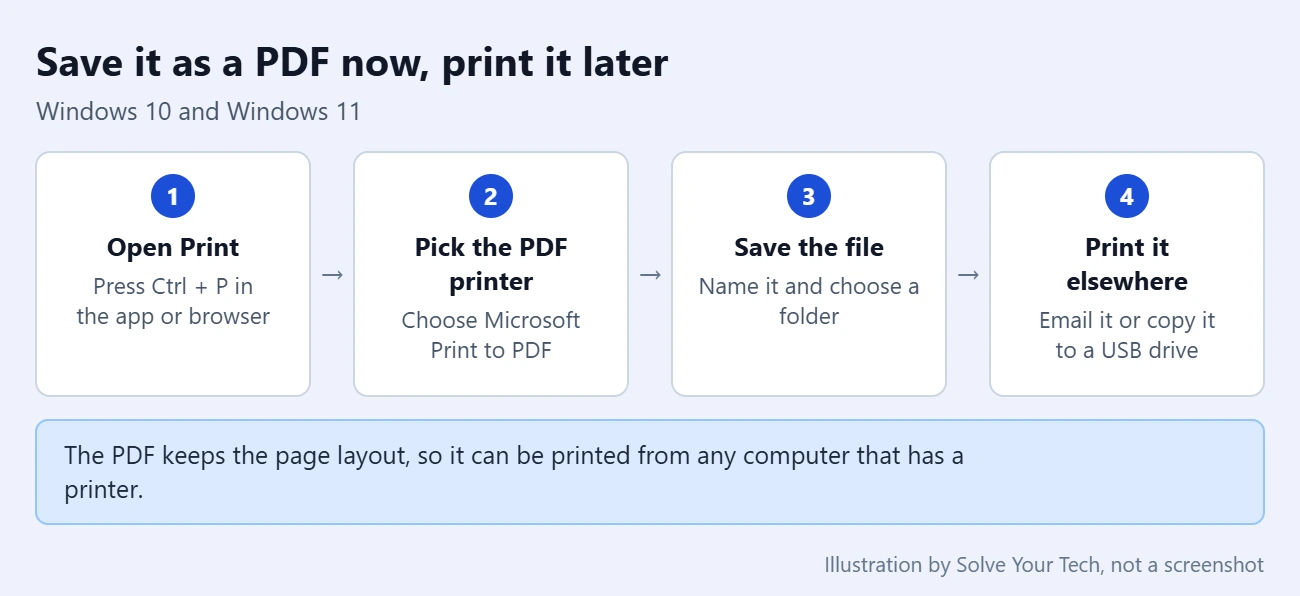
- Open the document, email, or web page you need to print.
- Press Ctrl + P on your keyboard. In most apps you can also choose File and then Print. A Print window or panel opens.
- Find the Printer drop-down menu. In some apps it is labeled Destination or Name.
- Select Microsoft Print to PDF from the list.
- Check the page range, orientation, and other settings the same way you would for a real printer. If the preview shows the page cut off, try switching between portrait and landscape.
- Select Print. Nothing prints. Instead a window titled Save Print Output As opens.
- Choose a folder you can find again, such as Desktop or Documents, type a name in the File name box, then select Save.
Microsoft shows these same steps in its instructions for saving an Outlook message as a PDF, where the printer choice and the save window have the same names. If you are still working out the basics of the Print window, our guide on how to print on Windows 11 explains each setting.
Web pages in Chrome or Edge
Browsers have their own print screen, and it works a little differently. In Google Chrome, press Ctrl + P, then choose Save as PDF as the destination and select Save. Google lists this option in its help page on printing from Chrome.
In Microsoft Edge, press Ctrl + P, or open the menu with the three dots in the top-right corner and select Print. Pick Microsoft Print to PDF from the printer list. Edge may also show its own Save as PDF choice, and either one produces a PDF. Microsoft covers the rest of that screen, including Pages, Layout, and More settings, in its article on printing in Microsoft Edge.
Under More settings in Edge you can turn on Background graphics if colors or shaded boxes are missing from the preview, and turn off Headers and footers if you do not want the date and web address printed on each page.
Word, Excel, and other Office files
Office apps can also save a PDF directly, without the Print window. In Word, select File, then Save a Copy (or Save As if the file has never been saved). Select Browse, pick a folder, choose PDF in the file type drop-down list, and select Save. Microsoft documents this for current versions in Save or convert to PDF or XPS in Office Desktop apps.
How to Save a PDF on a Mac
On a Mac the PDF option is part of the standard Print window, so it is available in almost every app.
- Open the document or web page.
- Choose File, then Print, or press Command + P.
- Click the PDF button, or click the arrow next to it to open the PDF pop-up menu.
- Choose Save as PDF.
- Enter a name, choose where to keep the file, and save it.
If the document is private, the same window has a Security Options button that lets you add a password before saving. Apple describes the full process in Save a document as a PDF on Mac.
How to Save a PDF on an iPhone
In Safari, Apple routes this through the Markup tool, which turns the web page into a PDF you can store in the Files app.
- Open the web page in Safari.
- Tap the page menu button, then tap Share. Depending on your Safari tab layout, you may be able to tap the Share button directly.
- Tap Markup. You can draw or highlight here, but you do not have to.
- Tap the Done button, then choose Save File To.
- Enter a name for the file and tap Save.
Those labels come from Apple’s current instructions for saving a webpage as a PDF in Safari. Menus have moved between iOS versions, so if yours looks different, look for Markup in the share sheet. For photos, notes, and other apps, see our guides on how to make a PDF on iPhone and how to save a picture as a PDF on an iPhone.
How to Save a PDF on an Android Phone
In Chrome on Android, the PDF option sits in the printer list.
- Open the page in the Chrome app.
- At the top right, tap More (the three dots), then tap Share.
- Select Print.
- At the top, open the printer list and tap Save as PDF.
- Tap the button to save, then choose where to keep the file on your phone.
Other Android apps that have a Print command generally offer the same Save as PDF choice, though the path to Print varies by app and phone maker.
How to Check the PDF Before You Rely on It
Do this while the original page is still open.
- Open the folder where you saved the file and double-click the PDF. On a phone, open it from the Files app.
- Scroll through every page. Make sure nothing is cut off at the right edge and that totals, barcodes, QR codes, and confirmation numbers are visible and sharp.
- Compare the number of pages with what the print preview showed.
- If something is wrong, go back to the original page and save it again with different settings. If it looks right, you can close the original.
To undo any of this, simply delete the PDF. Making it changes nothing in the original document or web page, and nothing is sent to a printer.
Where to Get the PDF Printed Today
Once you have the file, any printer will do. These are the usual options, roughly in order of how quickly they tend to work. Hours, prices, and accepted file types differ from place to place, so check before you travel.
| Option | How you hand over the file | Good to know |
|---|---|---|
| Friend, neighbor, or coworker | Email or message the PDF | Often the fastest choice for one or two pages |
| Your workplace or school | Email it to yourself or use a USB drive | Check the rules on personal printing first |
| Public library | Sign in to email on a library computer, or use a USB drive | Usually a small fee per page; a library card may be required |
| Office supply or shipping store | Self-service machine, the store’s website, or the counter | Longer hours and more paper choices; costs more per page |
| Hotel front desk or business center | Email the PDF to the desk or use the guest computer | Handy when traveling; ask at reception |
If a nearby printer supports AirPrint, which is Apple’s wireless printing feature, and your iPhone is on the same Wi-Fi network as that printer, you can skip the computer. Open the PDF, tap the Share button, tap Print, tap No Printer Selected, choose the printer, then tap Print. Apple lists the requirements in Use AirPrint to print from your iPhone or iPad, and our guide on how to print from an iPhone with AirPrint walks through it. If you change your mind, open the App Switcher, tap Print Center, select the job, and tap Cancel Printing.
Protect private documents on shared computers
Warning: a public computer is used by strangers after you. Before you print tax forms, medical paperwork, bank statements, or anything with an ID number on it, think about whether a friend’s printer is a safer choice. If you do use a shared computer, a USB drive avoids signing in to your email at all.
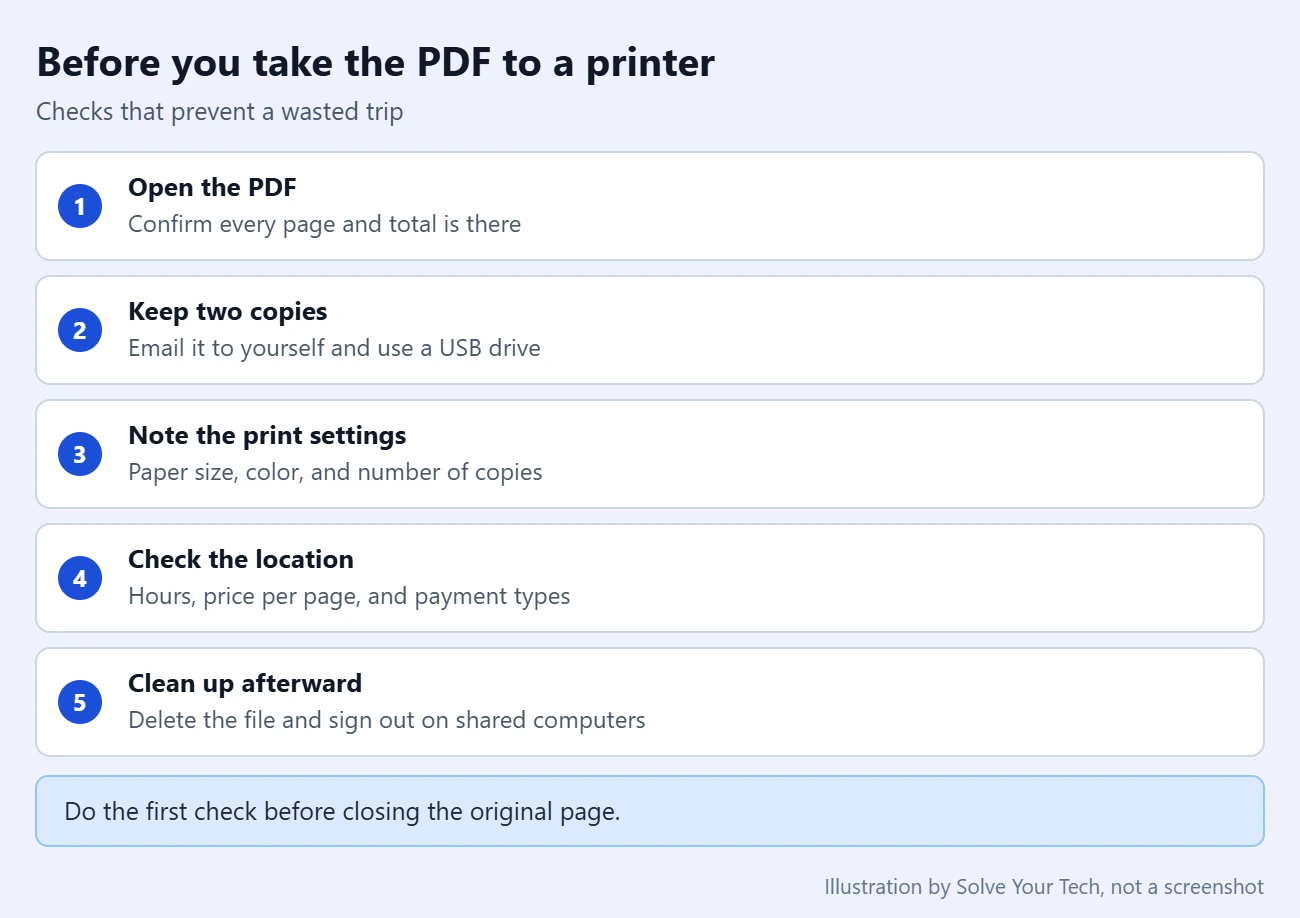
- Sign out of your email or cloud account when you finish, and close the browser.
- Delete the PDF from the Downloads folder and the desktop, then empty the Recycle Bin or Trash if you are allowed to.
- Collect every page from the printer tray, including any misprints.
- Take your USB drive with you.
Troubleshooting
Microsoft Print to PDF is not in the printer list
Scroll the whole list first. If it is not there, it may have been turned off or removed on that PC, which sometimes happens on work and school computers. You do not need it to finish the job: use Save as PDF in Chrome, or File and then Save a Copy in Word with the type set to PDF.
No save window appears after you select Print
The Save Print Output As window sometimes opens behind the app you are using. Check the taskbar for a second window, or minimize the app. If nothing is there, cancel and try again with the browser’s own Save as PDF choice.
The PDF is blank, cut off, or missing colors
Some web pages are not designed for printing. Try landscape orientation, a smaller scale, or the Background graphics setting. In Edge, pressing F9 opens Immersive Reader on pages that support it, which strips away menus and ads before you print. If the site offers its own Print or Download button for the receipt or ticket, use that version instead.
The print preview fails in Edge
Microsoft’s advice is to select Cancel and press Ctrl + P again, or close and reopen Edge and retry. Remember the warning above, though: if the page cannot be reloaded, try Print using system dialog in the print screen or take screenshots before closing anything.
Your phone cannot find the printer
AirPrint only works when the iPhone and the printer are on the same Wi-Fi network, and the printer has to support AirPrint. A guest Wi-Fi network at a library or hotel is often kept separate from the printers. In that case, email the PDF and print it from a computer on site.
Frequently Asked Questions
Can I print without a printer?
You cannot produce paper without some printer, but you can do the printing step without one. Printing to PDF saves an exact copy of the page as a file. You then send or carry that file to any printer, such as one at a library, an office supply store, your workplace, or a friend’s house.
Is Microsoft Print to PDF free?
Yes. Microsoft states that it is included in Windows 10 and Windows 11, so there is nothing to buy or download. Chrome’s Save as PDF destination and the Mac Save as PDF option are also built in.
Will the PDF look the same when it is printed?
It should match what you saw in the print preview, because a PDF stores the layout along with the text and images. It may not match the live web page exactly, since many sites use a simpler layout for printing. That is why opening the PDF and checking it before you close the page matters.
Do I still need a program like PrimoPDF?
Not for basic printing to a file. Add-on PDF printers were the usual answer before Windows had one built in. On Windows 10 and Windows 11, Microsoft Print to PDF does the same job from the regular Print window.
Next Step
Save the PDF now, open it to confirm it is complete, and email a copy to yourself so you can reach it from anywhere. If printing becomes a regular need, our guide on how to add a printer in Windows 11 or 10 covers setting one up on your own PC.

Matthew Burleigh is the founder, head writer, and editor of Solve Your Tech, which he launched in 2012. He has written technology tutorials since 2008 and worked in IT since 2003, including small-business support, IT management, and consulting. He holds Bachelor’s and Master’s degrees in Computer Science from Arizona State University.
Matthew writes practical guides for Windows, iPhone and iPad, Microsoft Office, Outlook, Google apps, and Android. Solve Your Tech’s guides are tested on current devices or checked against official product documentation, with clear steps, sources, and update dates.
Read more about Matthew and how Solve Your Tech writes and updates its guides, or report a correction.