To stop a link preview from going out with a Yahoo Mail message, delete the preview card from your draft before you send, or switch the message to plain text from the More options icon at the bottom of the compose window. Either way the web address stays in your email as a normal link, and only the card with the picture, title, and description disappears.
These steps are for New Yahoo Mail in a desktop web browser. Yahoo’s current help pages don’t describe an account-wide switch for link previews, so the reliable fix is per message. Older Yahoo Mail layouts had a checkbox for this under Writing email in Settings, and a later section shows where to look in case your account still has it.
What a Link Preview Is
When you type or paste a web address into a message, Yahoo Mail fetches that page and builds a small card under the link with a thumbnail image, the page title, and a short description. Yahoo explains this on its Yahoo Link Preview help page: the preview tool only fetches pages that Yahoo Mail users link to, and it isn’t a search crawler.
The card helps the reader see where a link goes, but it also takes up a lot of space, can push your signature down, and sometimes pulls in an image you don’t want to show. Removing it doesn’t change the link itself.
If you came here because your inbox shows a line of text from each email, or because an open email appears next to your message list, those are different features. The section on similar settings below covers them.
Method 1: Remove the Preview Card From Your Draft
This keeps your formatting and only takes out the card.
- Go to mail.yahoo.com in Chrome, Edge, Firefox, or Safari and sign in.
- Click Compose and type or paste the web address into the body of the message. After a second or two, the preview card appears below the address.
- Move your mouse pointer over the card. A small X (close) control appears in its corner.
- Click the X. The card disappears and the address stays in the message as a clickable link.
- Finish the message and click Send.
Repeat this for each link if your message has more than one. If you paste the same address again later in the draft, a new card can appear, so check the message once more before you send it.
Method 2: Send the Message as Plain Text
A plain text email contains only characters, with no images or formatting, so Yahoo has nowhere to put a preview card. Yahoo’s Write, format, and send emails in New Yahoo Mail page covers this switch.
- Click Compose to open a new message.
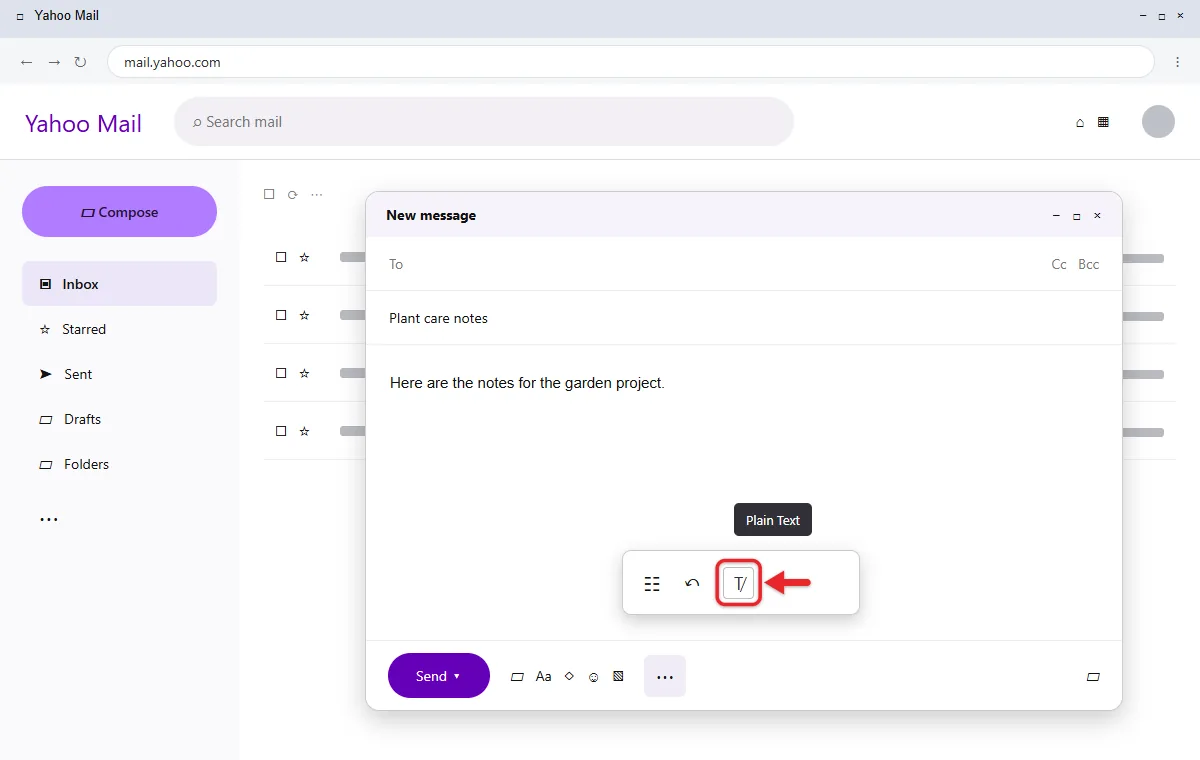
- Click the More options icon (three dots) in the toolbar at the bottom of the compose window.
- Click the Plain Text icon.
- Click OK on the pop-up that warns you about losing formatting.
- Add your links and text, then click Send. Links appear as plain web addresses with no card.
Switching to plain text removes formatting that’s already in the message, including bold text, colors, and inline images. To go back to formatted text, open the same More options menu and click the Rich Text icon. Plain text is a good choice for messages with several links, since you don’t have to close each card.
Which method should you use?
| Situation | Better choice |
|---|---|
| One or two links in a formatted message | Method 1, close the card |
| Many links, or a message you’ll paste into often | Method 2, plain text |
| Signature with a logo or colors you want to keep | Method 1, close the card |
| You want every message without cards | Check Settings below, then use Method 2 |
Check Settings for a Link Preview Option
Older versions of Yahoo Mail had a Writing email checkbox labeled Automatically generate a preview of links that controlled previews for every new message. If your account still shows something like it, you can turn previews off once instead of removing cards each time.
- In your inbox, click the More options icon in the left pane, then click Settings. Yahoo’s Find settings in New Yahoo Mail page shows the same route.
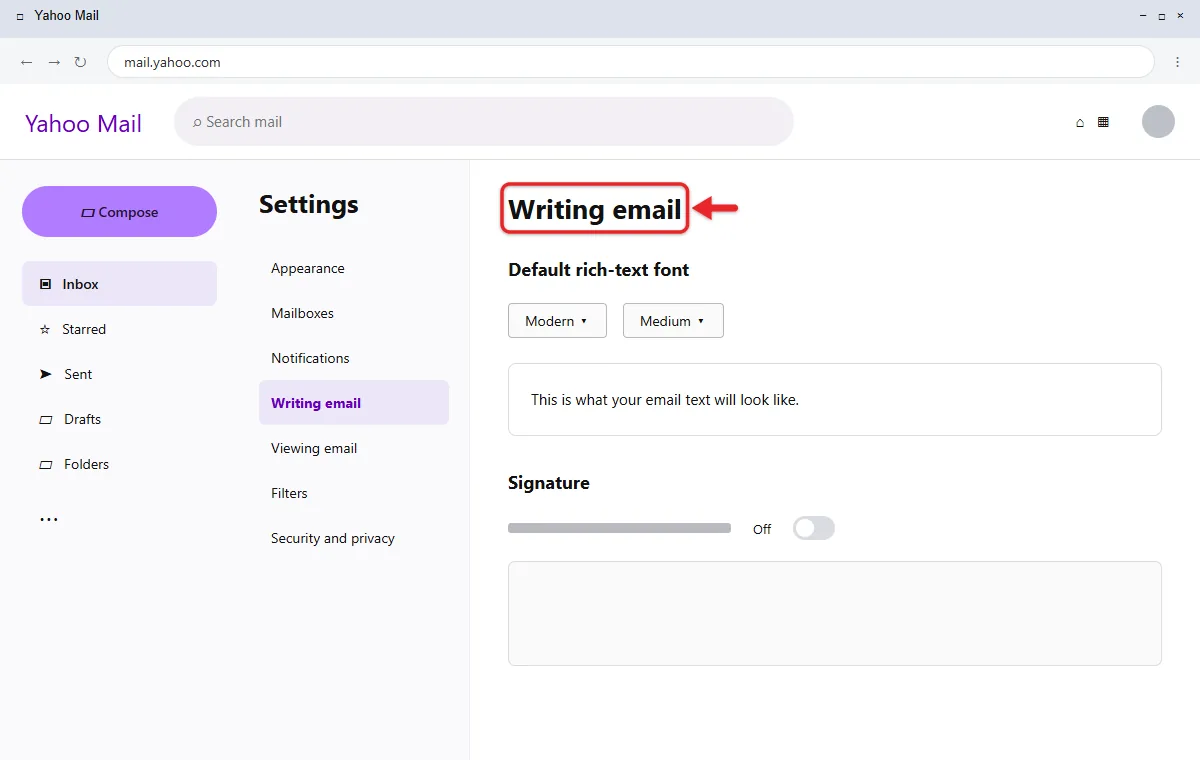
- Click Writing email. This is the same section that holds the Default rich-text font option.
- Scroll through the whole section and look for an option about link previews.
- If it’s there, clear the checkbox or switch it off. Changes in this part of New Yahoo Mail save automatically.
If Writing email only shows font, signature, and similar options, your account doesn’t have a global switch. Use Method 1 or Method 2 instead.
If you would rather use a plainer Yahoo Mail page with fewer extras, you can also switch between the full-featured and Basic versions of Yahoo Mail.
Similar Yahoo Mail Settings That Aren’t Link Previews
Several Yahoo Mail features have “preview” in their name or look like one. All of these are in More options > Settings in New Yahoo Mail on the web.
- Preview pane: shows an open email beside or below your message list. Click Appearances and look under Message layout, where Right and Bottom turn the preview pane on. Yahoo covers this in Change the message layout in New Yahoo Mail.
- Dynamic emails: interactive messages that let you shop, track, or take other actions inside the email. Click Viewing email, turn off Dynamic message, and click Save, as described in Use or opt-out of Dynamic emails in New Yahoo Mail.
- Images in messages you receive: click Viewing email, scroll to Show images in messages, and choose Ask before showing external images. Yahoo’s Block images in New Yahoo Mail page says this change saves automatically.
- AI message summaries: short summaries that appear on some emails. Click AI features and use the Message summaries toggle, per Turn AI-powered message summaries on or off.
How to Check That It Worked
- Click Compose and address the message to yourself.
- Add a link, then remove the card or switch to plain text.
- Send the message and open it from your inbox.
If the message shows the web address with no thumbnail, title, or description under it, the preview was left out.
When the Preview Card Comes Back
The card comes back after I close it. Pasting or editing the address again can make Yahoo build a new card. Finish editing the link first, then close the card as the last step before sending.
I can’t find the More options icon. In the compose window it’s the three-dot icon in the bottom toolbar, next to the formatting and attachment icons. In the inbox, the More options icon for Settings is in the left pane. If the pane is collapsed, make the browser window wider.
There’s no X on the card. Yahoo’s layout can change, and its help pages don’t document the close control. If you can’t find it, switch the draft to plain text with Method 2.
A message I received has a preview card. The sender’s email service added that card when the message was written. Nothing in your Yahoo settings removes the card from email you receive, though the image setting above controls whether outside images load.
I’m using the Yahoo Mail app. Yahoo doesn’t document a link preview option for the iPhone or Android app. For a message where the card matters, write it in a desktop browser and use one of the methods above.
Yahoo Link Preview Questions
Does removing the preview remove the link?
No. The web address stays in the message and the recipient can still click it. Only the card with the image, title, and description is removed.
Can I remove a preview from an email I already sent?
No. Once a message is sent it’s in the recipient’s mailbox, and nothing you change in your account alters it. The methods above apply to messages you haven’t sent yet.
Is a link preview the same as the preview pane?
No. The preview pane is a layout choice that shows an open email next to or below your inbox list, and it’s set under Appearances in Settings. Link previews are the cards attached to web addresses inside messages you write.
Will plain text affect my email signature?
Yes, if your signature uses formatting or images. In a plain text message the signature appears as plain characters only, without logos or colors.
Why does “Yahoo Link Preview” show up in my website’s logs?
That’s the tool Yahoo uses to build preview cards. It visits a page only when a Yahoo Mail user links to it, and it identifies itself with a user agent that includes “Yahoo Link Preview.” It isn’t a search engine crawler.
Other Yahoo Mail settings let you add another email account or set an out of office reply.

Matthew Burleigh is the founder, head writer, and editor of Solve Your Tech, which he launched in 2012. He has written technology tutorials since 2008 and worked in IT since 2003, including small-business support, IT management, and consulting. He holds Bachelor’s and Master’s degrees in Computer Science from Arizona State University.
Matthew writes practical guides for Windows, iPhone and iPad, Microsoft Office, Outlook, Google apps, and Android. Solve Your Tech’s guides are checked step by step against the device or app maker’s own documentation and tested on his own devices whenever he has the hardware or software, with clear steps, sources, and update dates.
Read more about Matthew and how Solve Your Tech writes and updates its guides, or report a correction.