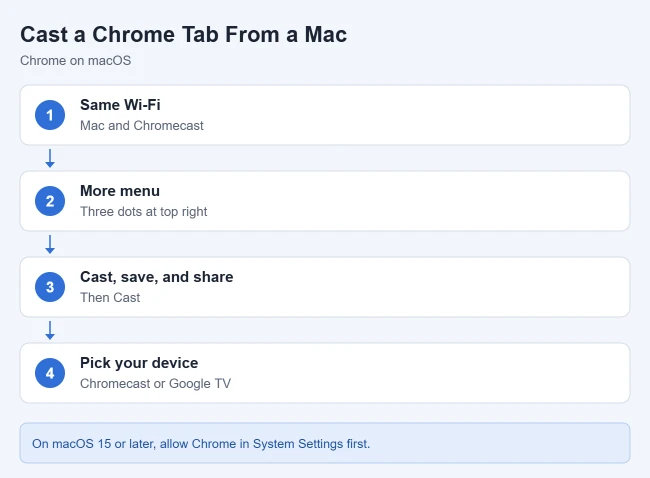
To send a Chrome tab to a Chromecast from a Mac, open Chrome, click the three-dot More menu, choose Cast, save, and share > Cast, and pick your Chromecast or Google TV device. Your Mac and the Chromecast must be on the same Wi-Fi network, and on macOS 15 Sequoia or later Chrome needs Local Network access in System Settings.
These steps cover the current version of Google Chrome on Macs running macOS 13 Ventura or later (the oldest macOS that Google lists for Chrome), including the latest macOS releases. They follow Google’s Cast from Chrome to your TV help page and work with Chromecast, Chromecast with Google TV, Google TV Streamer (4K), Chromecast Ultra, and TVs with Google Cast built in.
What You Need
- A Chromecast or other Google Cast device that’s already set up. Setup on a computer isn’t supported, so a new Chromecast has to be set up in the Google Home app on a phone or tablet first.
- A strong Wi-Fi connection for the Chromecast, per Google.
- A Mac on the same Wi-Fi network. A guest network counts as a different network, even in the same house.
- An updated version of Google Chrome. Check under the More menu > Help > About Google Chrome. That page checks for updates and shows a Relaunch button when one is ready.
- No VPN or proxy running. Google’s streaming devices can’t communicate with a computer over those connections.
You don’t need a Chrome extension. Casting is built into Chrome. Safari can’t cast to a Chromecast, so use Chrome for these steps even if Safari is your usual browser.
Tab, Screen, File, or Cast Button: Which to Use
Chrome gives you four ways to get something from your Mac onto the TV. Pick the one that fits what you want to show:
| What you want to show | Best method | Where the sound plays |
|---|---|---|
| A web page, slideshow, or dashboard | Cast a tab | TV only |
| A video on a site with a Cast button, such as YouTube | The site’s own Cast button | TV |
| Your whole desktop or an app other than Chrome | Cast screen | May stay on the Mac |
| A video or music file saved on your Mac | Cast a file opened in a Chrome tab | TV only |
Casting a tab is the method this guide is named for, and it’s the most reliable way to get both picture and sound on the TV from a web page.
How to Cast a Chrome Tab From a Mac
- Connect your Mac to the same Wi-Fi network as your Chromecast. Check the Wi-Fi icon in the menu bar to see which network you’re on.
- Turn on your TV and switch to the HDMI input your Chromecast is plugged into. You should see the Chromecast or Google TV home screen.
- Open Chrome and go to the tab you want to show.
- Click the three-dot More menu at the top right. The Chrome menu opens.
- Click Cast, save, and share > Cast. A small Cast window opens and lists the devices Chrome can find.
- Choose your device from the list.
The tab appears on your TV within a few seconds. A Display icon shows on the cast tab, and a Cast icon appears to the right of the address bar while you’re casting. If the device is already in use, its current content is replaced. Sound from the cast tab plays only on your TV, while other tabs and apps still play sound on your Mac.
What Happens While You’re Casting
Only the tab you cast goes to the TV. You can open other tabs and windows on your Mac and keep working, and the TV keeps showing the cast tab. If you browse to a new page inside the cast tab, the TV follows.
A few things to keep in mind:
- Your Mac does the work. The tab is sent from your Mac, so the Mac needs to stay awake and connected. If it goes to sleep or leaves the Wi-Fi network, casting stops.
- Video looks better through a Cast button. When a site has its own Cast button, the TV streams the video directly instead of copying your tab, which usually means smoother playback.
- Switching TVs is quick. Open the Cast window again and choose another device. The new device takes over.
How to Stop Casting
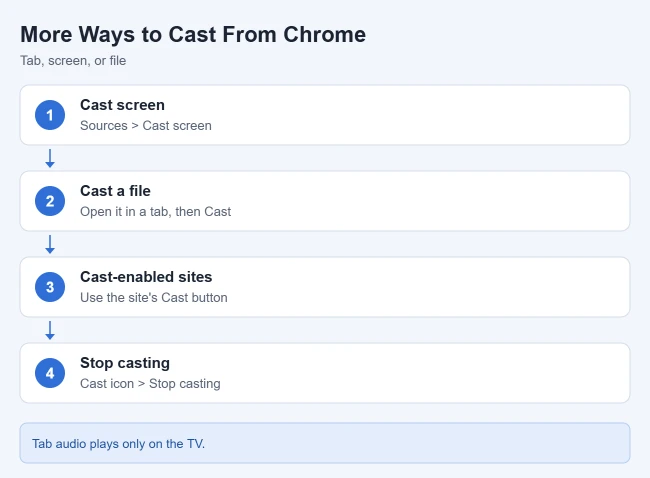
Click the Cast icon to the right of the address bar and click Stop casting. The tab stops showing on the TV, and the Cast icon disappears from the toolbar unless you’ve pinned it.
Keep the Cast Button in the Toolbar
The Cast icon only shows while you’re casting unless you pin it. According to Google’s help page on adding the Cast button to the Chrome toolbar:
- Start casting once from the More menu so the Cast icon appears.
- Right-click (or Control-click) the Cast icon.
- Choose Always show icon.
Next time, click the Cast icon in the toolbar to open the device list without going through the menu.
How to Cast Your Whole Screen
Use this when you want to show something outside Chrome, such as a Keynote presentation, a photo slideshow, or a spreadsheet.
- Click the three-dot More menu, then Cast, save, and share > Cast.
- Click Sources > Cast screen.
- Choose your device.
Your whole Mac screen shows on the TV. Audio might keep playing on your computer when you cast the screen, so cast a tab instead if you want sound on the TV.
The first time you cast your screen, macOS may ask you to let Chrome record your screen. If the TV stays blank or Chrome shows a permission message, turn the permission on, following Apple’s guide to controlling screen recording access on Mac:
- Click the Apple menu and choose System Settings.
- Click Privacy & Security in the sidebar.
- Click Screen & System Audio Recording.
- Turn on the switch next to Google Chrome.
- Quit Chrome with Command + Q, open it again, and start casting.
You can turn this permission off again in the same place when you no longer need it.
How to Cast a Video or Music File
- Open the file in a Chrome tab, either by dragging it into the Chrome window or pressing Command + O and choosing the file.
- Click the More menu, then Cast, save, and share > Cast.
- Choose your device.
This works with files Chrome can play on its own, such as common MP4 video and MP3 audio files. If a file won’t play in a Chrome tab, it won’t cast either. Google also says some plugins don’t work when you cast, including Silverlight, QuickTime, and VLC.
Use a Site’s Own Cast Button
Some sites support Google Cast directly from their media player. On YouTube, for example, click the Cast button in the video player and choose your TV. The video then plays on the TV but not on your Mac, so you can keep using the Mac for other things. Look for a small screen icon with curved lines in the corner of the player.
Casting vs. Mirroring
These two terms are often mixed up, and it helps to know which one you’re doing:
- Casting sends one tab, file, or video to the TV. The rest of your Mac stays private and free to use.
- Mirroring shows everything on your Mac’s screen, including notifications. Chrome’s Cast screen option is a form of mirroring.
If you’re presenting to a room, cast a tab when you can, so pop-up messages and other windows don’t appear on the TV.
If Chrome Can’t Find Your Chromecast
On macOS 15 Sequoia and later, Chrome can’t see devices on your network until you give it Local Network access. If no devices show up in the Cast list, turn it on, using Apple’s steps for controlling local network access on Mac:
- Click the Apple menu and choose System Settings.
- Click Privacy & Security in the sidebar.
- Click Local Network.
- Turn on the switch next to Google Chrome.
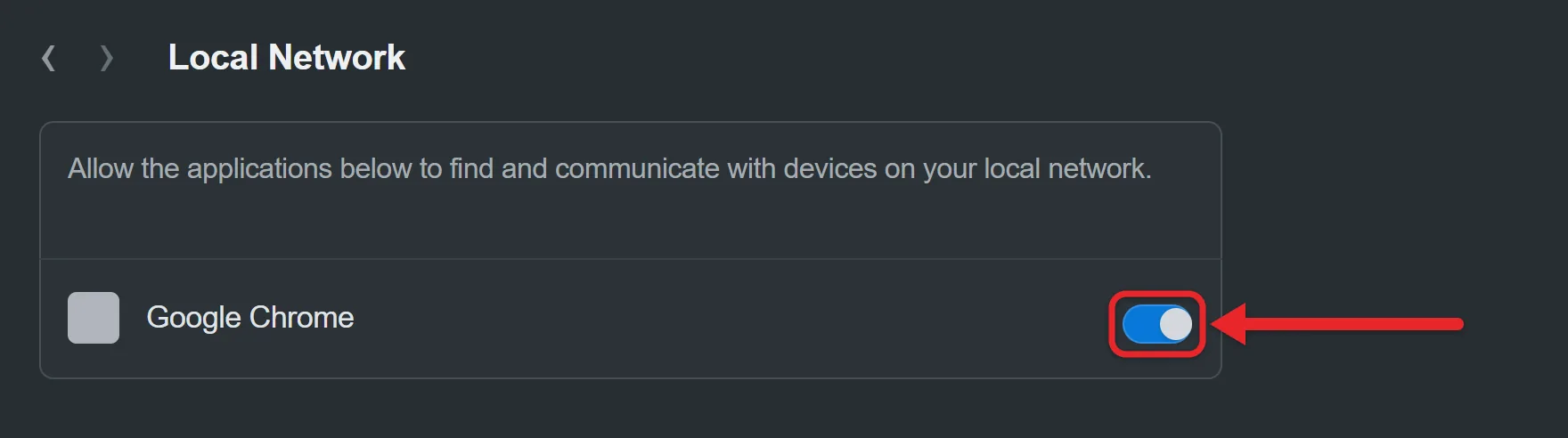
- Quit Chrome completely with Command + Q, open it again, and try casting.
If your Chromecast still doesn’t appear, Google’s No Cast destination found page suggests working through these checks in order:
- Restart the Chromecast. Unplug it from power, wait a few seconds, plug it back in, and give it a couple of minutes to start.
- Try casting from a phone. If YouTube on your phone can cast to the TV, the Chromecast is fine and the problem is on the Mac.
- Restart your Mac and make sure it’s on the same Wi-Fi network as the Chromecast.
- Update Chrome from More > Help > About Google Chrome.
- Disconnect from any VPN or proxy.
- Check the Mac firewall. Open System Settings > Network > Firewall, click Options, and make sure Block all incoming connections is off. Restart Chrome afterward.
- Check your router. AP isolation (sometimes called client isolation) must be turned off, and router firewall features shouldn’t block Cast devices.
- Check the Mac’s clock. Your computer’s time and time zone need to be correct. In System Settings > General > Date & Time, turn on automatic time setting.
A factory reset erases the Chromecast’s settings and can’t be undone, so save it for last. If you need one, follow Google’s factory reset steps for your Chromecast model, then set the device up again in the Google Home app.
If Casting Is Choppy or the Sound Is Wrong
- Video stutters or lags: Close tabs and apps you aren’t using, move closer to the router, or use the site’s own Cast button instead of casting the tab.
- Sound plays on the Mac instead of the TV: You’re probably casting your screen. Stop casting and cast the tab instead.
- The picture is cut off or small: Make the video full screen in the cast tab, or press Command + Control + F to put the Chrome window in full screen.
- Casting stops on its own: Check that your Mac isn’t going to sleep, and keep it plugged in for long videos.
Other Ways to Get Your Mac on a TV
Chrome is the only built-in way to reach a Chromecast from a Mac. If you have other hardware, these options may suit you better:
- AirPlay: If you have an Apple TV or an AirPlay-compatible smart TV, click Control Center in the menu bar, click Screen Mirroring, and select your TV, following Apple’s guide to streaming video and audio with AirPlay. AirPlay doesn’t work with a Chromecast.
- An HDMI cable: Connect your Mac’s HDMI port, or a USB-C to HDMI adapter, to the TV for the steadiest picture and no Wi-Fi lag.
- Third-party Mac apps: Some paid apps add Chromecast streaming to the Mac. They aren’t made by Google or Apple, so check reviews and trial versions before buying.
Frequently Asked Questions
Why don’t I see my Chromecast in Chrome?
Your Mac and the streaming device need a strong connection to the same Wi-Fi network, and Chrome needs to be up to date. On macOS 15 or later, also turn on Google Chrome in System Settings > Privacy & Security > Local Network, as shown above.
Can I cast from Safari?
No. Safari doesn’t support Google Cast. Open the page in Chrome and cast the tab, or use Chrome’s Cast screen option if you need to show a Safari window.
Do I need to install anything to cast from Chrome?
No. The Cast feature is built into Chrome, so you don’t need an extension or the Google Home app on your Mac. You only need Google Home on a phone or tablet to set up the Chromecast the first time.
Does this work with the Google TV Streamer?
Yes. The Google TV Streamer (4K) supports casting from Chrome, so the same steps apply.
Related Guides
- How to make Chrome full screen
- How to use tabs in Chrome on iPhone
- How to cast Vudu movies to a Chromecast from an iPhone
- How to connect or cast a Windows 11 laptop to a TV
- How to cast your iPhone to Chromecast
Shopping for a new casting device? Google no longer makes the Chromecast. See whether Chromecast is discontinued and what to buy instead.

Matthew Burleigh is the founder, head writer, and editor of Solve Your Tech, which he launched in 2012. He has written technology tutorials since 2008 and worked in IT since 2003, including small-business support, IT management, and consulting. He holds Bachelor’s and Master’s degrees in Computer Science from Arizona State University.
Matthew writes practical guides for Windows, iPhone and iPad, Microsoft Office, Outlook, Google apps, and Android. Solve Your Tech’s guides are checked step by step against the device or app maker’s own documentation and tested on his own devices whenever he has the hardware or software, with clear steps, sources, and update dates.
Read more about Matthew and how Solve Your Tech writes and updates its guides, or report a correction.