To listen to a Google Doc, use a supported screen reader with Docs screen reader support enabled. Chrome Reading mode also has a read-aloud player, but it may not extract every document. The Accessibility menu passes text to your screen reader; it does not speak by itself.
This guide covers Chrome Reading mode step by step (including voices, speed and highlighting), screen readers with Docs, read-aloud extensions, phones and tablets, and what to do when nothing is read. It applies to Google Docs in Chrome on Windows, Mac and Chromebook, plus the Docs app on iPhone, iPad and Android.
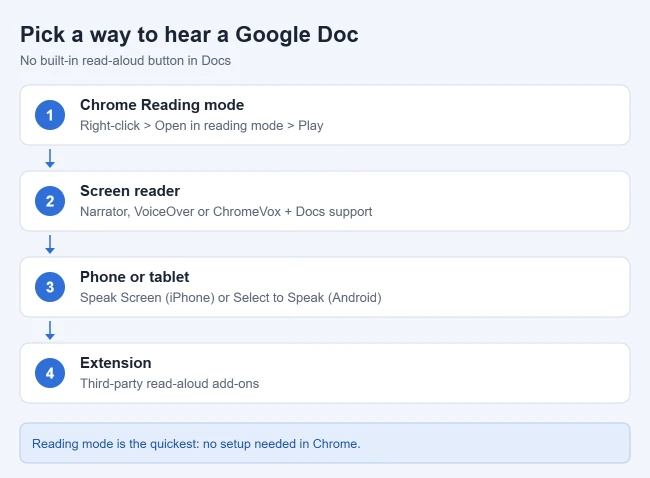
Option 1: Try Chrome Reading mode
Google’s Chrome Reading mode help page describes a built-in read-aloud player.
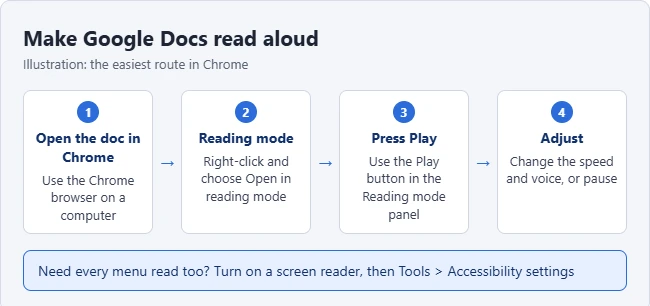
- Open your document in Google Chrome.
- Right-click the page and select Open in reading mode, or press Alt + Shift + R (⌘ + Option + R on a Mac). You can also open it from the address bar icon or More › More tools › Reading mode.
- Select Play at the top right.
If Chrome extracts the document text, selecting Play reads that text aloud. Use Previous and Next to jump by sentence, and Playback speed to speed it up or slow it down.
Change the voice and highlighting
- In Reading mode, select Settings at the top right.
- Select Voice selection to preview and choose a voice, or add another language.
- Select Voice highlight and choose Adaptive highlighting, Word, Sentence or Off.
Result: the text is highlighted as it’s read, which helps you follow along. Google says Reading mode downloads natural voices for your language automatically and falls back to your system voice if that fails.
If Reading mode shows nothing
Google notes that Reading mode doesn’t work on every site or format. If the panel is empty for your document, Google suggests highlighting the text on the original page first, which can trigger Reading mode to pick it up. Updating Chrome also helps. If it still doesn’t work, use option 2.
Read a Selected Passage With Google Docs Screen Reader Support
The Accessibility menu sends text to a running screen reader; enabling Docs support alone does not create a voice player. Start a supported screen reader and open the document. In Docs, choose Tools > Accessibility settings > Turn on screen reader support. Google’s screen-reader setup guide explains the required configuration.
Select a short passage, open Accessibility and look for Verbalize to screen reader > Verbalize selection. For Windows, Google’s shortcut reference lists holding Ctrl + Alt while pressing A, then X. These are sequential keys while holding the modifiers, not four keys pressed at once. Test the short selection first; the screen reader supplies the speech.
If nothing is spoken, check the reader is running, its output volume, Docs support and focus inside the document. Use Google’s Docs screen-reader navigation guide for reader-specific behavior. Chrome Reading mode is a separate alternative and may not extract editable document text. Do not publish a private document to the web just to make a read-aloud tool recognize it.
Option 2: A screen reader with Docs support
Google Docs works with the ChromeVox, NVDA, JAWS and VoiceOver screen readers, according to Google’s Use Google Docs Editors with a screen reader page. To go the other way and talk instead of type on a Windows PC, see how to use voice typing in Windows 11.
- Turn on a screen reader. Windows has Narrator built in (Windows + Ctrl + Enter). Macs have VoiceOver (⌘ + F5). Chromebooks have ChromeVox (Ctrl + Alt + Z).
- In Google Docs, select Tools › Accessibility settings.
- Check Turn on screen reader support.
- Move through the document with the arrow keys and the screen reader reads it.
Result: the screen reader speaks the text as you move through it. Screen readers read everything, including menus and buttons, which takes some getting used to. Turn yours off with the same shortcut when you’re done. If the voice keeps talking on a Windows PC, here are all the ways to turn off Narrator in Windows 11.
Option 3: A read-aloud extension
Some text-to-speech extensions support Google Docs; compatibility varies, so check the extension’s current documentation before relying on it. They are made by other companies, so check the reviews and the permissions they ask for before you install one, especially if your documents are private.
On a phone or tablet
- iPhone or iPad: turn on Speak Screen in Settings › Accessibility › Read & Speak (called Spoken Content on older versions), open the document in the Docs app, and swipe down with two fingers from the top of the screen. A small controller lets you pause and change the speed.
- Android: turn on Select to Speak in Settings › Accessibility, then tap its button and tap the text you want read.
Troubleshooting
- No sound: check your computer’s volume and output device, and that the tab isn’t muted.
- Reading mode panel is blank: highlight the text in the document, then open Reading mode again.
- Screen reader reads menus but not the document: make sure screen reader support is turned on under Tools › Accessibility settings.
- Wrong language or accent: choose another voice in Reading mode’s Voice selection.
Want to type by voice instead?
That’s a different feature. In Docs on a computer, use Tools › Voice typing.
Start or Stop Google Docs Voice Typing
Voice typing converts speech into document text; read-aloud tools do the opposite. In Docs on a supported computer browser, choose Tools > Voice typing to open the microphone panel. Click its microphone when you intend to start dictation. When it is actively listening, click the microphone again to stop, then check that new speech no longer inserts text and close the panel if desired. Google’s voice-typing guide documents this start/stop control. If it is already inactive, clicking it can start dictation instead; opening the Tools menu is not itself a universal Off command. Browser microphone permission is a separate setting, and stopping dictation does not silence a screen reader. Review any inserted text and wait for saved status before closing the document.
Frequently asked questions
Can Google Docs read aloud by itself?
Not with a built-in Docs button. Chrome’s Reading mode or a screen reader provides the voice.
Is Chrome Reading mode free?
Yes. It’s built into Chrome on computers.
Can I listen while I edit?
If Reading mode extracts the document text, you can keep it in the side panel (Settings › View › Side panel) and keep the document open beside it.
Will it read comments and suggestions?
Reading mode focuses on the document text. A screen reader can announce comments as you move through them.
For more Docs tips, see how to turn on dark mode in Google Docs or get a word count.

Matthew Burleigh is the founder, head writer, and editor of Solve Your Tech, which he launched in 2012. He has written technology tutorials since 2008 and worked in IT since 2003, including small-business support, IT management, and consulting. He holds Bachelor’s and Master’s degrees in Computer Science from Arizona State University.
Matthew writes practical guides for Windows, iPhone and iPad, Microsoft Office, Outlook, Google apps, and Android. Solve Your Tech’s guides are tested on current devices or checked against official product documentation, with clear steps, sources, and update dates.
Read more about Matthew and how Solve Your Tech writes and updates its guides, or report a correction.