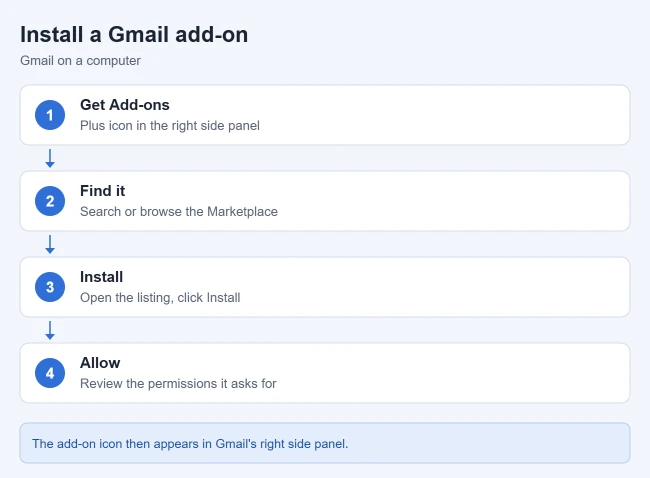
To install a Gmail add-on, open Gmail on a computer and click Get Add-ons (the plus icon) in the side panel on the right. Find the add-on in the Google Workspace Marketplace, click it, click Install, and approve the permissions it asks for. Its icon then appears in Gmail’s right side panel.
This guide covers installing an add-on, opening it on a computer and phone, checking permissions, and uninstalling it later. It follows Google’s Find and install an app in the Marketplace, Uninstall a Marketplace app or add-on, and Open and use installed add-ons pages.
How to Install a Gmail Add-On
- Open Gmail on your computer.
- In the side panel on the right, click Get Add-ons. You can also go straight to workspace.google.com/marketplace.
- Search, or use the categories and filters, to find the add-on you want.
- Click the add-on and review its listing.
- Click Install.
- On the consent screen, review the permissions and allow access if you’re comfortable with them.
Result: Google says installed add-ons appear as icons in the right-side panel of Gmail. Click an icon to open the add-on, and click it again to hide it.
Review Permissions Before You Allow Them
- Google says the consent screen summarizes the app, its policies, and the permissions it’s asking for.
- For many apps, you can choose which individual permissions to authorize, which gives you more control over the data you share.
- Some features may ask for extra permissions later. You have to approve them to use those features.
- Look for Google’s independent security verification badge, which Google shows for apps that passed an independent security assessment.
How to Use a Gmail Add-On
- On a computer: open an email and click the add-on’s icon in the right side panel. If it isn’t fully authorized yet, Google says it will ask you to authorize it first.
- While writing an email: some add-ons extend the compose window. Their icons appear in the row at the bottom of the compose window.
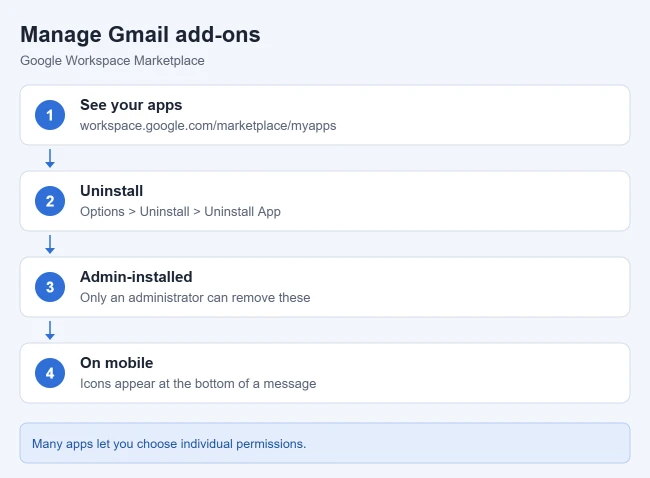
- On a phone: in the Gmail app, Google says add-on icons appear in a row at the bottom of an open message or draft.
How to Uninstall a Gmail Add-On
- Go to workspace.google.com/marketplace/myapps to see your installed apps.
- Find the add-on and click Options > Uninstall.
- Click Uninstall App.
Result: the add-on is removed from your account. Google adds that you can also open the app’s Marketplace listing and click Uninstall.
Work or School Accounts
- Google notes administrators can install apps for their whole organization.
- Apps your admin installed show under Apps installed by your admin, and only an administrator can uninstall them.
- Some apps might not be available to you. Google shows a banner explaining why when you try to install.
Troubleshooting
- No Get Add-ons button: make sure you’re using Gmail on a computer, not the mobile app.
- Add-on installed on the wrong account: Add-ons are tied to the Google account you used at install time. Sign in to the right account and install again.
- Add-on stopped working: open it and approve any new permission requests.
Frequently Asked Questions
Is an add-on the same as a Chrome extension?
No. Gmail add-ons come from the Google Workspace Marketplace. Its add-on works wherever Gmail does, including the Gmail app, while its Chrome extension only runs in Chrome on a desktop.
Are add-ons free?
Many are, but some require a paid plan with the company that makes them. Check the listing before you install.
More Gmail guides: How to hide the Meet section in Gmail and How to enable tabs in Gmail.

Matthew Burleigh is the founder, head writer, and editor of Solve Your Tech, which he launched in 2012. He has written technology tutorials since 2008 and worked in IT since 2003, including small-business support, IT management, and consulting. He holds Bachelor’s and Master’s degrees in Computer Science from Arizona State University.
Matthew writes practical guides for Windows, iPhone and iPad, Microsoft Office, Outlook, Google apps, and Android. Solve Your Tech’s guides are tested on current devices or checked against official product documentation, with clear steps, sources, and update dates.
Read more about Matthew and how Solve Your Tech writes and updates its guides, or report a correction.