To forward an email in Apple's Mail app, open the message, tap the Reply button with the curved arrow, and choose Forward. Choose whether to include attachments if prompted, enter the new recipient, add your note, and tap Send. To answer the original sender instead, choose Reply; choose Reply All when your response belongs with the other recipients too.
These instructions are for Apple's built-in Mail app on iPhone. You can use that app with an iCloud, Gmail, Yahoo, Outlook, or another configured email account. The separate Gmail, Outlook, and Yahoo Mail apps have their own layouts, even when the email address is the same.
Choose Forward, Reply, or Reply All
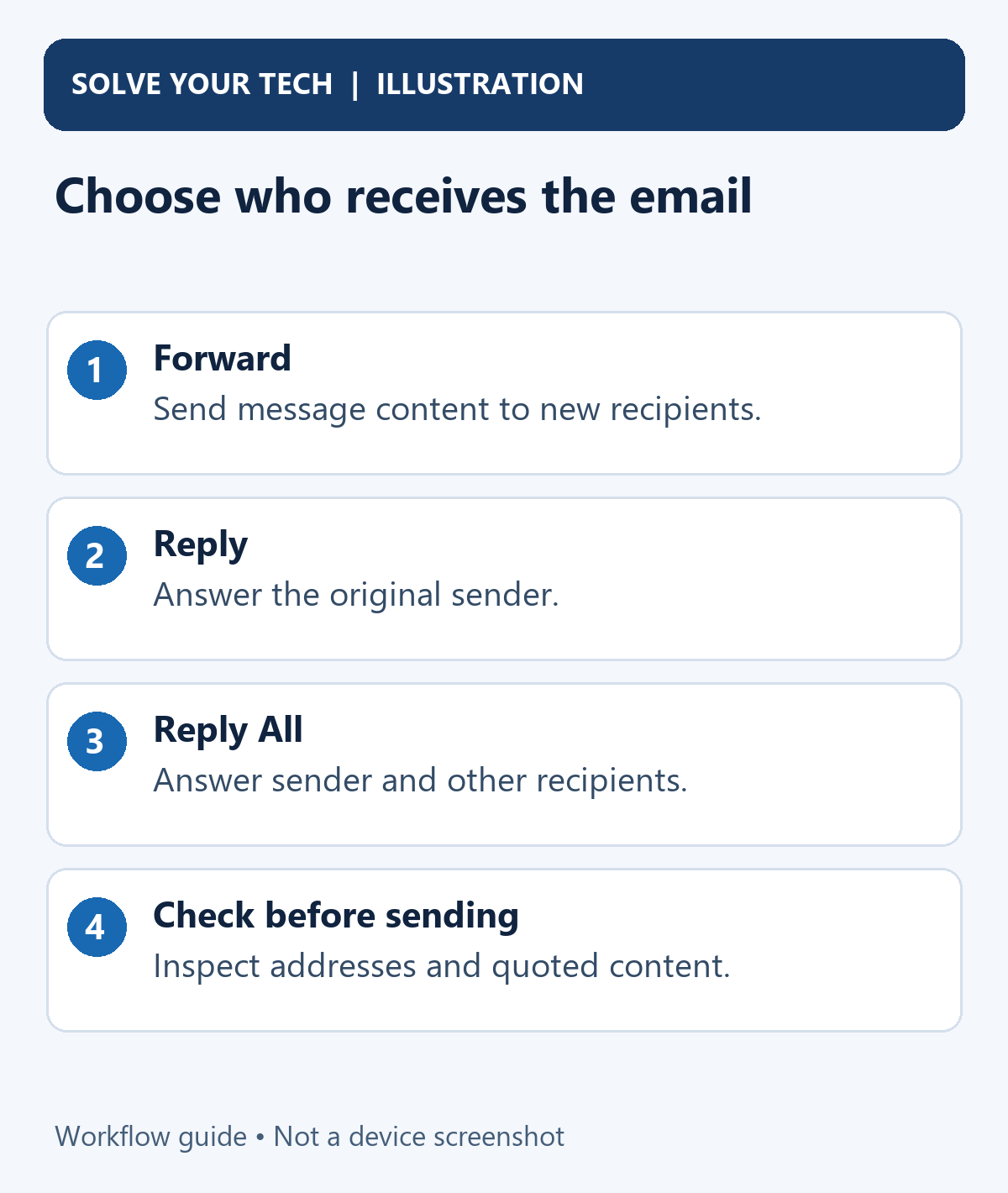
The choice determines who receives your next message. Check the recipients before sending, especially when a conversation includes several people.
| Choice | Use it to |
|---|---|
| Forward | Send the original message's content to a new recipient you select. |
| Reply | Respond to the sender of the message you opened. |
| Reply All | Respond to the sender and the other original recipients. |
For example, forward a meeting notice to a colleague who was not included. Reply to the organizer when asking a question only they need to answer. Reply All when everyone in that conversation needs your availability.
Forwarding creates another outgoing message. It does not transfer ownership of the original email or erase it from your inbox. Review the included message, quoted conversation, and attachments so you send only the information the new recipient needs.
Before you begin
Make sure the email account is available in Mail and that you can open the message. If you have several inboxes, select the one containing the email or use All Inboxes to locate it. Open the actual message you want to forward; a conversation can contain several messages with different contents.
You also need an internet connection to send successfully. It is possible to read a message that was downloaded earlier while the account currently has a sending or connection problem. Being able to open the email does not establish that sending works.
Have the recipient's complete address ready. If Mail suggests a contact name, check the actual address rather than selecting solely by name. Two contacts may share a name, or a person may have both a work and a personal address.
If the account is not configured in Apple's app, our iPhone Mail account guide shows the account settings. Forwarding an ordinary message does not require deleting or re-adding an account.
How to forward an email in Mail
Use these steps to send the content of an existing email to someone you choose.
- Open Mail on your iPhone and select the mailbox containing the email. Tap the message so its content is visible.
- Tap the Reply button, shown as a curved arrow in the message controls. This opens the actions for responding to the message; it is not the button for composing a completely new email.
- Tap Forward. Mail opens an outgoing draft containing the forwarded message below the area where you can add your own note.
- If Mail asks about attachments, choose Include to send them with the forwarded email or Don't Include to leave them out. Make this choice before relying on the recipient to receive the original files.
- Tap To and enter the new recipient's email address. You can select a suggested contact or use the plus button to choose from Contacts. Repeat if you need more recipients, checking each address.
- Tap in the message area above the forwarded content and write your note. For example, explain which part of the original email you want the recipient to review.
- Check the recipients, the From account, the note, and any attachments. Tap Send, the upward-arrow send control, when the draft is ready.
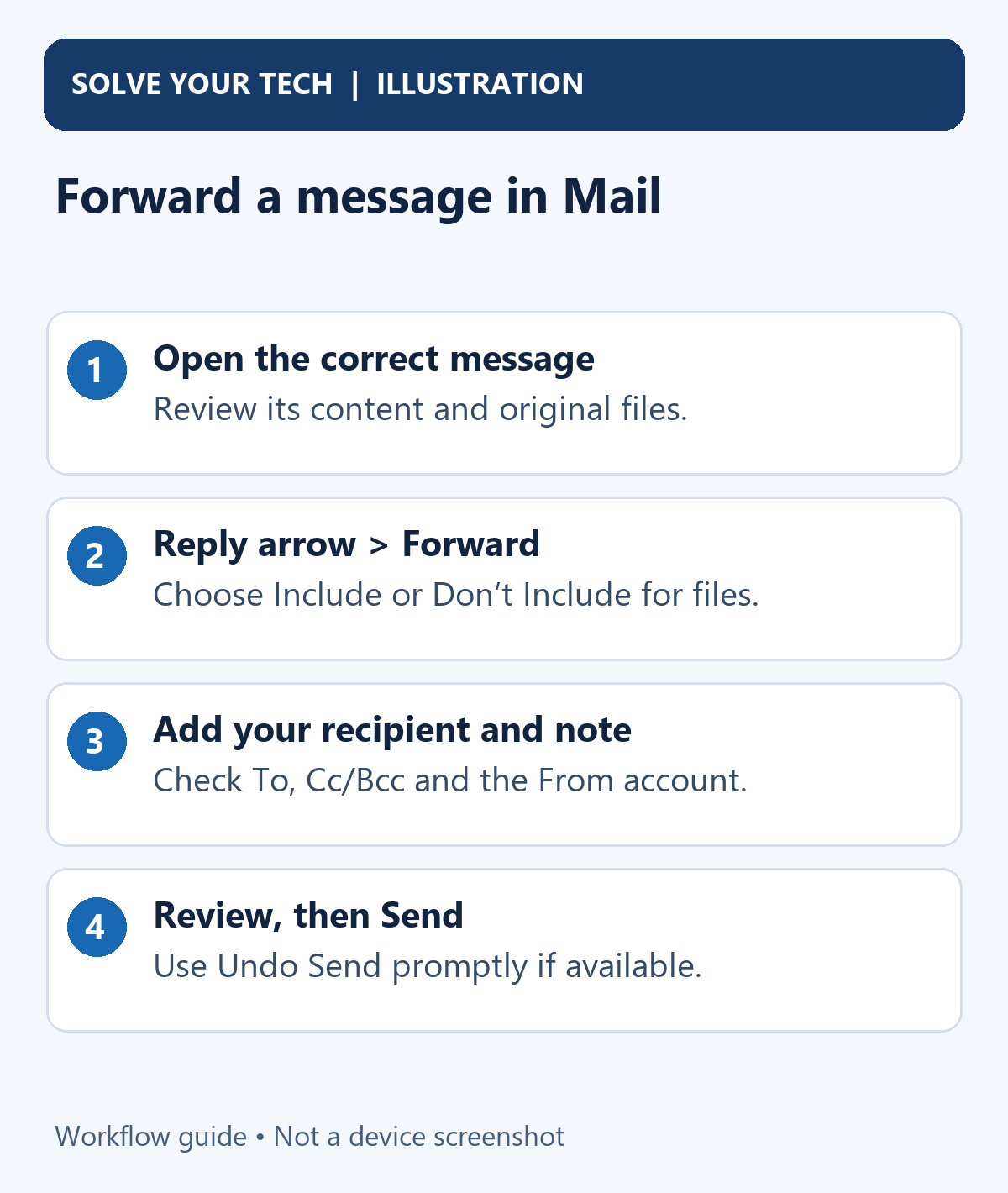
Apple's reply and forwarding instructions document the Forward action and the attachment choice. The appearance and position of controls can vary with your iOS version and the layout of the message.
Check the forwarded content before sending
Scroll through the draft rather than reviewing only your new note. The email you selected may quote older messages, include addresses or a signature, or contain information the new recipient does not need. Check the visible content and files before tapping Send.
If you need to change the subject, tap its field and edit the wording in the draft. A forwarded subject commonly starts with Fwd:. Keeping the original topic can help the recipient understand the context; change it when a clearer topic is useful.
This procedure forwards the content included in the selected message. Do not assume it automatically packages every separate message and attachment in a conversation. Review what appears in the draft and handle additional messages separately when needed.
How to reply to an email
Choose Reply when you want to respond to the sender rather than send the email to somebody new.
- Open Mail and tap the message you want to answer.
- Tap the curved-arrow Reply button, then tap Reply. Mail opens a draft addressed to the sender.
- Read the To address and check the sending account if you use more than one. Confirm that this is the person you intended to answer.
- Type your response in the draft. Review any quoted material below it so your answer has the context you need.
- Tap Send when the response and recipient are correct.
The subject normally keeps the original topic with a Re: prefix, meaning it is a reply. You do not need to type the sender's address again for an ordinary reply, but you should still inspect the populated address.
How to use Reply All
Reply All is useful when your answer belongs with everyone already involved in the message. It can also send information to more people than you intended, so check the address fields first.
- Open the message in Mail.
- Tap the Reply button, then tap Reply All.
- Inspect the recipients in the draft. Expand the address fields if needed to see who will receive it.
- Type the response everyone needs to see. Remove an unintended recipient from the draft before sending if the conversation should now be narrower.
- Review the addresses once more, then tap Send.
Do not select Reply All solely because it appears next to Reply. When confirming private details or sending a question only the sender can answer, an ordinary Reply may be the appropriate choice.
Quote only the part you are answering
For a long email, quoting a short passage can make your response easier to understand. Apple's Mail guide describes selecting the text before starting the reply.
- Open the sender's message in Mail.
- Touch and hold the first word of the passage you want to quote. Drag the selection to include the last word you need.
- Tap the Reply button, then choose Reply.
- Write your response and check the selected quotation in the draft before sending.
For example, select the sentence asking which meeting time works, then answer directly above that quotation. This helps distinguish your answer from unrelated items elsewhere in the message.
If quoted text is indented more than you want, Apple's current settings path is Settings > Apps > Mail > Increase Quote Level, under Composing. You can turn Increase Quote Level off. On older iOS layouts, Mail may appear directly in Settings instead of under Apps. Changing indentation affects the presentation of quotations; it does not choose different recipients.
Choose the sending account and copied recipients
When you have several accounts configured in Mail, check which one is sending the draft. Receiving an email at one address and deliberately forwarding it from another are separate decisions.
In the draft, tap Cc/Bcc, From, then tap From and select the configured account you want to use. Apple's sending guide documents this account selector and the recipient fields. It is a choice among available sending accounts, not a promise that you can send from any arbitrary address.
Use Cc for people who should receive a visible copy. Use Bcc for recipients whose addresses you do not want the other recipients to see. Bcc does not remove addresses or other information already written inside the forwarded message; inspect that content separately.
If an unwanted “Sent from my iPhone” line appears, identify whether it is your current signature or text quoted from an older message. Our iPhone Mail signature guide explains changing the signature setting. That setting cannot rewrite correspondence already included in the forwarded content.
Undo Send if you notice a mistake immediately
On iOS versions that support Undo Send in Mail, look for Undo Send at the top of the inbox immediately after sending. Tap it while it is available, then correct the draft before trying again.
Apple's Undo Send guide describes a default ten-second window and a configurable delay. In the current settings layout, open Settings > Apps > Mail > Undo Send Delay and choose an available delay if you want more time for future messages.
This is a brief delay before sending, not a general way to retrieve email from another person's inbox later. Once the Undo Send opportunity has passed, do not assume that deleting your local copy will recall the recipient's message. If a correction is needed afterward, send a clear follow-up.
If the forwarded email or reply will not send
Check the connection and the Outbox
Start with your internet connection and your email provider's service status. Then inspect unsent messages before creating another copy of the same forward.
- In Mail, return to the list of Mailboxes.
- Open Outbox if it appears. A message that failed to send may be waiting there.
- Tap the unsent email and verify the recipient's address and its contents.
- Tap Send again after resolving the connection or account problem.
Apple's send-failure guide documents this Outbox check. It also says that if Undo Send is still available, the message has not yet been sent. Check that short delay before interpreting the lack of an immediate send as an error.
Apple explains that an absent Outbox means the email was sent. It does not prove that the recipient read it or that their mail service accepted it into the inbox rather than another folder. Ask the recipient to check when confirmation matters.
A password or account error appears
Use your provider's official website to check whether you can access the account, and contact the provider or your organization's administrator about repeated authentication errors. A provider may require its own authorization process or a special app password for a particular account setup.
Do not begin by deleting the account. Apple warns that changing or removing account settings can remove downloaded messages from the device, and a device backup preserves email settings rather than the emails themselves. Before any account-removal repair, confirm that needed mail exists on the provider's website or has been saved elsewhere.
Attachments are missing
Reopen the original message and confirm that the files you need are there. Start the forward again if necessary, choose Include when asked, and inspect the outgoing draft before sending. An attachment link within a message and an attached file may behave differently, so do not assume that every visible reference became a file in the forward.
If sending fails with an attachment, check your provider's attachment limits and the exact error. Avoid sending repeated copies without first checking the Outbox and the draft's recipients.
Frequently asked questions
Can I forward a Gmail or Yahoo email with these steps?
Yes, when that account is configured in Apple's Mail app and the message is opened there. These steps describe Mail's controls. The separate Gmail and Yahoo Mail apps can use different actions and menu positions.
Does forwarding notify the original sender?
Forward creates a message for the recipients you choose. Check its To, Cc, and Bcc fields; if you add the original sender to one of those fields, they receive that outgoing message too. Do not treat ordinary forwarding as a delivery or read-notification system.
Can I forward all future emails automatically?
That is a separate account rule, not the one-message Forward action. Apple's guide points to iCloud.com for automatic forwarding features. Other providers have their own rules and restrictions; use the provider's settings for that task.
Is forwarding the same as attaching the original email file?
No. This guide sends forwarded message content and any attachments you choose to include. It does not provide an unverified method for exporting or attaching a complete original email file with all of its headers.
Send the right message to the right people
Choose Forward, Reply, or Reply All according to who needs the message. Before tapping Send, check the addresses, sending account, included quotation, and attachment choice. If you spot a mistake immediately afterward, use Undo Send while it is still available.

Matthew Burleigh is the founder, head writer, and editor of Solve Your Tech, which he launched in 2012. He has written technology tutorials since 2008 and worked in IT since 2003, including small-business support, IT management, and consulting. He holds Bachelor’s and Master’s degrees in Computer Science from Arizona State University.
Matthew writes practical guides for Windows, iPhone and iPad, Microsoft Office, Outlook, Google apps, and Android. Solve Your Tech’s guides are tested on current devices or checked against official product documentation, with clear steps, sources, and update dates.
Read more about Matthew and how Solve Your Tech writes and updates its guides, or report a correction.