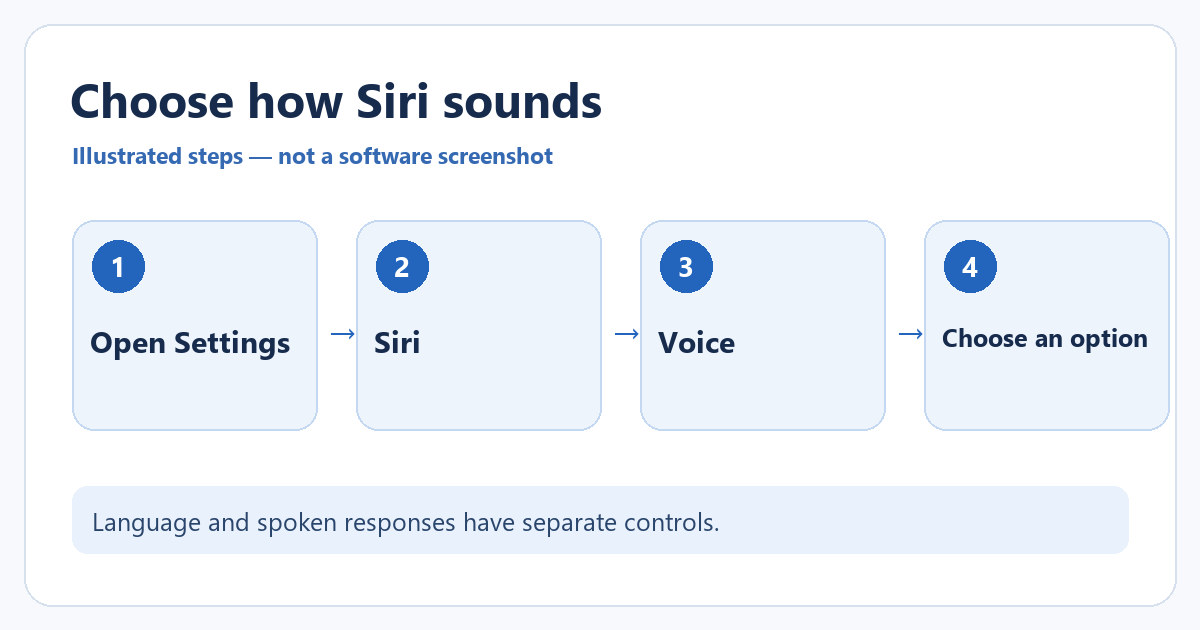
To change how Siri sounds on a current iPhone, open Settings > Siri > Voice, then choose a variation and voice. To change the language Siri understands, return to Siri > Language. The options and labels can differ by iOS version, language, and whether Siri AI is available on your device.
The voice controls affect Siri's spoken responses; they do not change the iPhone's general language or the voices used by every accessibility feature. If you are following an older tutorial that says Siri & Search or Apple Intelligence & Siri, look for the current Siri entry first. Apple notes that some software versions use Apple Intelligence & Siri.
Choose a Siri voice
- Open Settings and tap Siri. On some iOS versions, the entry is labeled Apple Intelligence & Siri.
- Tap Voice or Siri Voice, depending on the software shown on your phone.
- Select a choice under Variations, then choose a voice under Voices. Listen to the preview if one is offered.
- Return to Siri settings after the selection. Ask Siri a short question to hear the new voice.
If a voice is not immediately available, stay connected to a suitable network and allow the voice resources to finish loading. The list depends on the selected Siri language, so changing the language can change the available variations. Use Siri > Language for that separate choice. Apple says this language also affects Siri in Maps directions and Listen to Page in Safari; review the scope before changing it.
Choose how Siri starts and responds
In Settings > Siri > Requests, review whether the iPhone listens for “Siri,” “Hey Siri,” or neither. Availability varies by device, region, and language. If you turn listening off, you can still review Press Side Button for Siri on that screen. If you switch voice activation back on and Siri asks to learn your voice, follow the prompts.
Open Siri > Responses to choose whether Siri speaks answers or displays them silently, when the option is available. The wording of the response choices varies with the Siri version. This is a better control when the concern is Siri speaking unexpectedly; changing the voice alone will not quiet responses.
On supported iOS 27 devices using Siri AI, Apple lists Expressive Voices with pace and expressivity controls. Apple limits that feature to specified newer models and notes that options vary by language. Do not expect those sliders on every iPhone. The ordinary variation and voice choices remain the relevant starting point for most readers.
If the voice option is missing
Confirm that you opened Siri settings rather than Spoken Content or VoiceOver. Check the selected Siri language and software version. If your model does not support a particular Siri AI feature, use the regular Voice choices available on that phone. An organization-managed device may also restrict settings.
To reverse the change, return to Siri > Voice and select the previous voice. If you were trying to stop messages being read through headphones, see our related guide to Announce Notifications on iPhone; that is a different setting.
If the new selection appears to make no difference, test with a request that normally produces a spoken answer. Check Siri > Responses first: a silent response preference can make a successful voice change hard to hear. Then disconnect headphones or a car audio connection temporarily and listen through the iPhone speaker. Return to Voice to confirm that the intended variation and voice are selected. A language change and a voice change are separate choices, so you may need to repeat the voice selection after changing Siri's language.
Choose a voice before changing other Siri behavior
The Siri Voice screen can offer different varieties and voices depending on the language and region selected. Tap an available voice to hear a sample when the phone can play it. Some voices may need to download before they sound complete, so keep the phone connected and allow time. Changing the voice is separate from changing how Siri is invoked or whether spoken responses play aloud.
If a voice option is missing, confirm the Siri language first. A voice offered for one language may not appear for another. If Siri does not respond at all, check the activation settings and microphone or network conditions before assuming the voice choice caused the problem. Test one simple request after saving. Return to the same voice list if you want to switch back.
Apple's current Siri settings guide documents the voice, language, request, and response controls. Its Siri voice and language article notes the alternate settings label on some versions.
If Siri keeps appearing when you don’t want it, read why Siri keeps opening when you press the Home button to turn off the button shortcut.

Matthew Burleigh is the founder, head writer, and editor of Solve Your Tech, which he launched in 2012. He has written technology tutorials since 2008 and worked in IT since 2003, including small-business support, IT management, and consulting. He holds Bachelor’s and Master’s degrees in Computer Science from Arizona State University.
Matthew writes practical guides for Windows, iPhone and iPad, Microsoft Office, Outlook, Google apps, and Android. Solve Your Tech’s guides are tested on current devices or checked against official product documentation, with clear steps, sources, and update dates.
Read more about Matthew and how Solve Your Tech writes and updates its guides, or report a correction.