A screenshot (also written “screen shot”) is a picture of whatever is on your screen at that moment, saved as an image file you can keep, edit, or send to someone. To take one, press Windows + Shift + S on a Windows 11 PC, Shift + Command + 3 on a Mac, Side button + Volume up on most iPhones, or Power + Volume down on most Android phones.
This guide covers Windows 11, macOS Tahoe 26 and later, iPhones running iOS 26, and Android 16 on Google Pixel phones. Most of the shortcuts also work on older versions, and the differences are noted where they matter. Each section links to a longer, device-specific article if you need more detail.
What a Screenshot Is
A screenshot captures the pixels on your display exactly as they look, including open windows, text, and images. It doesn’t capture anything that’s scrolled out of view unless you use a “full page” or “scrolling” option, and it isn’t a video. If you need motion, you want a screen recording instead.
On a Windows PC, here’s how to take a scrolling screenshot of a long page or window.
People use screenshots to show tech support an error message, save a receipt or confirmation number, share part of a web page, or keep a copy of something that might change later. When I worked in IT, a screenshot of the exact error was usually the fastest way to figure out what had gone wrong on someone’s computer.
There’s one idea that confuses a lot of people: some shortcuts save a file, and others only copy the image to the clipboard. The clipboard is the temporary holding area your computer uses when you copy and paste. A screenshot on the clipboard doesn’t exist as a file yet. You have to paste it (Ctrl + V on Windows, Command + V on a Mac) into an email, a chat, a document, or an app like Paint before it goes anywhere. If you ever pressed Print Screen and then couldn’t find the picture, that’s why.
On a shared Windows PC, you can clear the clipboard in Windows 11 after pasting a screenshot that shows private details.
Take a Screenshot on Windows 11
Windows 11 has three main shortcuts. The Snipping Tool help page from Microsoft lists the capture modes and save options.
If you want the full app window with its delay timer instead of the quick capture bar, here’s how to open Snipping Tool in Windows 11.
To mark up a capture, copy its text or redact details, learn more about using Snipping Tool on Windows 11.
Capture part of the screen with Windows + Shift + S
- Open the window or page you want to capture.
- Press Windows key + Shift + S. The screen dims and a small Snipping Tool bar appears at the top.
- Choose a mode on the bar: Rectangle, Window, Full screen, or Freeform.
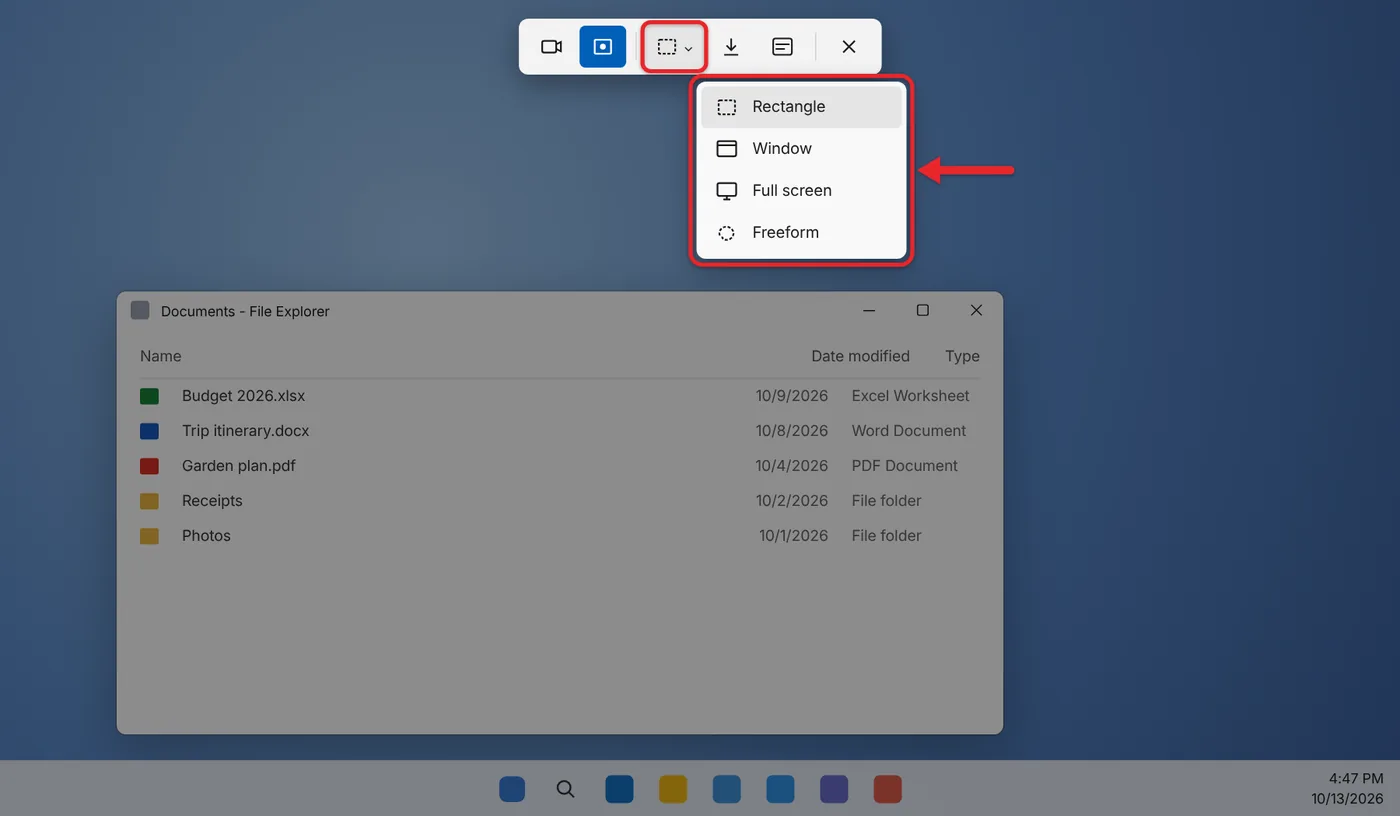
- Drag across the area you want, or click the window you want. The image is copied to the clipboard, and a notification appears in the lower-right corner.
- Click the notification to open the screenshot in Snipping Tool, where you can crop it, draw on it, or click Save as. Snipping Tool also saves a copy to your Pictures > Screenshots folder automatically unless that setting has been turned off.
Save the whole screen instantly with Windows + Print Screen
Press Windows key + Print Screen (often labeled PrtScn or PrtSc). The screen dims for a moment, and Windows saves a PNG image of your entire screen to Pictures > Screenshots. Nothing opens; open File Explorer and go to that folder to find it. On many laptops you also need to hold the Fn key.
What the Print Screen key does by itself
On current versions of Windows 11, pressing Print Screen alone opens the same Snipping Tool bar as Windows + Shift + S. If you’d rather have the old behavior, where Print Screen copies the whole screen to the clipboard, go to Settings > Accessibility > Keyboard and turn off Use the Print screen key to open Snipping Tool. To grab only the active window to the clipboard, press Alt + Print Screen.
For more options, including delay timers and saving to other folders, read how to take a screenshot on Windows 11. Windows + Shift + S and Windows + Print Screen work the same way on Windows 10.
Take a Screenshot on a Mac
Every Mac uses the same keyboard shortcuts, described in Apple’s guide to taking a screenshot on Mac.
- Whole screen: Press Shift + Command + 3.
- Part of the screen: Press Shift + Command + 4, then drag the crosshair over the area and let go. Press Esc to cancel.
- One window or menu: Press Shift + Command + 4, press the Space bar, then click the window. The pointer turns into a camera. Hold Option while you click if you don’t want the window’s shadow in the image.
- More options: Press Shift + Command + 5 to open the Screenshot app. It adds a timer, screen recording, and an Options menu for changing where screenshots are saved.
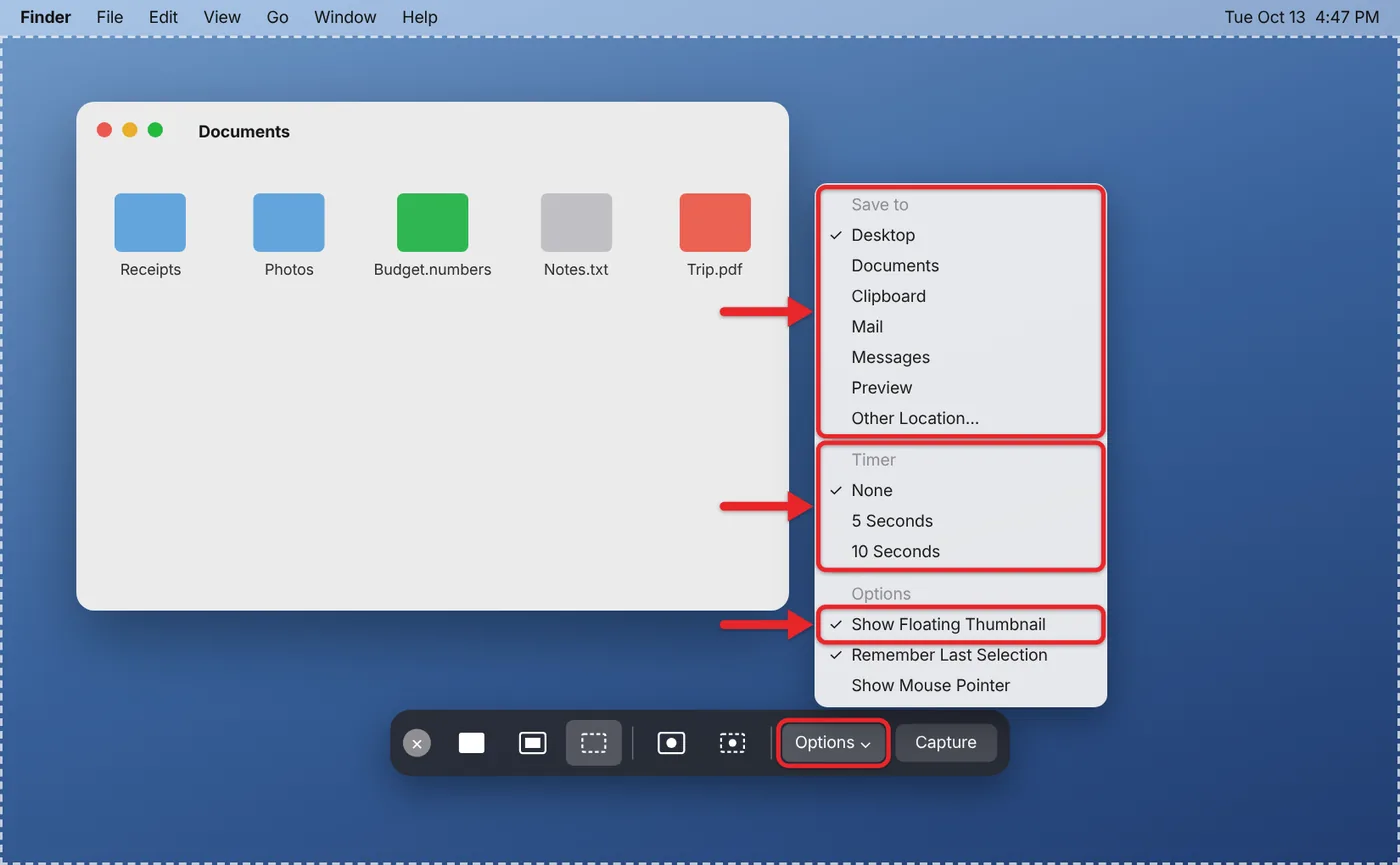
After each capture, a thumbnail appears in the lower-right corner. Click it to mark up the image, or ignore it and the file saves to your desktop, named with the date and time. Add Control to any shortcut (for example, Control + Shift + Command + 4) to copy the screenshot to the clipboard instead of saving a file. The article on taking a screenshot on a MacBook Air explains why Macs have no Print Screen key.
Take a Screenshot on an iPhone
The buttons depend on whether your iPhone has Face ID or a Home button.
- iPhone with Face ID (no Home button): Press the side button and volume up at the same time, then let go quickly.
- iPhone with a Home button and a side button (such as iPhone SE): Press the side button and the Home button together, then let go.
- iPhone with a Home button and a top button: Press the top button and the Home button together, then let go.
In iOS 26, the screenshot opens right away with quick tools for marking it up, cropping it, and sharing it. To keep it, tap the save button (the checkmark), then choose where to save it. In iOS 18 and earlier, a thumbnail appears in the lower-left corner instead; tap it to edit or swipe it away to save it. To find your screenshots later, open Photos, go to Collections, tap Media Types, and then tap Screenshots. Apple’s iPhone screenshot page shows each button layout.
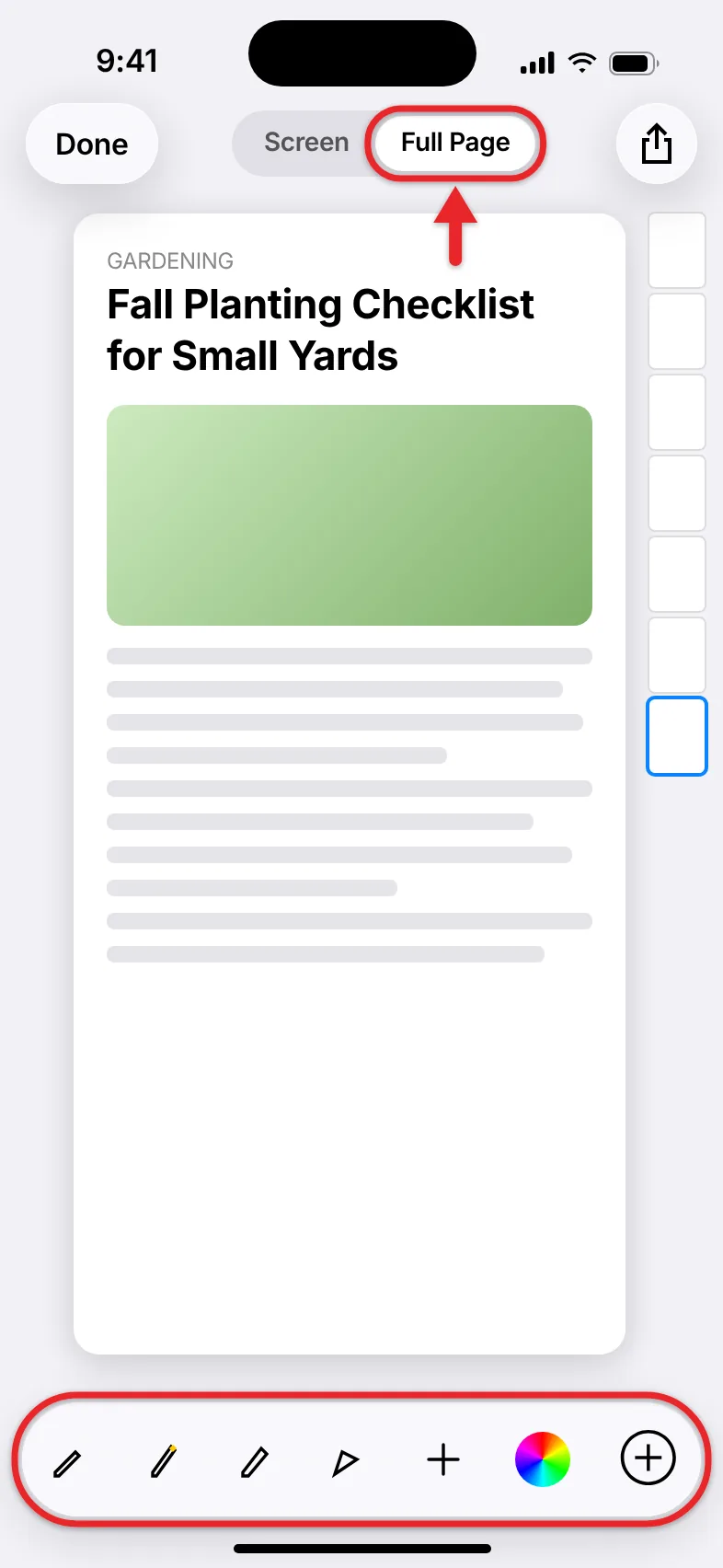
If you’re on a web page in Safari, the preview also offers a Full Page option that saves the entire page, not just the visible part. For more on full-page captures, read about taking a screenshot on iPhone 15, 16, or 17. If a button is broken, you can take a screenshot without the power button.
Take a Screenshot on an Android Phone
Android phones are made by many companies, so a few details vary. The standard method works on Google Pixel phones and nearly all others.
- Open the screen you want to capture.
- Press Power and Volume down at the same time, then release them.
- A preview appears in the corner of the screen. Tap it to edit or share the image, or let it disappear to keep it.
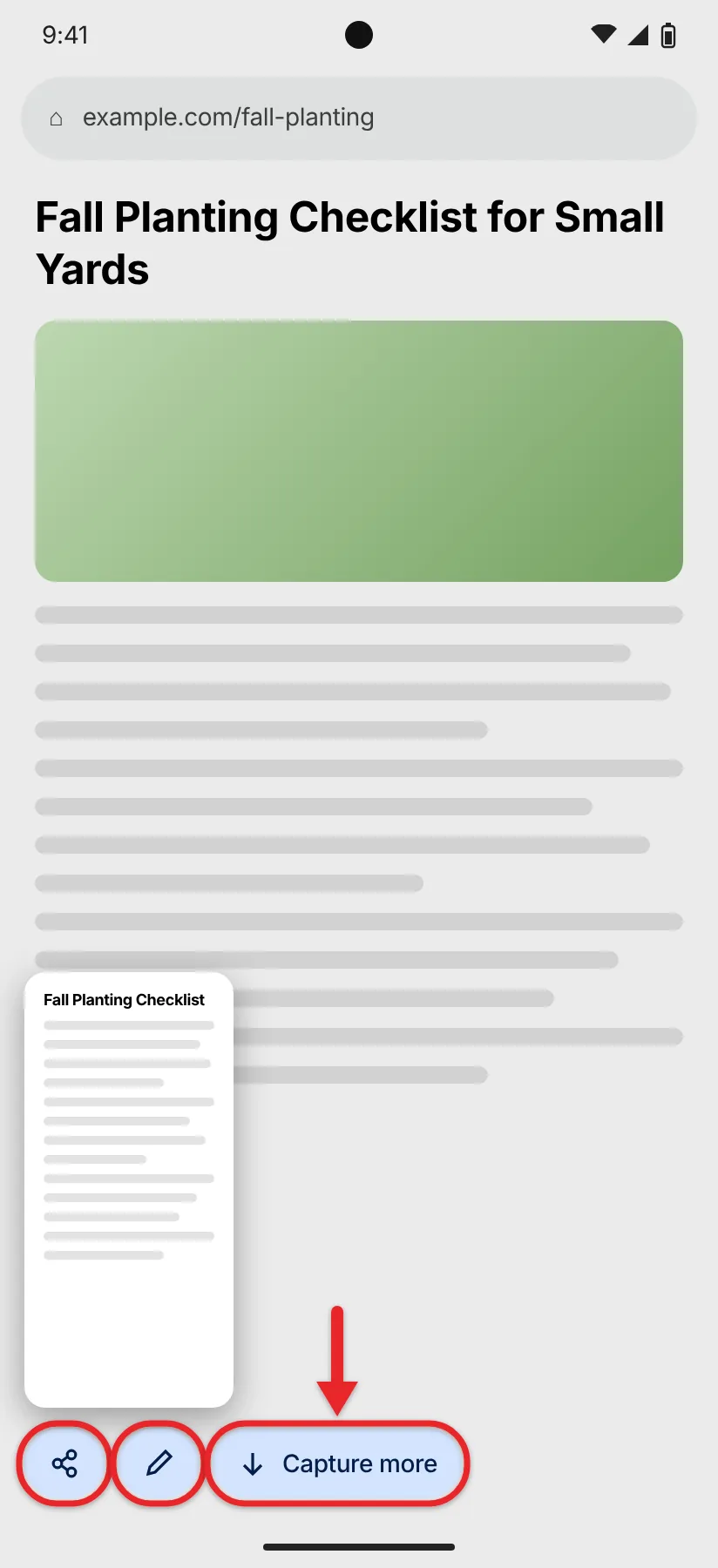
- To capture a long page, tap Capture more below the preview (Android 12 and later), then drag the crop lines to choose how much to save.
If the buttons don’t work, press and hold Power and tap Screenshot. On a Pixel, screenshots are in the Photos app under Collections > On this device > Screenshots. Samsung Galaxy phones put them in the Gallery app. Google’s Android screenshot help page has the details, and the article on taking a screenshot on Android goes into more detail for other brands.
Which Method Should You Use?
| You want to… | Windows 11 | Mac | iPhone / Android |
|---|---|---|---|
| Save the whole screen as a file | Windows + Print Screen | Shift + Command + 3 | Button combination |
| Capture just one area | Windows + Shift + S | Shift + Command + 4 | Crop in the preview |
| Paste straight into a chat or email | Windows + Shift + S, then Ctrl + V | Add Control to the shortcut | Share from the preview |
| Capture a long web page | Edge: Web capture > Capture full page | Not built in | Full Page (iPhone) or Capture more (Android) |
If you’re sending a screenshot to someone for help, capture the whole window, including any error message and its title bar. Cropping too tightly is the most common reason a support person has to ask for another one.
If the image is going into a slide deck, you can take a screenshot in PowerPoint with its built-in Screenshot button.
If Your Screenshot Doesn’t Work
- Nothing happens when you press Print Screen on a laptop. Many laptops put Print Screen on a shared key. Hold Fn and press it, or use Windows + Shift + S, which doesn’t need the key at all.
- You can’t find the picture. You probably used a clipboard-only shortcut. Paste with Ctrl + V or Command + V into an email or document. On Windows, also check Pictures > Screenshots.
- The screenshot is black or blank. Streaming apps and some banking or work apps block screenshots to protect their content. This is on purpose, and there’s no setting to change it.
- Your phone shows the volume slider or locks instead. You didn’t press both buttons at the same moment. Press them together quickly and let go.
- Your iPhone powers off or opens Siri. You held the buttons too long. A quick press is all it takes.
- On a work computer or phone, screenshots are disabled. Your organization may block them with a policy. Ask your IT department.
Frequently Asked Questions
Is it “screenshot” or “screen shot”?
Both mean the same thing. “Screenshot” as one word is the more common spelling today, and it’s what Apple, Google, and Microsoft use. You may also hear “screen capture,” “screen grab,” or “print screen.”
Does someone know if I take a screenshot of their message?
Normal texts, emails, and web pages don’t notify anyone. A few apps, such as Snapchat, tell the other person when you screenshot certain content.
What file type is a screenshot?
Windows, Mac, iPhone, and Android all save screenshots as PNG files by default. PNG keeps text sharp. If you need a smaller file to email, you can save a copy as JPG from Paint, Preview, or Photos.
To make the screenshot smaller in width and height as well, resize an image in Microsoft Paint.
How do I take a screenshot on an iPad?
On an iPad without a Home button, press the top button and either volume button at the same time. On an iPad with a Home button, press the top button and the Home button together. The iPad screenshot walkthrough covers every model and full-page captures.
Can I record my screen instead?
Yes. On Windows 11, press Windows + Shift + R. On a Mac, press Shift + Command + 5 and choose a record option. iPhones and Android phones have a Screen Recording control in Control Center or Quick Settings.
For the full Android steps, including sound options, read about screen recording on Android.

Matthew Burleigh is the founder, head writer, and editor of Solve Your Tech, which he launched in 2012. He has written technology tutorials since 2008 and worked in IT since 2003, including small-business support, IT management, and consulting. He holds Bachelor’s and Master’s degrees in Computer Science from Arizona State University.
Matthew writes practical guides for Windows, iPhone and iPad, Microsoft Office, Outlook, Google apps, and Android. Solve Your Tech’s guides are checked step by step against the device or app maker’s own documentation and tested on his own devices whenever he has the hardware or software, with clear steps, sources, and update dates.
Read more about Matthew and how Solve Your Tech writes and updates its guides, or report a correction.