To stop an HP LaserJet from printing a status notification page after each job, open Printer properties for the printer in Windows, click the Device Settings tab, find Printer Status Notification under Installable Options, and change it to Disabled. Click Apply, then OK.
This is the fix HP gives for the extra page that reads GET /DevMgmt/DiscoveryTree.xml HTTP/1.1 and Host: 127.0.0.1:8080. The steps below follow HP’s support document for that problem and add the menu paths for newer versions of Windows.
What the extra page is
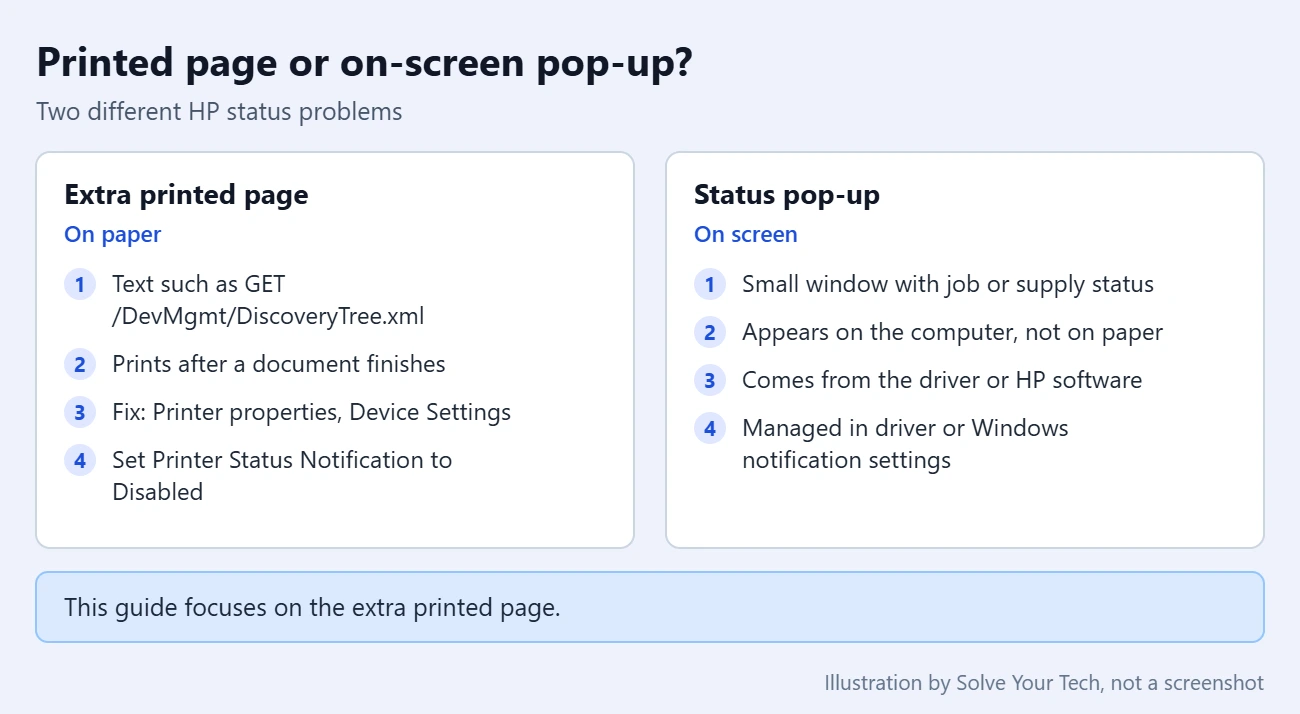
The symptom is easy to spot. Your document prints normally, and then one or more extra pages come out with a line or two of text at the top. The text looks like part of a web address request rather than anything from your file.
HP describes two versions of the same problem: an additional page with the GET /DevMgmt/DiscoveryTree.xml HTTP/1.1 message, or a page that says “http…” and “host…” when a job finishes. HP says the issue could be related to settings in the printer driver. A driver is the software Windows uses to talk to the printer, and the setting involved is called Printer Status Notification.
The page does not mean that the printer is broken, and it is not a sign that your file is damaged. It does waste paper and toner, so it is worth turning off.
Before you start
- Which printers: HP’s document is written for the HP Color LaserJet CP2025 and the LaserJet P20x5 series, which includes the P2055. Other LaserJet models that use an HP driver with a Device Settings tab can have the same option, but not every model or driver does.
- Which Windows version: HP wrote the steps for Windows 7. The Printer properties window itself looks much the same in Windows 10 and Windows 11. Only the way you open it has changed.
- Account type: you may need an administrator account to change driver settings. If the options are gray, see the troubleshooting section.
- What you lose: with the setting disabled, the driver stops reporting printer status to that computer. On drivers that show on-screen status pop-ups, such as low toner alerts, those can stop too. Printing itself is not affected.
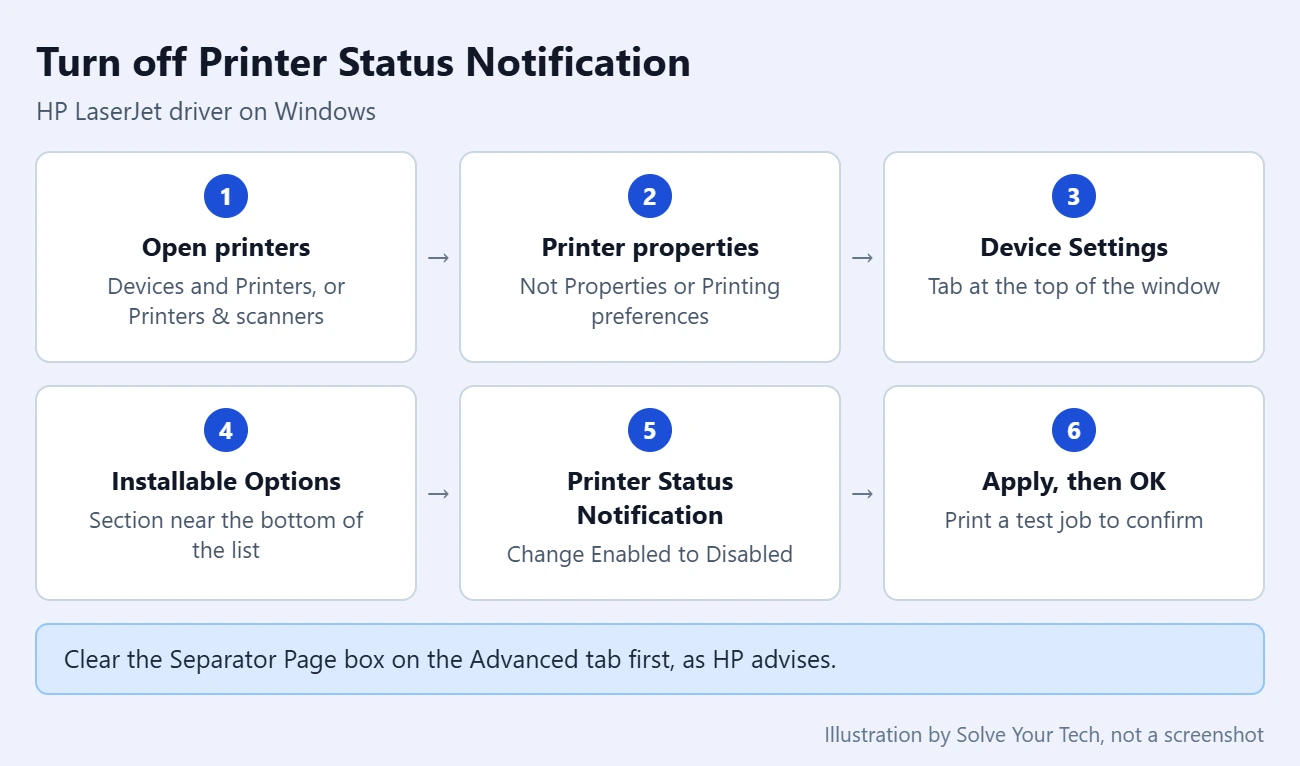
Step 1: Open Printer properties
Use the path for your version of Windows. In every case you want Printer properties, not Properties and not Printing preferences. Those other two open different windows that do not have the tab you need. The same window has an Advanced tab where you can adjust the print spooler on the HP LaserJet P2055dn.
Windows 11
- Select Start, then Settings.
- Select Bluetooth & devices, then Printers & scanners.
- Select your HP LaserJet in the list.
- Select Printer properties.
Microsoft uses this same route to reach the printer’s properties window in its guide on how to share a printer as a network printer.
Windows 10
- Select Start, then Settings.
- Select Devices, then Printers & scanners.
- Select your HP LaserJet, then select Manage.
- Select Printer properties.
Windows 7
- Click Start, then click Devices and Printers.
- Right-click the icon for your HP LaserJet.
- Click Printer properties in the menu.
A window opens with the printer’s name in the title bar and a row of tabs across the top, such as General, Sharing, Ports, Advanced and Device Settings.
Step 2: Clear the separator page
HP’s document starts with a different setting, so do this first. A separator page is an extra sheet that Windows can print between jobs so that people sharing a printer can tell their documents apart.
- Click the Advanced tab.
- Click the Separator Page button near the bottom of the tab.
- If the box contains a file name, delete it so the box is empty.
- Click OK.
If the box was already empty, nothing changes and you can move on.
Step 3: Disable Printer Status Notification
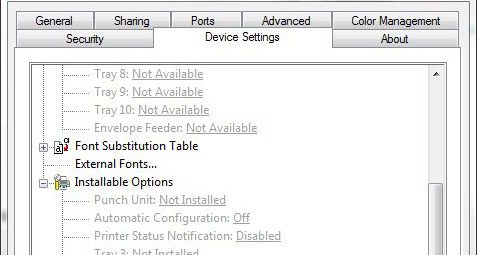
- Click the Device Settings tab. It is typically at the right end of the row of tabs.
- Scroll down the list to the Installable Options section.
- Find Printer Status Notification. When the problem is happening, it says Enabled.
- Click the word Enabled to show a drop-down menu, then choose Disabled.
- Click Apply, then click OK.
- Close any other printer windows that are still open.
You can read the original instructions in HP’s support document, Printing Multiple Extra Pages with Message GET /DevMgmt/DiscoveryTree.xml.
How to confirm it worked
Print a short document, such as a one-page text file. Wait a minute after it finishes. If only your page comes out, the change worked.
To double-check the setting, open Printer properties again and look at the Device Settings tab. Printer Status Notification should still say Disabled.
How to undo the change
Go back to Printer properties, open Device Settings, set Printer Status Notification to Enabled, and click Apply and OK. If you removed a separator page file that a shared printer needs, you can choose it again with the Separator Page button on the Advanced tab.
If the extra page still prints
Check every copy of the printer
Windows can list the same physical printer more than once, for example as a model-specific entry and as an HP Universal Printing PCL 6 entry. Each entry has its own driver settings. Repeat steps 1 through 3 for every entry that points to the LaserJet.
Check every computer that prints to it
The setting lives in the driver on each computer, not inside the printer. If several computers use the printer, an extra page can keep appearing until the setting is changed on each one. If the printer is shared from one computer to others, start with the computer it is connected to.
There is no Device Settings tab
Make sure you opened Printer properties. If you did and the tab is not there, the driver in use does not offer it. That is common with basic drivers that Windows installs on its own. For the P2055dn, you can download and install the HP LaserJet P2055dn driver from HP instead.
In that case, install HP’s driver for your model. Go to HP’s Software and Drivers page, choose Printer, enter your model, and download the driver listed for your version of Windows. HP also offers a Universal Print Driver that works with many LaserJet models. Our guide on how to install or update a printer driver in Windows 11 covers the Windows side of that job. Then check for the Device Settings tab again.
Printer Status Notification is not in the list
Some HP drivers have a Device Settings tab but no Printer Status Notification line under Installable Options. Newer driver versions may not include the feature at all, so there is nothing to switch off. If the extra page still prints with one of those drivers, the cause is somewhere else. Recheck the separator page, then look at the next two items.
The options are gray
Driver settings on a shared or work printer can be locked to administrators. Sign in with an administrator account and try again. On a work computer, ask your IT department, because the setting may be managed centrally.
Other HP software is installed
The setup disc that came with older LaserJets often installed extra HP programs alongside the driver. If the page keeps printing after you change the driver setting everywhere, removing the HP printer software, restarting, and installing only the current driver from HP’s site is a reasonable next step. It is also a good time to make sure the printer itself is current. See our guide on how to update HP LaserJet firmware.
Frequently asked questions
What does GET /DevMgmt/DiscoveryTree.xml HTTP/1.1 mean?
It is the first line of a request for a file named DiscoveryTree.xml, written the way web requests are written. HP ties the printed page to the driver’s status settings. You do not need to understand the text to fix it. Setting Printer Status Notification to Disabled is HP’s documented solution.
Is the extra page a sign of a virus or a hacked printer?
HP’s support document treats it as a driver setting issue and does not describe it as a security problem. The address 127.0.0.1 on the page is the standard address a computer uses to refer to itself, which points to software on your own computer rather than an outside source.
Will I still get low toner warnings after disabling the setting?
The printer’s own control panel lights or display keep working, because this setting only affects the driver on your computer. Any status messages that the driver showed on that computer’s screen can stop.
Do these steps work on a Mac?
No. Printer properties and the Device Settings tab are part of the Windows driver, and HP’s document only covers Windows.
Is this the same as HP status pop-ups on my screen?
Not exactly. This guide is about a page that comes out on paper. Pop-up windows on the screen can come from the same driver feature on some HP drivers, so disabling it may stop those too, but pop-ups can also come from other HP apps or from Windows notifications, which have their own settings.
Why does my LaserJet print a blank extra page instead?
A blank page is a different issue with different causes, such as a separator page or the document’s own layout. For the P2055, see how to make an HP LaserJet P2055 stop printing an extra page.
Next steps
Once the extra page is gone, check the other settings in the same driver window. If you have a P2055 with a duplexer, you can set up automatic two-sided printing in the printer’s driver settings. If the printer shows as offline after a driver change, see how to get a printer online in Windows 11 or 10.

Matthew Burleigh has been writing tech tutorials since 2008. His writing has appeared on dozens of different websites and been read hundreds of millions of times.
After receiving his Bachelor’s and Master’s degrees in Computer Science he spent several years working in IT management for small businesses. However, he now works full time writing content online and creating websites.
His main writing topics include iPhones, Microsoft Office, Google Apps, Android, and Photoshop, but he has also written about many other tech topics as well.