To start a running workout on Apple Watch, open the Workout app, turn the Digital Crown to Outdoor Run (or Indoor Run), and tap the start button. To run for a set time or distance, tap the Goals button on the workout first and add a goal, or use Pacer for a target pace. To play music automatically, turn on Autoplay Media for that workout.
This guide covers the Workout app on Apple Watch running the current watchOS. It follows Apple’s Run with Apple Watch, Start an outdoor run workout, Create a Custom Workout and Play audio during a workout guides. Apple’s guides show several buttons as icons, so we use Apple’s names for them, like the Goals button.
How to Start a Running Workout
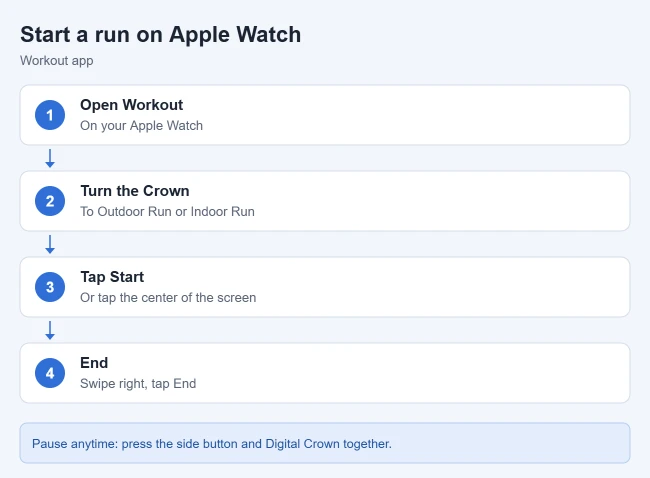
- Open the Workout app on your Apple Watch.
- Turn the Digital Crown to Outdoor Run or Indoor Run.
- Tap the start button when you’re ready. You can also tap the center of the screen to start quickly.
Result: Your run starts tracking. Raise your wrist to see stats like elapsed time, average pace, distance, calories and heart rate. Turn the Digital Crown to switch workout views. If Siri starts by accident during a workout, you can turn off Siri on Apple Watch or just its Digital Crown trigger. You can also ask Siri something like “Start a 30-minute outdoor run.”
How to Pause or End Your Run
- Pause: Swipe right and tap Pause. Apple says you can also press the side button and the Digital Crown at the same time.
- Mark a segment: Swipe right and tap Segment, or double-tap the display.
- End: Swipe right and tap End. Turn the Digital Crown to rate your effort, then tap the End button at the top.
After your run, you’ll find it with your other completed workouts. See the FAQ below for where to look.
How to Run for a Set Time or Distance
- In the Workout app, turn the Digital Crown to Outdoor Run or Indoor Run.
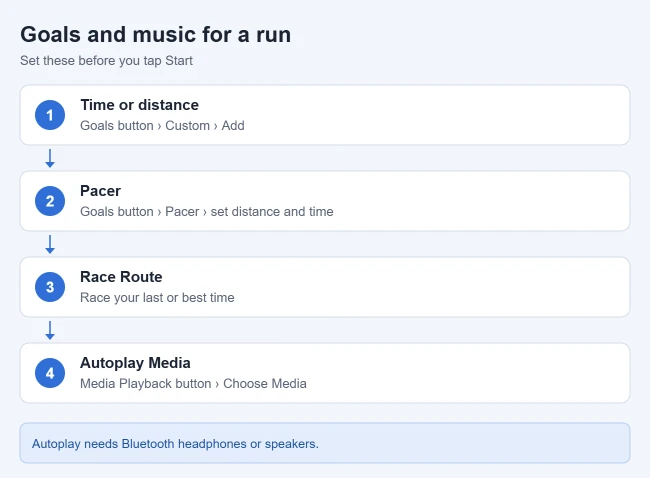
- Tap the Goals button, tap Custom, then tap the Add button.
- Tap a goal such as Time, Distance or Calories, choose a value, then tap Done.
- Tap the goal to begin the workout.
Result: Your watch shows a goal completion ring as you run. Apple notes there’s no goal ring if you haven’t set a goal. To delete a goal later, swipe left on it and tap the Delete button.
How to Run at a Target Pace With Pacer
- Turn the Digital Crown to Outdoor Run or Indoor Run, then tap the Goals button.
- Tap Pacer, then tap the Add button.
- Set the distance, such as 5 miles, and tap Next.
- Set your target time and tap Done.
Result: During the run, your watch shows your average and current pace, and a graph shows whether you’re ahead or behind. Apple says your watch remembers the target pace for future workouts.
Other Ways to Run Your Way
- Race Route: Tap the Goals button next to Outdoor Run, tap Race Route, then pick Last or Personal Best. Apple says routes become available after you’ve run the same route at least twice with little to no deviation.
- Track runs: When your watch detects a track, it prompts you to choose a lane for accurate lap times.
- Intervals: In Custom, add a warmup, repeating work and recovery intervals, and a cooldown.
How to Set a Workout Playlist
Apple says Bluetooth headphones or speakers are required for audio to play automatically; it won’t autoplay through the watch speaker. If you haven’t connected any yet, see How to pair Bluetooth headphones with Apple Watch.
- In the Workout app, turn the Digital Crown to the workout.
- Tap the Media Playback button, then turn on Autoplay Media.
- Tap Choose Media > Add Media > Music > Playlist, and pick a playlist. With an Apple Music subscription, you can tap Picked for You instead.
- Tap the Back button, then start your run.
Result: Your playlist starts when the run starts. If music is already playing when you begin, Apple says it keeps playing.
Frequently Asked Questions
Where can I see my past runs?
Apple says completed workouts appear in the Activity app on your Apple Watch and in the Fitness app on your iPhone. If the ring and coaching reminders that follow get to be too much, see how to turn off Activity notifications on Apple Watch.
How do I save battery on a long run?
Tap the Goals button, tap Extended, then choose Extended Workout or Max Extended Workout if available. Apple says this turns on Low Power Mode, and some metrics aren’t available.
Related Guides
- How to pair Bluetooth headphones with Apple Watch
- How to change your Move goal on Apple Watch
- How to limit or remove music on Apple Watch

Matthew Burleigh is the founder, head writer, and editor of Solve Your Tech, which he launched in 2012. He has written technology tutorials since 2008 and worked in IT since 2003, including small-business support, IT management, and consulting. He holds Bachelor’s and Master’s degrees in Computer Science from Arizona State University.
Matthew writes practical guides for Windows, iPhone and iPad, Microsoft Office, Outlook, Google apps, and Android. Solve Your Tech’s guides are tested on current devices or checked against official product documentation, with clear steps, sources, and update dates.
Read more about Matthew and how Solve Your Tech writes and updates its guides, or report a correction.