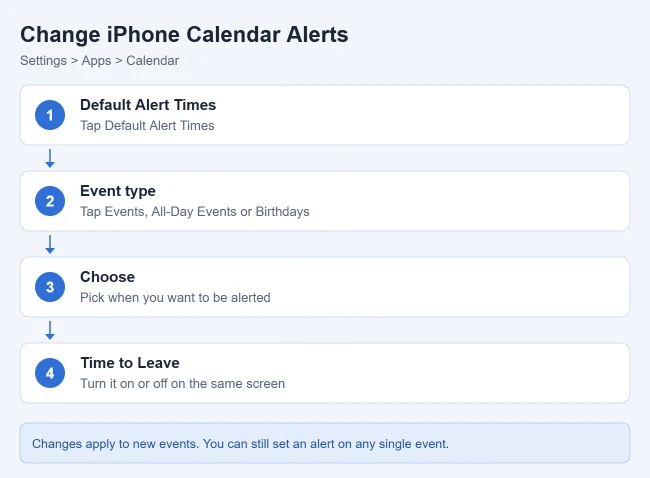
To change the default alert time for iPhone calendar events, open Settings, tap Apps > Calendar > Default Alert Times, then tap Events, All-Day Events, or Birthdays and choose a time. The same screen has the Time to Leave switch. Week numbers and the other display options are one level up, on the main Calendar settings screen.
This guide walks through each Calendar setting, how to check that a change worked, how to reverse it, and what to do when a setting is missing or an alert never shows up. The steps follow Apple’s Change your Calendar settings on iPhone guide for iOS 27.
Before You Start
- iOS version: the steps below match Apple’s iPhone User Guide for iOS 27. Apple’s iOS 18 and iOS 26 guides use the same Settings > Apps > Calendar path.
- iOS 17 and earlier: there is no Apps menu. Apple’s iOS 17 guide says to go to Settings > Calendar instead. The option names on the Calendar screen are the same.
- What a default is: a default alert is the reminder Calendar adds for you when you create an event. You can still set a different alert on any single event.
- Nothing here deletes events. Every setting in this guide can be switched back from the same screen.
How to Change Default Alert Times
- Open the Settings app.
- Scroll down and tap Apps, then tap Calendar. The apps are listed alphabetically.
- Tap Default Alert Times. You will see three rows, Birthdays, Events, and All-Day Events, plus the Time to Leave switch.
- Tap the type of event you want to change.
- Choose when you want to be alerted. A checkmark shows your choice.
- Tap the back arrow and repeat for the other event types if you want.
Each of the three event types keeps its own default, so you can get an early warning for timed events and a different reminder for birthdays.
Confirm it worked, or undo it
Open the Calendar app, create a test event, and look at its Alert row. It should show the time you picked. Delete the test event when you are done.
To undo the change, go back to Default Alert Times and pick a different option. The list normally includes None if you would rather add alerts by hand. Events that already exist keep whatever alert they have, so check important ones individually.
How to Change the Alert on One Event
A default is only a starting point. Apple’s Create and edit events in Calendar guide gives these steps for a single event:
- Open the Calendar app.
- Tap the event, then tap Edit.
- In the event details, tap Alert.
- Choose when you want to be reminded, such as At time of event or 5 minutes before.
- Tap the checkmark or Done button at the top to save.
Depending on your iOS version, the event editor may also show a Second Alert row for an extra reminder. Apple’s current guide does not describe it, so treat it as optional if you see it.
How to Turn Time to Leave Alerts On or Off
Time to Leave is an alert that tells you when to head out so you arrive on time. Apple says that when an event has the address of its location, Calendar uses Apple Maps to look up locations, traffic conditions, and transit options to work out that time.
- Open the Settings app.
- Tap Apps, then tap Calendar.
- Tap Default Alert Times.
- Turn Time to Leave on or off. The switch is green when it is on.
The alert only makes sense for events with a location. An event with no address has nowhere to route to, so add the address in the event’s Location field if you want this reminder.
How to Change Calendar Notifications
Alert times control when you are reminded. Notification settings control how the reminder appears, and whether it appears at all. They live in a different part of Settings, which is why changing one does not fix a problem with the other.
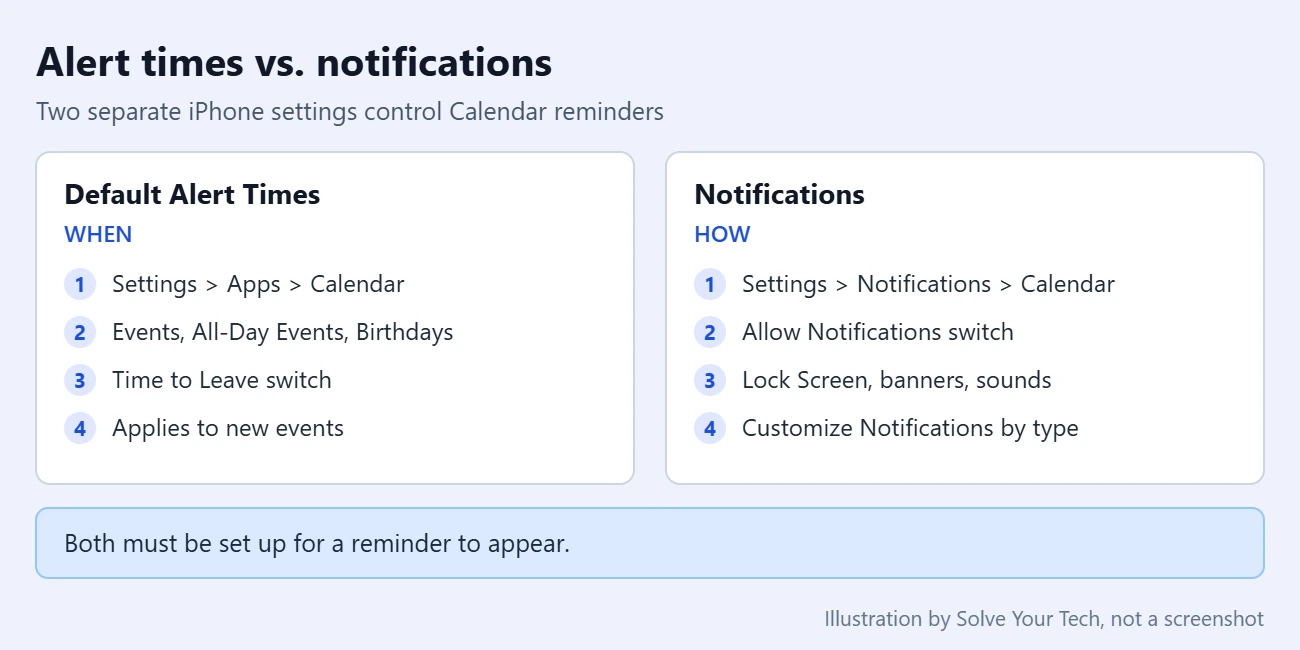
These steps come from Apple’s Keep track of events in Calendar guide:
- Open Settings and tap Notifications.
- Tap Calendar.
- Turn on Allow Notifications.
- Choose where and how alerts appear: on the Lock Screen, in Notification Center, as banners at the top of the screen, and with or without a sound.
- Scroll down and tap Customize Notifications to turn specific types, such as upcoming events or invitee responses, on or off.
If you want to change what else shows while the phone is locked, see how to show or hide notifications on the iPhone Lock Screen. To pick a different alert tone, see how to change an iPhone app’s notification sound.
Turn alerts on or off for one calendar
You can also silence a single calendar, such as a shared or subscribed one, without touching the rest. Apple’s Set up multiple calendars guide says to open the Calendar app, open the list of calendars, tap the info button next to a calendar, and turn Event Alerts on or off.
How to Show Week Numbers and Change the Display
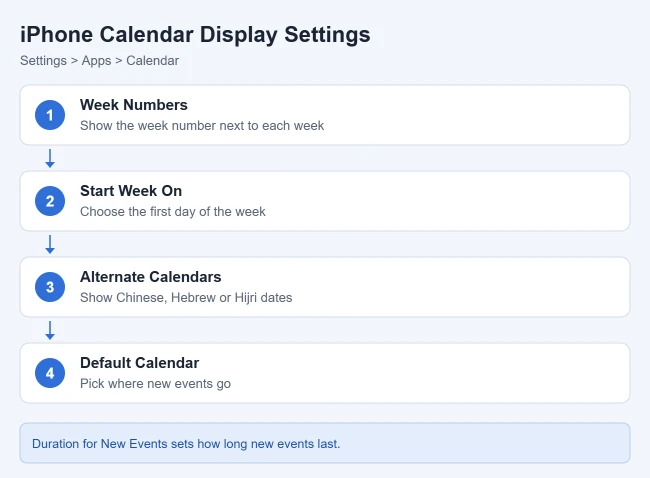
Go to Settings > Apps > Calendar, then use any of these options:
| Setting | What it does |
|---|---|
| Week Numbers | Shows the week number next to every week of the year. |
| Start Week On | Lets you choose which day the week begins with. |
| Week View Starts On Today | Shows the current day as the first day in Week view. |
| Alternate Calendars | Shows Chinese, Hebrew, or Hijri dates alongside the Gregorian calendar. |
Week numbers are handy when your workplace or school plans by numbered weeks. To confirm the change, open the Calendar app and look at a month. To undo it, turn the Week Numbers switch off again.
Default Calendar, Event Length, and Location Suggestions
Three more defaults sit on the same Settings > Apps > Calendar screen:
- Default Calendar: tap it and select the calendar that new events should be added to. This matters when you have several, such as work and personal. Apple notes that you can always move an event to a different calendar after you create it.
- Duration for New Events: tap it and choose a length of time. New events start with that length, and you can still adjust any event.
- Location Suggestions: turn it on or off to choose whether Calendar suggests a location when you create an event.
How to Keep Calendars in Sync
To keep the same events on every device signed in to your Apple Account:
- Go to Settings, tap your name, then tap iCloud.
- Tap See All next to Saved to iCloud.
- Tap iCloud Calendar and turn on Use on this iPhone.
For Google, Microsoft Exchange, or Yahoo calendars, go to Settings > Apps > Calendar > Calendar Accounts > Add Account, tap the service, and sign in. For a CalDAV account, a calendar hosted on your own or your employer’s server, tap Add Other Account instead.
Some accounts do not support push, which means new events are not sent to your phone the moment they change. For those, Apple says to open Calendar Accounts, tap Fetch New Data, and choose a schedule. With Automatically, new data downloads when the iPhone is charging and connected to Wi-Fi. To sync with Outlook, see how to sync your Outlook calendar with iPhone.
Troubleshooting Calendar Settings and Alerts
I cannot find Calendar in Settings
On iOS 18 and later, Calendar is inside Apps near the bottom of the main Settings screen. On iOS 17 and earlier, it is in the main Settings list. You can also type Calendar in the Settings search field.
I set a default alert but get no reminder
Work through these checks in order:
- Go to Settings > Notifications > Calendar and make sure Allow Notifications is on, with at least one place to appear selected.
- Tap Customize Notifications on that screen and make sure upcoming events are turned on.
- Open the event and check its Alert row. An event created before you changed the default may have no alert.
- In the Calendar app, tap the info button next to the event’s calendar and make sure Event Alerts is on.
- Check whether a Focus is silencing notifications. See how to turn on Do Not Disturb on iPhone for where that control lives.
Time to Leave alerts never appear
Confirm the Time to Leave switch is on and that the event has a real street address in its Location field, since Apple ties the feature to the event’s address and Apple Maps. If Calendar has been denied access to your location, it may not be able to work out travel time from where you are. Apple’s Location Services article shows the path: Settings > Privacy & Security > Location Services, then tap the app and choose an option.
New events land in the wrong calendar
Change Default Calendar in the Calendar settings. For an event that is already in the wrong place, Apple says to tap the event, tap Calendar, and select the calendar to move it to.
Frequently Asked Questions
Does changing the default alert time update events I already created?
Do not count on it. A default alert is applied when an event is created, so open any important existing event, tap Edit, and set its Alert yourself.
Why do birthdays have their own alert setting?
Apple lists Birthdays, Events, and All-Day Events as three separate rows under Default Alert Times, so each can have a different reminder. Birthdays come from the Birthdays calendar, which Apple says pulls from your Contacts.
Can I turn off Calendar alerts completely?
Yes. Go to Settings > Notifications > Calendar and turn off Allow Notifications. Your events stay in the app, but the iPhone stops notifying you about them. Turn the switch back on to restore alerts.
Can Siri suggest events and learn from my calendar?
Yes. Go to Settings > Apps > Calendar > Siri. Show in App lets Siri suggest events it finds in Mail, Messages, and Safari, such as flight and hotel bookings. Learn from this App lets Siri make suggestions in other apps based on how you use Calendar.
Do these settings also apply to my iPad or Mac?
The settings in this guide are changed on the iPhone itself. Events sync through iCloud or your calendar account, but check the Calendar settings on each device rather than assuming they match.
Next Step
Set your three default alert times first, then create one test event to confirm the reminder arrives the way you expect. After that, these guides cover related iPhone settings:
- How to remove holidays from the iPhone calendar
- How to change your ringtone and sounds on iPhone
- How to sync your Outlook calendar with iPhone

Matthew Burleigh is the founder, head writer, and editor of Solve Your Tech, which he launched in 2012. He has written technology tutorials since 2008 and worked in IT since 2003, including small-business support, IT management, and consulting. He holds Bachelor’s and Master’s degrees in Computer Science from Arizona State University.
Matthew writes practical guides for Windows, iPhone and iPad, Microsoft Office, Outlook, Google apps, and Android. Solve Your Tech’s guides are tested on current devices or checked against official product documentation, with clear steps, sources, and update dates.
Read more about Matthew and how Solve Your Tech writes and updates its guides, or report a correction.