This post contains affiliate links. As an Amazon Associate, solveyourtech.com earns from qualifying purchases, at no extra cost to you.
To reset the drum life on a Brother HL-5470DW, install the new drum unit, leave the printer turned on, open the front cover, and hold down the Go button until Drum Clear appears on the display. Release Go, then close the front cover.
The printer does not detect a new drum by itself. It counts pages instead, so the drum warning stays on the display until you clear the counter by hand. The reset is meant to be done once, right after a new drum unit goes in.
Before You Reset the Drum Counter
This guide covers the Brother HL-5470DW, a black-and-white laser printer with a one-line display. Brother lists the same procedure for the HL-5470DWT, HL-6180DW and HL-6180DWT. Related models without a display use a different signal, which is covered later in this article.
Check these points first:
- A new drum unit is installed. Brother says to reset the drum counter only when you have replaced the drum unit with a new one. The drum for this printer is the DR-720.
- You replaced the drum, not just the toner. The drum unit and the toner cartridge are two separate parts. Brother’s User’s Guide says not to reset the drum counter when you only replace the toner cartridge.
- The printer is on. The reset uses the control panel, so the printer needs power.
- The inside has cooled. Brother warns that some internal parts are extremely hot right after printing. If you are about to swap the drum, Brother says to leave the printer on for at least 10 minutes to cool before you reach inside.
A quick definition: the drum unit is the larger frame that the toner cartridge clicks into. It holds the photosensitive drum, the roller that carries toner to the paper. The toner cartridge only holds the toner powder.

How to Reset the Drum Life on a Brother HL-5470DW
These steps follow Brother’s Replace Drum instructions for the HL-5470DW, which include the counter reset as the last part of the replacement.
- Make sure the printer is turned on.
- Press the front cover release button, then pull the front cover open.
- If you have not done so yet, fit the new drum unit. Put the toner cartridge into the new drum until it locks, then slide the assembly back into the printer. Leave the front cover open.
- Press and hold the Go button on the control panel.
- Keep holding until the display shows Drum Clear, then release Go. This normally takes a few seconds.
- Close the front cover.
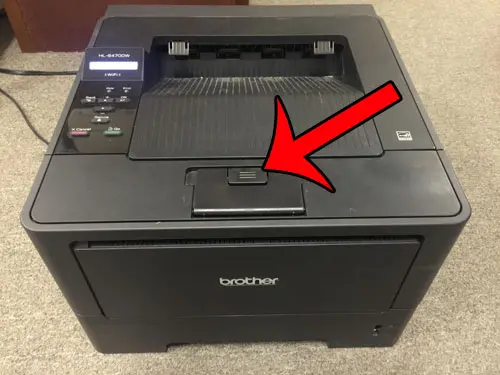
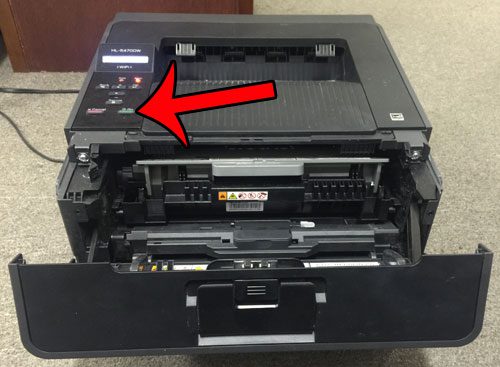
The front cover has to be open while you hold Go. Brother’s steps do the reset before the cover is closed, so do not close it first.

How to Confirm the Reset Worked
The Drum Clear message is the confirmation. After you close the front cover, the drum message that was on the display before, such as Replace Drum or Drum Stop, should no longer appear, and the printer should return to its normal ready state.
Print a page or two to check the result. If the drum warning comes back right away, work through the troubleshooting section below.
Brother does not document a way to undo the reset. Once the counter is cleared, the printer starts counting again as if the drum were new. That is the main reason to reset it only after a real drum replacement.
What the Drum Messages Mean
The HL-5470DW shows several different drum messages. They do not all call for the same action.
| Message | What Brother says it means | What to do |
|---|---|---|
| Drum End Soon | The drum unit will need to be replaced soon. You can still print. | Buy a new drum unit and keep it ready. |
| Replace Drum | The drum has reached the end of its rated life. | Replace the drum unit, then reset the counter. |
| Drum Stop | Brother can no longer guarantee print quality. | Replace the drum unit, then reset the counter. |
| Drum Error | The corona wire is dirty, or the drum is not seated correctly. | Clean the corona wire and reinstall the drum. Do not reset the counter for this. |
Brother’s Drum End Soon page notes that you can keep printing after that first warning, and replace the drum when print quality is no longer acceptable or when Replace Drum appears.
How Long the Drum Should Last
Brother rates the DR-720 drum unit at approximately 30,000 Letter or A4 single-sided pages, based on one page per print job. You can see the figure on Brother’s drum unit page for the HL-5470DW. The User’s Guide adds that actual drum life depends on temperature, humidity, the type of paper, the type of toner and similar factors.
Toner runs out far sooner. Brother rates the standard TN-720 cartridge at about 3,000 pages and the high-yield TN-750 at about 8,000 pages. Going by those ratings, one drum lasts through roughly ten standard cartridges or about four high-yield cartridges.
Should You Reset the Counter Without Replacing the Drum?
Brother’s answer is no. Its instructions say to reset the drum counter only when the drum unit has been replaced with a new one.
The counter is the only way the printer tracks drum wear. If you clear it on an old drum, the printer treats that drum as new, and the later warnings no longer match the real condition of the part. A worn drum can show up as spots, streaks or generally poor print quality.
If the drum is at the end of its life, you can check pricing on the Brother DR-720 drum unit for the HL-5470DW here.
Models Without a Display
Brother’s instructions for this printer family also cover models that have indicator lights instead of a display, such as the HL-5450DN. On those, you open the front cover and hold Go for about 4 seconds until all the LEDs light up, then release Go once all six LEDs are lit and close the cover.
The HL-5470DW has a display, so on this printer you watch for the Drum Clear message instead.
Troubleshooting
Drum Clear never appears
Check that the front cover is fully open and that the printer is turned on. Then press Go and hold it down without letting go. A short press is not enough. Keep holding until the message changes.
The drum message is still there after the reset
Open the front cover and repeat the steps, watching the display for Drum Clear before you release Go. Also read the message carefully. Drum Error is a different message from Replace Drum, and a counter reset does not clear it.
The display shows Drum Error
Brother’s Drum Error page gives two fixes. First, clean the corona wire, a thin wire inside the drum unit. Take out the drum and toner assembly and gently slide the green tab on the drum from left to right and back several times. Return the tab to its home position, or printed pages may have a vertical stripe. The full steps are in Brother’s corona wire cleaning instructions.
Second, take the drum and toner assembly out and reinstall it so that it sits correctly. If the error continues after both, Brother says the drum unit is at the end of its life and should be replaced.
The message is about toner, not the drum
Toner Low and Replace Toner refer to the toner cartridge. Replace the cartridge and leave the drum counter alone. For a different Brother printer where a toner message stays after a new cartridge, see our guide on how to manually reset a toner cartridge on a Brother HL-3075CW.
Print quality is poor right after a new drum
Make sure the toner cartridge is locked into the drum unit. Brother notes that the green lock lever lifts by itself when the cartridge is seated properly. Then check that the green corona wire tab is in its home position.
Frequently Asked Questions
Does the Brother HL-5470DW reset the drum counter automatically?
No. Brother’s instructions say you need to reset the drum counter yourself when you replace the drum unit with a new one. You do it by opening the front cover and holding Go until Drum Clear appears.
Do I reset the drum counter when I change the toner?
No. The User’s Guide for the HL-5470DW says not to reset the drum counter when you only replace the toner cartridge. The drum counter belongs to the drum unit, which lasts through several toner cartridges.
Which drum unit does the Brother HL-5470DW use?
It uses the Brother DR-720 drum unit, rated by Brother at approximately 30,000 pages at one page per job. The toner cartridges are the TN-720 and the high-yield TN-750.
Can I keep printing when the display says Drum End Soon?
Yes. Brother says you can continue to print with that message showing. It is an early warning to get a new drum unit ready. Replace the drum when the print quality is no longer acceptable or when the display shows Replace Drum.
Can I use a non-Brother drum unit?
Brother recommends genuine Brother drum units and toner cartridges. It states that its limited warranty does not apply to problems or damage caused by third-party drum units, toner cartridges or toner. The counter reset itself is a control panel step and is the same after any drum replacement.
Next Step
With the counter cleared, keep the old drum sealed in a bag so toner does not spill, and dispose of it according to local rules or through Brother’s collection program.
Do you need to replace the toner on your HL-5470DW as well? You can buy the TN-720 toner cartridge from Amazon, or you can buy the TN-750 High-Yield cartridge and get more pages from each cartridge.
For other printer problems, our general printer troubleshooting guidelines cover the usual checks.

Matthew Burleigh is the founder, head writer, and editor of Solve Your Tech, which he launched in 2012. He has written technology tutorials since 2008 and worked in IT since 2003, including small-business support, IT management, and consulting. He holds Bachelor’s and Master’s degrees in Computer Science from Arizona State University.
Matthew writes practical guides for Windows, iPhone and iPad, Microsoft Office, Outlook, Google apps, and Android. Solve Your Tech’s guides are tested on current devices or checked against official product documentation, with clear steps, sources, and update dates.
Read more about Matthew and how Solve Your Tech writes and updates its guides, or report a correction.