This post contains affiliate links. As an Amazon Associate, solveyourtech.com earns from qualifying purchases, at no extra cost to you.
To replace the toner on a Brother HL-2270DW, open the front cover, pull out the drum and toner assembly, push down the green lock lever to release the old toner cartridge, and click a new TN420 or TN450 cartridge into the drum. Slide the green tab on the drum back and forth a few times to clean the corona wire, put the assembly back in the printer, and close the cover.
The same steps work on the HL-2230, HL-2240 and HL-2240D, which use the same toner and drum. Brother has discontinued the HL-2270DW but still sells the TN420 and TN450 toner and the DR420 drum.
Which Toner Does the HL-2270DW Use?
The HL-2270DW takes two Brother toner cartridges. Both fit the same way, so pick the one that suits how much you print.
| Cartridge | Type | Brother’s rated yield |
|---|---|---|
| TN420 | Standard yield | Up to 1,200 pages |
| TN450 | High yield | Up to 2,600 pages |
Brother measures these yields with the ISO/IEC 19752 test, which uses a standard letter-size page with light text coverage. Pages with heavy graphics, photos or large dark areas use toner faster. If you print more than a few hundred pages a month, the TN450 is the better buy, since it holds more than twice the toner of the TN420. Brother’s product pages list the same two cartridges for the HL-2220, HL-2230, HL-2240, HL-2240D, HL-2275DW and HL-2280DW, along with several DCP, MFC and IntelliFax models.
If your printer is new to you, the cartridge inside may be the one that came in the box. Brother’s user guide says the included cartridge can be a starter, standard or high-yield cartridge, so the first one may run out sooner than a TN450 would.
Toner Cartridge vs. Drum Unit
The part you pull out of the printer is really two parts locked together, and this is what confuses most people the first time.
- Toner cartridge. The smaller piece that holds the powdered toner. This is the part you replace most often.
- Drum unit. The larger frame the toner cartridge sits in. It transfers the toner onto the paper. The Brother DR420 drum is rated for about 12,000 pages, so one drum normally outlasts several toner cartridges.
A new TN420 or TN450 comes as the toner cartridge only. You keep your existing drum and move it from the old cartridge to the new one. When you set the old and new parts side by side, the old one looks much bigger because the drum is still attached.
How to Tell When the Toner Needs Replacing
The HL-2270DW uses the lights on its control panel to report the toner level.
- Toner light blinking. Brother calls this Toner Low. The light turns on for 2 seconds and off for 3 seconds, over and over. The printer still prints. This is the time to order a cartridge if you don’t have a spare.
- Toner light lit and printing stopped. This is Replace Toner. By default the printer stops printing until you install a new cartridge.
If you see the Drum light instead, the drum unit is wearing out, not the toner. That has a different fix, covered further down.
Let the Printer Cool First
- Let the printer cool. Leave it turned on and wait at least 10 minutes after the last print job. Parts inside the printer get very hot.
- Lay out some paper. Put a sheet of newspaper or a paper towel on a table. You’ll set the drum and toner assembly on it, because loose toner can spill and stain.
- Keep the new cartridge sealed. Don’t open the bag until you’re ready to install it.
- Keep toner off your skin and clothes. If you get some on you, wash it off right away with cold water. Try not to breathe in loose toner.
- Have a plastic bag ready for the old cartridge, so leftover toner can’t leak out after you remove it.
- Skip cleaning sprays. Don’t clean the inside or outside of the printer with anything containing ammonia, alcohol or other flammable substances, or with any spray. A dry, lint-free cloth is enough.
How to Replace the Toner Cartridge on the Brother HL-2270DW
- Open the front cover. Leave the printer on. Pull the front cover on the front of the printer toward you and down. You’ll see the drum and toner assembly inside.
- Remove the drum and toner assembly. Hold the printer steady with one hand, grip the assembly with the other, pull it toward you and lift it out. Set it down on your paper. Don’t touch the metal contacts (electrodes) on the side of the drum, because static electricity can damage the printer.
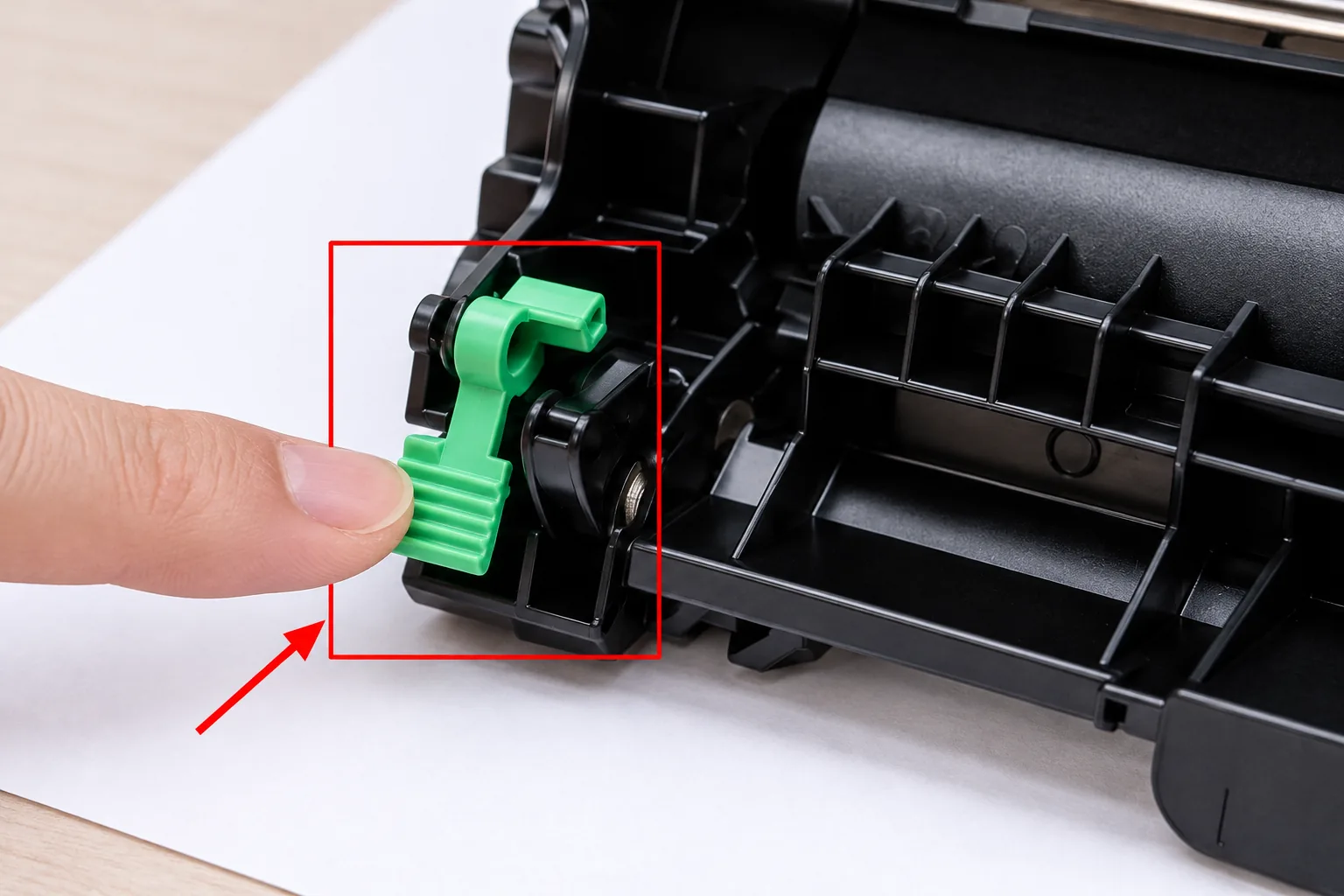
- Release the old toner cartridge. Push down the green lock lever on the drum unit and lift the toner cartridge out of the drum at the same time. The cartridge comes free and the drum stays on the table. Put the old cartridge in the plastic bag and seal it.
- Shake the new cartridge. Take the new cartridge out of its bag. Unpack it right before you install it, because toner left exposed for a long time doesn’t last as long. Hold it level with both hands and gently rock it side to side several times. This spreads the toner evenly inside the cartridge.
- Pull off the protective cover. Pull the protective plastic cover off the cartridge and throw it away.
- Put the new cartridge in the drum. Lower the cartridge into the drum and push it in firmly until it locks. The green lock lever lifts back up on its own when the cartridge is seated correctly. If the lever stays down, push the cartridge in again.
- Clean the corona wire. Find the green tab on top of the drum unit. Slide it gently from one end to the other several times, then return it to its starting (home) position. If you skip this or leave the tab out of place, your pages can come out with a vertical streak.

- Put the assembly back in the printer. Slide the drum and new toner back into the printer until it stops and sits in place.
- Close the front cover. The printer checks the new cartridge. Don’t turn the printer off or open the cover again until the Ready light comes on. Any jobs that were waiting in the queue should then start printing.
Brother also suggests cleaning the printer whenever you replace supplies, using the steps in the Cleaning section of its user guide. Print a page or two to confirm the result. Text should be dark and even, with no streaks or faded areas. The TN450 product page covers Brother’s supplies and lists every printer the cartridge works with.
What to Do With the Old Cartridge
Never put a used toner cartridge in a fire, because it could explode. Keep it sealed in its plastic bag so leftover toner doesn’t spill. Brother runs a free cartridge recycling program in the US. Sign in to your Brother account to print a prepaid USPS label, pack the empty cartridge in the box the new one came in, and drop it off. If your new toner box came with a UPS return label, use that one instead. The program also accepts used drum units. If you don’t send it back, follow your local rules and keep it out of regular household trash.
When the Toner Light Stays On
The Toner light is still on after the swap. Open the front cover, pull the assembly out, and push the cartridge into the drum again until the green lever pops up. Close the cover and wait for the Ready light. Only a new, unused genuine Brother cartridge resets the Replace Toner warning, so a refilled or some third-party cartridges may not clear it. If you used a compatible cartridge, contact its seller for help.
Pages have a dark vertical line. Clean the corona wire again with the green tab (step 7) and make sure the tab ends up back at its starting position.
The Toner light keeps blinking with a new cartridge. Make sure you replaced the toner cartridge, not the drum, and that the cartridge is new rather than one moved from another printer. Reseat it until the green lever pops up. Brother’s Replace Toner instructions for the HL-2270DW point to its support FAQ for a Toner light that stays on or flashes after a change; if that doesn’t help, contact Brother support.
Prints look faint or blotchy right after the change. Take the cartridge out and rock it side to side a few more times, then reinstall it. Also check that the protective cover is completely removed.
The Drum light is blinking or on. This is a drum warning, not a toner problem. A blinking Drum light means the drum will need replacing soon. A steady Drum light means it should be replaced now. Replacing the drum uses the same green-lever steps in reverse: move your toner cartridge into the new drum. Then, with the assembly in the printer and the front cover still open, press and hold Go for about 4 seconds until all the lights come on, release it, and close the cover. Only do this reset when you install a new drum, never after a toner change.
You need a few more pages before a new cartridge arrives. The printer has a Continue mode that keeps printing after the Replace Toner warning. With the front cover closed and no error showing, press Go seven times quickly. All the lights blink twice and the Ready light comes on. Print quality can fade in this mode, and the printer still stops when the toner runs out completely. Press Go seven times again to switch back to the default Stop mode. All the lights blink once.
The printer isn’t showing up on your computer after the change. Replacing the toner doesn’t change any network settings. If the printer went offline, reconnect it with the steps for setting up wireless printing on the Brother HL-2270DW. If the printer driver itself is broken, you can uninstall the HL-2270DW from Windows or Mac and add it again.
HL-2270DW Toner Questions
What toner cartridge does the Brother HL-2270DW use?
It uses the Brother TN420 standard-yield cartridge (up to 1,200 pages) or the TN450 high-yield cartridge (up to 2,600 pages). Both fit the same DR420 drum unit.
Do I need to replace the drum every time I replace the toner?
No. The DR420 drum is rated for about 12,000 pages, so it usually lasts through several toner cartridges. Replace the drum only when the Drum light tells you to.
Do I need to reset anything after replacing the toner?
No. A new genuine Brother cartridge clears the toner warning on its own once the cover is closed. The Go-button reset is only for a new drum unit.
Can I keep printing when the Toner light comes on?
Yes, while the light is only blinking. When the printer reaches Replace Toner and stops, you can turn on Continue mode by pressing Go seven times, but expect lighter prints until you install a new cartridge.
Can I use compatible or refilled toner in the HL-2270DW?
Many people do, and the cartridges fit the same way. Brother recommends its own cartridges, and damage caused by other brands may not be covered by warranty. Some compatible or refilled cartridges also don’t clear the toner warning automatically.
Source: Brother, User’s Guide for the HL-2130 through HL-2270DW series (sections on replacing the toner cartridge, replacing the drum unit and toner Stop/Continue mode). This edition of the guide lists the TN-2210 and DR-2200 part numbers used outside North America; the US equivalents are the TN420, TN450 and DR420.

Matthew Burleigh is the founder, head writer, and editor of Solve Your Tech, which he launched in 2012. He has written technology tutorials since 2008 and worked in IT since 2003, including small-business support, IT management, and consulting. He holds Bachelor’s and Master’s degrees in Computer Science from Arizona State University.
Matthew writes practical guides for Windows, iPhone and iPad, Microsoft Office, Outlook, Google apps, and Android. Solve Your Tech’s guides are checked step by step against the device or app maker’s own documentation and tested on his own devices whenever he has the hardware or software, with clear steps, sources, and update dates.
Read more about Matthew and how Solve Your Tech writes and updates its guides, or report a correction.