This post contains affiliate links. As an Amazon Associate, solveyourtech.com earns from qualifying purchases, at no extra cost to you.
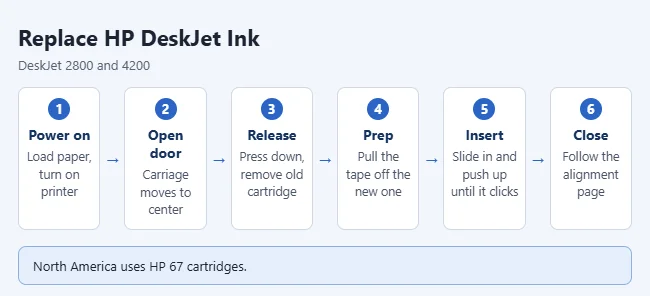
To change the ink in an HP DeskJet 2800 or 4200, turn the printer on and open the cartridge access door. Wait for the carriage to stop in the middle, then press down on the old cartridge to release it and pull it out. Pull the tape off the new cartridge, slide it in at a slight upward angle, and push up until it clicks. In North America, these printers use HP 67 cartridges. The steps are the same for the “e” models (2800e and 4200e) and the DeskJet Ink Advantage Ultra 4900.
Steps follow HP’s DeskJet 2800e and 4200e user and reference guides, and the cartridge numbers match HP’s store listings. HP also covers the process on its HP DeskJet 2800, 4200, 4900 Printers – Replacing ink cartridges support page.
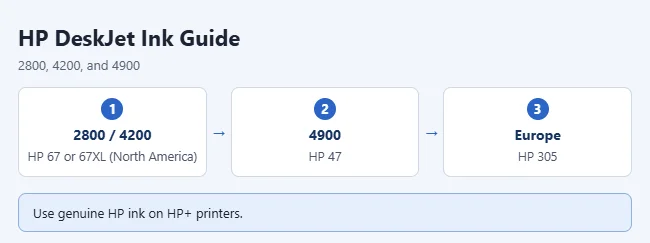
Which ink does my printer use?
- DeskJet 2800 and DeskJet 4200 (North America): HP 67 Black or HP 67XL Black, plus HP 67 Tri-color. The HP 67 black and tri-color 2-pack covers both.
- DeskJet Ink Advantage Ultra 4900: HP 47 Black and HP 47 Tri-color.
- Other regions: HP lists different numbers, like HP 305 in Western Europe.
XL cartridges hold more ink, so they cost less per page if you print often. HP rates the standard HP 67 Black at about 120 pages and the HP 67XL Black at about 240 pages.
Not sure which number you need? Open the front door and the cartridge access door. HP prints the cartridge numbers for your region on a label inside. You can also read the number on the cartridge that is in the printer now.
What you need
- The printer plugged in and turned on. HP’s steps start with the power on, so the carriage can move to the center.
- Plain white paper in the input tray. The printer prints an alignment page after you change a cartridge.
- The new cartridge, still sealed. HP says to leave the tape on and the package closed until you are ready to install it, because the tape keeps the ink from drying out.
These steps are for replacing a cartridge in a printer that is already set up. If the printer is brand new, follow the setup instructions in the HP app instead.
Check the ink levels first
You only need to replace the cartridge that is low or empty. There are three ways to check.
- On the printer: the control panel display has two ink level icons, one for the tri-color cartridge and one for the black cartridge.
- In the HP app (HP Smart): open the app on your phone or computer. The estimated levels appear beside the picture of your printer.
- In the HP printer software for Windows: open the software and select the Estimated Levels tab.
The levels are estimates. HP notes that refilled, remanufactured, or previously used cartridges may show a wrong level or none at all. For the Windows side of this, see our guide on how to check printer ink levels in Windows 11.
How to replace the ink cartridges
- Load paper in the input tray and turn on the printer.
- Open the cartridge access door. The carriage moves to the center.
- Wait until the carriage stops and the printer is quiet.
- Press down on the cartridge you’re replacing to release it, then pull it out toward you.
- Take the new cartridge out of its package and hold it by the sides.
- Pull off the plastic tape using the pull tab. Don’t touch the copper contacts or the ink nozzles.
- Slide the cartridge into its slot at a slight upward angle, with the taller end facing the printer, then push up until it snaps in.
- Close the cartridge access door.
Don’t leave a slot empty for long. HP says to put the new cartridge in as soon as you can after removing the old one, because exposed nozzles can dry out. Always turn the printer off with the Power button too. HP says this protects the cartridges from drying out.
Finish setup with the alignment page
After you close the door, the printer prints an alignment page on its own. Follow the instructions printed on the page. It tells you to scan the page on the scanner glass so the printer can line up the cartridges.
To confirm the change worked, check that the Ink Alert light is off and the ink level icon for the new cartridge shows ink. Then print a page.
What the ink light and error codes mean
| What you see | What it means | What to do |
|---|---|---|
| Ink Alert light is on | Low ink or a cartridge problem | Check the ink level icons or the HP app to see which cartridge it is. |
| E0 on the display | Unusable cartridge | Open the HP software and follow its instructions to replace the cartridge. |
| E3 on the display | The carriage is stalled | Open the cartridge access door and clear the jam from the cartridge area. |
| E4 on the display | Paper jam | Clear the jam from the input tray or the cleanout area. |
| Non-HP Cartridge message | The printer doesn’t see an original HP cartridge | Install an original HP cartridge. If you believe yours is genuine, HP has a check at hp.com/go/anticounterfeit. |
E1 and E2 are paper size errors, and E5 and E6 are scanner and general errors. For those, HP says to load the right paper size, or turn the printer off and on again.
If the printer doesn’t recognize the new cartridge
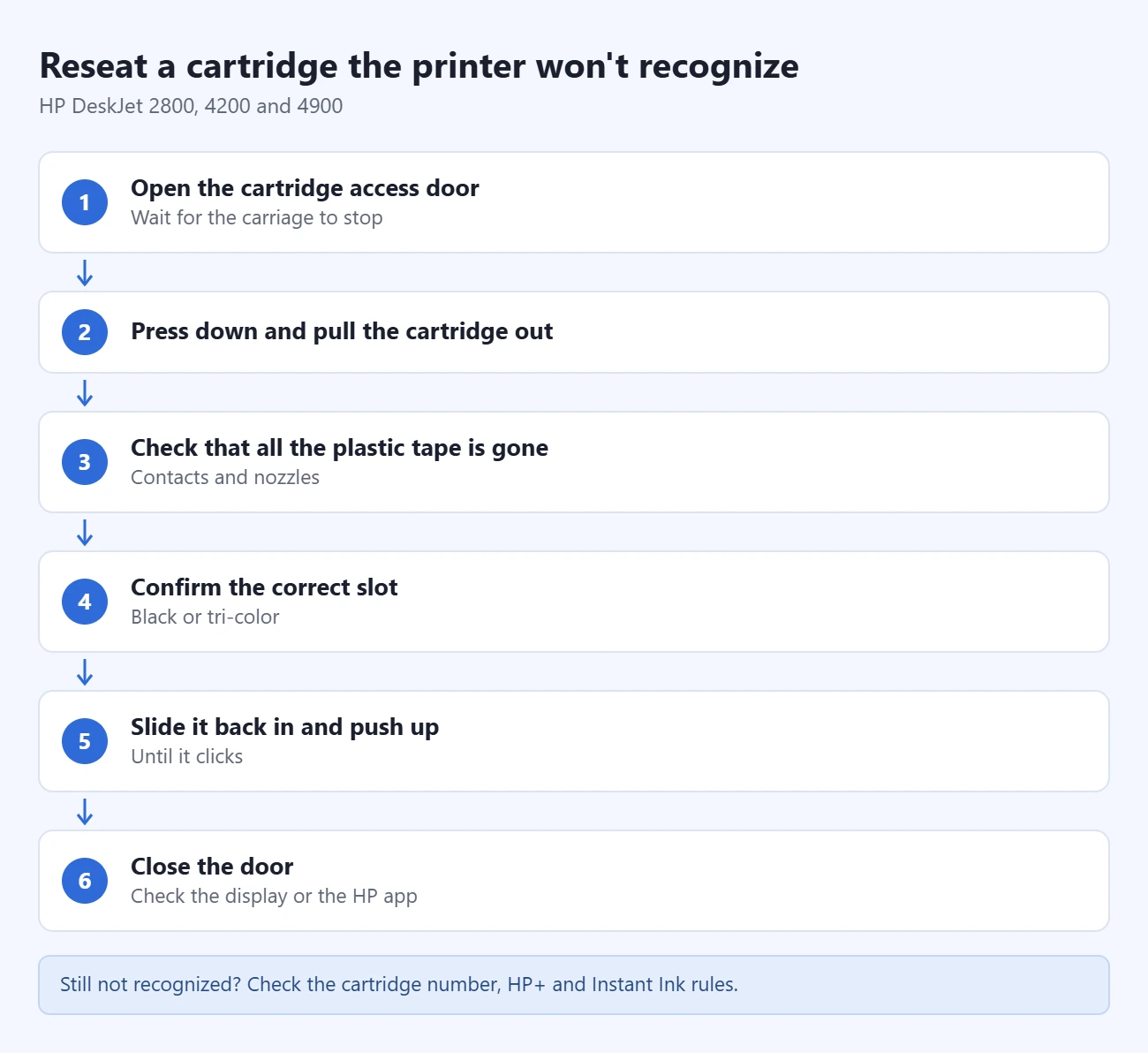
Most of the time the cartridge isn’t seated or still has tape on it. Work through these steps in order.
- Open the cartridge access door and wait for the carriage to stop.
- Press down on the new cartridge and pull it out.
- Check that all of the plastic tape is gone from the contacts and nozzles.
- Make sure the cartridge is in the correct slot for black or tri-color.
- Slide it back in and push up until it clicks.
- Close the door and check the display or the HP app.
If the error stays, HP’s user guide points to cleaning the cartridge contacts as the next step. The HP app shows alerts and help for the exact problem. Also check these causes:
- Wrong cartridge number. A cartridge sold for another region or another printer family won’t work, even if it fits.
- Non-HP or refilled cartridge in an HP+ printer. See the next section.
- HP Instant Ink cartridge without an active plan. These only work while the printer is enrolled and online.
- Cartridge past its warranty date. The end date is printed on the cartridge in YYYY/MM/DD format. HP won’t replace it under warranty after that date or if it has been refilled.
Single-cartridge mode
The printer can keep working with only one cartridge installed. HP calls this single-cartridge mode. It starts when you remove a cartridge and ends when both are back in.
If the printer says it is in single-cartridge mode while both cartridges are installed, take both out. Check that no tape is left on either one, then push each back in until it clicks.
HP+, HP Instant Ink, and non-HP cartridges
- HP+ models. Printers with an “e” at the end of the name, like the DeskJet 2855e or 4255e, can be set up with HP+. HP’s user guide says these models require original HP cartridges. With a non-original or refilled cartridge, the printer won’t print. HP+ also needs an HP account and an internet connection.
- HP Instant Ink. This is HP’s optional ink subscription. HP says the cartridges it mails you are special and only work with HP Instant Ink, and the printer must stay connected to the internet. If you cancel, you can go back to store-bought original HP standard or XL cartridges.
- Dynamic security. These printers are meant to work only with cartridges that have new or reused HP electronic circuitry. Firmware updates can block cartridges with non-HP or modified chips, including ones that worked before. HP explains this on its dynamic security page.
Frequently Asked Questions
Which color goes where?
Each slot is marked for black or tri-color ink. Match the new cartridge to the slot the old one came out of.
Can I use non-HP ink?
HP recommends genuine HP cartridges. If you set up your printer with HP+ (models ending in “e”), it’s designed to work only with Original HP ink. On any model, a firmware update can block a cartridge that has a non-HP chip.
Do I have to replace both cartridges at once?
No. Replace only the one that is low or empty. The printer can also run on one cartridge in single-cartridge mode until you get the other.
Why did my printer print a page after I changed the ink?
That is the alignment page. The printer prints it when it detects a new cartridge. Scan it as the page instructs to finish.
How should I store a spare cartridge?
Keep it sealed in its original package at room temperature, 59 to 95 degrees Fahrenheit (15 to 35 degrees Celsius). Don’t remove the tape until you install it.
What should I do with the old cartridge?
HP runs a free recycling program at hp.com/go/recycle.
Next step
Print a test page to check the new ink. If nothing prints, look at the print queue before you blame the cartridge.
Related: how to add a printer in Windows 11, how to clear the printer queue, and how to add a printer to an iPhone.

Matthew Burleigh is the founder, head writer, and editor of Solve Your Tech, which he launched in 2012. He has written technology tutorials since 2008 and worked in IT since 2003, including small-business support, IT management, and consulting. He holds Bachelor’s and Master’s degrees in Computer Science from Arizona State University.
Matthew writes practical guides for Windows, iPhone and iPad, Microsoft Office, Outlook, Google apps, and Android. Solve Your Tech’s guides are tested on current devices or checked against official product documentation, with clear steps, sources, and update dates.
Read more about Matthew and how Solve Your Tech writes and updates its guides, or report a correction.