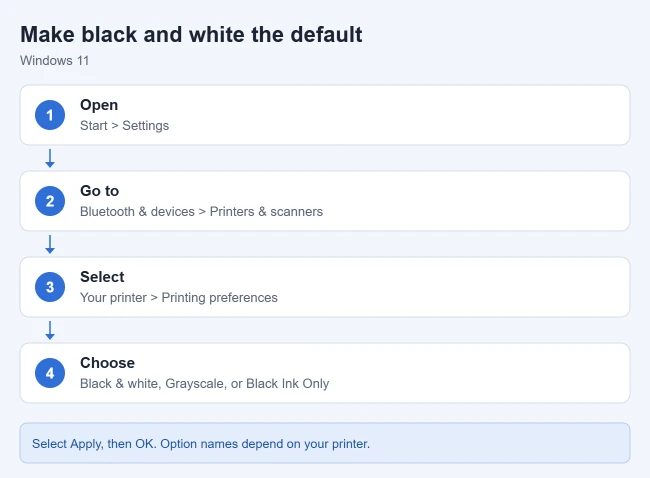
To change your printer settings to black and white in Windows 11, go to Start > Settings > Bluetooth & devices > Printers & scanners, select your printer, open Printing preferences, and choose the black and white, grayscale, or black-ink-only option. Select OK to save it as your default for new print jobs.
The option itself comes from your printer’s driver, which is the software that lets your computer talk to the printer. That is why the label and the tab it sits on differ between HP, Canon, Epson, Brother, and other brands. This guide covers the default setting in Windows 11 and Windows 10, a one-time black and white print, the Mac route, what the different grayscale options mean, and what to do when the setting is missing or ignored.
Change the Default or Just One Job
- Default or one job? A change made in Printing preferences from Windows Settings becomes your starting point for every app. A change made inside one app’s print window normally applies to that job or that app only.
- Your printer must be installed. It needs to appear in the Printers & scanners list. If it does not, add the printer in Windows first.
- Labels vary. Look for Black and White, Black & White, Grayscale, Print in Grayscale, Monochrome, Black Ink Only, or Color Mode.
- Black-only printers do not need this. A monochrome laser printer has no color to turn off, so the option may not appear at all.
Set Black and White as the Default in Windows 11
Use this method when you want every document to print in black and white unless you say otherwise.
- Select Start > Settings > Bluetooth & devices > Printers & scanners.
- Select your printer in the list to open its page.
- Select Printing preferences. A separate window from your printer’s driver opens. Do not pick Printer properties, which holds ports, sharing, and other device settings.
- Look through the tabs for the color setting. HP lists Paper/Quality, Color, and Features as common places, and says it can also sit behind an Advanced button. Canon’s generic driver puts Color Mode on the Basic Settings, Quality, or Color sheet.
- Choose Black and White, Grayscale, Monochrome, or Black Ink Only.
- Select Apply if the window has that button, then select OK.
New print jobs start in black and white. You can still switch a single job back to color from the app’s print window. The same route to Printing preferences appears in Microsoft’s Windows printing troubleshooting guide, and Canon owners can follow the full procedure in Setting Black-and-white Printing by Default.
The same Printing preferences window also holds two-sided settings, such as how to turn on automatic duplexing on an HP LaserJet P2055.
If you own more than one printer, repeat these steps for each one. The setting is stored per printer, so it helps to set a default printer in Windows 11 so your jobs go to the one you just changed.
Set Black and White as the Default in Windows 10
Windows 10 reached end of support in October 2025, but many PCs still run it. It uses the same driver window, with a slightly different path.
- Select Start > Settings > Devices > Printers & scanners.
- Select your printer, then select Manage.
- Select Printing preferences.
- Find the color setting on one of the tabs and choose the black and white or grayscale option.
- Select OK.
The printer uses black and white as its starting setting for your Windows account.
Print One Document in Black and White
If you only need black and white once, leave the default alone and change the setting in the print window instead.
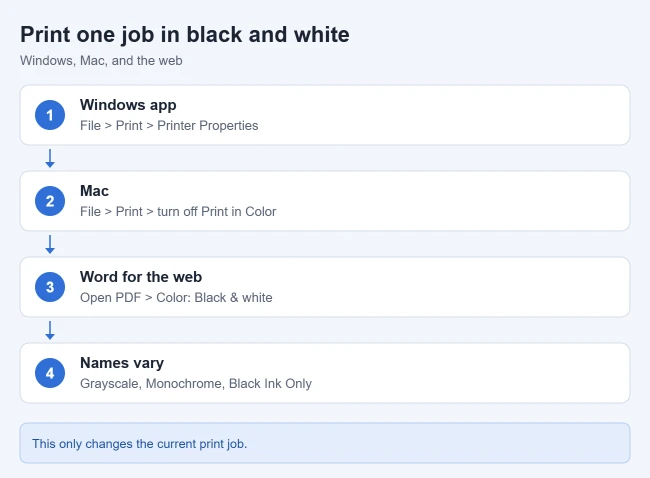
- Open the document or photo and select File > Print, or press Ctrl + P.
- Choose your printer.
- Select Printer Properties, Preferences, Options, or More settings. The name changes because apps label this button differently.
- Choose the black and white or grayscale option, then select OK.
- Check the preview if the app shows one, then select Print.
Only this job prints in black and white. Your default stays the same.
In Word, Microsoft’s Print in black and white page gives the same route: select the File tab, choose Print, and under Printer select Printer Properties. The options in that window are specific to your printer. Browsers have their own color menu, so printing in black and white from Google Chrome works a little differently if that is where you print most.
The same window holds the driver’s scaling options, which matter if your Word document prints too small.
Excel is a special case. It carries print settings over even after a file is closed, so the driver default may not be applied to a workbook. Check the print settings screen before you print a spreadsheet.
Print in Black and White on a Mac
On a Mac, the color choice is made in the Print window. HP’s black and white printing guide gives these steps for its printers:
- Open the item you want to print and select File > Print, or press Command + P.
- Select your printer.
- Turn off Print in Color, or turn on Black & White. Which one you see depends on the printer and app.
- Select Print.
On HP printers, the Presets menu also includes color and black and white options. A preset is a saved group of print settings. To reuse your choice, Apple’s instructions are to pick your settings, open the Presets pop-up menu, and choose Save Current Settings as Preset. You can make the preset available for one printer or for all printers. The details are in Save frequently used print settings for routine printing on Mac.
If you do not see a color option, keep in mind that the available print options depend on your printer and the app you are printing from. Try scrolling down in the Print window and opening a category such as Media & Quality.
Print in Black and White From the HP App
HP printer owners can also choose black and white in the HP app on a computer or phone. According to HP:
- Open the HP app and select your printer.
- Select the Print PDFs tile on Windows, the Print documents tile on Android, iOS, or macOS, or the Print photos tile.
- Select the file you want to print.
- Open the print preview and select a Grayscale, Monochrome, or Black Ink Only option from the color options, grayscale, or presets menu.
- Print the document or photo.
This choice applies to what you print from the app. It does not replace the Windows default described above.
Grayscale vs. Black Ink Only
Many drivers offer more than one black and white setting, and they do not use ink the same way. Here is how the settings differ on HP inkjet printers:
- Black and white, Monochrome, Black Ink Only, or Grayscale uses only the black cartridge.
- High Quality Grayscale uses all colors plus black for better-looking black and white prints.
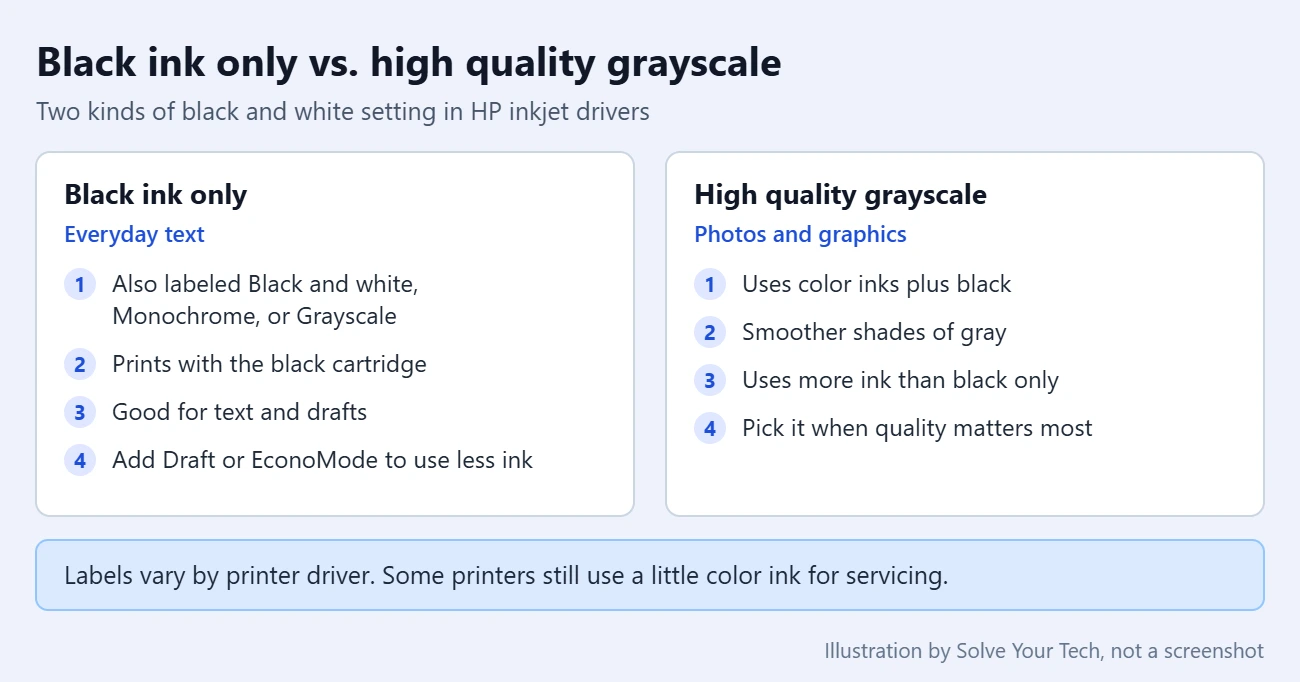
For text documents, the black-only choice is usually what you want. For photos, high quality grayscale gives a better print at the cost of some color ink.
Know this before you rely on it to save ink: some HP models still use a mix of black and color inks to decrease grain, and some ink from all cartridges is used for periodic servicing that prevents clogs. There is no way to bypass these features. To use less ink overall, choose Draft or EconoMode from the Print Quality, Output Quality, or Media menu. Colors you never print can dry out over time, and a printhead cleaning cycle can often clear them.
Some drivers also have an automatic mode. Canon’s generic driver, for example, defaults to Auto [Color/B&W], which detects whether each page is color or black and white. Changing the default to Black and White only makes sense if you print that way often.
When a cartridge does run out on a Canon inkjet, our guide to changing the ink in a Canon PIXMA TR4720 shows the replacement steps.
If your printer uses refillable tanks instead of cartridges, here is how to refill the ink tanks on an Epson EcoTank ET-2800 when a color runs low.
Example: Canon and HP Driver Settings
Driver windows differ by brand. Here is where the setting sits in two common drivers.
- Canon MF8300: On the Quality tab, Color Mode is set to Black and White.
- HP Color LaserJet CP1215: On the Color tab, the Print in Grayscale box is checked. The same driver window also lets you add a watermark to CP1215 printouts. If the Color tab is missing, install the HP Color LaserJet CP1215 driver from HP.

How to Confirm the Change and Switch Back to Color
To check that the default was saved, reopen Printing preferences from Printers & scanners. The black and white option should still be selected. Then open any document, select File > Print, and look at the preview or the printer’s properties. Printing one page with a color picture on it is the clearest test.
To go back to color, follow the same steps and choose Color, or the automatic mode if your driver has one, then select OK. Nothing about this change is permanent, and it does not affect your ink cartridges or the printer’s own copy settings.
When It Still Prints in Color
There is no black and white option
The setting comes from the driver, so a basic driver may not show it. If the properties or preferences options are missing on an HP printer, install the full feature driver from HP’s setup site. For other brands, download the full driver from the manufacturer’s support site. The steps for installing or updating a printer driver in Windows 11 walk through that process. Also check behind any Advanced button before you give up, since Print in Grayscale can be listed there.
The printer still prints in color
- Confirm you changed the printer you are actually printing to. Each printer in the list has its own preferences.
- Check the app’s own print window. A color choice made there can override the default for that job.
- In Excel, review the print settings each time, for the reason given above.
- Make sure you selected OK in the preferences window, not Cancel.
The setting is grayed out or resets
On a work or school computer, or with a shared office printer, an administrator may control the printer’s defaults. In that case the option can be locked or can return to its earlier value. Ask whoever manages the printer to change it.
Color ink still goes down
This is expected on some inkjet printers. Certain models mix color into black and white prints, and all cartridges are used during servicing. Use the black-ink-only choice instead of high quality grayscale, and check your printer ink levels in Windows 11 before a large job.
You need the same default for every user on a PC
Printing preferences are saved for your own Windows account. Administrators who need to set a printer’s configuration for a whole computer can use the Set-PrintConfiguration PowerShell command, which has a Color setting and requires administrator credentials. See Microsoft’s Set-PrintConfiguration reference before using it. Most home users do not need this.
Once black and white is your default, print a single test page to confirm it. If you often send several documents at once, you can print multiple files at once in Windows 11.
Black and White Printing Questions
How do I make my printer print in black and white by default?
In Windows 11, open Settings > Bluetooth & devices > Printers & scanners, select the printer, select Printing preferences, choose the black and white or grayscale option, and select OK. In Windows 10, the path is Settings > Devices > Printers & scanners, then the printer, then Manage > Printing preferences.
Why don’t I see a black and white option?
The option comes from your printer’s driver. If it is missing, you may have a basic driver installed, the setting may be behind an Advanced button, or the printer may only print in black already. Installing the manufacturer’s full driver is the usual fix.
Will black and white printing save color ink?
Mostly. HP’s black-only settings use only the black cartridge for the print itself. Some printers still use a small amount of color ink to reduce grain and for routine servicing, and that cannot be turned off.
What is the difference between grayscale and black and white?
It depends on the driver. In HP’s inkjet drivers, Black and white, Monochrome, Black Ink Only, and Grayscale all print with the black cartridge, while High Quality Grayscale blends color inks with black for a better-looking result. Other brands may use these words differently, so check your printer’s manual.
Does changing this setting affect copies made at the printer?
No. Printing preferences only apply to jobs sent from your computer. Copies started from the printer’s own buttons or screen use the settings on the printer itself.
Can I print black and white from Chrome?
Yes. Chrome has its own color choice in its print window. Follow the steps for printing in black and white from Google Chrome.

Matthew Burleigh is the founder, head writer, and editor of Solve Your Tech, which he launched in 2012. He has written technology tutorials since 2008 and worked in IT since 2003, including small-business support, IT management, and consulting. He holds Bachelor’s and Master’s degrees in Computer Science from Arizona State University.
Matthew writes practical guides for Windows, iPhone and iPad, Microsoft Office, Outlook, Google apps, and Android. Solve Your Tech’s guides are checked step by step against the device or app maker’s own documentation and tested on his own devices whenever he has the hardware or software, with clear steps, sources, and update dates.
Read more about Matthew and how Solve Your Tech writes and updates its guides, or report a correction.