To check printer ink levels in Windows 11, open your printer manufacturer’s app or supported status utility and select the correct printer. Some drivers also expose a supply monitor through Printing preferences. There is no universal ink-level tab that appears for every printer in Windows.
This guide covers Windows 11. The exact monitor, labels and available information depend on your printer model and installed software. Laser printers use toner rather than ink, but may provide similar supply information. Many laser printers also track a separate drum unit, as in this guide to resetting the drum life on a Brother HL-5470DW. Instructions reviewed on October 2, 2026.
Start With the Printer’s App
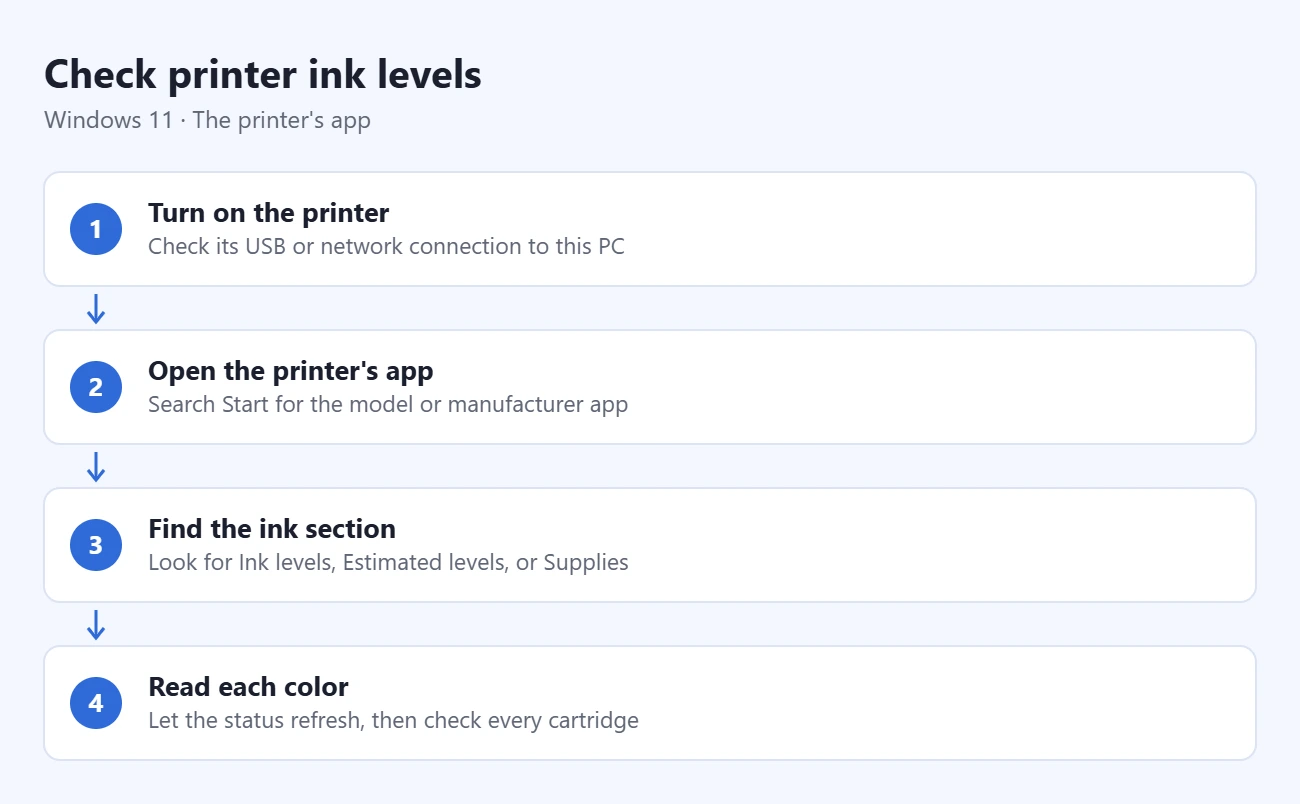
- Turn on the printer and check its USB or network connection to this PC. Read the model name from the printer so you can select the right device.
- Open Start and search for the printer’s model or manufacturer app. Open the software you already use for that printer.
- Select your printer if the app lists several. Look for Ink levels, Estimated levels, Supplies or a cartridge symbol. Labels vary.
- Allow the status to refresh. Read each color separately, including black. A color cartridge warning can matter even when your next document contains mostly black text.
For HP printers, the HP app displays Estimated supply levels next to the printer image; loading may take a few minutes. Older compatible software may show Estimated Levels in HP Printer Assistant. HP Laser models using Easy Printer Manager show Supplies. See HP’s ink and toner checking instructions for supported alternatives.
Try Printing Preferences if Your Driver Supports a Monitor
- Press Windows key + I, then open Bluetooth & devices > Printers & scanners.
- Select your printer and open Printing preferences. This is different from the general Printer properties window, which may show Windows settings such as ports instead.
- Look for the maker’s maintenance or status controls. Open its supply monitor if available. If you only see paper and layout settings, use the manufacturer’s app or printer display instead.
For example, Canon documents Maintenance > View Printer Status for the MAXIFY MB5100 series driver, followed by Ink Details when needed. The Canon status-monitor instructions describe that model; do not assume every Canon printer has the same tabs.
Epson’s documented tank-printer utility can be opened by double-clicking the printer icon in the Windows notification area, using the up arrow to show hidden icons if needed. Its ink-level guidance explains that the displayed level is an estimate. If the icon or utility is absent, check the manual for your exact Epson model.
Check the Printer Itself
If your model supports it, use its control-panel ink or toner indicator. Consult the model’s manual rather than looking for a particular menu on every printer. This also gives you an alternative when the PC cannot retrieve a reading. For one model-specific example, see how to check ink levels on the HP Photosmart 6510. For a printer with buttons instead of a touchscreen, see checking ink levels on the HP Officejet 4620.
For a printer with visible ink tanks, inspect the actual level against its marked fill lines. Epson warns that its documented tank system estimates usage rather than directly measuring the remaining ink, and operating below the lower line can damage the printer. Follow your model’s refill instructions; a software percentage is not a reason to ignore an empty-looking tank.
If the Levels Are Missing or Seem Wrong
First confirm you selected the physical printer you intend to check. A printer that is asleep, disconnected or showing offline may not provide a current status. Restore its connection, then reopen the app and refresh the reading.
Next, check whether the manufacturer offers a compatible status utility or full software package for your exact model and Windows 11 PC. Basic printing support does not guarantee a supply monitor. Use official software and our printer-driver installation and update guide if installation is needed. On a managed PC, ask the administrator before installing software; do not repeatedly remove a working printer just to make an ink tab appear.
Treat percentages as estimates rather than a count of guaranteed remaining pages. HP notes that refilled, remanufactured or previously used cartridges, tank systems and a full hardware reset can affect accuracy. A driver update cannot guarantee an exact reading. If a warning persists, record the message and consult the model’s support instructions. For one example of a toner warning that stays after a new cartridge, see this guide to the Replace Toner message on a Brother HL-3075CW.
Frequently Asked Questions
Should I replace a cartridge as soon as it says low?
Have the correct replacement available, but follow the printer’s warning and model instructions. “Low” is a planning signal, and ink or toner may still remain. If it is depleted or print quality is unacceptable, check the manufacturer’s replacement or print-quality guidance.
How often should I check?
Check before a large or important print job and when a supply warning appears. Compare each color or cartridge rather than using one combined percentage as a guarantee that the whole job will finish. If color is running low and you only need text, you can switch your printer to black and white for that job.
Can third-party software add a missing ink gauge?
Do not assume it can retrieve information your printer does not expose. Start with the manufacturer’s supported method, printer display or visible tank level. Avoid downloading an unfamiliar utility merely because Windows has no ink tab.
Once you have a reading, keep the correct supplies ready and follow any model-specific warning. For other setup and printing tasks, browse our Windows printer and printing guides.

Matthew Burleigh is the founder, head writer, and editor of Solve Your Tech, which he launched in 2012. He has written technology tutorials since 2008 and worked in IT since 2003, including small-business support, IT management, and consulting. He holds Bachelor’s and Master’s degrees in Computer Science from Arizona State University.
Matthew writes practical guides for Windows, iPhone and iPad, Microsoft Office, Outlook, Google apps, and Android. Solve Your Tech’s guides are tested on current devices or checked against official product documentation, with clear steps, sources, and update dates.
Read more about Matthew and how Solve Your Tech writes and updates its guides, or report a correction.