To print a test page in Windows 11, open Settings, go to Bluetooth & devices > Printers & scanners, select your printer, then select Print test page. If that item isn’t on the page, select Printer properties and use the Print Test Page button on the General tab.
A page that comes out cleanly proves that Windows, the driver and the connection can all reach the printer. These steps are written for Windows 11; a short note covers Windows 10.
What a Windows Test Page Proves
There are really two different test pages, and mixing them up is the most common reason people draw the wrong conclusion.
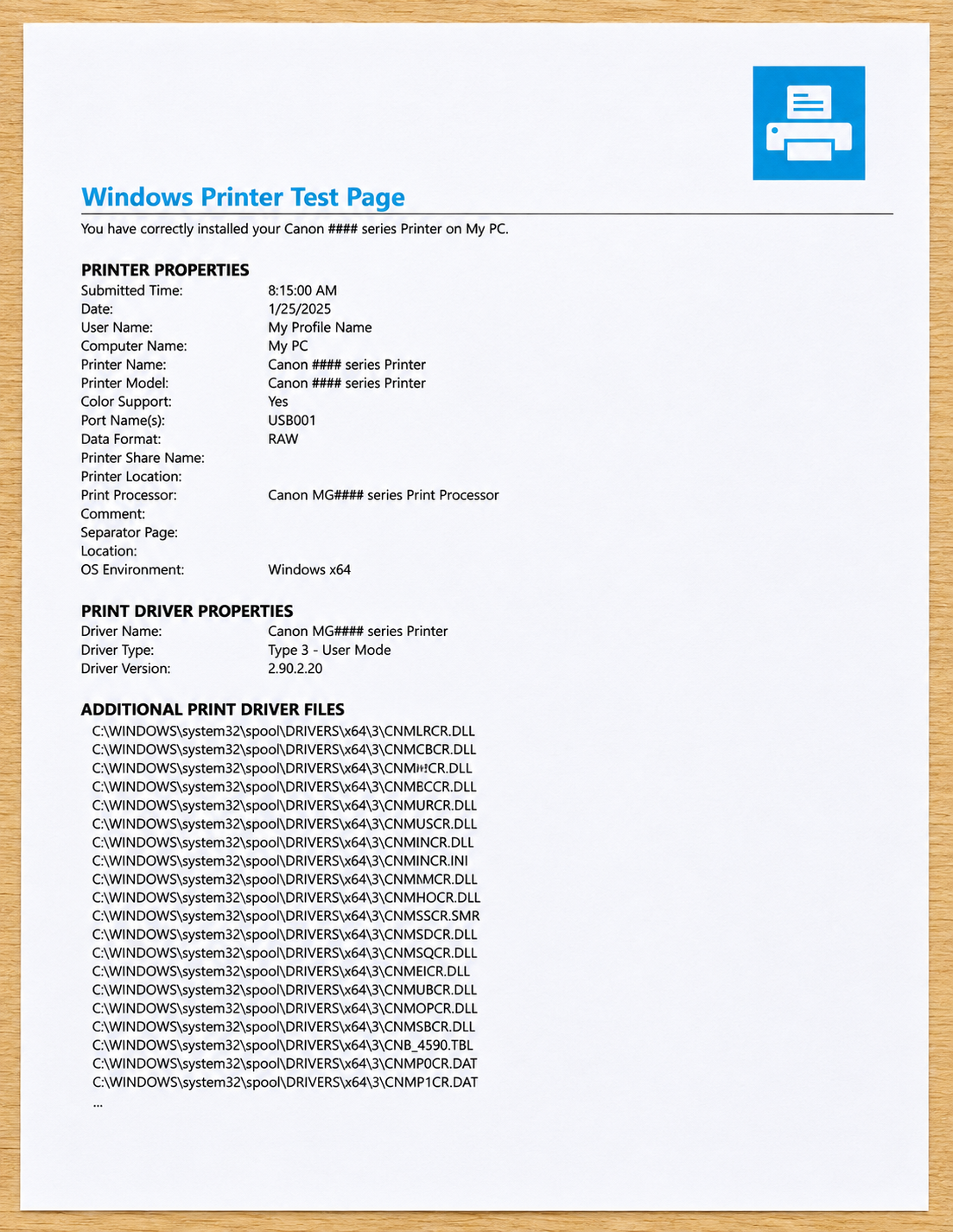
- The Windows test page is sent from your PC through the printer driver, the print queue and the USB, Wi-Fi or network connection. If it prints, the whole path from Windows to the printer works.
- The printer’s own self-test or configuration page is generated inside the printer and never touches your computer. It proves the printer itself can feed paper and put ink or toner on it.
Neither one is a full print-quality check. A Windows test page uses a small amount of text and a few color blocks, so it can look fine even when some nozzles are partly blocked. If you are chasing streaks, use the printer’s nozzle check pattern instead (more on that below).
Print a Test Page From Windows 11 Settings
This is the quickest route and the one to try first after you add a new printer. Make sure the printer is turned on, has plain paper loaded and shows no error lights.
- Select Start, then Settings (or press Windows key + I).
- Select Bluetooth & devices in the left column.
- Select Printers & scanners. Your installed printers appear in a list.
- Select the printer you want to test. Pick the physical printer, not an entry such as Microsoft Print to PDF or OneNote, which only create files.
- On the printer’s page, select Print test page. Windows sends the job to the queue right away.
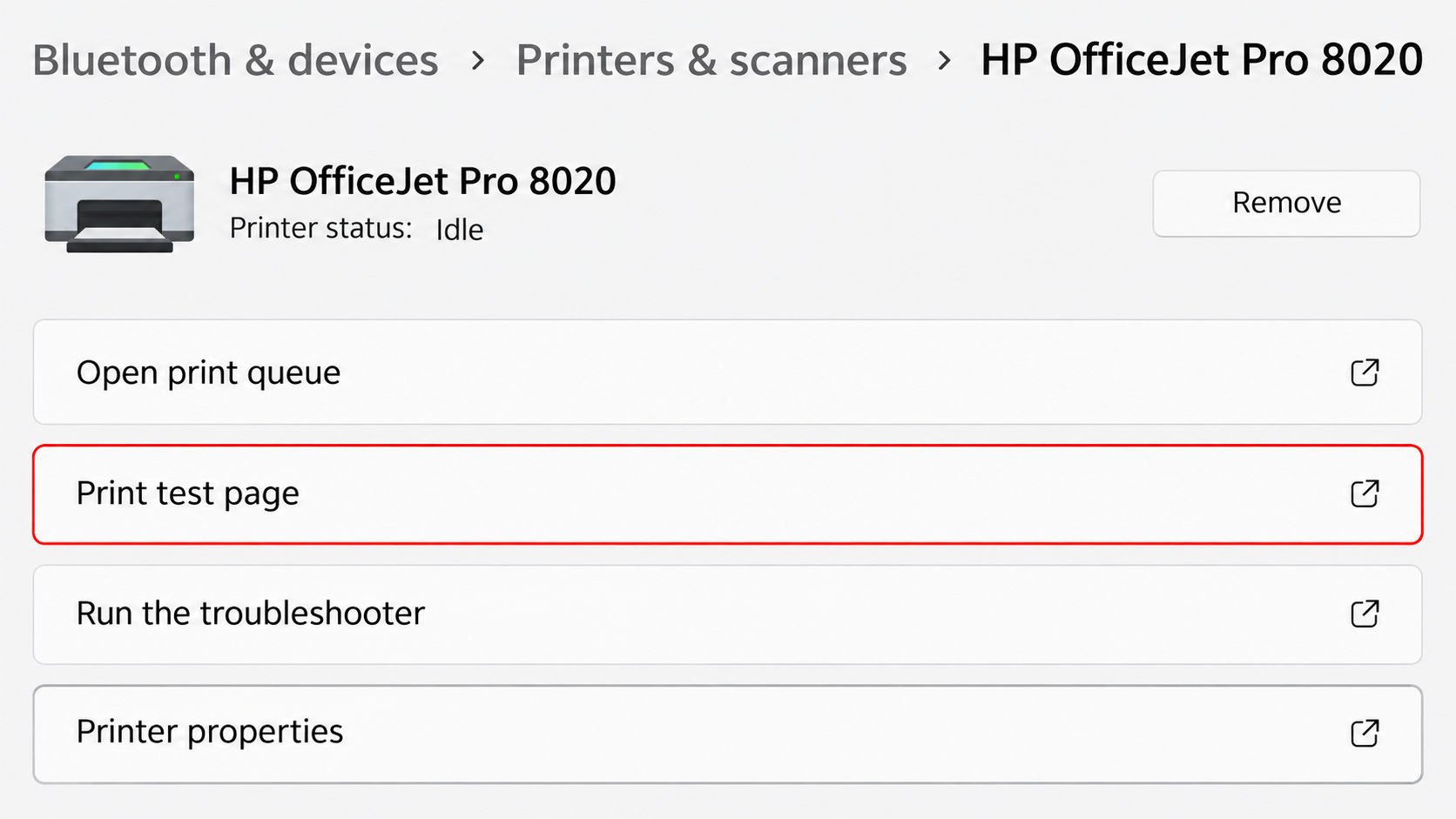
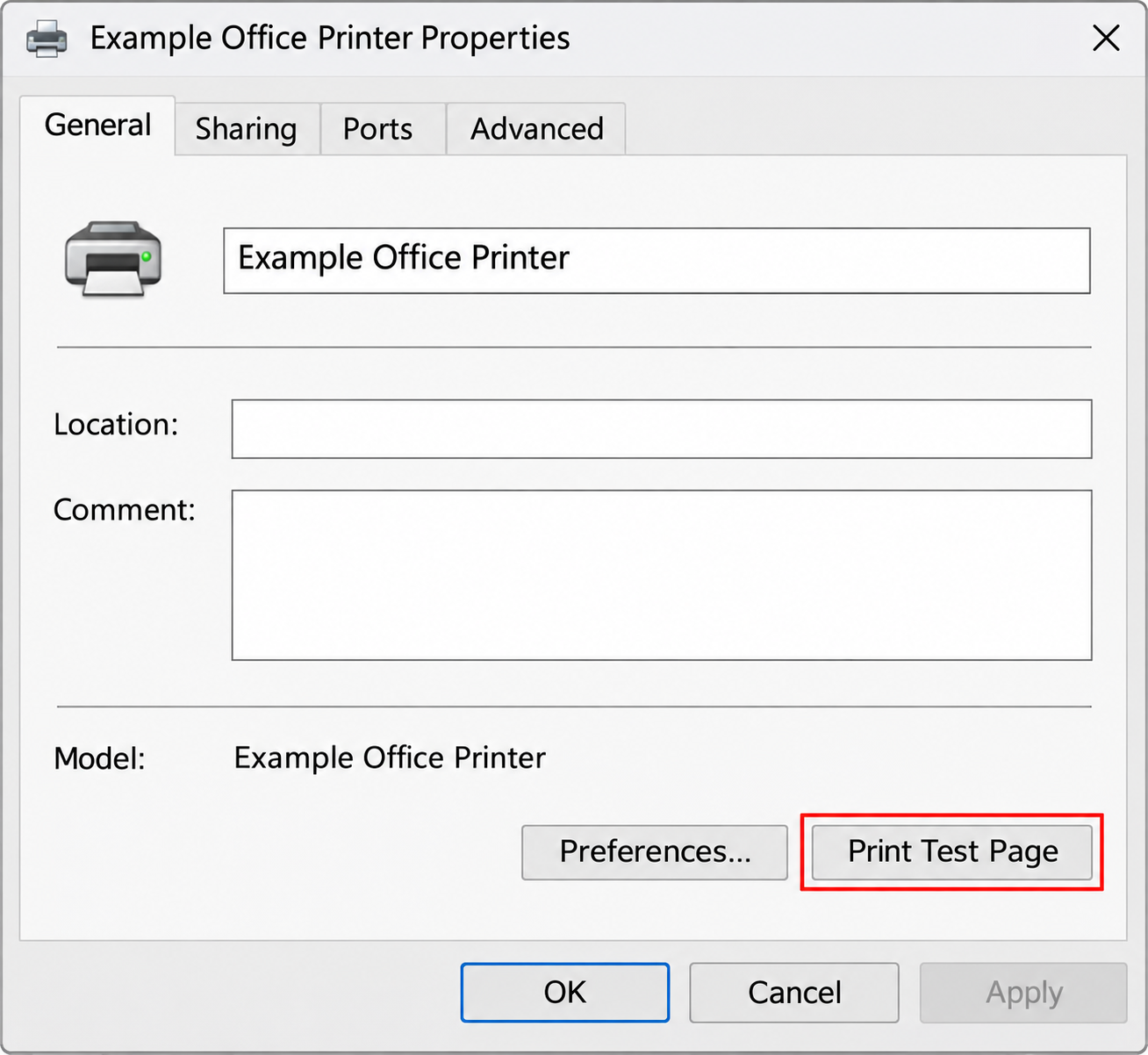
- If you don’t see Print test page, select Printer properties instead. A classic properties window opens on the General tab.
- Select Print Test Page at the bottom of the General tab. A small message box confirms the page was sent; select Close.
Within a few seconds the printer should wake up and print one page. It usually lists the printer name, driver name, port and a few other details, plus a color sample on color printers. The exact layout depends on the driver, so don’t worry if yours looks different from someone else’s.
Microsoft’s own printer connection and printing problems page uses the same Settings > Bluetooth & devices > Printers & scanners location and suggests a test page to confirm the printer works after you reinstall it.
Use Control Panel When Settings Won’t Cooperate
This route is handy if Settings hangs while loading the printer’s page.
- Press Windows key + R to open the Run box.
- Type
control printersand press Enter. Depending on your Windows 11 build, this opens either the classic Devices and Printers window or the Printers & scanners page in Settings. If Settings opens, use the Settings steps above. - Right-click your printer’s icon.
- Choose Printer properties. Be careful here: the menu also has a plain Properties item, which opens hardware details and has no test page button.
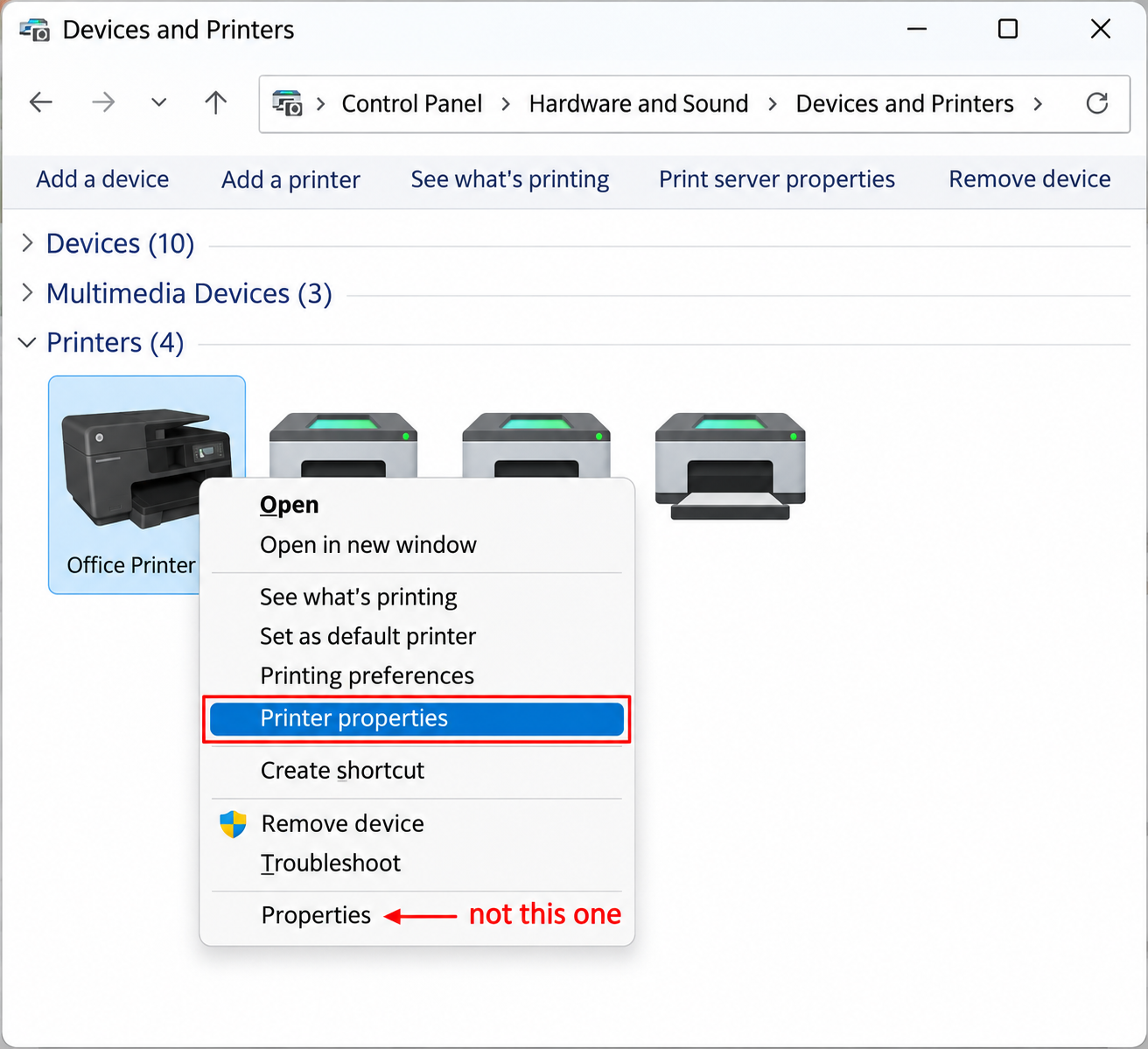
- On the General tab, select Print Test Page, then Close.
If Printer properties is missing from the right-click menu, the printer usually has no working driver, or Windows still sees it as offline. Both are covered in the troubleshooting section.
Windows 10 note: the route there is Settings > Devices > Printers & scanners, select the printer, then Manage. The test page link sits on the Manage page. The Control Panel steps above are the same in both versions.
Print the Printer’s Own Self-Test Page
If the Windows page fails, the next question is whether the printer can print anything at all. Almost every printer has a way to print an internal report from its buttons or screen. The name changes by brand and model: you may see Printer Status Report, Configuration Page, Print Quality Report, Self-Test or Nozzle Check.
- HP: on many HP models, pressing the Information button prints a test page directly from the printer, according to HP’s support page for blank prints. On touchscreen models, look for a Reports or Printer Reports item in the Setup or Settings menu.
- Epson: Epson’s XP-980 series user guide puts the nozzle check under Maintenance > Print Head Nozzle Check on the control panel, and also on the Maintenance tab of the Windows driver.
- Canon: Canon’s Windows driver guide for the MB2000 series lists Nozzle Check on the Maintenance tab, with a Print Check Pattern button that uses one sheet of plain paper.
- Other brands: search your model’s manual for “configuration page” or “print settings report”, or look in a Reports or Information menu.
Labels move around between models, so treat these as starting points and check your own manual if the menu looks different.
Read the Result and Decide What to Do Next
Once you have tried both test pages, the combination tells you where the fault lives. This table is the fastest way to stop guessing.
| What happened | What it means | Next move |
|---|---|---|
| Both pages printed cleanly | Printer and PC path both work | If one app still fails, check that app’s print settings and selected printer |
| Self-test printed, Windows page did not | The printer is fine; the problem is on the PC side | Check the queue, connection, driver and offline status |
| Neither page printed | The printer itself has a problem | Check paper, jams, error lights, ink or toner, then the maker’s support |
| Windows page printed with streaks or faded colors | The connection works; print quality is the issue | Run the nozzle check, then the printer’s cleaning or alignment tools |
| Windows page printed blank | Supplies or printhead, or tape left on a new cartridge | Check ink or toner and look for protective tape |
Rosalind installs a new wireless printer on her laptop, selects Print test page and nothing happens. She presses the printer’s Information button and a status report prints perfectly. That rules out the printer itself, so she opens the print queue, finds the job stuck with an error and sees the printer listed as offline. Reconnecting the printer to Wi-Fi and resending the test page fixes it. Ten minutes of checking beat an hour of reinstalling software.
If colors on the page look weak, check the printer’s ink levels from Windows 11 before you run any cleaning cycle. Cleaning uses ink, and it can’t help a cartridge that’s empty.
If the Test Page Won’t Print
Work through these checks in order. Each one is quick, and the early ones solve most cases.
- Confirm the basics. The printer is on, paper is loaded, the output tray is open and there’s no flashing error light.
- Check that the printer is online. If Windows shows the printer as offline, follow the steps to get a printer back online in Windows 11, then try the test page again. On a wireless printer, also confirm the printer and PC are on the same Wi-Fi network.
- Look at the queue. On the printer’s page in Settings, select Open print queue. One stuck job can block every job behind it, including the test page.
- Clear the queue and restart the Print Spooler. The spooler is the Windows service that hands jobs to the printer. Clearing it deletes every waiting job, so reprint anything important afterward. The steps are in clearing the printer queue in Windows 11.
- Run the troubleshooter. Microsoft points to the automated printer troubleshooter in the Get Help app, which runs diagnostics and tries common fixes on its own.
- Remove and re-add the printer. This forces Windows to set up the driver and port again. See adding a printer in Windows 11 if it doesn’t reappear by itself. Get drivers only from Windows Update or the printer maker’s site, never from a third-party driver download site.
If the Print test page item or the Printer properties button is greyed out, the printer is usually still installing its driver, or Windows can’t reach it. Wait a minute, refresh the Printers & scanners list and check the connection.
Keep Test Pages From Wasting Ink
A Windows test page is a single sheet, but on a color printer it typically uses some color ink as well as black. That’s a small cost once, and a real one if you print a page every time you change a setting. A few habits help:
- Print one test page after installing or reinstalling a printer, and again only after you change something that could affect the connection.
- Use the self-test page from the printer’s buttons when you just need to know the printer is alive. It skips the PC entirely.
- Use the nozzle check only when you see a quality problem.
- Load plain, cheap paper in the main tray. Never test on photo paper.
Printing now and then also keeps inkjet nozzles from drying out, but the advice on how often varies. HP’s printhead maintenance article suggests using the printer at least once a week, so a test page can double as that regular print on weeks when you print nothing else.
Test Page Questions
Why does my printer have no Print Test Page button?
The button comes from the driver. Microsoft Print to PDF and similar virtual printers don’t have one, and some printers installed with a basic class driver show a reduced properties window. Installing the full driver from the printer maker usually restores the full General tab.
Can I print a test page to a printer on another network?
No. Windows has to reach the printer to send the page, so a home printer can’t be tested from an office network unless it’s shared through a print server or cloud service. Test it when you’re connected to the same network.
The test page prints but Word doesn’t. Where should I look?
The PC to printer path works, so the problem is inside the app or its print settings. Check which printer Word has selected in the Print screen, the paper size and any page range. Then try printing from Notepad: if Notepad works, the problem is limited to that document or app.
Is the Windows test page the same as a nozzle check?
No. The Windows page checks communication. A nozzle check prints a grid pattern that shows each nozzle row, so you can spot gaps that a block of text would hide. Use the nozzle check when the issue is quality, not connection.
Will a test page tell me my driver version?
On many drivers, yes. The page typically lists the driver name and other driver details, which is useful when you are checking whether a driver update installed. The exact fields depend on the printer maker.
Next step: once the test page prints cleanly, set the printer as your default in Windows 11 so Windows stops sending jobs to the wrong place.

Matthew Burleigh is the founder, head writer, and editor of Solve Your Tech, which he launched in 2012. He has written technology tutorials since 2008 and worked in IT since 2003, including small-business support, IT management, and consulting. He holds Bachelor’s and Master’s degrees in Computer Science from Arizona State University.
Matthew writes practical guides for Windows, iPhone and iPad, Microsoft Office, Outlook, Google apps, and Android. Solve Your Tech’s guides are checked step by step against the device or app maker’s own documentation and tested on his own devices whenever he has the hardware or software, with clear steps, sources, and update dates.
Read more about Matthew and how Solve Your Tech writes and updates its guides, or report a correction.