To add a printer in Windows 11, open Settings > Bluetooth & devices > Printers & scanners, select Add device, wait for your printer to appear, and select Add device next to it. Turn the printer on and connect it by USB or to your local network first. For Windows 10, use the separate Settings path below.
This guide covers USB, Wi-Fi, network and Bluetooth printers, adding a printer by IP address, older printers that need the legacy wizard, drivers (including the ARM PC caveat), setting a default printer, and what to do when Windows can’t find the printer, plus Windows 10 and HP notes.
Before you start
- USB printer: plug it into the PC and turn it on. Most wired printers install automatically at this point.
- Wi-Fi printer: connect the printer to your Wi-Fi first, using its control panel or the maker’s app. Microsoft stresses it must be on the same network as the PC; with extenders or separate network names, check you’re on the same one.
- Ethernet printer: connect its network port to your router or local network, following the model’s instructions. The PC needs access to that network.
- Work or school PC: you may need permission to install some printers.
Add a printer automatically in Windows 11
Step 1: Open Printers & scanners
Press Windows key + I to open Settings, then select Bluetooth & devices > Printers & scanners.
You see a list of installed printers. If yours is already there, skip to the test page to confirm it works.
Step 2: Search for the printer
Select Add device next to the add-printer heading. Depending on the Windows version, that heading may say Add a printer or scanner or Add a printer & scanner.
Windows searches USB, Wi-Fi and network connections. The list can take a few minutes to fill in.
If a network printer never appears in the list, set your home network to Private and turn on network discovery in Windows 11.
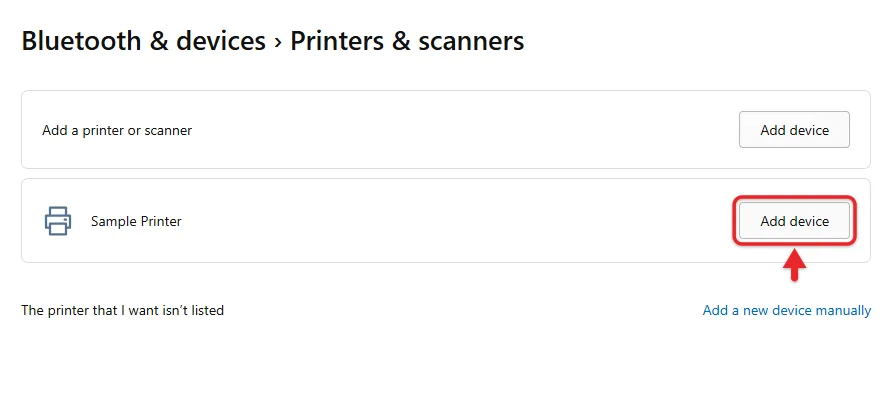
Step 3: Add it
Select Add device next to your printer.
The printer moves into your installed list with a basic driver. It may add itself automatically even before you select the button.
Step 4: Print a test page
Select the printer in the list, then select Print test page.
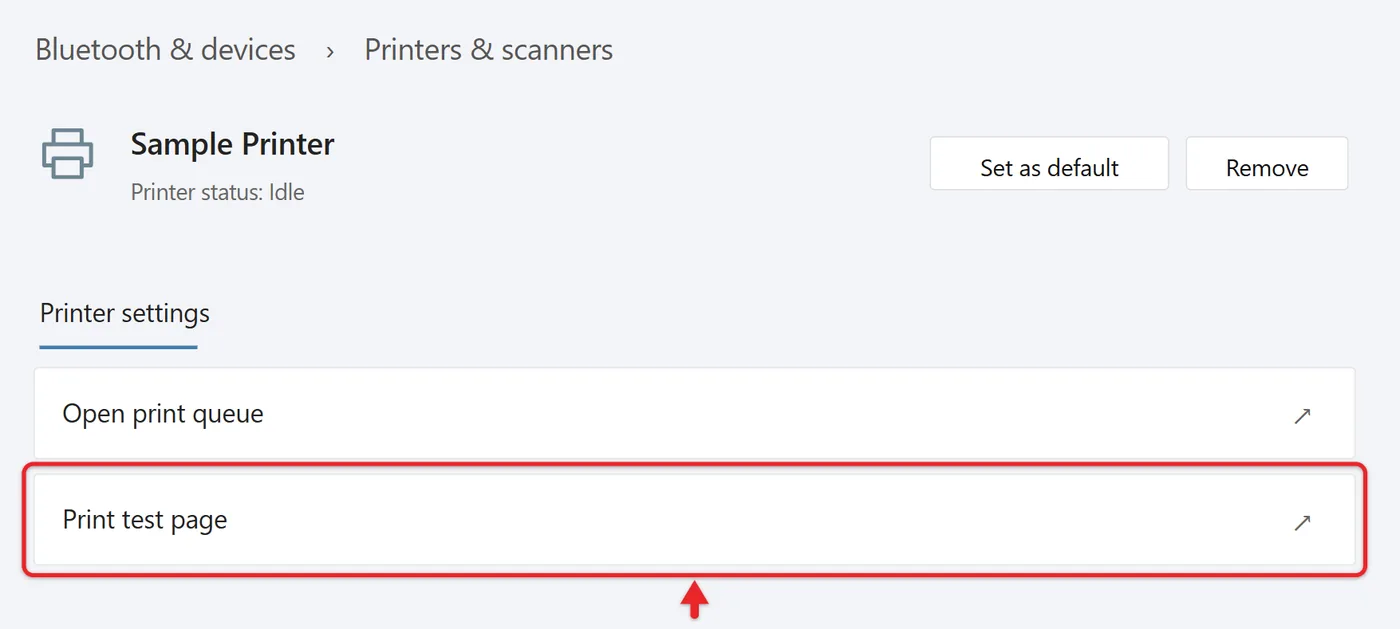
A test page prints. If a Find drivers button appears next to the printer, it works but may have limited features until full drivers are installed.
Once the test page works, you can print in Windows 11: print a document, photo or webpage, check the selected printer and preview, and choose a page range before sending the full job.

Install a printer in Windows 10
Press Windows key + I, then open Devices > Printers & scanners. Select Add a printer or scanner, wait for the search, select your printer, and choose Add device. USB printers may install as soon as you connect and power them on. If the printer is missing, select The printer that I want isn’t listed to open the manual options. These are the Windows 10 steps in Microsoft’s installation guide.
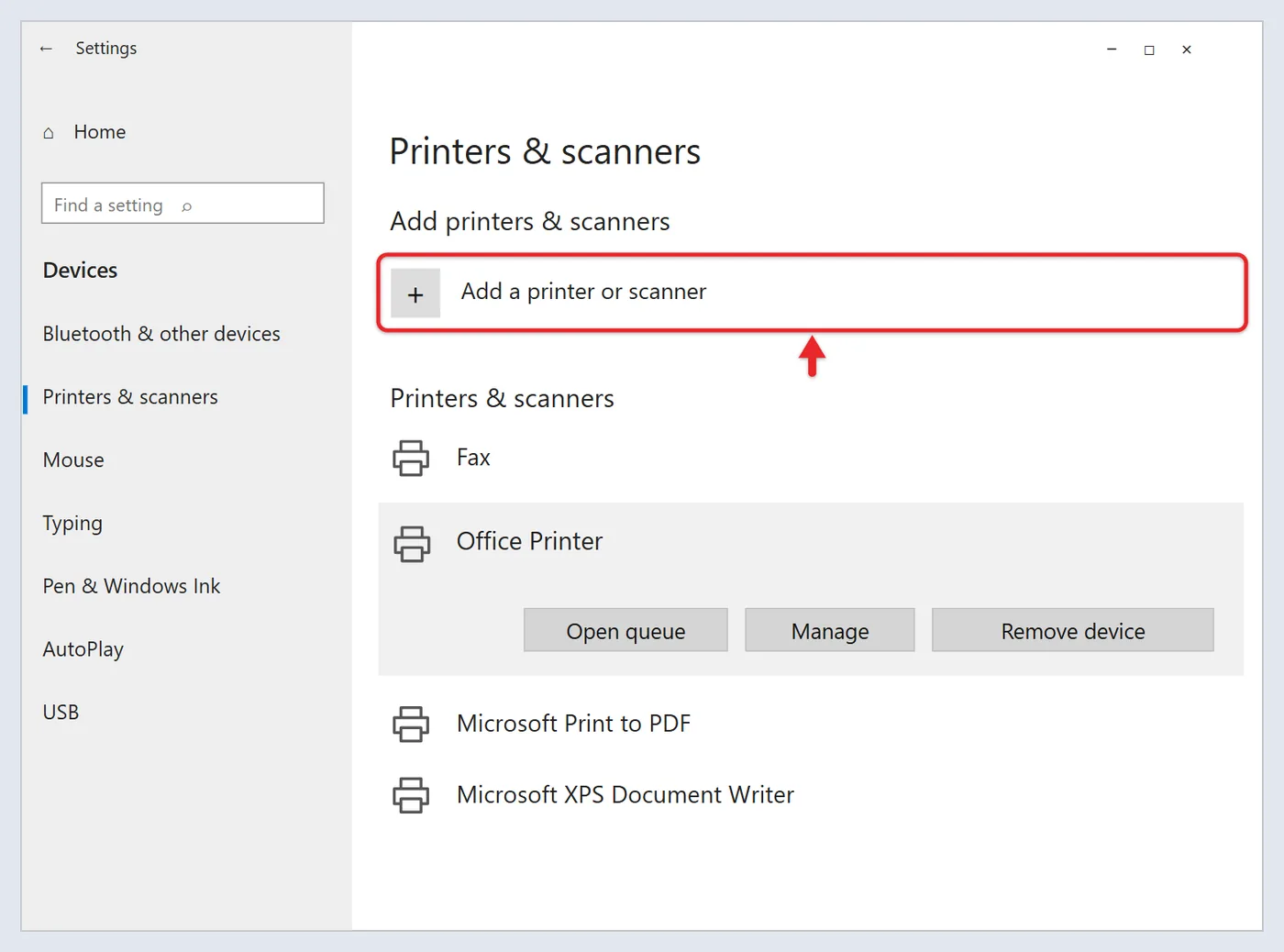
After installation, select the printer and Manage. Use Print a test page if available, or print a short document from an app. Confirm the correct printer is selected in the print dialog.
Add a printer manually by IP address
Use this when automatic discovery fails and you know the address of a reachable network printer. An IP address does not bypass network isolation or workplace permissions. On an ARM PC, see the driver note below before choosing manual setup.
- Find the printer’s current IP address on its screen or a fresh network report. Use the address for its active network connection, not the PC’s address or a Wi-Fi Direct address.
- Open Printers & scanners using the Windows 11 or Windows 10 path above, start the add-printer search, and wait for it to finish.
- In Windows 11, select Add a new device manually or Add manually beside the printer-not-listed message. In Windows 10, select The printer that I want isn’t listed.
- Choose the option to add a printer by IP address or hostname (some versions label it TCP/IP address or hostname), then select Next.
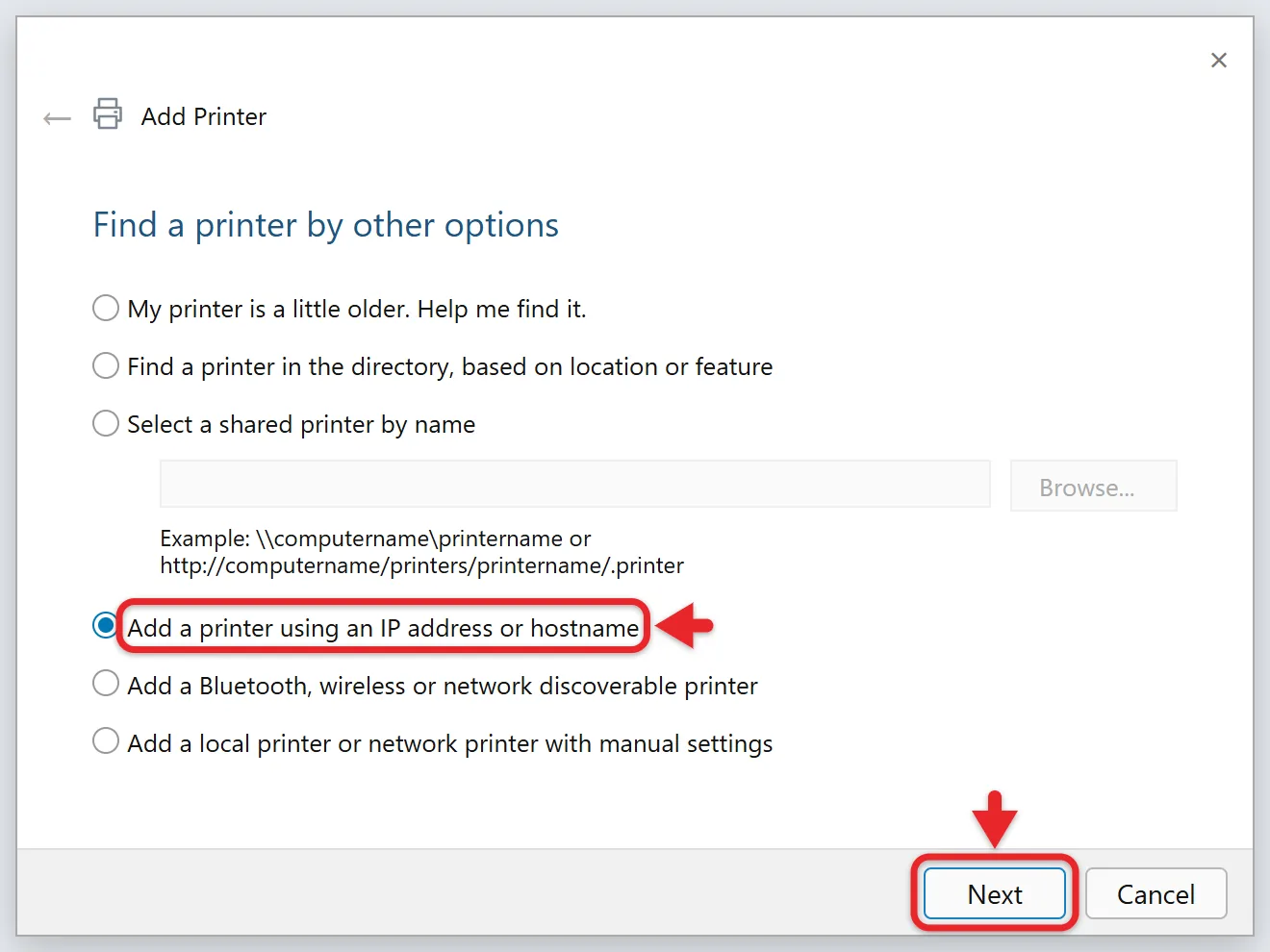
- Enter the IP address, then follow the prompts to pick a driver and name the printer. You can change the printer name in Windows 11 later if you want a clearer label.
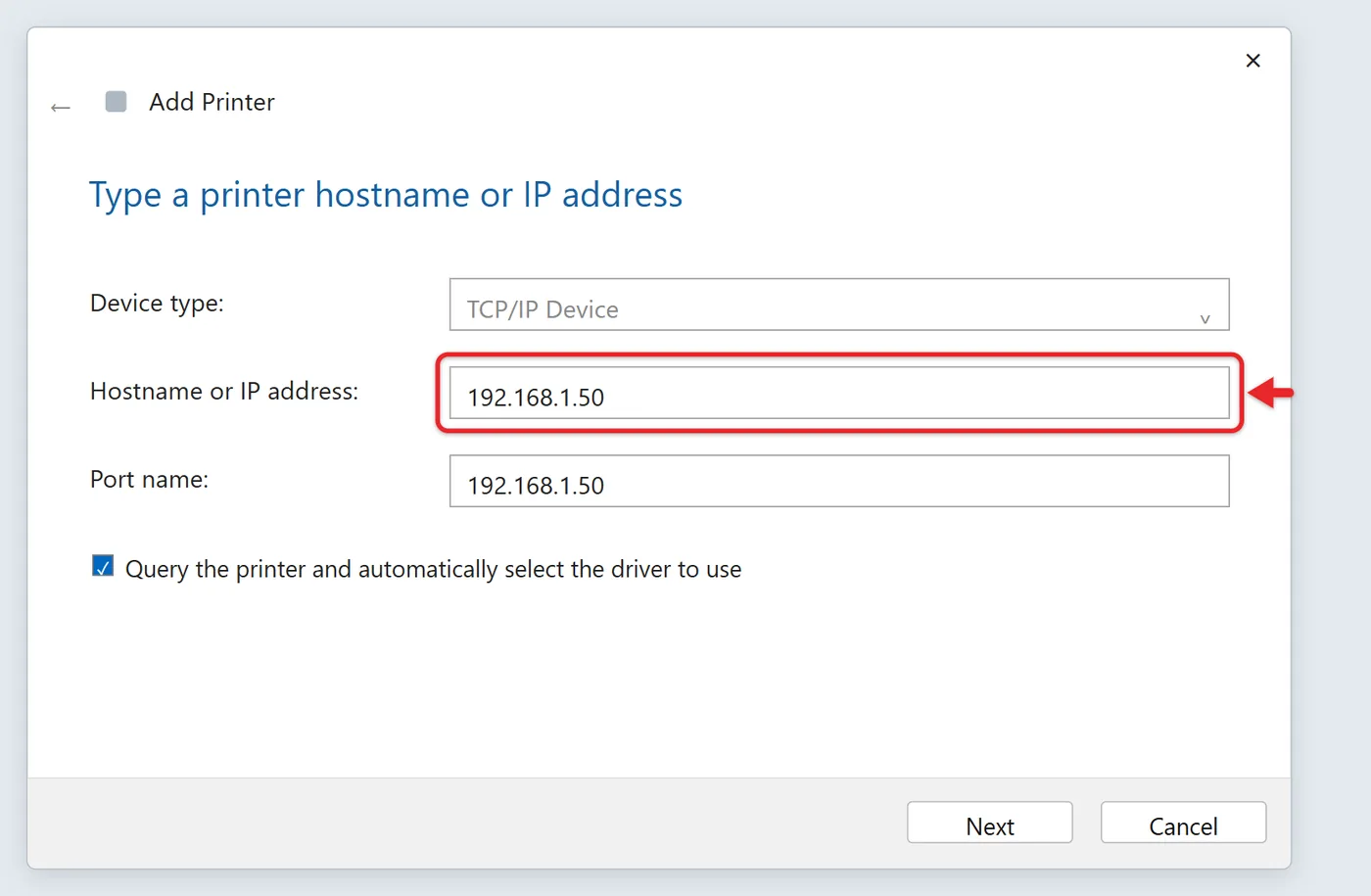
The printer is added using that address. If the printer’s address keeps changing and it goes offline, reserve an address for it in your router’s settings.
To set a fixed address on the printer itself instead, change the printer’s IP address.
Older printers
In the same Add a new device manually window, Microsoft also lists Add a local printer or network printer with manual settings. Pick the port (for example, the USB port), then choose the driver with Windows Update to refresh the list, or Have Disk if you have the maker’s driver files.
Add a Bluetooth printer
First make sure the model supports Bluetooth printing; some printers use Bluetooth only for initial Wi-Fi setup. Turn on Bluetooth on the PC and make the printer discoverable as its manual describes. Microsoft’s Bluetooth printer instructions use Printers & scanners and the same add-printer search described above. Select the printer and follow any driver prompts. Pairing over Bluetooth alone does not mean the printer can print that way.
Drivers: do you need to install anything?
You need a driver, but often do not need to install a separate package yourself. According to Microsoft, Windows supports most printers out of the box, and the recommended way to get newer drivers is Windows Update after the printer is added. For extra features like ink levels or scan-to-email, get the maker’s app or driver. You can also update the printer driver later.
No internet? A USB printer doesn’t need Wi-Fi or internet to print once its driver is on the PC. You only need a connection to download a missing driver, get updates from Windows Update, or finish a maker’s app setup.
ARM PCs (such as many Copilot+ PCs): some ARM PCs can’t install printers with the manufacturer’s installer, so use the automatic Add device route through Settings unless the manufacturer provides specific guidance for Windows on ARM. Follow that model-specific guidance when it exists. To check, go to Settings > System > About and look for “ARM-based processor” next to System type.
Copilot+ PCs also have a Copilot key; here’s how to enable Copilot in Windows 11 if the app isn’t set up yet.
Install an HP printer on Windows 11
Unpack the printer and load paper and ink or toner as its setup sheet describes. Connect it by USB, or join it to your Wi-Fi with its setup method. Then follow the Windows 11 steps above and print a test page.
An older HP touchscreen model may need you to set up the HP Photosmart 6510 for wireless printing before you add it in Windows.
Many newer HP models install automatically through Windows with the HP Print Support Application, which needs Windows 11 and an internet connection. Not every HP printer uses it. For scanning, ink levels, and other extra features, install the app or driver listed on your model’s HP support page.
If the printer works but its scanner doesn’t show up, add the scanner to Windows 11.
Set the default printer
- On the Printers & scanners page, turn off Let Windows manage my default printer.
- Select your printer.
- Select Set as default.
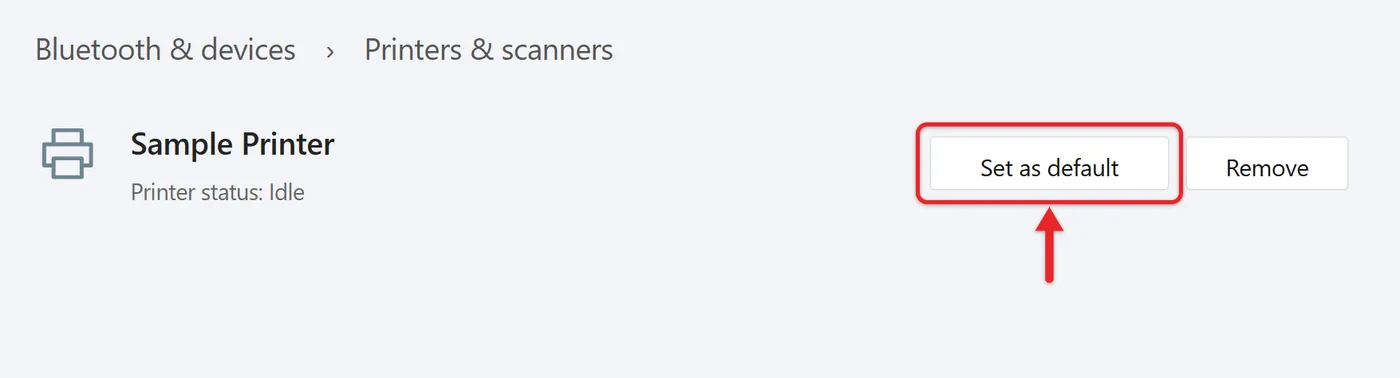
Apps now use that printer unless you pick another in their print settings. In Windows 10, select the printer, then Manage > Set as default. If the button is missing, clear Let Windows manage my default printer, as explained in Microsoft’s default-printer instructions.
For the Control Panel and command methods, and fixes when the default keeps switching, read about setting a default printer in Windows 11.
If Windows can’t find your printer
On Windows 11, start with the printer troubleshooter in Get Help. If it cannot resolve the issue, check the following items from Microsoft’s printer troubleshooting article:
- Restart the printer: turn it off, unplug it for 30 seconds, plug it back in and turn it on.
- Check the connection: reseat the USB cable, or make sure the printer’s wireless is on and run its built-in wireless test.
- Check network access: print the printer’s network report and make sure it shows the same network name as the PC. Guest networks and some managed networks keep devices from seeing each other. Ask the network owner for printer access.
- Remove and re-add the printer if it worked before and the earlier checks fail. Note any custom settings first.
For checks by connection type, network profile and driver, see why your computer can’t find your printer.
Frequently Asked Questions
How do I install printer drivers on Windows 11?
Windows often installs a suitable driver automatically; check Windows Update for newer ones after adding the printer. You can also update a printer driver yourself.
Can I add a printer that’s shared from another PC?
Yes. If you have permission, the sharing PC is on, and the printer is shared, it can appear in the Add device list. If not, use Add a new device manually and choose the option to select a shared printer by name.
How do I remove a printer?
To take an old printer off the list, remove a printer from Windows 11.
How do I scan with my printer?
Once the printer is added, you can scan on Windows 11 with it too.
Why does my printer show as offline?
Restart the printer and PC, confirm both are on the same network, and check that the printer’s IP address hasn’t changed. A router reservation can help when DHCP address changes are the cause; other offline problems need separate diagnosis.
For the full checklist, read about getting a printer online in Windows 11 or 10.

Matthew Burleigh is the founder, head writer, and editor of Solve Your Tech, which he launched in 2012. He has written technology tutorials since 2008 and worked in IT since 2003, including small-business support, IT management, and consulting. He holds Bachelor’s and Master’s degrees in Computer Science from Arizona State University.
Matthew writes practical guides for Windows, iPhone and iPad, Microsoft Office, Outlook, Google apps, and Android. Solve Your Tech’s guides are checked step by step against the device or app maker’s own documentation and tested on his own devices whenever he has the hardware or software, with clear steps, sources, and update dates.
Read more about Matthew and how Solve Your Tech writes and updates its guides, or report a correction.