The best-selling HP inkjet printer on Amazon right now is the HP DeskJet 2923, a basic print, copy and scan model for light home use. For a home office, the top seller is the HP OfficeJet Pro 8125, which adds a document feeder, automatic two-sided printing and much larger ink cartridges. The rest of the top ten are close relatives of those two. Several pairs are nearly identical machines with different extras, so the real decision comes down to four questions: do you need fax, a document feeder, photo-quality borderless prints, or two paper trays?
As an Amazon Associate, Solve Your Tech earns from qualifying purchases. Buying through the Amazon links on this page doesn’t change your price. See our affiliate disclaimer for details.
How This List Was Put Together
This is a sales-based list, not a hands-on review. We haven’t tested these printers. Here is exactly what the rankings and details are based on, so you can judge how much weight to give them.
- Rank: Amazon’s Best Sellers list for Inkjet Computer Printers in the US store, checked on October 23, 2026. We kept every HP model in the order Amazon listed it and skipped other brands. The ten HP printers below held spots 1 through 19 on the full list.
- Specs: Every speed, tray size, cartridge yield and feature below was checked against the printer’s official HP product page, which is linked in each section. Where an Amazon listing disagreed with HP, we went with HP and say so.
- What we didn’t use: Star ratings and review counts change daily, and prices change even faster, so neither appears here. Check the current price and reviews on Amazon before you buy.
Amazon updates its Best Sellers ranks every hour, so the order may have shifted by the time you read this. The printers themselves, and the differences between them, won’t change.
All 10 Printers at a Glance
Speeds are HP’s ISO ratings, the standardized test that measures pages per minute (ppm) on typical documents. Real-world speed varies with the document.
| HP rank | Printer | Fax | Document feeder | Auto 2-sided printing | Speed (black / color) | Ink |
|---|---|---|---|---|---|---|
| 1 | DeskJet 2923 | No | No | No | 7.5 / 5.5 ppm | HP 68 |
| 2 | OfficeJet Pro 8125 | Send-only from the HP app | 35 sheets | Yes | 20 / 10 ppm | HP 923 |
| 3 | Envy 6155 | Send-only from the HP app | No | Yes | 10 / 7 ppm | HP 68 |
| 4 | OfficeJet Pro 8139 | Yes | 35 sheets | Yes | 20 / 10 ppm | HP 923 |
| 5 | DeskJet 2955 | No | No | No | 7.5 / 5.5 ppm | HP 68 |
| 6 | OfficeJet Pro 9125 | Yes | 35 sheets, 2-sided | Yes | 22 / 18 ppm | HP 936 |
| 7 | Envy 6555 | Send-only from the HP app | 35 sheets | Yes | 10 / 7 ppm | HP 68 |
| 8 | OfficeJet Pro 8135 | Yes | 35 sheets | Yes | 20 / 10 ppm | HP 923 |
| 9 | DeskJet 4355 | No | 35 sheets | No | 8.5 / 5.5 ppm | HP 68 |
| 10 | OfficeJet Pro 9135 | Yes | 35 sheets, 2-sided | Yes | 25 / 20 ppm | HP 936 |
Which One Fits You
Start with how much you print and what kind of pages they are. These shortcuts cover most homes and small offices.
- A few pages a month, mostly letters, forms and the odd boarding pass: DeskJet 2923 or 2955. Get the DeskJet 4355 if you scan multi-page documents and don’t want to feed them one at a time.
- School papers and family photos: Envy 6155. It prints borderless photos and both sides of the page on its own. The Envy 6555 adds a document feeder.
- A home office printing several hundred pages a month: OfficeJet Pro 8125 if you never fax, or the 8135 or 8139 if you do.
- A small office with heavy color printing or double-sided scanning: OfficeJet Pro 9125, or the 9135 if you want a second paper tray and faster two-sided scans.
1. HP DeskJet 2923 All-in-One
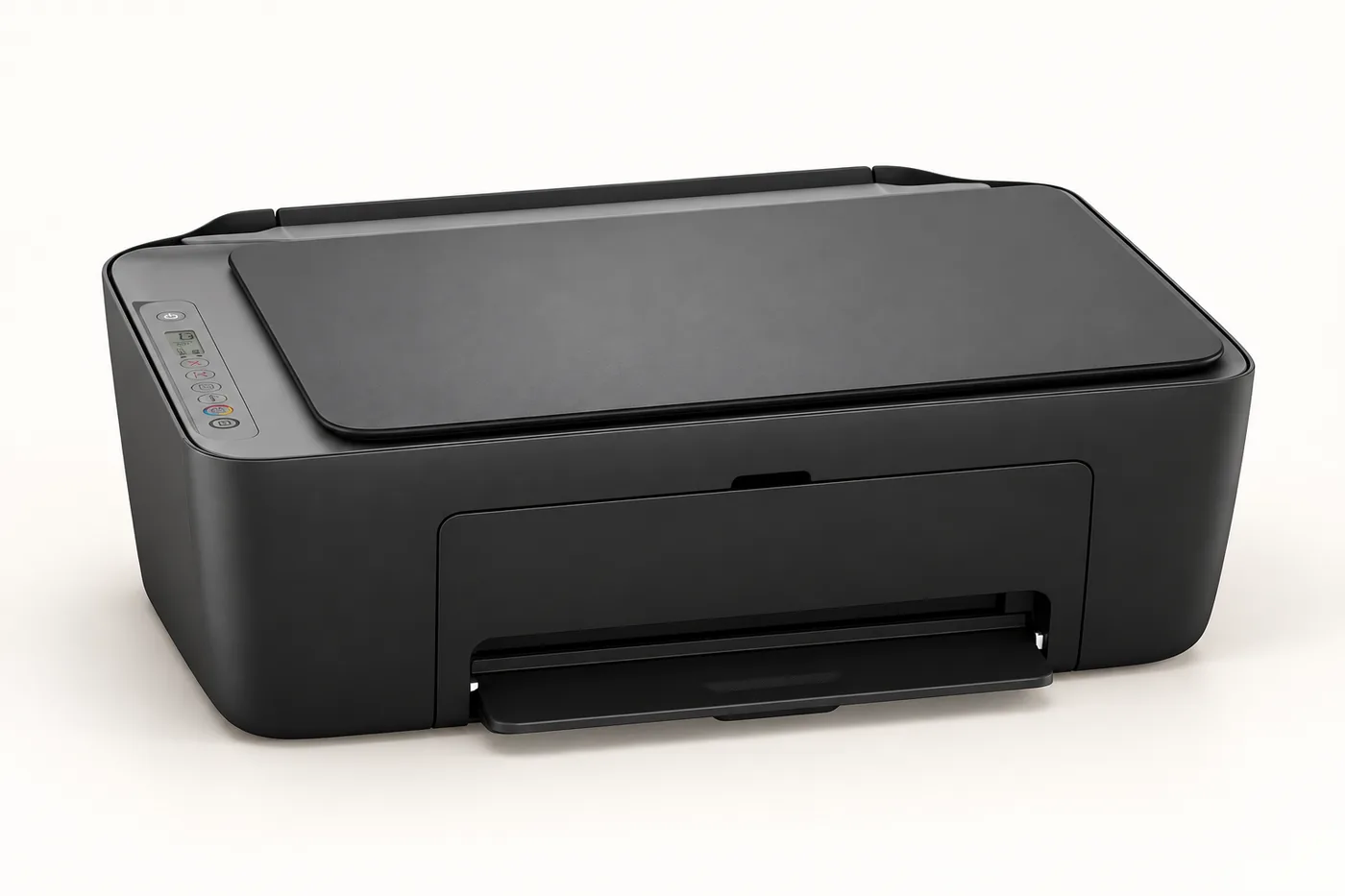
Best for: light home printing on a small budget. Amazon rank: No. 1 in Inkjet Printers on October 23, 2026.
The DeskJet 2923 is the simplest printer on this list. It prints, copies and scans, and that’s it. There’s no touchscreen, just a small icon display with buttons. You’ll do most setup and scanning from the HP app on your phone or computer. Two-sided printing is manual: the printer prints one side, then the driver tells you how to flip and reload the stack.
- Up to 7.5 ppm black and 5.5 ppm color
- 60-sheet input tray, flatbed scanner only (no document feeder)
- Dual-band Wi-Fi (2.4 and 5 GHz) and a USB port; no Ethernet
- Prints from phones through the HP app, Apple AirPrint and Mopria (the standard Android print service)
- HP 68 cartridges: black about 160 pages, tri-color about 120 pages; HP 68e EvoMore black about 320 pages
- One-year limited warranty
Keep in mind: the small cartridges are the trade-off for the low price. At around 160 black pages per cartridge, someone printing 100 pages a month will be shopping for ink every six or seven weeks. HP’s product page marks the 2923 as a limited “while supplies last” item, and it lists the same hardware as the DeskJet 2955 below. If one is out of stock, the other is the same printer.
Full specifications: HP DeskJet 2923 product page.
2. HP OfficeJet Pro 8125 All-in-One
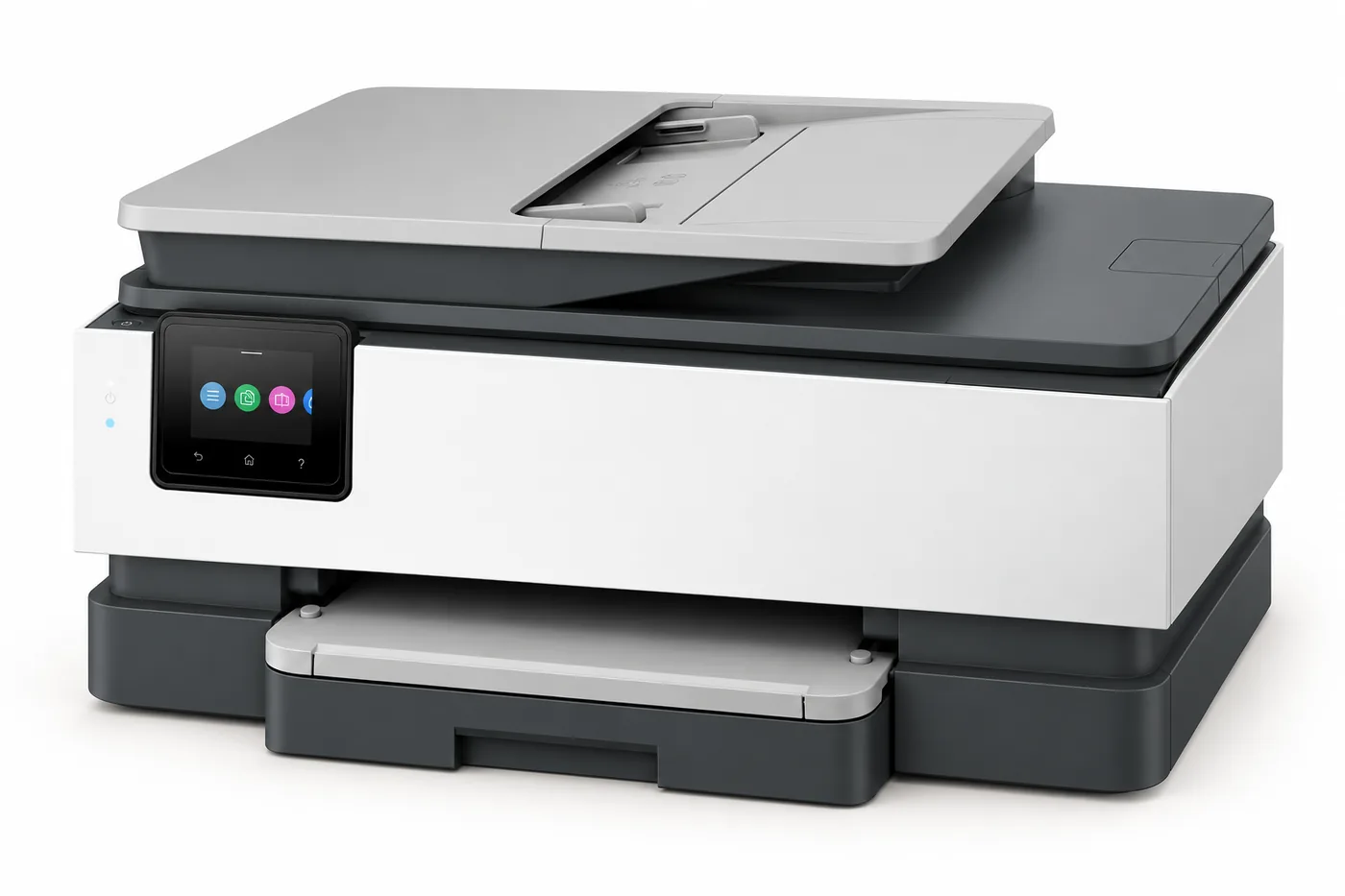
Best for: a home office that prints regularly but doesn’t fax. Amazon rank: No. 2.
The OfficeJet Pro 8125 is a big step up from the DeskJet models in speed, paper capacity and running cost. It prints both sides of the page automatically and has a 35-sheet automatic document feeder (ADF), so you can copy or scan a stack without lifting the lid for each page. The feeder scans one side at a time. A 2.7-inch color touchscreen handles copying and scanning at the printer.
- Up to 20 ppm black and 10 ppm color
- 225-sheet input tray
- Dual-band Wi-Fi, Ethernet and USB; Wi-Fi Direct for printing without a router
- Works with AirPrint, Mopria and Chromebooks
- HP 923 cartridges, one per color: black about 500 pages, each color about 400; HP 923e EvoMore black about 1,000 and colors about 800
Keep in mind: the 8125 has no fax modem and no phone-line port. HP lists only send-only faxing through the HP mobile app, which is a separate service. If you need to send and receive faxes over a phone line, buy the 8135 or 8139 instead. They’re the same printer with fax hardware added.
Full specifications: HP OfficeJet Pro 8125 product page.
3. HP Envy 6155 All-in-One
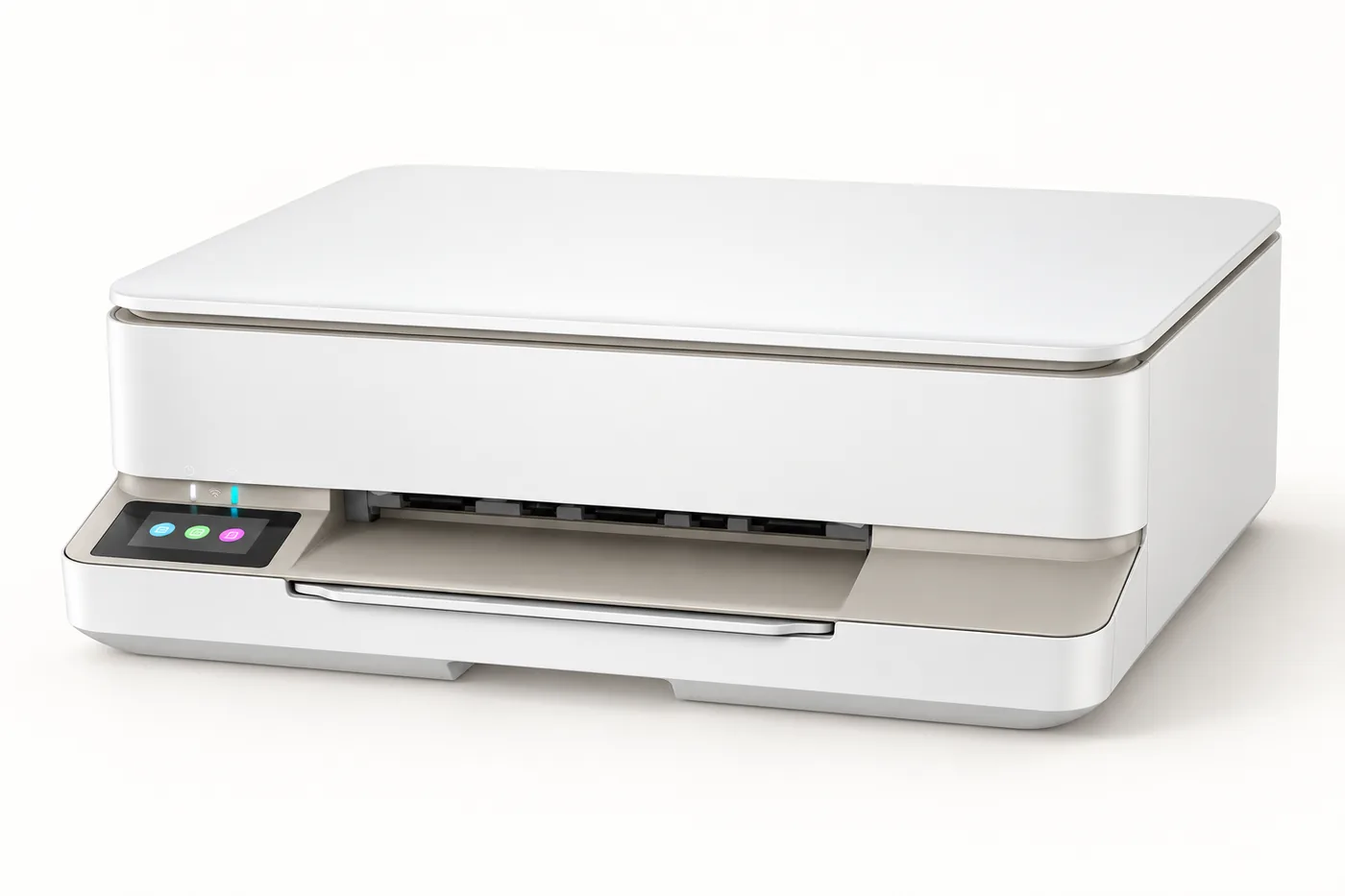
Best for: families who print homework, color pages and photos. Amazon rank: No. 5 overall, third among HP models.
The Envy line sits between the basic DeskJets and the office-focused OfficeJet Pros. The 6155 prints both sides automatically, prints borderless photos up to 8.5 x 12 inches, and has a 2.4-inch color touchscreen. It uses the same small HP 68 cartridges as the DeskJets, so it’s built for moderate home use rather than high volume.
- Up to 10 ppm black and 7 ppm color
- 100-sheet input tray, flatbed scanner (no document feeder)
- Dual-band Wi-Fi and USB; no Ethernet
- AirPrint, Mopria and Chromebook printing
- Borderless printing for photos and flyers
- HP 68 cartridges (black about 160 pages, tri-color about 120); the setup cartridges in the box are smaller
Keep in mind: with a single tri-color cartridge, running out of one color means replacing all three. If you print a lot of one color, like blue company letterhead, a printer with separate color cartridges (any OfficeJet Pro here) wastes less ink.
Full specifications: HP Envy 6155 product page.
4. HP OfficeJet Pro 8139 All-in-One
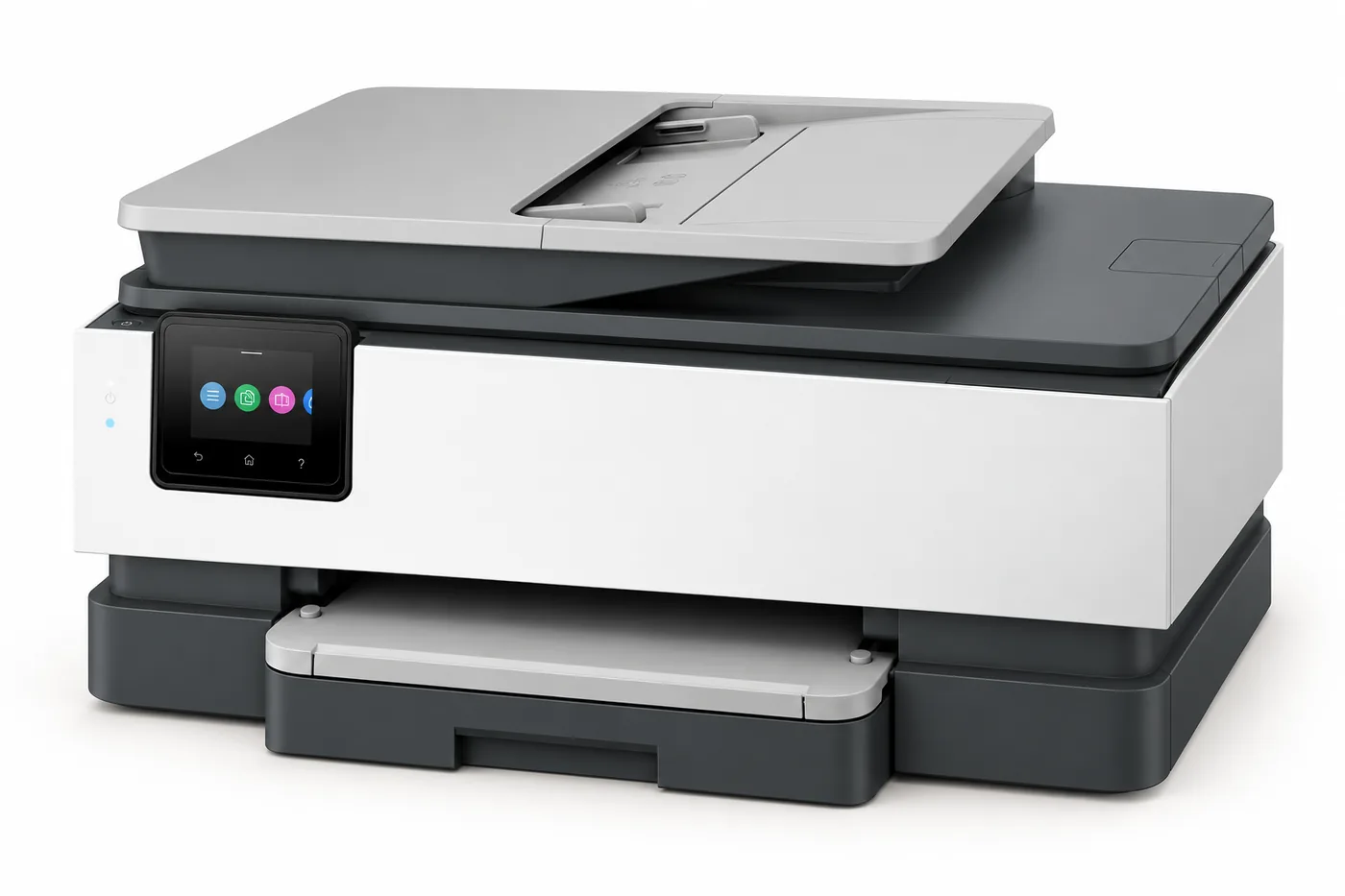
Best for: home offices that fax and plan to use Instant Ink. Amazon rank: No. 6 overall.
The 8139 is the OfficeJet Pro 8125 with a real fax modem and two phone-line ports, plus a USB host port for printing from or scanning to a flash drive. HP’s own pages list the same specs for the 8139 and the 8135 (No. 8 on this list). The one difference HP shows is the bundled ink offer: the 8139 comes with 12 months of Instant Ink, while the 8135 comes with three.
- Up to 20 ppm black and 10 ppm color
- Print, copy, scan and fax; 35-sheet one-sided document feeder
- 225-sheet input tray and automatic two-sided printing
- Dual-band Wi-Fi, Ethernet, USB device and host ports
- HP 923 cartridges (black about 500 pages, colors about 400 each)
Keep in mind: the 12-month Instant Ink trial is only worth something if you keep the subscription afterward or remember to cancel it. Read the Instant Ink section below before you choose between the 8139 and 8135. If you don’t want a subscription at all, buy whichever of the two costs less that day.
Full specifications: HP OfficeJet Pro 8139 product page.
5. HP DeskJet 2955 All-in-One
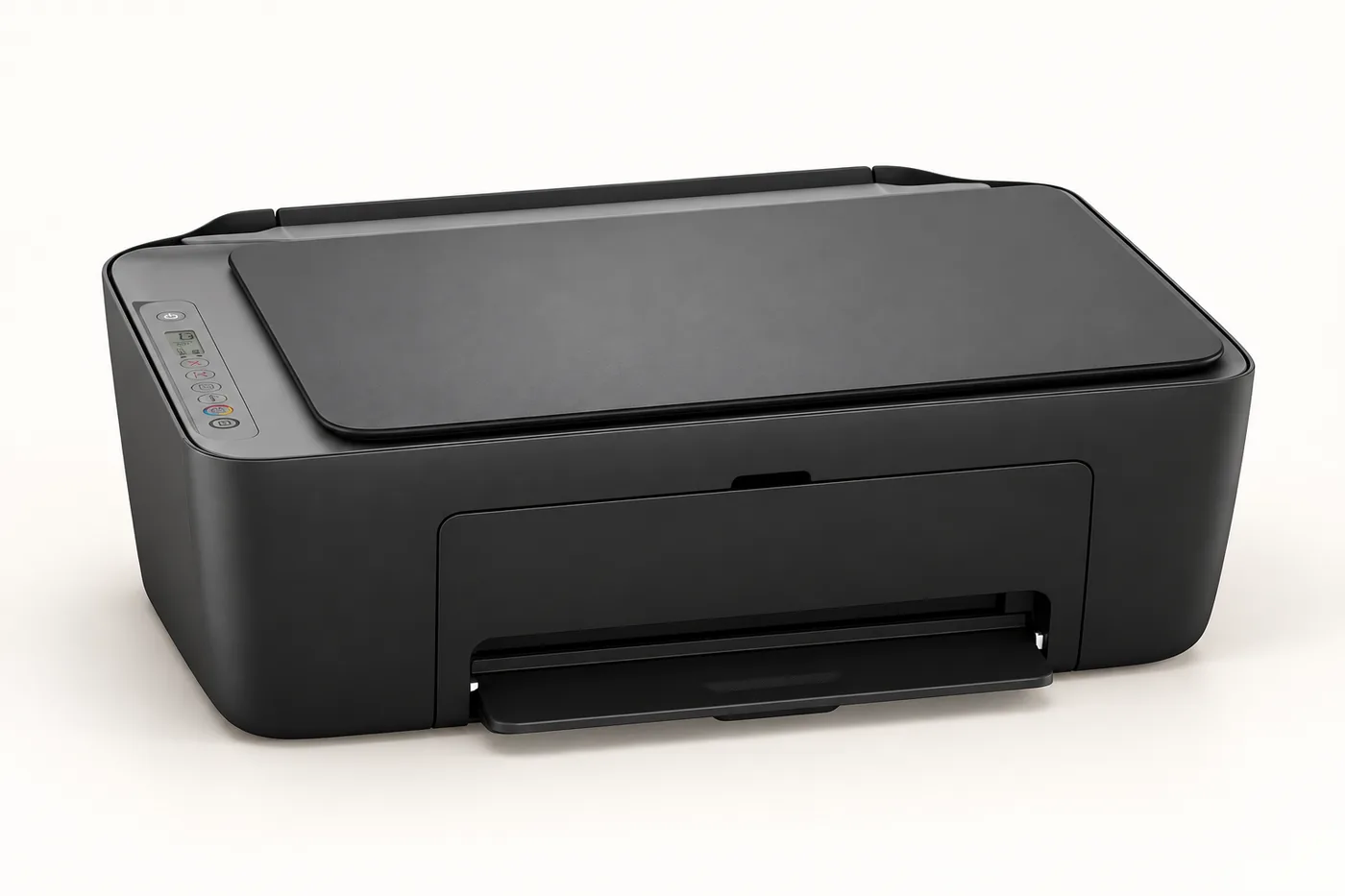
Best for: the same light home use as the DeskJet 2923. Amazon rank: No. 8 overall.
HP lists identical hardware for the DeskJet 2955 and 2923: the same speed, 60-sheet tray, flatbed scanner, icon display, HP 68 cartridges and even the same dimensions. The difference is in the extras. HP’s page for the 2955 includes three months of Instant Ink, while the 2923 page doesn’t mention a trial. Amazon’s listings describe a six-month trial for both, which HP’s own pages don’t confirm, so check the current offer on the listing you buy from.
- Up to 7.5 ppm black and 5.5 ppm color
- 60-sheet input tray, holds up to 5 envelopes
- Manual two-sided printing
- Dual-band Wi-Fi and USB; AirPrint and Mopria
- HP 68 cartridges
Keep in mind: because the two models are interchangeable, compare the prices of the 2923 and 2955 and buy the cheaper one. The color or finish may differ between listings, but nothing that affects printing does.
Full specifications: HP DeskJet 2955 product page.
6. HP OfficeJet Pro 9125 All-in-One
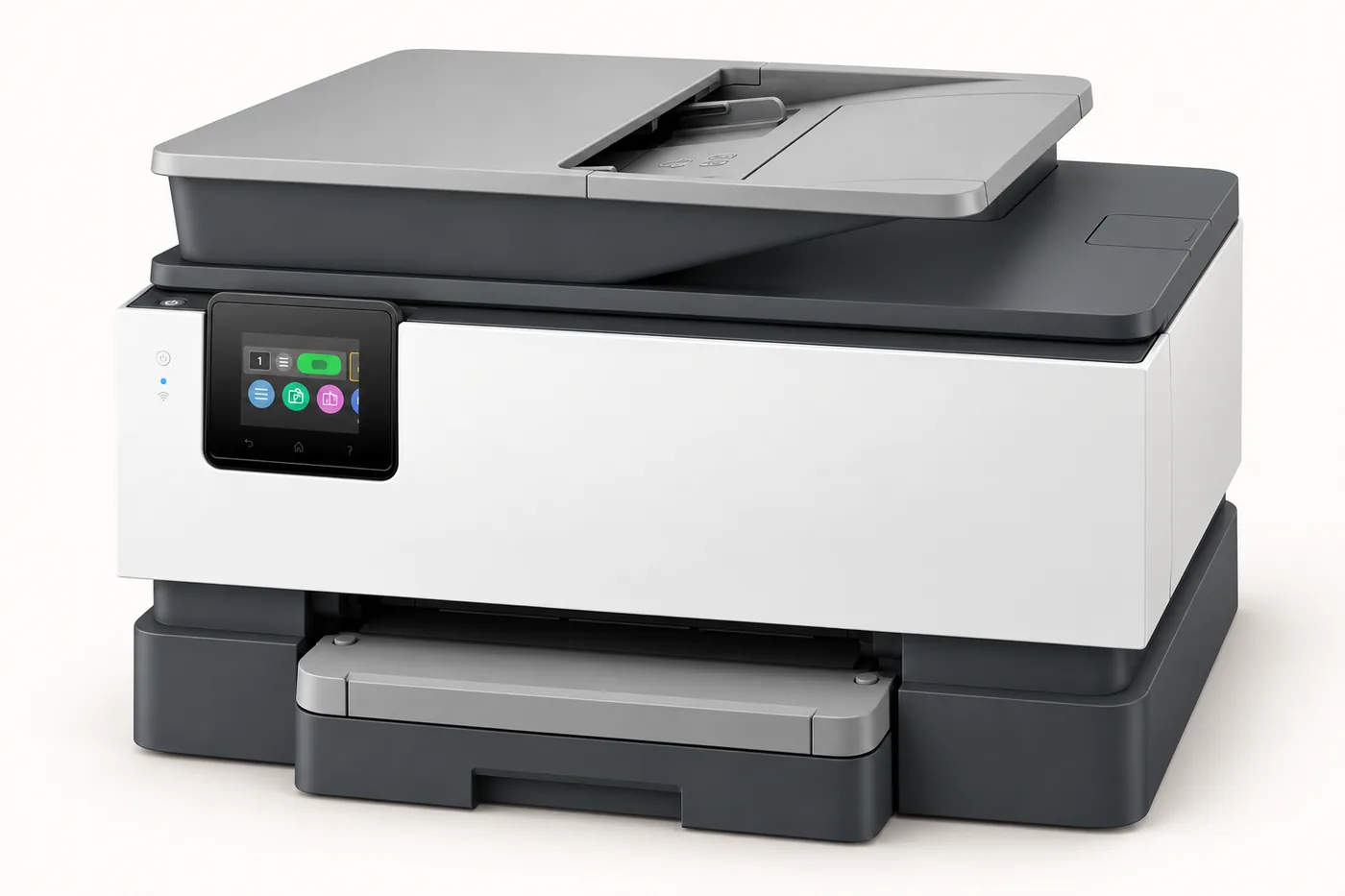
Best for: small offices that print a lot of color or scan double-sided documents. Amazon rank: No. 9 overall.
The 9125 is the first printer here built for steady office volume. Color printing is nearly as fast as black (18 ppm vs. 22 ppm), and its HP 936 cartridges hold far more ink than the HP 923 cartridges in the 8100 series. Its document feeder scans both sides of a page. It does this in two passes, scanning one side, pulling the page back in and then scanning the other.
- Up to 22 ppm black and 18 ppm color
- Print, copy, scan and fax; 35-sheet ADF with two-sided scanning
- One 250-sheet input tray and automatic two-sided printing
- 2.7-inch touchscreen
- Dual-band Wi-Fi, Ethernet, USB device and host ports
- HP 936 cartridges: black about 1,250 pages, colors about 800 each; HP 936e EvoMore black about 2,500 and colors about 1,650
Keep in mind: it’s larger and heavier than the 8100 series (about 20 pounds), so measure your shelf before ordering.
Full specifications: HP OfficeJet Pro 9125 product page.
7. HP Envy 6555 All-in-One
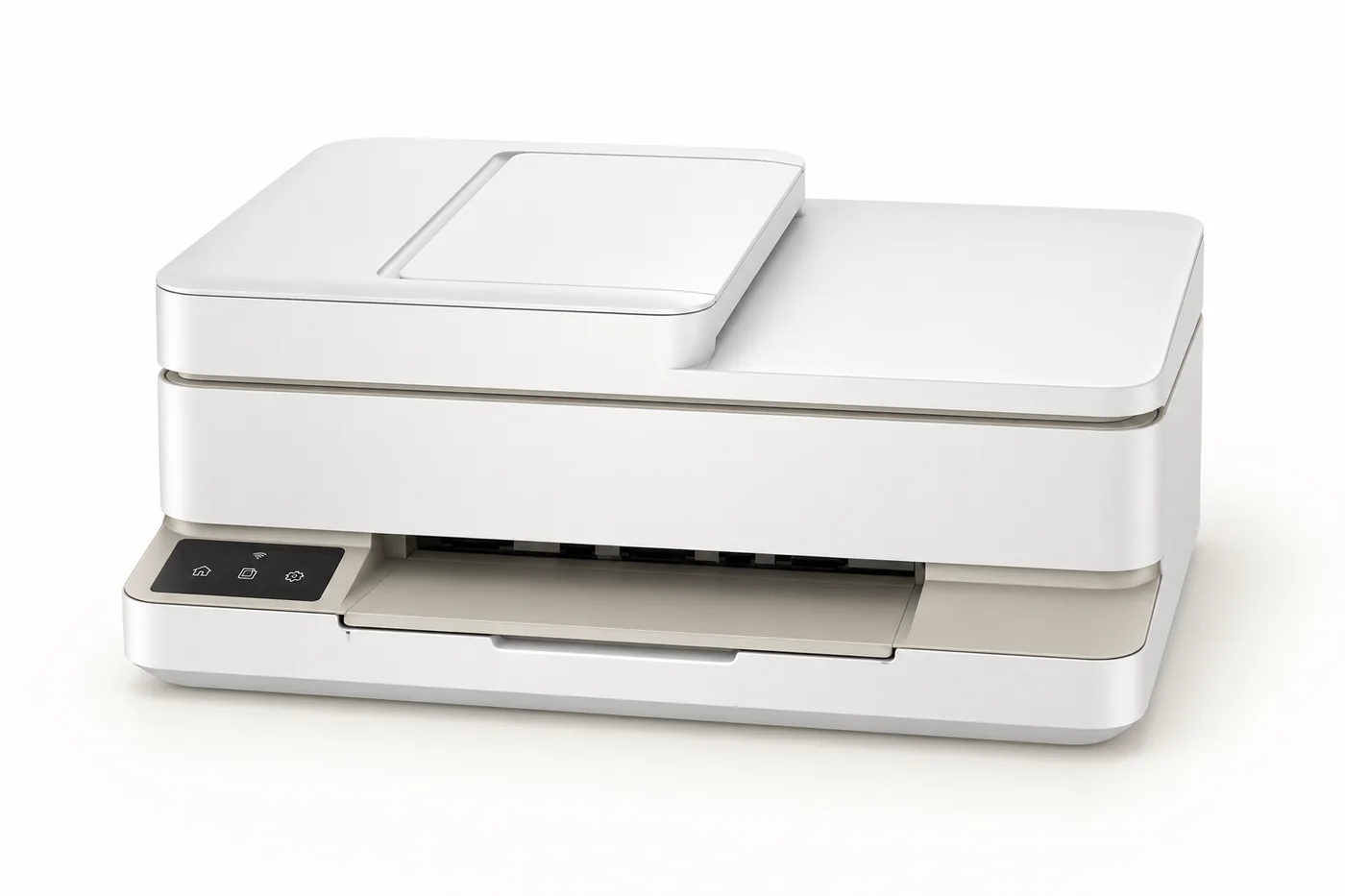
Best for: home users who want photo printing and a document feeder. Amazon rank: No. 14 overall.
The Envy 6555 is the Envy 6155 with a 35-sheet document feeder on top, which makes it about 1.4 inches taller. Everything else matches: the same speed, 100-sheet tray, borderless photo printing, automatic two-sided printing, 2.4-inch touchscreen and HP 68 cartridges. HP doesn’t say whether the feeder scans both sides, so assume it scans one side at a time.
- Up to 10 ppm black and 7 ppm color
- 35-sheet document feeder plus flatbed
- Borderless printing up to 8.5 x 12 inches
- Dual-band Wi-Fi and USB; AirPrint, Mopria and Chromebook support
- HP 68 cartridges
Keep in mind: if you only scan a single page now and then, the 6155 does the same job for less. The feeder earns its place when you regularly scan tax paperwork, receipts or school forms.
Full specifications: HP Envy 6555 product page.
8. HP OfficeJet Pro 8135 All-in-One
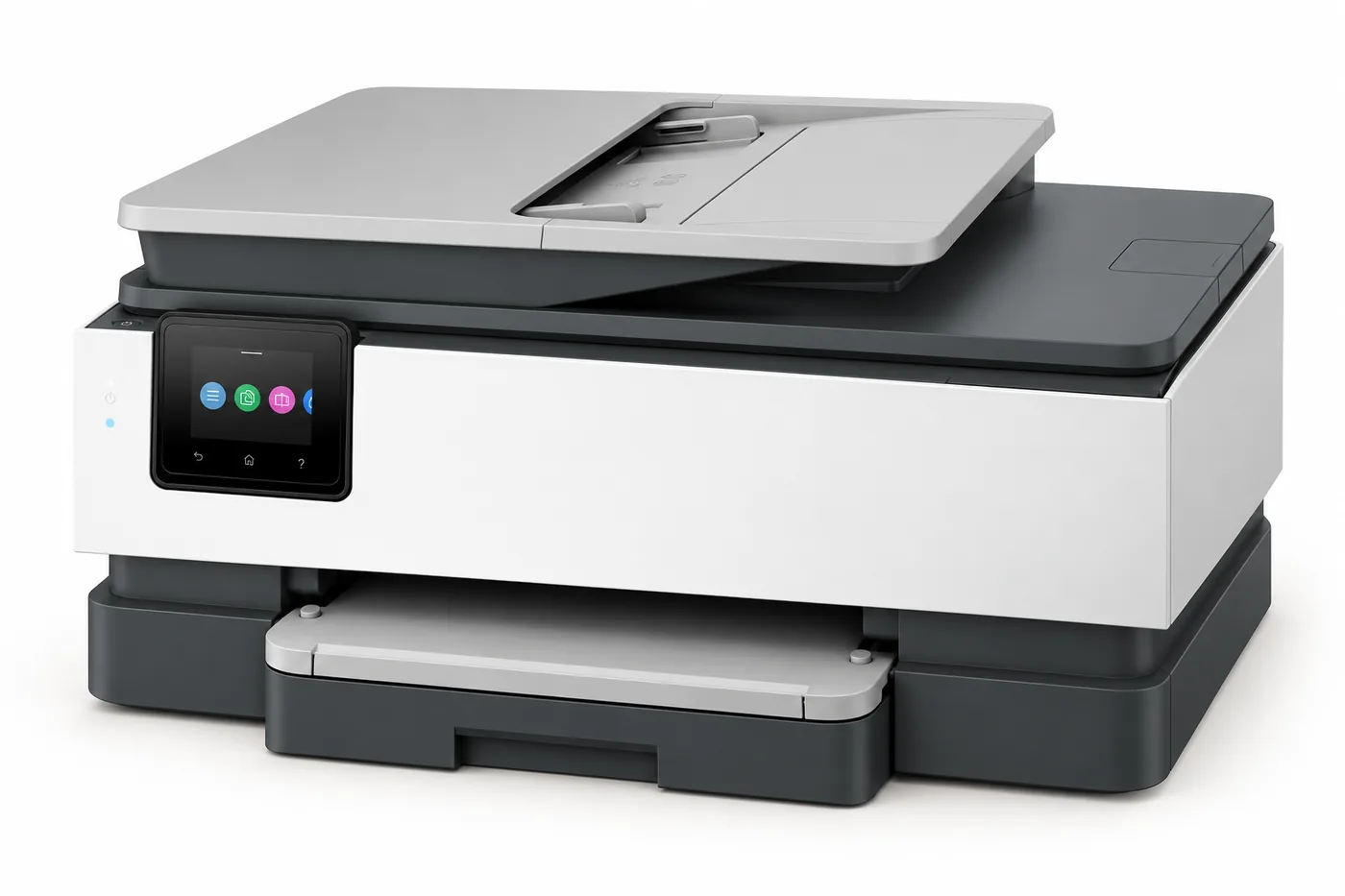
Best for: home offices that need a phone-line fax. Amazon rank: No. 15 overall.
The 8135 is the fax-capable version of the OfficeJet Pro 8125. It has two phone-line (RJ-11) ports for sending and receiving faxes, plus a USB host port for printing from a flash drive. Speed, paper capacity, the 35-sheet one-sided document feeder and the HP 923 cartridges are all the same as the 8125 and 8139.
- Up to 20 ppm black and 10 ppm color
- Print, copy, scan and fax
- 225-sheet input tray, automatic two-sided printing
- Dual-band Wi-Fi, Ethernet, USB; Wi-Fi Direct
- HP 923 cartridges
Keep in mind: the 8135 comes with a three-month Instant Ink trial, versus 12 months on the 8139. If you do want Instant Ink, the extra nine months on the 8139 can be worth more than any price difference between the two.
Full specifications: HP OfficeJet Pro 8135 product page.
9. HP DeskJet 4355 All-in-One
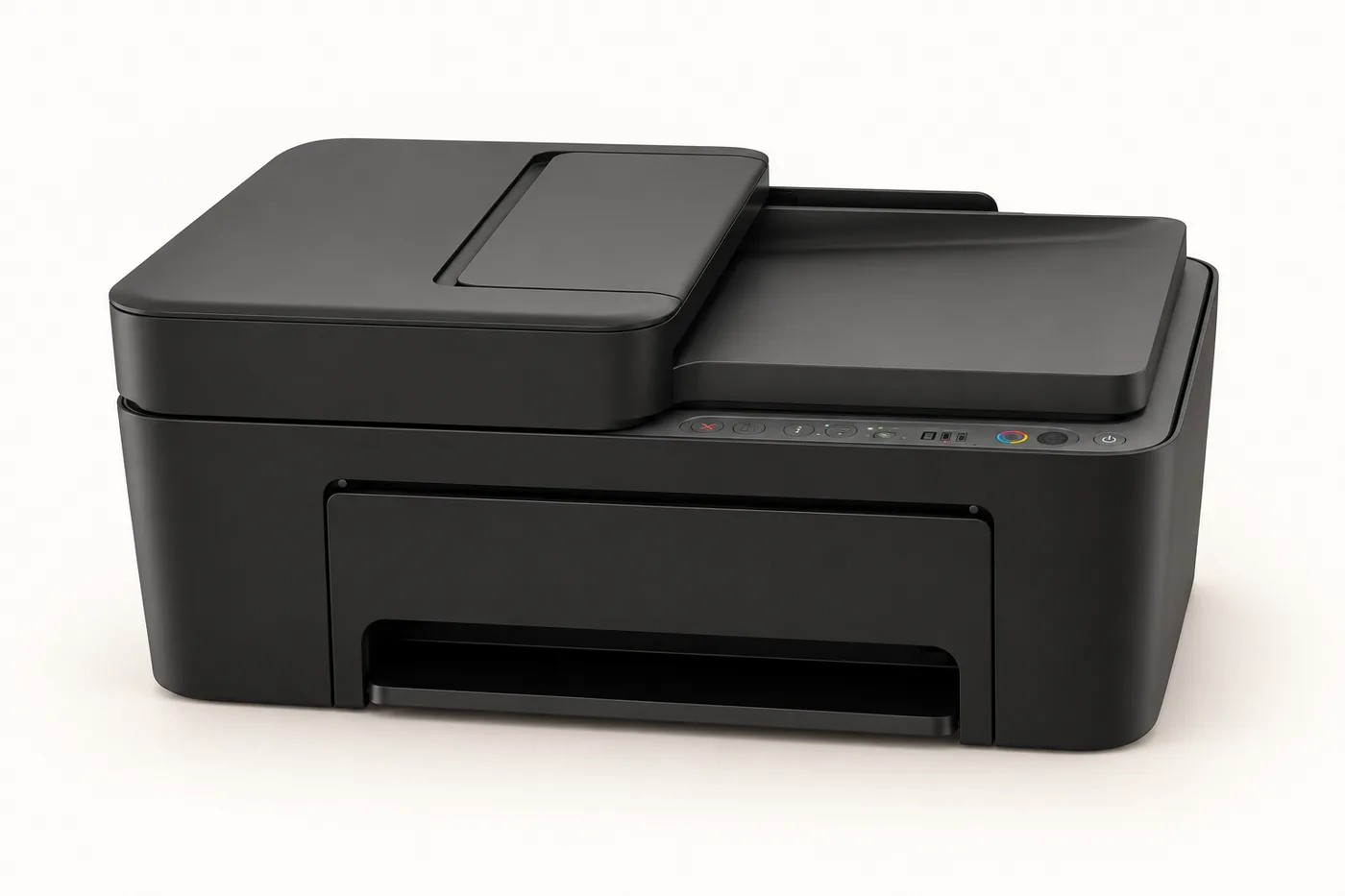
Best for: basic home printing with an easier way to scan stacks of pages. Amazon rank: No. 16 overall.
The DeskJet 4355 is the DeskJet 2923 with a 35-sheet document feeder and slightly faster black printing. That feeder is the reason to choose it. You can load a multi-page document, press copy or scan, and walk away. Two-sided printing is still manual, and it still uses HP 68 cartridges.
- Up to 8.5 ppm black and 5.5 ppm color
- 35-sheet document feeder plus flatbed
- 60-sheet input tray
- Dual-band Wi-Fi and USB; AirPrint and Mopria
- HP 68 cartridges (black about 160 pages, tri-color about 120)
Keep in mind: the Amazon listing we checked lists the black speed as 7.5 ppm in one place and 8 ppm in another, and it doesn’t mention the document feeder at all. HP’s product page lists 8.5 ppm and a standard 35-sheet feeder. The specs above come from HP.
Full specifications: HP DeskJet 4355 product page.
10. HP OfficeJet Pro 9135 All-in-One
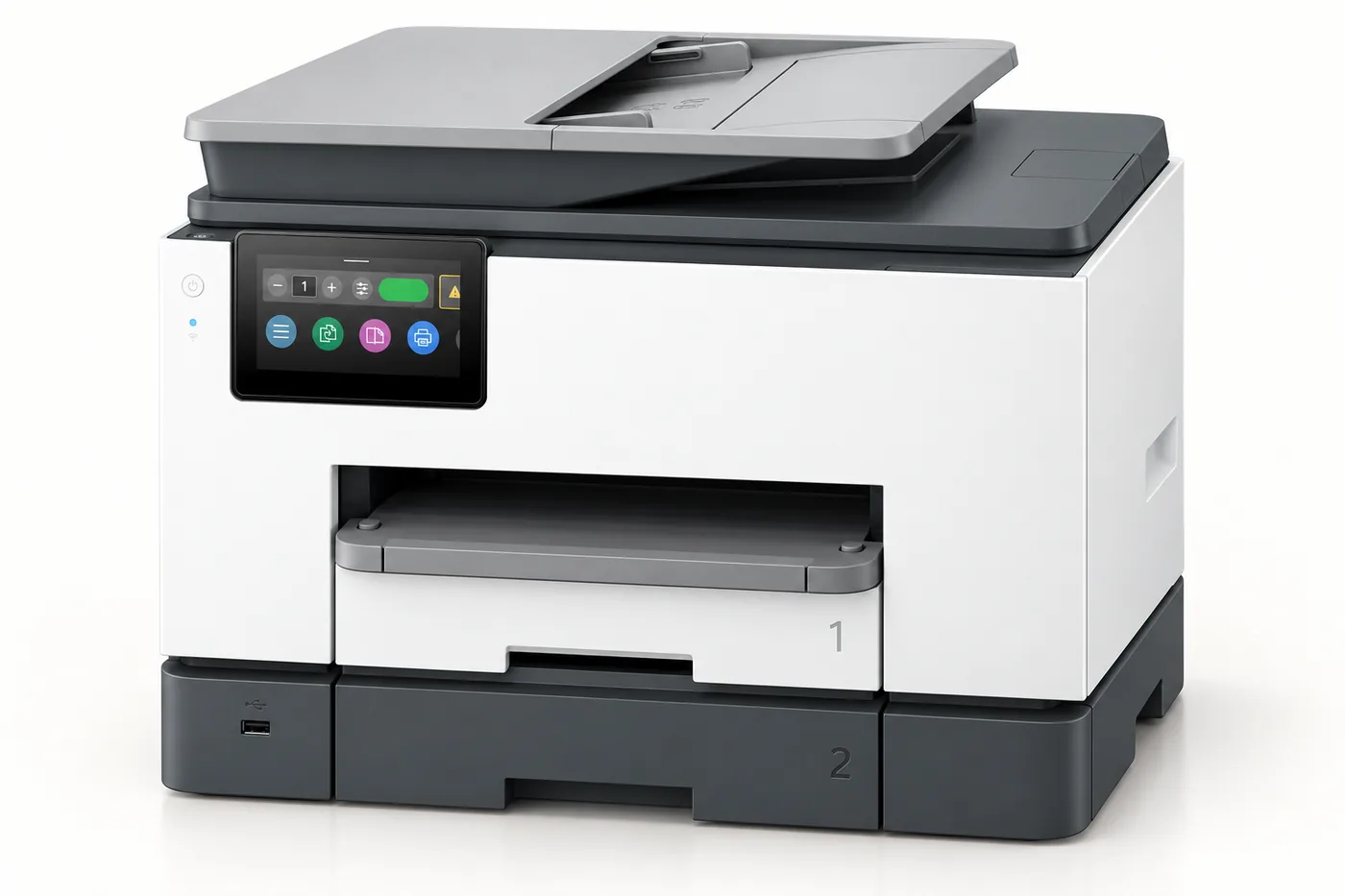
Best for: busy small offices that want the fastest printer and the biggest paper supply. Amazon rank: No. 19 overall.
The 9135 is the most capable printer on this list. Compared with the 9125, it’s a little faster, it has a second 250-sheet tray for 500 sheets in total, and it has a larger 4.3-inch touchscreen. Its document feeder scans both sides of a page in a single pass, which makes double-sided scanning noticeably quicker than the 9125’s two-pass method. The second tray can be a multipurpose tray, so you can keep letterhead or a different paper size loaded alongside plain paper.
- Up to 25 ppm black and 20 ppm color
- Print, copy, scan and fax; 35-sheet single-pass two-sided document feeder
- Two 250-sheet trays (500 sheets) and a 100-sheet output tray
- Dual-band Wi-Fi, Ethernet, USB device and host ports
- HP 936 cartridges (black about 1,250 pages, colors about 800 each)
Keep in mind: at about 26 pounds, it’s the heaviest printer here. HP doesn’t include a USB cable, which only matters if you plan to connect over USB instead of Wi-Fi or Ethernet.
Full specifications: HP OfficeJet Pro 9135 product page.
Why So Many Near-Twins Are on the List
Ten best-sellers sounds like ten different choices, but HP sells several versions of the same printer at once. Knowing which ones match can save you money, because you can buy whichever twin is cheaper on the day you order.
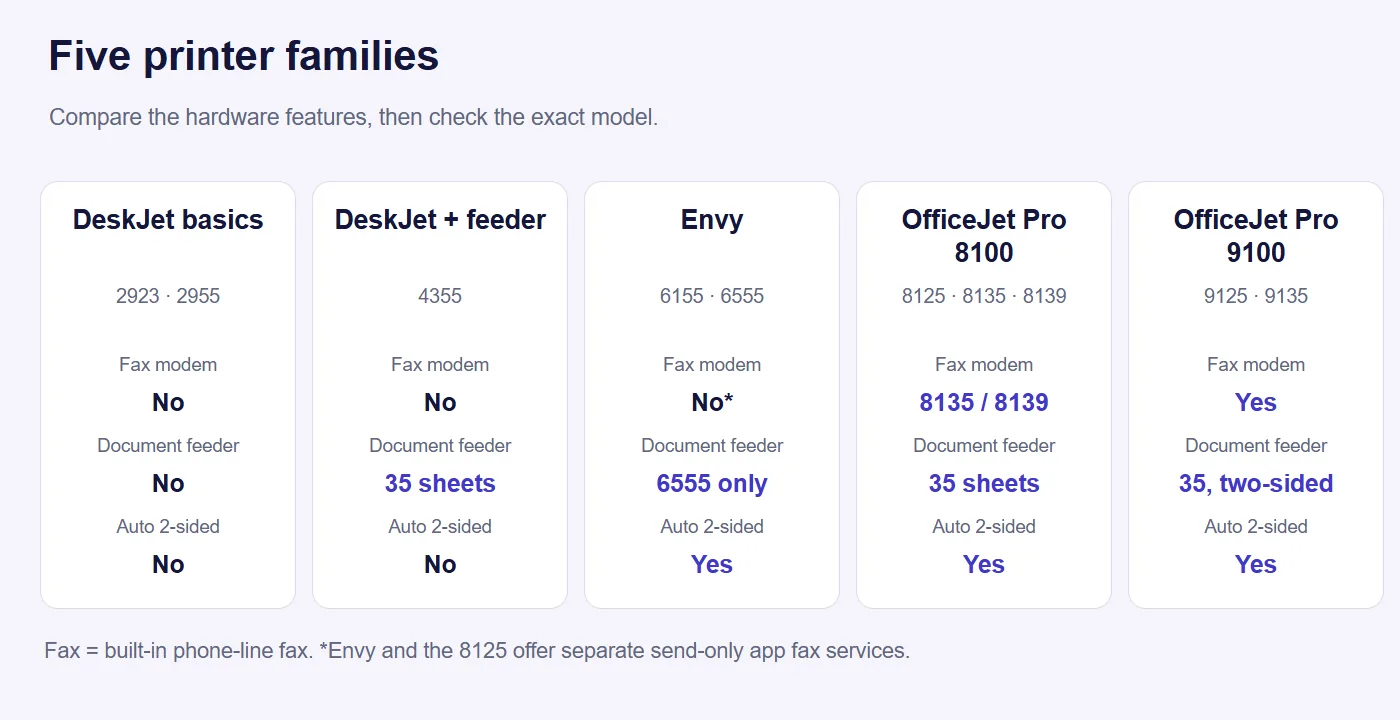
| Family | Models | What actually differs |
|---|---|---|
| DeskJet basics | 2923, 2955 | Nothing in the hardware, per HP. The bundled Instant Ink offer and listing details can differ. |
| DeskJet with feeder | 4355 | Adds a 35-sheet document feeder and prints black at 8.5 ppm instead of 7.5. |
| Envy | 6155, 6555 | The 6555 adds a 35-sheet document feeder. |
| OfficeJet Pro 8100 series | 8125, 8135, 8139 | The 8125 has no fax modem or USB host port. The 8135 and 8139 match each other; the 8139 includes 12 months of Instant Ink instead of 3. |
| OfficeJet Pro 9100 series | 9125, 9135 | The 9135 is faster, has a second paper tray, a larger screen and single-pass two-sided scanning. |
What to Know About HP Ink Before You Buy
With an inkjet, the printer is often the smaller expense. Ink is where most of the money goes over the years. Three HP policies affect what you can put in these printers and what it costs.
Dynamic security and non-HP cartridges
All ten printers are “dynamic security” printers. HP says they’re designed to work only with cartridges that have a new or reused HP chip. In practice, refilled or remanufactured cartridges that keep the original HP chip should work, while third-party cartridges with their own chips may be rejected. If cheap third-party ink is your plan, an HP inkjet is the wrong choice.
“e” models and HP+
You’ll also see HP printers whose model numbers end in a lowercase “e,” such as the DeskJet 2855e or OfficeJet Pro 8125e. HP uses the “e” to mark HP+ printers. According to HP’s HP+ FAQ, HP+ requires an HP account, a constant internet connection, and Original HP ink for the life of the printer. In exchange, you get an extra year of warranty and a short Instant Ink trial. Once HP+ is turned on during setup, it can’t be turned off.
None of the ten printers on this list is an “e” model. HP’s pages for some older “e” models now say the non-“e” version has replaced them. That’s good news if you don’t want a lifetime ink commitment. If an Amazon listing ends in “e,” read it carefully before you buy.
How Instant Ink works and what happens if you cancel
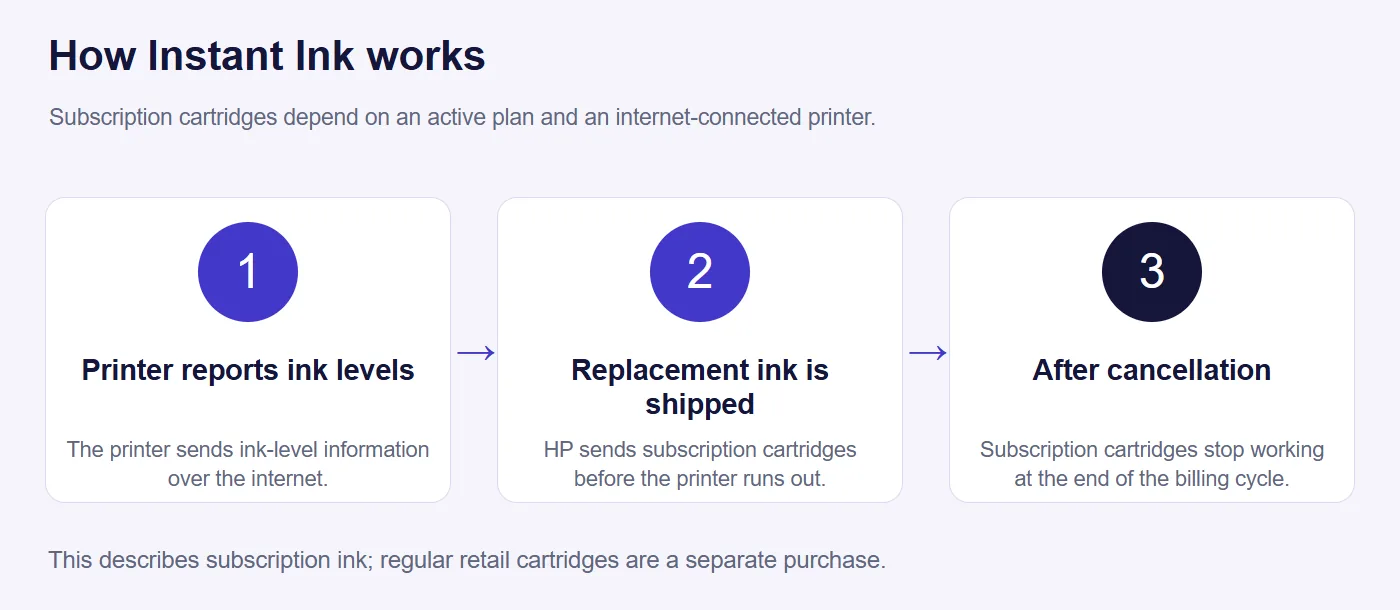
Instant Ink is HP’s ink subscription. You pay for a number of pages per month, not for cartridges. The printer reports its ink levels over the internet and HP ships new cartridges before you run out. These are HP’s US monthly plans as listed on its Instant Ink page on October 23, 2026:
| Pages per month | Monthly price | Cost per page if you use them all |
|---|---|---|
| 10 | $1.99 | About 20 cents |
| 50 | $5.99 | About 12 cents |
| 100 | $8.49 | About 8.5 cents |
| 300 | $16.99 | About 5.7 cents |
| 700 | $32.99 | About 4.7 cents |
A page costs the same whether it’s one line of black text or a full-color photo, which makes Instant Ink a better deal for color-heavy printing. Unused pages on monthly plans roll over, up to three times your monthly amount. If you go over, HP charges for extra pages in small blocks. HP also lists yearly plans, which don’t roll pages over.
Two details matter before you sign up for a free trial:
- The trial turns into a paid plan automatically. HP charges the monthly fee when the trial ends unless you cancel.
- Instant Ink cartridges stop working after you cancel. They stop at the end of the billing cycle in which you cancel, even if they still have ink. On the non-“e” printers in this guide, you can then switch to regular HP cartridges bought from any store.
Instant Ink also needs the printer connected to the internet, not just to your computer, so that it can report ink levels.
Cartridge yields compared
If you buy cartridges yourself, yield is the number to compare. It’s the approximate number of standard pages a cartridge prints, based on an industry test. HP no longer sells “XL” versions of these three families. The higher-capacity option is the EvoMore cartridge, which has an “e” after the number.
| Cartridge | Used by | Standard yield | EvoMore yield |
|---|---|---|---|
| HP 68 | DeskJet 2923, 2955, 4355; Envy 6155, 6555 | Black about 160; tri-color about 120 | Black only, about 320 |
| HP 923 | OfficeJet Pro 8125, 8135, 8139 | Black about 500; each color about 400 | Black about 1,000; each color about 800 |
| HP 936 | OfficeJet Pro 9125, 9135 | Black about 1,250; each color about 800 | Black about 2,500; each color about 1,650 |
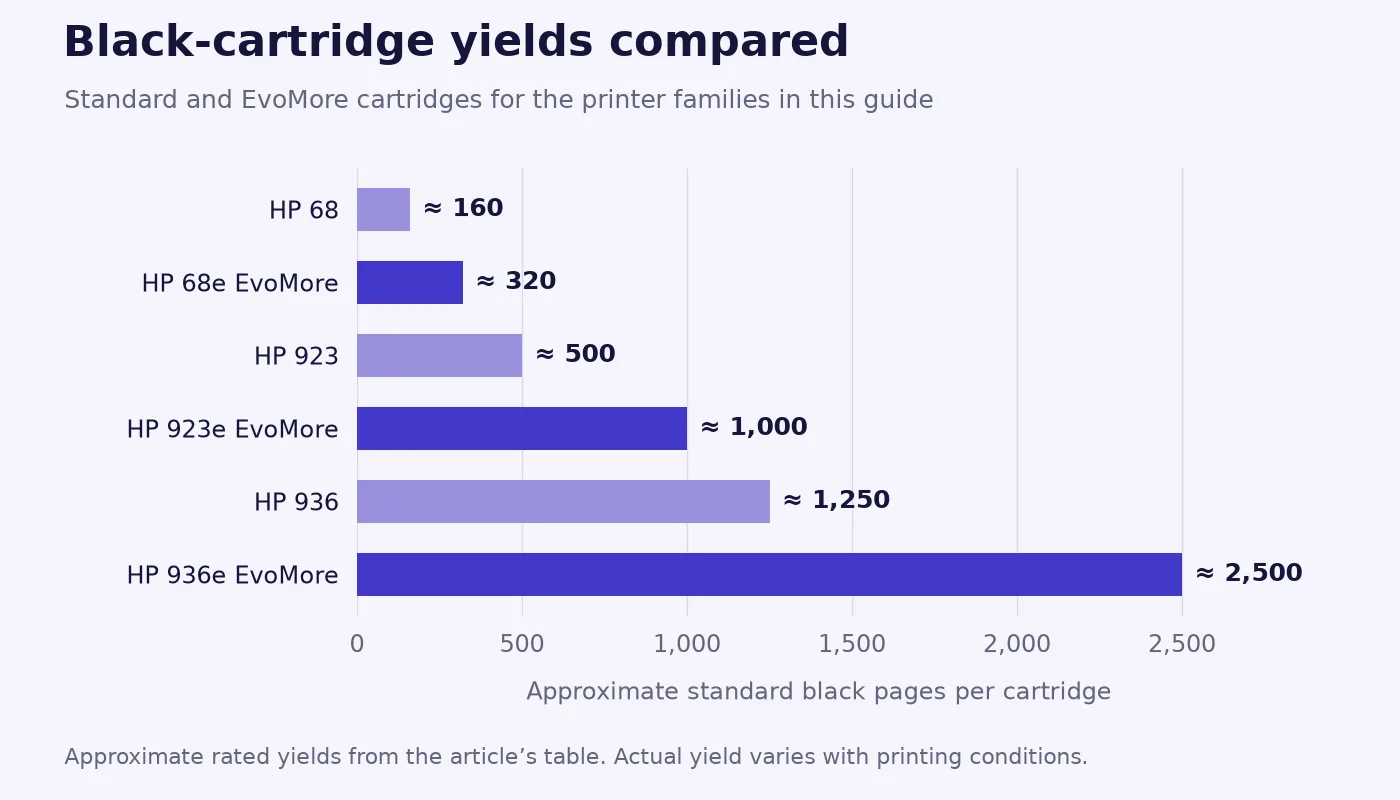
The difference is big. One HP 936 black cartridge prints about as many pages as eight HP 68 black cartridges. Even if a larger cartridge costs more, it usually costs much less per page. The cartridges that come in the box are often “setup” cartridges with less ink than the retail versions, so expect your first replacement sooner than the yields above suggest.
A quick way to estimate your ink spending
Check the current price of the black cartridge your printer uses and divide it by the yield. For example, a black cartridge that costs $25 and prints 500 pages works out to 5 cents per page. Then multiply by the pages you print in a month. Do the same for Instant Ink’s per-page figure in the table above. If one option costs a few dollars more per month, multiply by 24 or 36 to see what it adds up to over the two or three years most people keep a printer.
Worked example: three years of printing
Prices change too often to quote, but cartridge counts don’t. Take a household that prints 100 pages of mostly black text a month. Over three years, that’s about 3,600 black pages. Using HP’s rated yields, here is how many black cartridges each family would go through:
| Cartridge | Black cartridges for 3,600 pages | Printers that use it |
|---|---|---|
| HP 68 standard (about 160 pages) | About 23 | DeskJets, Envys |
| HP 68e EvoMore (about 320 pages) | About 12 | DeskJets, Envys |
| HP 923 standard (about 500 pages) | About 8 | OfficeJet Pro 8100 series |
| HP 923e EvoMore (about 1,000 pages) | About 4 | OfficeJet Pro 8100 series |
| HP 936 standard (about 1,250 pages) | About 3 | OfficeJet Pro 9100 series |
Look up today’s price for each cartridge and multiply. That number, not the printer’s price, is the real cost of ownership for a regular user. The same household on Instant Ink’s 100-page plan would pay 36 months at $8.49, about $306 at HP’s October 2026 rate, with color pages included at no extra charge. Color changes the math in Instant Ink’s favor, because buying color cartridges yourself adds cost on top of the black cartridges in the table.
For someone who prints 10 pages a month, the picture flips. Three years is only about 360 pages, so two or three HP 68 black cartridges cover it. The cheapest DeskJet, with cartridges bought as needed, is hard to beat. Paying for an OfficeJet Pro’s large cartridges, or an Instant Ink plan you barely use, makes little sense at that volume.
Older HP models you’ll still see on Amazon
Just below this top ten, Amazon’s list includes older HP models such as the DeskJet 2855e, OfficeJet Pro 8125e, Envy Photo 7975 and DeskJet 4327. Some of them sell at a discount. The ones with an “e” are HP+ printers, so the lifetime Original-HP-ink and internet requirements apply. Read the model number on the listing, not just the product photo, because the “e” and non-“e” versions look identical.
Features Worth Paying For
- Document feeder (ADF). Copy or scan multi-page documents without lifting the lid for every page. Five of the ten have one. A feeder that scans both sides (9125 and 9135) handles double-sided paperwork in one go.
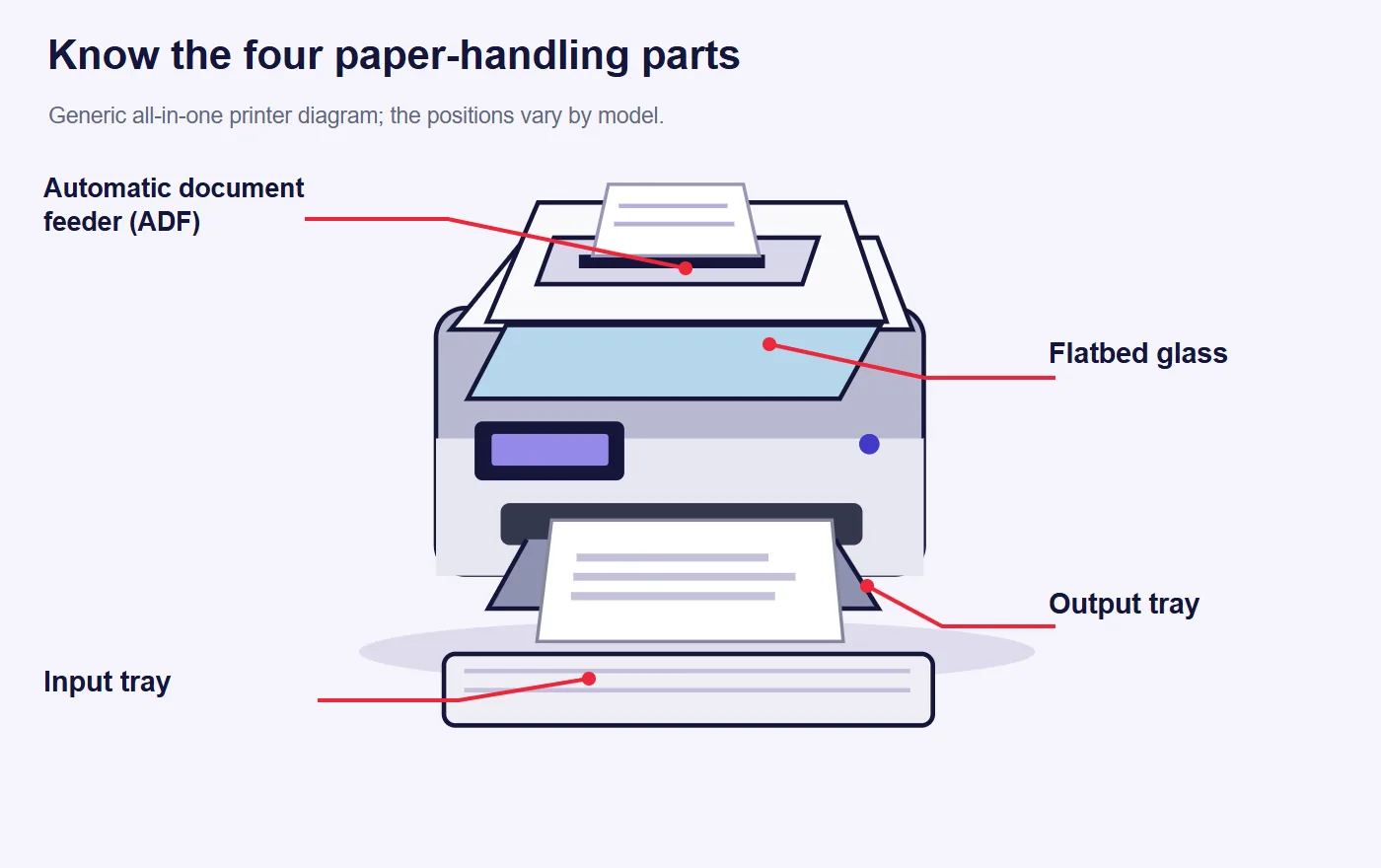
- Automatic two-sided printing. Prints both sides of the paper without you flipping the stack. The DeskJets only do manual two-sided printing; every Envy and OfficeJet Pro here does it automatically.
- Separate color cartridges. The OfficeJet Pros use one cartridge per color, so you replace only the color that runs out. The DeskJets and Envys put all three colors in a single cartridge.
- Ethernet. A wired network connection is more reliable than Wi-Fi in an office. Only the OfficeJet Pros have it.
- Paper capacity. 60 sheets (DeskJet) means frequent refilling for anyone printing more than a few pages a day. 225 to 500 sheets (OfficeJet Pro) means refilling once or twice a week.
When a Laser Printer Makes More Sense
Inkjets are the better choice for color and photos. A monochrome laser printer is usually the better buy if you print almost entirely in black and white, print rarely, or both. Toner doesn’t dry out the way ink can, so a laser printer that sits unused for a month starts printing right away. Inkjet printheads can clog when unused for long stretches, and the printer may spend ink on cleaning cycles to clear them. If you mainly print return labels and tax forms a few times a year, consider a laser printer instead of anything on this list.
Setting Up Your New HP Printer
All ten printers set up the same basic way. Plan on 15 to 30 minutes, most of it waiting for the printer to prepare its ink system.
- Remove all packing tape and foam. Check inside the cartridge door and the paper tray. Leftover tape is the most common cause of a paper jam on the first print.
- Plug in the printer and turn it on. Choose your language and country on the display if it asks.
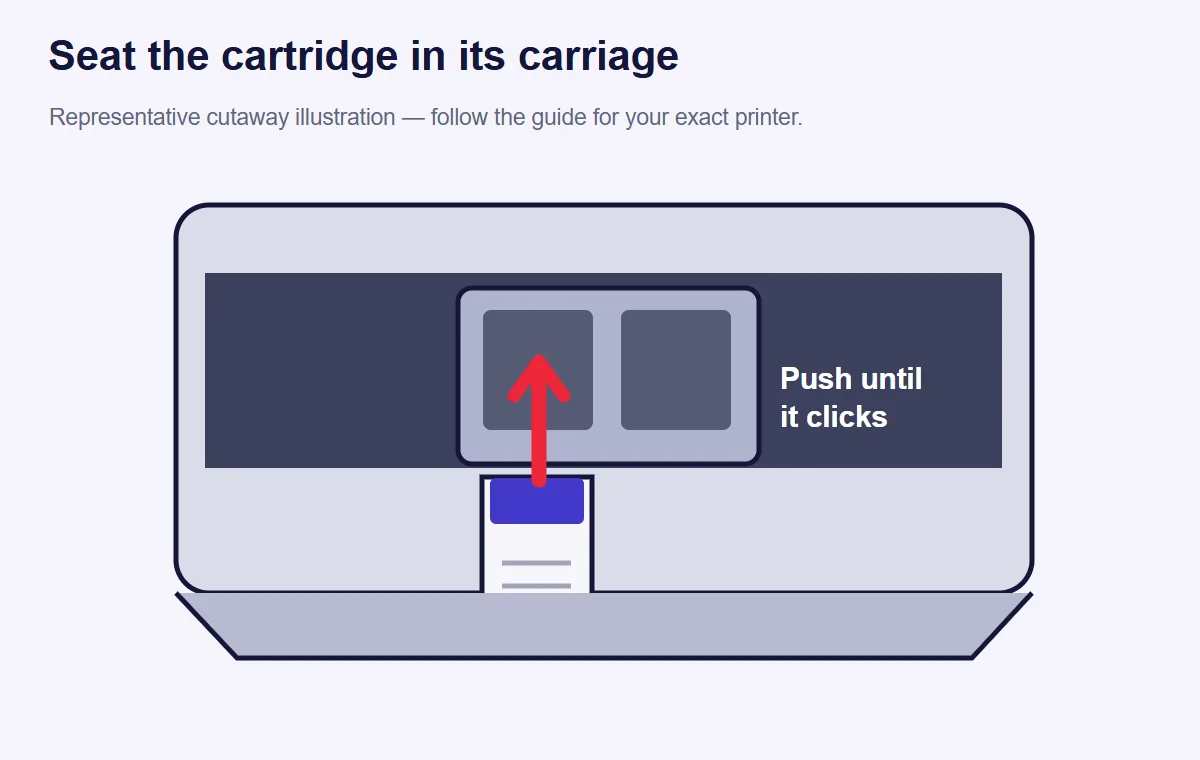
- Install the setup cartridges. Open the ink door, wait for the carriage to stop moving, and push each cartridge in until it clicks. Use the cartridges that came in the box first, because the printer may need them for its first setup.
- Load plain letter-size paper. The printer prints an alignment page, and some models ask you to scan it.
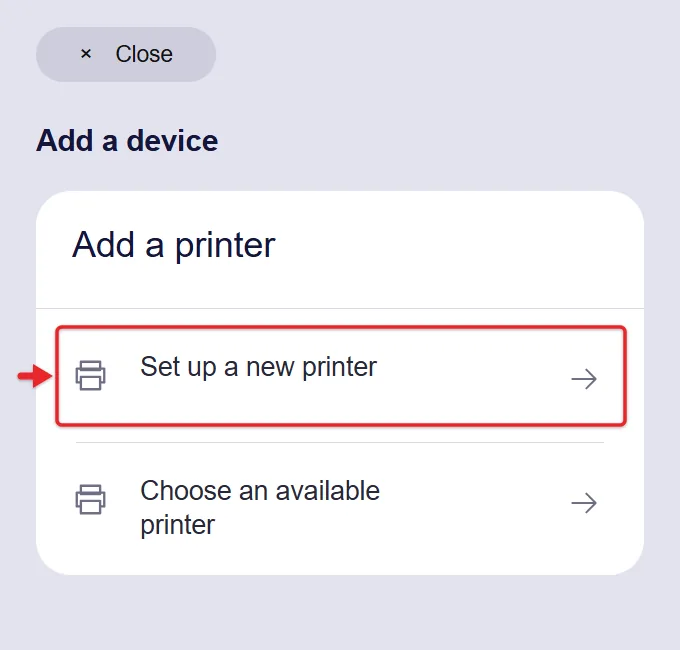
- Install the HP app and connect to Wi-Fi. On a phone or computer, install the HP app and follow its prompts to put the printer on your Wi-Fi network. Skip the app if you only want to print from a Windows PC or Mac. You can add the printer through your computer’s settings instead.
- Decide on Instant Ink. The setup screens offer the trial. You can decline it and still use the printer normally with cartridges you buy yourself.
- Print a test page. If it comes out clean and aligned, you’re done.
For the computer side, see our guides to adding a printer in Windows 11 and printing from an iPhone with AirPrint. If your computer can’t see the printer after setup, these troubleshooting steps cover the usual causes.
If Something Goes Wrong After Setup
- The printer says a cartridge isn’t recognized. Remove it, check that the protective tape is off the contacts, and reinsert it firmly. If it’s a non-HP cartridge, dynamic security may be blocking it.
- The printer drops off Wi-Fi. Move it closer to the router or connect it to the 2.4 GHz band, which reaches farther through walls than 5 GHz. The OfficeJet Pros can use an Ethernet cable instead.
- Prints are streaky or missing a color. Run the printhead cleaning tool from the printer’s menu or the HP app. Run it once or twice, not repeatedly, because each cleaning uses ink.
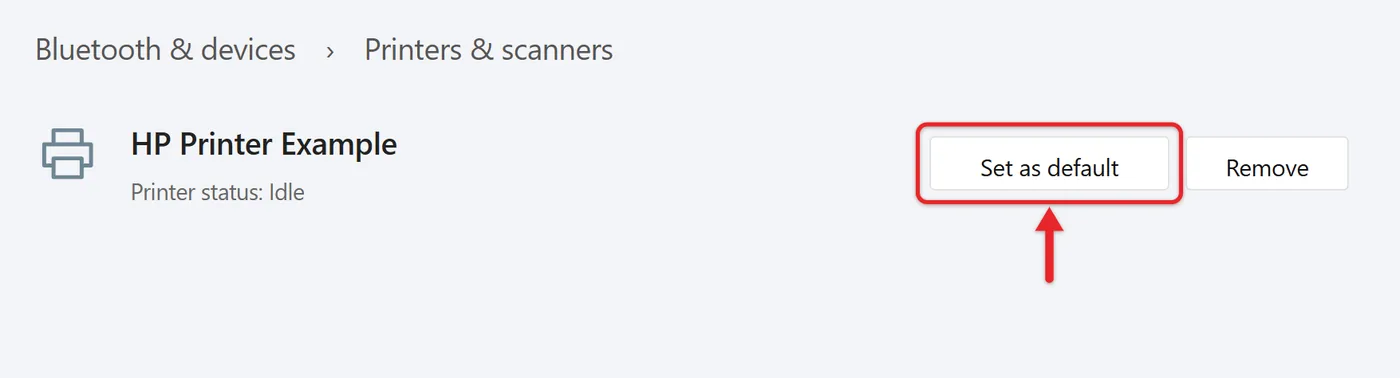
- Windows prints to the wrong printer. Set your HP as the default in Settings, under Bluetooth & devices, then Printers & scanners. Then update the printer driver if problems continue.
- You want to know how much ink is left. The HP app shows estimated levels. You can also check ink levels from Windows 11.
Frequently Asked Questions
Which HP inkjet has the cheapest ink per page?
Among these ten, the OfficeJet Pro 9125 and 9135 should have the lowest cost per page when you buy your own cartridges, because their HP 936 cartridges hold the most ink. The DeskJets and Envys, with their small HP 68 cartridges, usually cost the most per page. For heavy color printing, Instant Ink’s higher-page plans can cost less than either.
Do I have to sign up for Instant Ink?
No. Every printer here works with regular HP cartridges bought from any store. The Instant Ink trial is optional during setup, and if you start it, you can cancel before it turns into a paid plan.
Will these printers work with a Mac or Chromebook?
Yes for Mac, iPhone and iPad. All ten support Apple AirPrint, so they appear in the print menu without extra software. HP lists Chromebook support for the Envy and OfficeJet Pro models. HP’s DeskJet pages list Mopria and the HP Print Service Plugin for Android but don’t mention Chromebooks, so if you print mainly from a Chromebook, pick an Envy or OfficeJet Pro.
Can I scan to my computer with these?
Yes. Scan from the HP app, or use the scanning tools built into Windows and macOS. Our guide to scanning in Windows 11 walks through the Windows side.
What’s the difference between “AI-capable” and the “e” models?
HP describes the ten printers here as “AI-capable.” That refers to features in the HP app, such as cleaning up a web page before you print it, and HP says they need the HP app and Windows 11. The “e” refers to HP+ and the lifetime Original-HP-ink requirement explained above. The two labels aren’t related.
Do I need a fax model?
Only if you need to send or receive faxes over a landline, which some medical offices, banks and government agencies still require. If you fax only occasionally, you can also fax from a computer or use an online fax service, and save the cost of the fax-capable model.
How long is the warranty?
HP lists a one-year limited hardware warranty on these models. HP+ (“e”) printers can extend that to two years, but they come with the ink restrictions described above.
Next Step
Estimate how many pages you print in a typical month, then use the “Which One Fits You” list to narrow the field to one family. Within that family, compare the current Amazon prices of the near-twins, since the cheapest one on the day is usually the right buy. Once it arrives, follow the setup steps above and decide on Instant Ink before the trial screen catches you by surprise.

Matthew Burleigh is the founder, head writer, and editor of Solve Your Tech, which he launched in 2012. He has written technology tutorials since 2008 and worked in IT since 2003, including small-business support, IT management, and consulting. He holds Bachelor’s and Master’s degrees in Computer Science from Arizona State University.
Matthew writes practical guides for Windows, iPhone and iPad, Microsoft Office, Outlook, Google apps, and Android. Solve Your Tech’s guides are checked step by step against the device or app maker’s own documentation and tested on his own devices whenever he has the hardware or software, with clear steps, sources, and update dates.
Read more about Matthew and how Solve Your Tech writes and updates its guides, or report a correction.