This post contains affiliate links. As an Amazon Associate, solveyourtech.com earns from qualifying purchases, at no extra cost to you.
To refill an Epson EcoTank ET-2800, turn the printer on, choose Maintenance > Fill Ink, open the ink tank cover and the cap for the color you need, then push the matching 522 ink bottle into the filling port. The ink stops by itself at the upper line. Close the cap and cover, press the start button, and follow the prompts to reset the ink level. These steps apply to the ET-2800 and the ET-2803, which share one user’s guide.
Steps come from the Refilling the Ink Tanks section of Epson’s ET-2800/ET-2803 User’s Guide. You can also open the refill page directly.
Which Ink Does the ET-2800 Use?
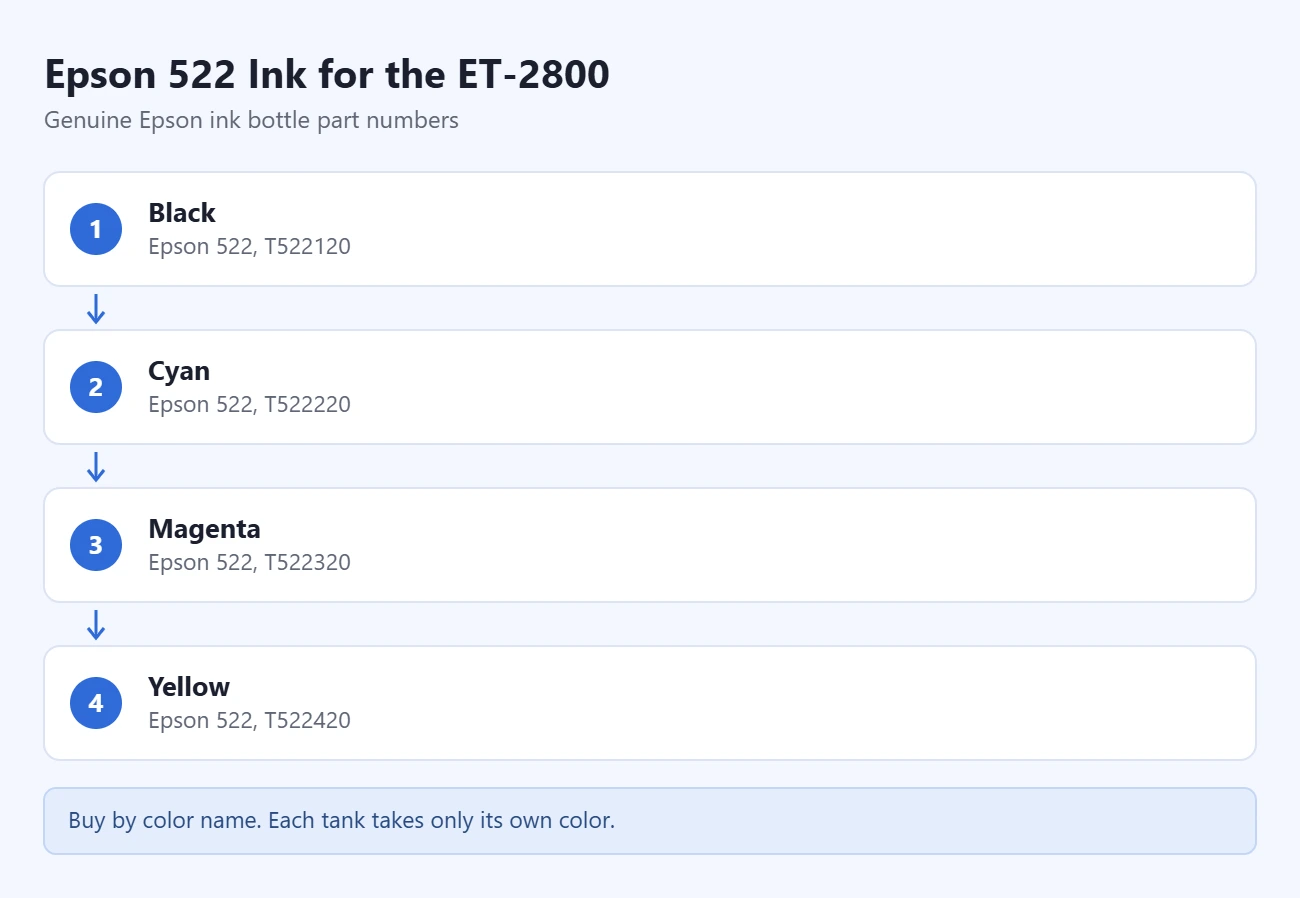
The ET-2800 uses Epson 522 ink bottles. There are four tanks, one for each color.
- Black: Epson 522 (T522120)
- Cyan: 522 (T522220)
- Magenta: 522 (T522320)
- Yellow: 522 (T522420)
Part numbers are easy to mix up, so shop by the color name and the number 522 printed on the box. Each bottle is also keyed, so it only fits the port for its own color.
The Epson 522 black bottle is the one most people run out of first. The 522 color combo pack has cyan, magenta, and yellow, and the 522 black and color combo pack covers all four. Epson lists 522 ink for the ET-2720, ET-2800, ET-2803, ET-2840, ET-4700, ET-4800, and ET-4810, so these steps are close for those models too.
What You Need
- A new Epson 522 bottle for each color you plan to fill. Leave each bottle in its package until you are ready to use it.
- Disposable gloves. Ink can stain your hands.
- A dry cloth and a damp cloth for spills.
- The printer plugged in and turned on, with no error on the screen.
Epson says ink that was stored somewhere cold should sit at room temperature for at least three hours before you use it. Also check the date on the package. Epson recommends using ink before that date.
How to Tell When a Tank Needs Ink
Look at the ink tanks on the printer. Each one has an upper line and a lower line. Refill a color when its ink gets down to the lower line.
Don’t wait for a message on the screen. The ET-2800 does not measure the ink in the tanks. It estimates what is left by tracking how much it has used, so the low ink alert can be wrong. Epson warns that printing with ink below the lower line could damage the printer.
You don’t have to fill every tank at once. You can top off one color and leave the rest. Epson does suggest filling to the upper line each time, because that keeps the estimate accurate.
How to Refill the Ink Tanks
Before you start: don’t shake or squeeze the bottle, and don’t touch its tip after the cap is off. Keep bottles and the tanks away from children.
- Turn on the printer.
- Use the arrow buttons to select Maintenance, then press OK.
- Select Fill Ink and press OK.
- Press the down arrow to read through the safety notes, then press OK.
- Open the ink tank cover.
- Open the cap for the tank you want to fill. Check that the color sticker by the tank matches your bottle.
- Hold the bottle upright and slowly unscrew its cap. Don’t let the open tip bump into anything, or ink may spill.
- Push the bottle straight down into the matching filling port. Each bottle is keyed to its color, so don’t force it. If it won’t go in, you have the wrong port.
- Wait while the ink flows in. Don’t squeeze. The ink stops on its own at the upper line.
- Lift the bottle out and close the tank cap tightly. If ink is left in the bottle, screw the bottle cap back on and store the bottle upright.
- Repeat steps 6 through 10 for any other colors.
- Close the ink tank cover firmly.
- Press the start button.
- Follow the on-screen prompts to reset the ink level for each color you filled.
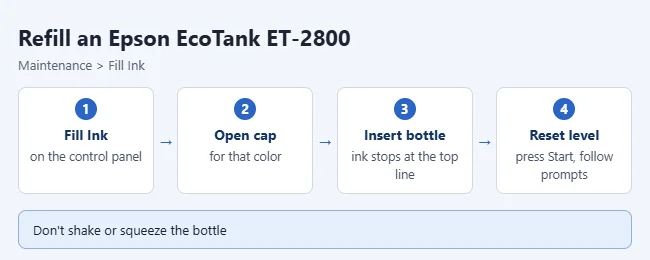
If ink doesn’t flow, lift the bottle out and push it back in. Once the ink has reached the upper line, don’t remove and reinsert the bottle, or ink may leak. Don’t leave a bottle sitting in the port either. Epson says the bottle may be damaged or ink may leak.
Why the Ink Level Reset Matters
The reset in the last step tells the printer that a tank is full again. The printer then counts down from full as you print. That count is what triggers the low ink alert.
Two rules keep the count honest:
- Only reset a color after you fill that tank to the upper line. Epson’s ink precautions say to fill to the upper line before resetting.
- Only reset the colors you actually filled. If you reset a tank that is half empty, the printer will think it has more ink than it does, and the alert will come too late.
Epson documents the reset as the final part of the Fill Ink process on this model. If you filled a tank but skipped the prompts, top the tank off to the upper line, then run Maintenance > Fill Ink again and finish the reset.
How to Confirm It Worked
- Look at each tank you filled. The ink should sit at the upper line.
- Check that every tank cap is pressed closed and the ink tank cover is shut.
- Make sure the screen shows no ink message.
- Print a page with text and color on plain paper.
If the page looks right, you are done. If colors are faint, streaked, or missing, use the section below.
What to Do About Faint or Missing Colors After Refilling
A refill does not always fix print quality right away, especially if the printer ran with a tank near the lower line. Epson’s guide points to a nozzle check first. It prints a small test pattern that shows whether any print head nozzles are clogged.
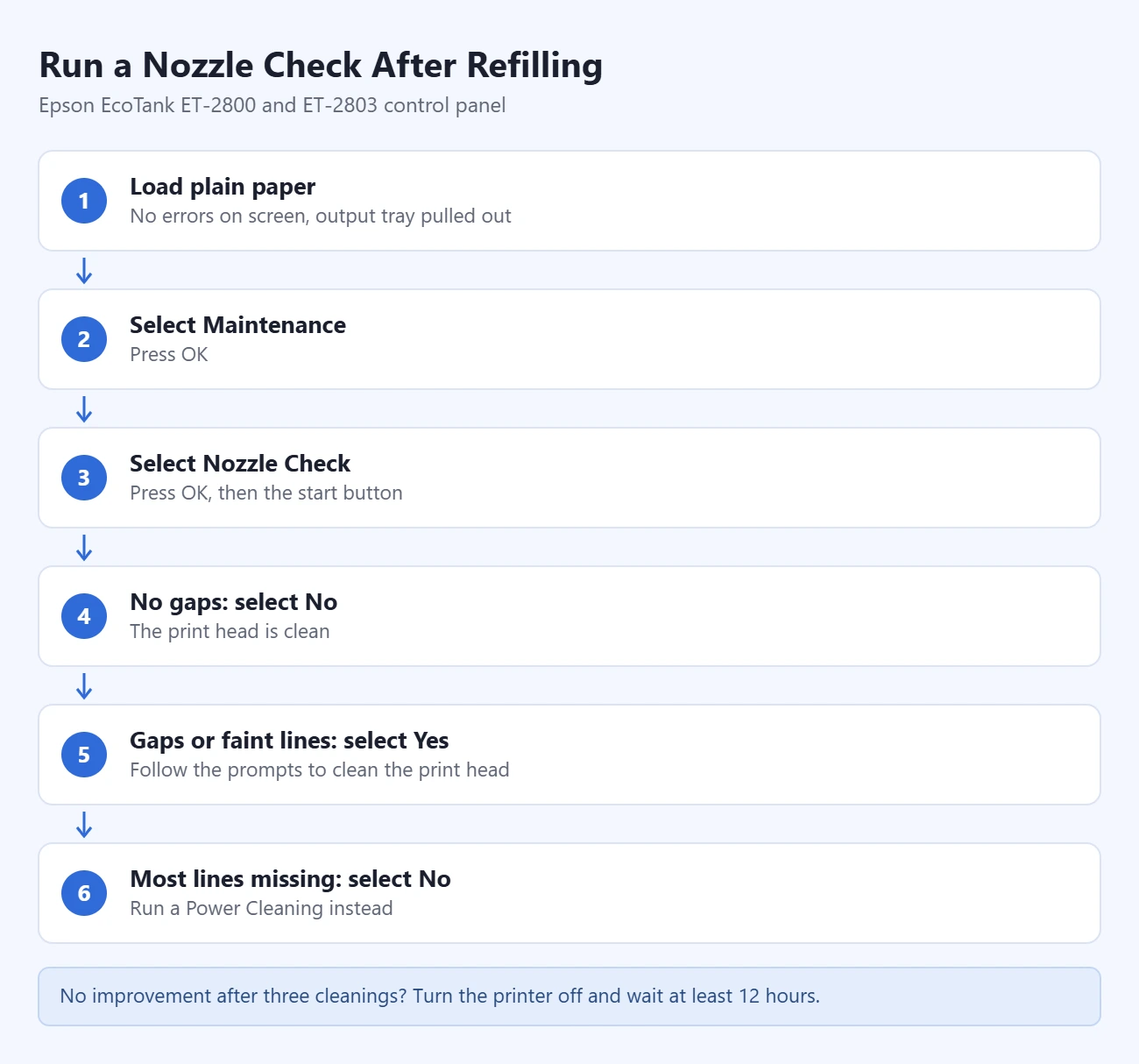
- Make sure the screen shows no errors, pull out the output tray, and load a few sheets of plain paper.
- Press the home button if needed. Select Maintenance and press OK.
- Select Nozzle Check, press OK, then press the start button.
- Look at the printed pattern. If no lines have gaps, select No. The print head is clean.
- If you see gaps or faint lines, select Yes and follow the prompts to clean the print head.
- If most or all of the lines are missing, select No and run a Power Cleaning instead.
Keep these limits in mind:
- Head cleaning needs ink. Epson says you cannot clean the print head when ink has reached the lower line, and you may not be able to when any tank is low. Refill first.
- Don’t interrupt a cleaning. Never turn the printer off or open the inner cover while a cleaning cycle runs. The power light flashes until it finishes.
- Stop after three tries. If the pattern has not improved after up to three cleanings, turn the printer off and wait at least 12 hours. Then run the nozzle check again.
When to Run a Power Cleaning
Power Cleaning is a stronger cleaning for when most or all of the nozzle check lines are missing, or when the printer has sat unused for a long time. Epson also suggests it when colors are wrong because you printed with the ink too low. In that case, refill the tanks to the upper lines first.
Warning: Power Cleaning uses a lot of ink. Every tank must be at least one-third full. Epson says running it with low ink may damage the printer. It can also fill the printer’s ink pads sooner. When an ink pad reaches the end of its service life, the printer stops printing and you have to contact Epson.
- Check by eye that each tank is at least one-third full.
- Load a few sheets of plain paper.
- Select Maintenance and press OK.
- Select Power Cleaning and press OK.
- Follow the on-screen instructions.
- Run a nozzle check when it finishes.
You must wait at least 12 hours before running another Power Cleaning. If print quality still has not improved after that, contact Epson Support.
Other Causes Epson Lists
- The paper type setting does not match the paper you loaded.
- The paper is damp, curled, or old.
- Grayscale is turned on in the printer software, so color pages print in gray. See how to change printer settings to black and white to find that setting and switch it back.
- The print head needs to be aligned.
Check Ink Levels From Your Computer
Epson’s printer software also shows an ink estimate. It uses the same count as the printer, so it is only as accurate as your last reset. Always confirm by looking at the tanks.
Windows
- Find the printer icon on the right side of the Windows taskbar. If you don’t see it, click the up arrow to show hidden icons.
- Double-click the printer icon.
- Read the ink levels in the window that opens.
The icon comes from Epson’s printer software. If it is missing, see how to install or update a printer driver in Windows 11. For other ways to see supply levels, see how to check printer ink levels in Windows 11.
Mac
- Open System Settings (or System Preferences on older versions of macOS) and select Printers & Scanners.
- Select your printer, then select Options & Supplies.
- Select Utility, then Open Printer Utility.
- Select EPSON Status Monitor. Click Update to refresh the levels.
Troubleshooting
| Problem | What to do |
|---|---|
| The bottle won’t fit the port | It is the wrong color for that tank. Bottles are keyed. Don’t force it. |
| Ink doesn’t flow | Lift the bottle out and push it back in. Don’t squeeze it. |
| The low ink message stays after a refill | The level was not reset. Fill to the upper line, run Maintenance > Fill Ink, press start, and finish the reset prompts. |
| The screen says ink is fine but a tank looks low | Trust the tank. Refill if the ink is at the lower line. |
| Head Cleaning won’t run | A tank is at or near the lower line. Refill it, then try again. |
| You spilled ink | Blot it with a dry cloth first, then wipe with a damp cloth. Dried ink is hard to remove. |
| Ink got on your skin or in your eyes | Wash skin with soap and water. Flush eyes with water right away. See a doctor if problems continue. |
| Ink went into the wrong tank | The user’s guide has no fix for this. Stop printing and contact Epson Support. |
Tips From Epson
- Wear disposable gloves. Ink can stain skin and clothes, so wipe spills right away.
- Don’t leave a bottle sitting in the port. Cap any leftover ink and store the bottle upright.
- Store bottles in a cool, dark place, away from direct sunlight, heat, and freezing temperatures. Use an opened bottle as soon as you can.
- The printer estimates ink levels instead of measuring them. Check the tanks by eye, and don’t print when ink is below the lower line, since Epson says that could damage the printer.
- Don’t leave the tanks sitting at a low level for a long time.
- Fill to the upper line and reset the level for the most accurate low ink alerts.
- Epson’s warranty doesn’t cover damage caused by third-party ink.
Have a cartridge printer instead? See how to change the ink in an HP DeskJet or change ink in a Canon PIXMA TR4720. For a laser printer, see how to replace the toner in a Brother HL-L2350DW.
Frequently Asked Questions
How much ink comes with a new EcoTank?
Epson says the bottles in the box may print fewer pages than replacement bottles, because some of that first ink is used to charge the print head during setup.
Can I use compatible 522 ink?
It may work, but Epson recommends genuine ink and says its warranty doesn’t cover damage from third-party ink.
My printer says ink is low, but the tank looks full. What happened?
The level is an estimate, not a measurement. If you skipped the reset after filling, make sure the tank is at the upper line, run Maintenance > Fill Ink again, and reset the level for that color.
Do I have to fill all four tanks at the same time?
No. You can fill one color and leave the others. Reset only the color you filled, and fill it to the upper line so the estimate stays accurate.
Can I refill before the ink reaches the lower line?
Yes. Epson says you can keep using the printer with partly filled tanks, and you can top off a tank at any time. The ink stops at the upper line by itself, so don’t squeeze the bottle to add more.
Does the ET-2800 use color ink when I print in black?
Sometimes. Epson says color ink may be used in place of black depending on the paper type and print quality settings. Ink is also used during print head cleaning.
Why did my ink level drop when I haven’t printed much?
Ink is used for maintenance as well as printing. Head cleaning uses some, and Power Cleaning uses a lot.
Next Step
After you refill and reset, print a nozzle check from the Maintenance menu. If the pattern has no gaps, the printer is ready. Then make a habit of glancing at the tanks before any large print job.

Matthew Burleigh is the founder, head writer, and editor of Solve Your Tech, which he launched in 2012. He has written technology tutorials since 2008 and worked in IT since 2003, including small-business support, IT management, and consulting. He holds Bachelor’s and Master’s degrees in Computer Science from Arizona State University.
Matthew writes practical guides for Windows, iPhone and iPad, Microsoft Office, Outlook, Google apps, and Android. Solve Your Tech’s guides are checked step by step against the device or app maker’s own documentation and tested on his own devices whenever he has the hardware or software, with clear steps, sources, and update dates.
Read more about Matthew and how Solve Your Tech writes and updates its guides, or report a correction.