This post contains affiliate links. As an Amazon Associate, solveyourtech.com earns from qualifying purchases, at no extra cost to you.
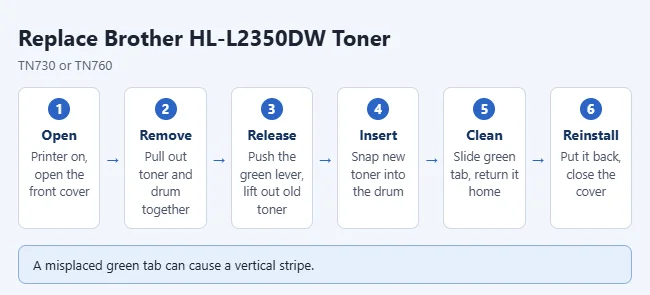
To replace the toner in a Brother HL-L2350DW, open the front cover and pull out the toner and drum unit together. Push down the green lock lever to release the old cartridge, push the new one into the drum until it locks, slide the green corona wire tab back and forth a few times, and put the unit back in. This printer uses TN730 (standard) or TN760 (high-yield) toner. The same steps apply to the HL-L2325DW, HL-L2370DW and HL-L2370DWXL, which share the same Brother guide.
Steps and warnings come from Brother’s Replace the Toner Cartridge guide for the HL-L2325DW and HL-L2350DW.

What You Need
- A new toner cartridge. The Brother TN760 high-yield toner is rated for up to 3,000 pages. Brother also lists it for the HL-L2370DW, HL-L2390DW, HL-L2395DW, MFC-L2710DW, MFC-L2750DW, and DCP-L2550DW.
- The drum unit stays in the printer and lasts much longer. When the printer asks for a new one, get the Brother DR730 drum (up to 12,000 pages).
Don’t unpack the new cartridge until you’re ready to install it. Brother says a cartridge left unpacked for a long time has a shorter toner life.
It also helps to lay a sheet of paper on the table before you start. Brother recommends setting the cartridge and drum on paper in case toner spills.
Toner Cartridge vs. Drum Unit
The HL-L2350DW uses two separate parts that slide into the printer as one assembly. The toner cartridge holds the black powder and is the part you replace most often. The drum unit is the larger frame the cartridge clicks into, and it carries the green lock lever and the green corona wire tab.
| Part | Brother order number | Approximate life |
|---|---|---|
| Standard toner | TN-730 | About 1,200 pages |
| High-yield toner | TN-760 | About 3,000 pages |
| Drum unit | DR-730 | About 12,000 pages |
These figures are from Brother’s Supplies page for this model. Toner yields are for single-sided Letter or A4 pages, and the drum figure assumes one page per print job. Your results depend on how much you print and how much of each page is covered.
The cartridge that came in the box is a Starter toner cartridge, so expect the first one to run out sooner than a replacement.
When to Replace It: “Toner Low” vs. “Replace Toner”
The two messages on the printer’s display mean different things.
- Toner Low is an early warning. The cartridge is near the end of its life, but the printer keeps printing. Brother’s advice is to order a new cartridge now so you have it ready.
- Replace Toner means the cartridge has reached the end of its life. The printer stops all print operations until you install a new one.
You may also see Toner Ended, which Brother also describes as time to replace the toner cartridge. Messages that start with “Drum” are about the drum unit, not the toner. See the troubleshooting table below.
How to Replace the Toner Cartridge
Before you start: do not touch the shaded parts shown in Brother’s illustrations of the cartridge and drum. Brother warns that touching them can cause print quality problems. If toner gets on your hands or clothes, Brother says to rinse it off with cold water.
- Make sure the printer is turned on.
- Open the front cover.
- Pull out the toner cartridge and drum unit together. They come out as one assembly.
- Push down the green lock lever and lift the old toner cartridge out of the drum unit.
- Unpack the new toner cartridge and remove the protective cover.
- Push the new cartridge firmly into the drum unit until you hear it lock into place. If it isn’t seated correctly, it can separate from the drum unit.
- Clean the corona wire: gently slide the green tab left and right several times, then return it to its home position. The arrow on the tab must line up with the arrow on the drum unit.
- Slide the toner and drum unit back into the printer.
- Close the front cover.
Brother says not to turn off the printer or open the cover again until it returns to Ready mode.
Seal the old cartridge in a bag so leftover toner doesn’t spill.
How to Confirm It Worked
Wait for the display to return to Ready, then print any document. The toner message should be gone and the page should print cleanly. There is no toner counter to reset in Brother’s procedure. The printer only needs the new cartridge locked into the drum and the assembly pushed fully into place.
If you’d rather check supply status from your computer, Brother’s Status Monitor shows the same messages, and you can also check printer ink and toner levels in Windows 11.
Avoid a Vertical Stripe on Your Prints
After cleaning the corona wire, the green tab must go back to its home position, with the arrow on the tab lined up with the arrow on the drum unit. Brother warns that if it isn’t, printed pages may have a vertical stripe.
How to Clean the Corona Wire Without Changing the Toner
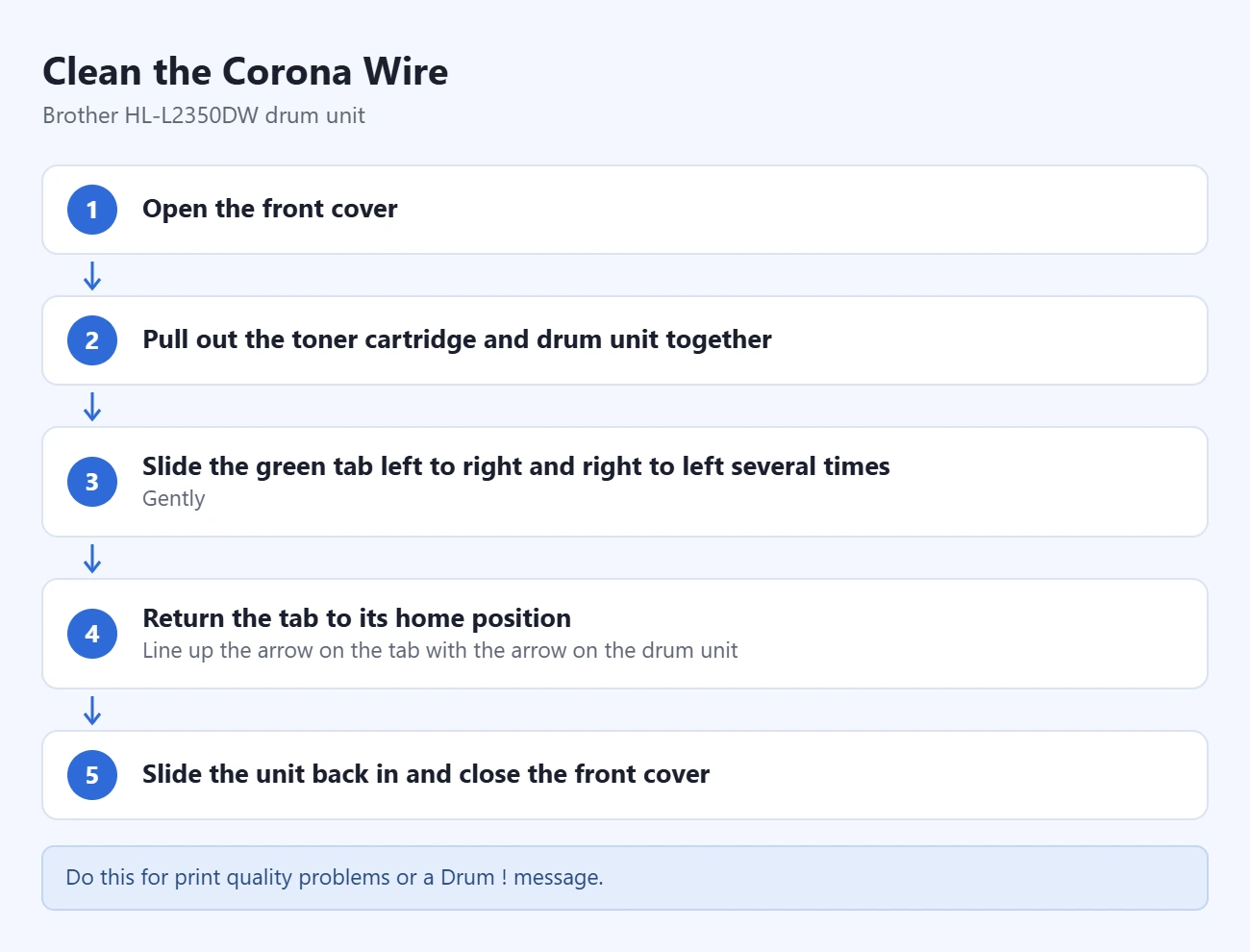
You don’t have to wait for a toner change. Brother’s Clean the Corona Wire page says to do this if you have print quality problems or the display shows Drum !.
- Open the front cover.
- Pull out the toner cartridge and drum unit together.
- Gently slide the green tab on the drum unit from left to right and right to left several times.
- Return the tab to its home position, with the arrow on the tab lined up with the arrow on the drum unit.
- Slide the toner and drum unit back into the printer and close the front cover.
When the Printer Asks for a New Drum
The drum unit is a separate job. Drum End Soon means the drum is near the end of its life, so order one. Replace Drum means it’s time to swap it.
The swap is close to a toner change. With the printer on, open the front cover, pull out the assembly, push down the green lock lever, and move your toner cartridge into the new drum unit until it locks. Then put the assembly back and close the cover. Brother’s Replace the Drum Unit page has the full steps.
After a new drum goes in, you must reset the drum counter. Warning: only reset the drum counter when you are installing a new drum unit. Brother says not to reset it at any other time, and that includes after a toner change.
- Make sure the printer is turned on.
- Make sure the front cover is closed.
- Press OK and the Up arrow at the same time.
- Press OK to select Drum.
- Press the Down arrow to reset the drum counter.
The process is similar on other Brother lasers. Here’s how to reset the drum life on a Brother HL-5470DW if you have that model.
Troubleshooting
These causes and fixes are from Brother’s Error and Maintenance Messages list for the HL-L2350DW.
| Message | What it means | What to do |
|---|---|---|
| Cartridge Error | The toner cartridge is not installed correctly. | Pull out the assembly, take the toner cartridge out of the drum unit, and put it back in. Reinstall the assembly. If it continues, contact Brother Customer Service. |
| No Toner | The toner cartridge, or the toner and drum assembly, is not installed correctly. | Remove the assembly, reseat the cartridge in the drum unit, and reinstall. If it continues, replace the toner cartridge. |
| No Drum Unit | The drum unit is not installed correctly. | Reinstall the toner cartridge and drum unit assembly. |
| Drum ! | The corona wire needs cleaning, or the drum and toner assembly is not installed correctly. | Clean the corona wire, or reinstall the assembly. |
| Replace Drum | It is time to replace the drum unit, or the drum counter was not reset when a new drum was installed. | Replace the drum unit, or reset the counter if you just installed a new drum. |
| Cover is Open | The front cover is not completely closed. | Open the front cover and close it firmly. |
A few other things to check:
- Pages have a vertical stripe. The green corona wire tab is not in its home position. Take the assembly out and line up the two arrows.
- The printer still says to replace the toner. Take the assembly out, reseat the cartridge in the drum unit, and push the assembly all the way in. Confirm the cartridge is a TN730 or TN760.
Frequently Asked Questions
What’s the difference between TN730 and TN760?
Both fit the HL-L2350DW. Brother rates the standard TN730 at up to 1,200 pages and the high-yield TN760 at up to 3,000 pages.
Can the HL-L2350DW use TN770 toner?
Brother does not list it for this model. Its supplies page lists the super high-yield TN-770 for the HL-L2370DW and HL-L2370DWXL only. For the HL-L2350DW, the listed cartridges are TN-730 and TN-760.
Can I use a non-Brother toner cartridge?
Brother recommends genuine cartridges and warns that damage caused by third-party toner may not be covered by the warranty.
Do I need to replace the drum when I replace the toner?
No. They are separate parts with separate lives. Keep the same DR730 drum unit and move each new toner cartridge into it. Replace the drum only when the printer shows Replace Drum.
Can I keep printing when the printer says Toner Low?
Yes. Toner Low is a warning, and the printer keeps working. Printing stops when the message changes to Replace Toner.
Do I need to reset anything after changing the toner?
No. Brother’s toner procedure ends when you close the front cover and the printer returns to Ready. The only counter Brother tells you to reset is the drum counter, and only after installing a new drum unit.
Why does the printer still say to replace the toner?
Make sure the new cartridge clicked into the drum unit and the drum unit is fully seated. If the message stays, check Brother’s support page for your model.
Next Step
Once the printer is back at Ready, order your next cartridge when Toner Low appears so you aren’t stuck when printing stops.
Related: how to replace the toner on the older Brother HL-2270DW, how to add a printer in Windows 11, and how to clear a stuck print queue.

Matthew Burleigh is the founder, head writer, and editor of Solve Your Tech, which he launched in 2012. He has written technology tutorials since 2008 and worked in IT since 2003, including small-business support, IT management, and consulting. He holds Bachelor’s and Master’s degrees in Computer Science from Arizona State University.
Matthew writes practical guides for Windows, iPhone and iPad, Microsoft Office, Outlook, Google apps, and Android. Solve Your Tech’s guides are checked step by step against the device or app maker’s own documentation and tested on his own devices whenever he has the hardware or software, with clear steps, sources, and update dates.
Read more about Matthew and how Solve Your Tech writes and updates its guides, or report a correction.