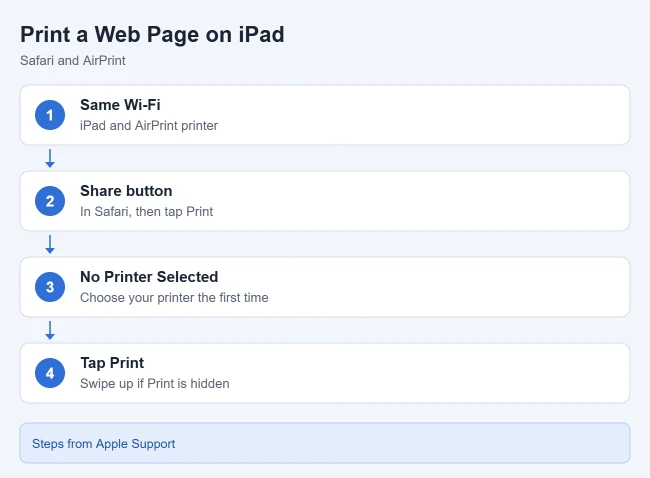
To print a web page on iPad, open the page in Safari, tap the Share button, tap Print, tap No Printer Selected and choose your printer, then tap Print in the upper-right corner. This uses AirPrint, the wireless printing feature built into iPadOS. Your printer must support AirPrint, and the iPad and printer must be on the same Wi-Fi network.
This guide covers the Safari steps in detail, the options on the print screen, printing a cleaner copy with Reader, printing from Chrome, saving a page as a PDF instead of using paper, checking or canceling a print job, and what to do when the printer or the Print option is missing. The steps follow Apple’s Use AirPrint to print from your iPhone or iPad article and the current iPad User Guide for iPadOS 27, checked on October 4, 2026. Notes for older versions are included where the wording differs.
What You Need Before You Print
AirPrint is Apple’s name for printing straight from an iPhone, iPad or Mac without installing a printer driver (the software a computer normally needs to talk to a printer). There is nothing to turn on in the iPad’s Settings app. Printing works when these three things are true:
- The printer supports AirPrint. Apple says AirPrint is built into most popular printer models. You can search for your model from Apple’s About AirPrint page, look for the word AirPrint on the box or in the manual, or ask the printer maker.
- The printer is on your network. Apple states that AirPrint works with Wi-Fi or wired network connections. A printer plugged into a computer by USB, or connected to a computer by Bluetooth, cannot be used through AirPrint.
- The iPad is on the same Wi-Fi network as the printer. Open Settings and tap Wi-Fi to see which network the iPad has joined. A blue checkmark appears next to the connected network.
The iPad does not keep a permanent list of installed printers. It looks for AirPrint printers each time you open the print screen. If your printer has never been connected to Wi-Fi, set that up first with our guide on how to add a printer to an iPad.
One more thing to check before you start: let the web page finish loading, and scroll to the bottom if the page loads more content as you go. Some sites only load pictures or later sections when you reach them, and content that has not loaded may be missing from the printout.
How to Print a Web Page on iPad From Safari
These steps use Safari, the browser that comes with the iPad. Printing uses paper and ink, so look at the preview and the page count in step 5 before you send the job.
- Open Safari and go to the web page you want to print. Wait for it to finish loading.
- Tap the Share button. It looks like a square with an arrow pointing up, and it sits in the Safari toolbar near the address field. If you do not see it, check the More menu (three dots) in the toolbar. Result: the share sheet opens. This is the menu of apps and actions you can send the page to.
- Tap Print. Apple notes that you may need to swipe up or scroll down in the share sheet to find it. Result: the print options screen opens with a preview of the pages.
- Tap No Printer Selected and choose your AirPrint printer from the list. If you have printed before, the last printer you used may already be shown here, and you can tap its name to pick a different one. Read the name carefully if several printers appear, which is common in offices, schools and apartment buildings.
- Choose the number of copies and any other options, such as which pages to print. Swipe through the preview to see every page that will be sent.
- Tap Print in the upper-right corner. Result: the job is sent to the printer and the print screen closes.
To confirm it worked, check the printer. A short page usually starts within a few seconds, while a long page with many pictures can take longer to prepare. If nothing comes out, see the section on checking a print job below before you tap Print again, so you do not end up with two copies.
The same Share and Print route works in many other apps. Apple lists Mail, Photos, Safari and Freeform as examples, and many App Store apps support AirPrint as well. If you also print from a phone, the steps are nearly identical in our guide on how to print from an iPhone with AirPrint.
Print Options You Can Change
Apple’s instructions name two settings on the print screen: the number of copies and which pages you want to print. Other settings appear only when the selected printer supports them, so your list may be shorter or longer than someone else’s. The table shows what to look for.
| Option | What it does | When you see it |
|---|---|---|
| Printer | Chooses which AirPrint printer gets the job | Always |
| Copies | Sets how many copies print | Always |
| Page range | Prints only some pages, such as pages 1 to 3 | When the page is longer than one sheet |
| Color or black and white | Prints without color to save color ink | Depends on the printer |
| Double-sided | Prints on both sides of the paper | Depends on the printer |
| Paper size and orientation | Matches the paper loaded in the printer | Depends on the printer |
The page range is the most useful setting for web pages. Many pages end with comments, related links and a long footer, and those can add several sheets you do not want. Swipe through the preview, note the last page you need, and set the range to stop there.
The printer-dependent rows in the table come from printer and app documentation, not from Apple’s AirPrint article, so treat them as things that may or may not appear for your model. If an option is missing, the printer did not report it to the iPad, and you may find it in the printer maker’s own app instead.
How to Print a Web Page Without Ads and Menus
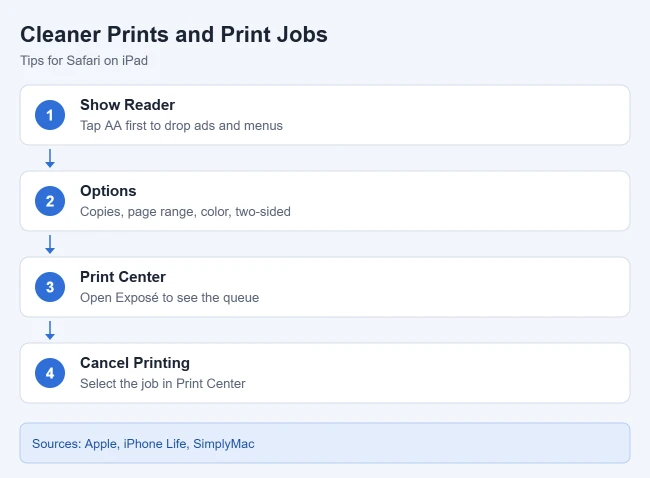
Safari has a view called Reader. Apple says Reader formats a webpage to show just the relevant text and images, and hides navigation menus and other distracting items. Turning it on before you print is the usual way to get a shorter, cleaner copy of an article or recipe.
- Open the article in Safari.
- Tap the Page Menu button in the address field. In older versions of iPadOS this button was labeled AA.
- Tap Show Reader. Result: the page reloads as plain text and images.
- Tap Share, then Print.
- Look at the preview. It should now show the simplified layout with fewer pages. Choose your printer and tap Print.
- To return to the normal page afterward, tap the Page Menu button and tap Hide Reader.
Reader only works on supported pages, which are mostly articles. Apple’s wording is “on a supported website”, so if Show Reader is grayed out or missing, that page cannot use it. Home pages, search results, shopping carts and web apps usually fall into this group. Apple’s steps are in Hide distractions when reading articles in Safari on iPad, and the phone version is in our guide to using Reader mode in Safari on iPhone.
Apple’s guide describes Reader for reading and does not say how it affects printing, so rely on the preview in step 5. If the preview still shows the full site layout, cancel and try the PDF method further down.
For a page that Reader does not support, Safari also has a feature called Distraction Control. Tap the Page Menu button, tap Hide Distracting Items, then tap an item on the page and tap Hide. Apple documents this in Hide distractions when browsing in Safari on iPad as a way to hide menus and other diversions while you browse. Whether hidden items also stay out of a printout is not stated, so check the print preview before relying on it.
How to Print a Web Page From Chrome on iPad
If you use Google Chrome instead of Safari, the route is slightly different. Chrome on iPad also prints through AirPrint, so the same printer requirements apply.
- Open the Chrome app and go to the page.
- At the top right, tap Share.
- Tap View more, then tap Print.
- Choose your printer and settings.
- Tap Print.
These steps come from Google’s Print from Chrome help page for iPhone and iPad. Other browsers and apps generally place Print behind a Share, Actions or More button. Apple notes that not all apps support printing, and suggests checking the app’s help section when you cannot find the option.
Save the Web Page as a PDF Instead
A PDF is a file that keeps a fixed page layout, so it looks the same on any device. Saving a web page as a PDF is useful when you have no printer nearby, when you want to print later from a computer, or when you just need a copy to keep. Apple documents two ways to do it on iPad.
Use Markup in Safari
- Open the page in Safari and tap the Share button.
- Tap View More, then tap Markup. Result: the page opens as a document with drawing tools. You do not have to draw anything.
- Tap the Share button on the Markup screen, then tap Save File To.
- Enter a name for the file and tap Save.
These steps are from Apple’s Annotate and save a webpage as a PDF in Safari on iPad. The menu names are from the iPadOS 27 guide, and older versions may show Markup directly in the share sheet without the View More step.
Take a Full Page screenshot
Take a screenshot while the page is open in Safari, tap the thumbnail that appears, and tap Full Page. Apple’s Take a screenshot on iPad page says this captures content beyond the screen, such as an entire webpage in Safari. When you save it, choose the PDF or Files option that is offered. Our guide on how to screenshot on an iPad walks through the buttons for each model.
Either way, the PDF is saved in the Files app in the folder you picked. If you lose track of it, see how to find downloads and saved files on an iPad. You can open the PDF later and print it with the same Share and Print steps, or send it to a computer that is connected to a printer.
How to Check or Cancel a Print Job
While a job is waiting or printing, the iPad runs a small app called Print Center. It only appears while there is something in the queue (the list of documents waiting to print), so you will not find it on the Home Screen.
- Swipe up from the bottom edge of the screen, pause in the center, and lift your finger. On an iPad with a Home button you can also double-click the Home button. Result: your open apps appear as cards. Apple’s iPadOS 26 and 27 guides call this view Exposé, and iPadOS 18 and earlier call it the App Switcher.
- Tap Print Center. The badge on its icon shows how many documents are in the queue.
- To stop a job, select it and tap Cancel Printing.
Canceling cannot be undone, and pages that have already reached the printer may still come out. If you cancel by mistake, go back to Safari and print the page again. If Print Center is not in the list of open apps, the iPad has already handed the whole job to the printer, and any remaining cancel option is on the printer itself. These steps are in Apple’s Print from iPad guide.
If Your Printer Is Not Listed
When you tap No Printer Selected and the list stays empty, the iPad cannot find an AirPrint printer on its current network. Work through these checks in order.
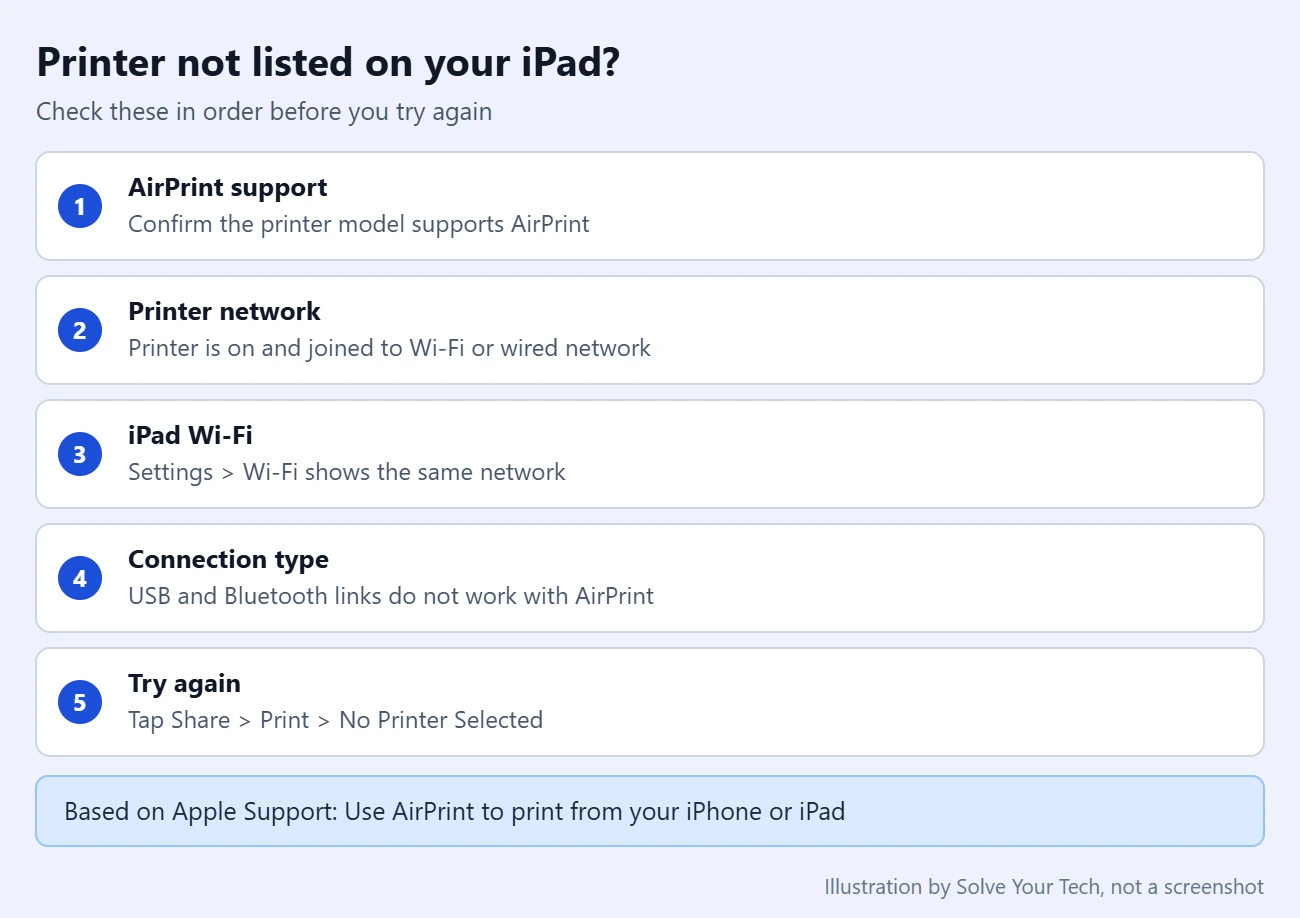
- Confirm AirPrint support. Look up the exact model. Apple notes that printers listed as USB-only support driverless printing only from a Mac over USB, not from an iPad.
- Check the printer. Make sure it is turned on, not showing an error, and connected to your network. Most printers can show or print a network status page that names the network they joined.
- Check the iPad’s Wi-Fi. In Settings, tap Wi-Fi and compare the network name with the printer’s. An iPad that has switched to cellular data, a neighbor’s network or a personal hotspot will not see your printer.
- Check how the printer is connected. Apple says printers attached to the USB port of an AirPort base station or Time Capsule, or connected to a computer by Bluetooth, cannot use AirPrint.
- Try again. Close the print screen, then tap Share, Print and No Printer Selected so the iPad searches again.
Two further causes are often mentioned in printer guides but are not covered in Apple’s AirPrint articles, so treat them as possibilities and not certainties. Guest Wi-Fi networks are frequently set up so that devices cannot see one another, which would hide a printer even when both devices show the same network name. And restarting the printer, the iPad and the router is a common general fix when a printer that worked before stops appearing. Your router or printer manual is the place to confirm either one.
- Scroll first. Print sits in the list of actions below the row of apps. Apple’s instructions say to swipe up or scroll down to reach it.
- Look for View More. On current versions the share sheet can show a short list of actions with a View More button that reveals the others. Google’s Chrome instructions include this step.
- Make sure you opened the page’s share sheet. Use the Share button in the browser toolbar. Touching and holding a link or picture opens a different menu for that single item.
- Check whether the app can print. Pages opened inside another app, such as a link tapped in a social media or news app, may not offer Print. Open the page in Safari and print from there.
- Managed iPads. An iPad supplied by a school or employer can have features limited by the organization. If Print is missing everywhere, ask whoever manages the device.
If Your Printer Doesn’t Support AirPrint
You still have a few options when the printer does not support AirPrint.
- Use the printer maker’s app. Many printer makers publish a free iPad app in the App Store for their own models. Check the support page for your exact model to see whether an app is offered and which iPadOS versions it needs. When you first open an app like this, the iPad may ask whether it can find devices on your local network. The app needs that permission to reach the printer, and our guide to local network access for apps shows where the switch is on an iPhone.
- Save a PDF and print from a computer. Use one of the PDF methods above, then move the file to a Mac or PC that is connected to the printer. If the Mac does not have the printer set up yet, see how to add a printer to a Mac.
- Send yourself the link. Tap Share in Safari and send the page address to yourself by Mail or Messages, then open it on a computer and print from there.
Have a Brother printer? See how to print to a Brother MFC-J4510DW from an iPhone for a model-specific example. The steps are the same on an iPad.
Frequently Asked Questions
Do I need to install an app to print from an iPad?
No, not for an AirPrint printer. AirPrint is part of iPadOS, and Apple says you do not need to install additional drivers or other software. An app is only needed when your printer does not support AirPrint, or when you want extra features from the printer maker.
Can I print a web page from an iPad without Wi-Fi?
Not with the standard steps in this guide. Apple says AirPrint works with Wi-Fi or wired network connections, and that the iPad and printer must be on the same Wi-Fi network. Some printers offer their own direct wireless mode or app, but that depends on the model, so check the printer’s manual. You can always save the page as a PDF and print it later.
Can I print only part of a web page?
You can limit the printout to certain pages by setting a page range on the print screen. To leave out menus and ads, turn on Reader first if the page supports it. Safari’s print screen does not have a documented way to print only the text you have selected.
Why is my printout missing pictures or cut off?
The page may not have finished loading. Go back to Safari, scroll to the bottom so everything loads, then open the print screen again and check the preview. If the layout still looks wrong, try Reader, or save the page as a PDF with Markup and print that file.
Where is Print Center on my iPad?
Print Center is not on the Home Screen. It appears among your open apps only while a job is waiting or printing. Open Exposé or the App Switcher by swiping up from the bottom of the screen and pausing, then tap Print Center.
Do these steps work on iPad mini, iPad Air and iPad Pro?
Yes. AirPrint is part of iPadOS, so the steps are the same on every iPad model. The only differences are small ones noted above, such as the Home button shortcut for viewing open apps and the older AA label on the Page Menu button.
Next Steps
Once printing works, the last printer you used is normally offered again the next time, so a repeat job takes only a few taps. If you want to keep a page handy without paper, these guides cover two other ways to do it.

Matthew Burleigh is the founder, head writer, and editor of Solve Your Tech, which he launched in 2012. He has written technology tutorials since 2008 and worked in IT since 2003, including small-business support, IT management, and consulting. He holds Bachelor’s and Master’s degrees in Computer Science from Arizona State University.
Matthew writes practical guides for Windows, iPhone and iPad, Microsoft Office, Outlook, Google apps, and Android. Solve Your Tech’s guides are tested on current devices or checked against official product documentation, with clear steps, sources, and update dates.
Read more about Matthew and how Solve Your Tech writes and updates its guides, or report a correction.