This post contains affiliate links. As an Amazon Associate, solveyourtech.com earns from qualifying purchases, at no extra cost to you.
To change the ink in a Canon PIXMA TR4720, turn on the printer and open the front cover, the paper output tray, and the paper output cover. When the cartridge holder stops, push down the lock lever on the empty cartridge and pull it out. Take the tape off the new cartridge, slide it in, and push the lever up until it clicks. The TR4720 uses PG-275 black and CL-276 color cartridges. These steps also apply to the TR4722, which Canon covers in the same manual.
Steps and cartridge numbers come from Canon’s Replacing an Ink Cartridge – TR4720 / TR4722 support article and the Replacing a FINE Cartridge page of Canon’s TR4700 series online manual.
Which Ink Does the TR4720 Use?
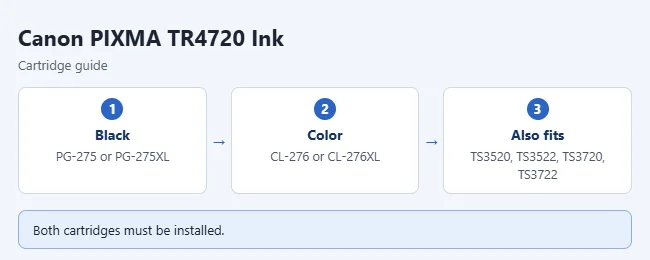
- Black: PG-275 or the higher-capacity PG-275XL.
- Color: CL-276 or CL-276XL.
- Both a black and a color cartridge must be installed. Canon says the printer cannot print while either one is removed.
The Canon PG-275 / CL-276 value pack includes one of each. If you print a lot, the PG-275 XL / CL-276 XL value pack lasts longer. Canon lists the same cartridges for the PIXMA TS3520, TS3522, TS3720, and TS3722.
Canon calls these FINE cartridges. Each one holds both the ink and the print head, so a new cartridge also gives you a new set of nozzles.
What You Need
- A new PG-275 or CL-276 cartridge, standard or XL. Canon says to use a new cartridge, not a used one.
- The printer plugged in and turned on. Canon’s first step is to check that the power is on.
- One sheet of Letter or A4 plain paper if you plan to align the print head afterward.
How to Change the Ink Cartridges
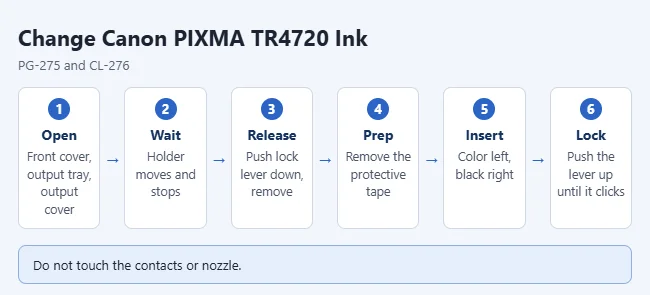
Before you start, note two things. Don’t touch the metal contacts or the print head nozzle on a cartridge. Canon says the printer may not print properly if you do. Also have the new cartridge ready, because Canon says not to leave the printer with a cartridge removed.
- Make sure the printer is turned on.
- Gently open the front cover.
- Open the paper output tray, then the paper output cover. The cartridge holder moves to the replacement position.
- Wait until the holder stops completely. Don’t push or hold it, and don’t touch the metal parts inside the printer.
- Push down the lock lever on the empty cartridge until it clicks, then remove the cartridge.
- Take the new cartridge out of its package and gently remove the protective tape.
- Slide the cartridge straight into the holder until it touches the back. Color goes in the left slot and black goes in the right slot.
- Push up the lock lever until it clicks.
- Close the paper output tray. If an error message appears on the screen, see the troubleshooting section below.
How to Check the Ink Levels
Check the levels on the printer’s screen to confirm the new cartridge is being read.
- Make sure the printer is turned on.
- Press the Setup button.
- Use the left or right arrow button to select Ink information, then press OK.
- Make sure Remaining ink is shown, then press OK. The screen shows the level for each cartridge.
Canon also notes that the levels appear briefly when you press the COPY or FAX button. On a Mac, open the Print dialog, open its pop-up menu, and choose Supply Levels. On a PC, see our guide to checking printer ink levels in Windows 11. These are estimates. When the low-ink mark appears, Canon says to get a new cartridge ready, because print quality may drop if you keep printing.
How to Align the Print Head After Replacing a Cartridge
You don’t have to align the print head every time. Do it if straight lines look uneven or misaligned after the change. Canon’s steps are on its Aligning the Print Head page.
- Load one sheet of Letter or A4 plain paper in the front tray.
- Press the Setup button, select Maintenance, and press OK.
- Select Head alignment and press OK. The printer prints an alignment sheet.
- Place the sheet on the scanner glass with the printed side facing down. Line up the mark on the corner of the sheet with the alignment mark on the printer.
- Close the document cover and press the Black or Color button. The printer scans the sheet and adjusts the print head on its own.

Don’t touch the printed part of the sheet, and keep it clean and flat. Use the glass, not the document feeder on top. Canon says the sheet won’t print correctly if the ink is low, so replace a low cartridge first.
Troubleshooting
The cartridge holder doesn’t move
Check that the printer is on. Then make sure you opened all three parts: the front cover, the paper output tray, and the paper output cover behind it. The holder moves when the paper output cover opens. Never pull the holder by hand.
The printer shows an error or doesn’t recognize the cartridge
Canon’s manual lists two causes for a cartridge error after a change: the cartridge isn’t installed properly, or it isn’t the right cartridge for this printer. Canon’s fix is the same in both cases.
- Open the paper output cover.
- Remove both cartridges.
- Check the labels. They should read PG-275 or PG-275XL for black and CL-276 or CL-276XL for color.
- Put them back in, color on the left and black on the right.
- Push up each lock lever until it clicks.
- Close the paper output cover.
If the screen shows a support code, look it up in Canon’s list of support codes for the TR4700 series. Canon also has a separate article for support code 1485, which means the appropriate ink cartridge is not installed. If the error stays after you reseat a correct, new Canon cartridge, contact Canon support.
No ink comes out after the change
Canon’s checks, in order:
- Take the cartridge out and look for leftover orange protective tape. Remove it.
- Reinstall the cartridge and push the lock lever until it clicks.
- Print a nozzle check pattern. If it has gaps, run a print head cleaning and print the pattern again.
- If two cleanings don’t help, run a deep cleaning. If that fails, Canon says to turn the printer off for at least 24 hours without unplugging it, then deep clean once more.
- If the problem remains after that, replace the cartridge.
Frequently Asked Questions
Can I print with only one cartridge?
No. Canon says both cartridges must stay installed, and the printer cannot print while either one is removed. On Windows, if one cartridge runs out, you can keep printing with the ink that remains for a short while. The Windows driver also has a Print With setting under Print Options on the Page Setup tab that lets you choose which cartridge to use, with limits. Canon says the black-only choice works only with plain paper or envelopes and not with borderless printing.
Why is my color ink going down when I print in black and white?
Canon notes that color ink can be used even for black-and-white printing, depending on the paper type and driver settings. The printer also uses a small amount of ink to clean its nozzles, and print head cleaning uses both inks. If you want to print in grayscale by default, see how to change printer settings to black and white.
Do I have to align the print head after every cartridge change?
No. Canon describes alignment as something to do when printed lines are misaligned or results look off. It takes one sheet of plain paper.
Can I reinstall a cartridge I took out earlier?
Canon says to use a new cartridge for replacement. A used one can clog the nozzles. That is also why you should not remove a cartridge until you are ready to replace it.
Where is the ink door on the TR4720?
It is on the front, not the top or the side. Open the front cover, then the paper output tray, then the paper output cover behind the tray. The cartridges sit behind that inner cover.
Next Step
Print a test page to confirm the new ink works. If the computer can’t find the printer, see how to add a printer in Windows 11 or how to print from an iPhone with AirPrint.

Matthew Burleigh is the founder, head writer, and editor of Solve Your Tech, which he launched in 2012. He has written technology tutorials since 2008 and worked in IT since 2003, including small-business support, IT management, and consulting. He holds Bachelor’s and Master’s degrees in Computer Science from Arizona State University.
Matthew writes practical guides for Windows, iPhone and iPad, Microsoft Office, Outlook, Google apps, and Android. Solve Your Tech’s guides are checked step by step against the device or app maker’s own documentation and tested on his own devices whenever he has the hardware or software, with clear steps, sources, and update dates.
Read more about Matthew and how Solve Your Tech writes and updates its guides, or report a correction.