This post contains affiliate links. As an Amazon Associate, solveyourtech.com earns from qualifying purchases, at no extra cost to you.
To clean an inkjet printhead, print a nozzle check first, then run the Clean Printhead (or Cleaning) tool from the printer’s screen, the maker’s app or the Maintenance tab of the Windows driver. Check the printout after each cycle and stop after about three cycles, because every pass uses ink.
Make Sure the Printhead Is the Problem
These steps apply to inkjet and ink tank printers from HP, Canon, Epson and other makers. Laser printers have no printhead, so they don’t apply there. Streaks, faded bands and missing colors usually point to blocked nozzles, the tiny openings that spray ink onto the page. Ink dries in them when a printer sits unused, and a cleaning cycle forces fresh ink through to clear them. But the same symptoms can come from an almost empty cartridge, and cleaning can’t fix that.
Run these three checks before you clean anything:
- Check the ink levels. If one color is low or empty, replace it first. You can check printer ink levels from Windows 11 or on the printer’s screen.
- Look for tape on new cartridges. A strip of protective tape left over the nozzles blocks ink completely. Peel it off and reseat the cartridge.
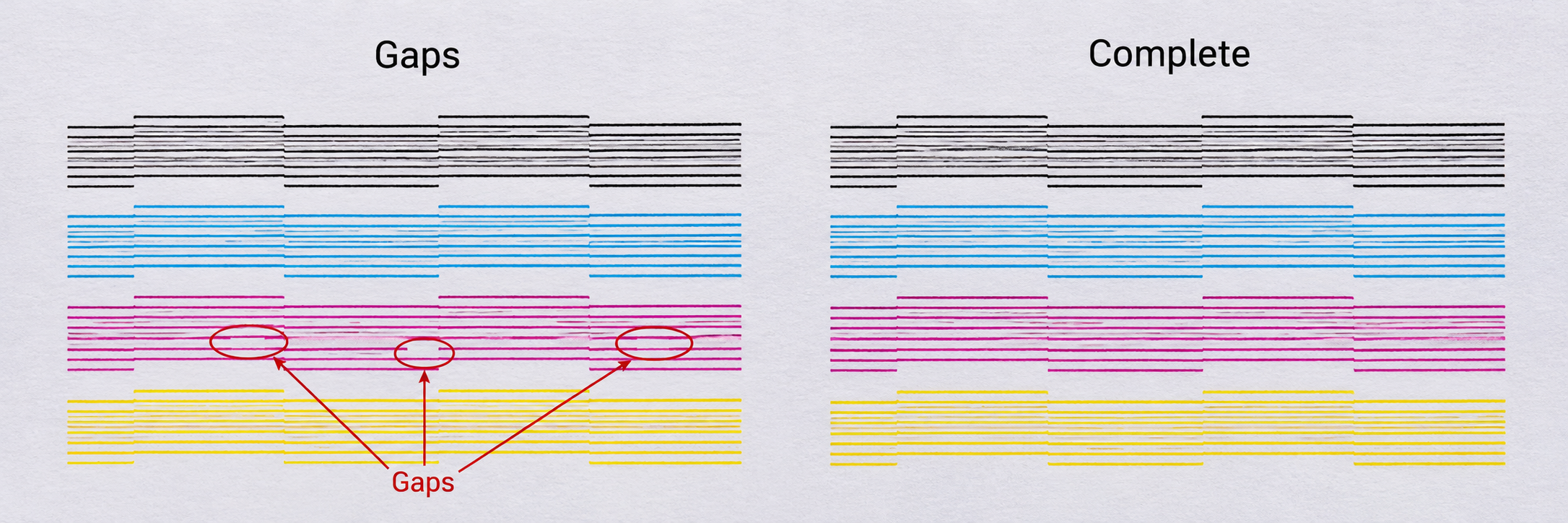
- Print a nozzle check or print quality report. This prints a grid of lines for each color. Gaps or missing lines in one color confirm a clog. Smooth, complete lines mean the head is fine and the problem is somewhere else, such as paper type or alignment.
Know Which Type of Printhead You Have
Printers put the printhead in one of two places, and it changes what you can do when cleaning fails.
- In the cartridge. Many low-cost inkjets, including a lot of HP DeskJet and Canon PIXMA models, build a fresh printhead into every cartridge. A new cartridge gives you a new head.
- In the printer. Ink tank printers and many office models keep a permanent head and feed it from separate cartridges or tanks. Clogs there matter more, because replacing the head is a bigger job or a service repair.
Your manual or the cartridge packaging will tell you which design you have.
Clean the Printhead From the Printer’s Screen
Most printers with a display can clean themselves without a computer. Load a few sheets of plain white paper first, because each cycle finishes by printing a check page.
Warning: don’t turn off the printer, open the cover or unplug it while a cleaning cycle runs. Epson’s guide warns against turning the printer off during cleaning, and losing power mid-operation can leave the head uncapped so it dries out.
- Load plain Letter or A4 paper in the main tray.
- Open the setup menu. On HP printers with a touchscreen, HP’s support page says to open Settings or Setup, then Tools or Printer Maintenance.
- Choose the cleaning tool. HP calls it Clean Printhead or Clean Cartridges. On Epson’s XP-980 series it sits under Maintenance, next to Print Head Nozzle Check.
- Start the cycle and wait. The printer makes pumping and clicking sounds for a minute or two.
- Look at the page that prints. If the lines are complete, you’re done. If gaps remain, run another cycle.
Printers without a screen usually rely on an app instead, which is covered next.
Clean the Printhead From Your Computer or Phone
The maker’s software gives you the same cleaning tool with clearer instructions. Use the method that matches your brand.
HP Printers
HP’s support page for printers that print blank pages lays out the app route:
- Load plain white paper.
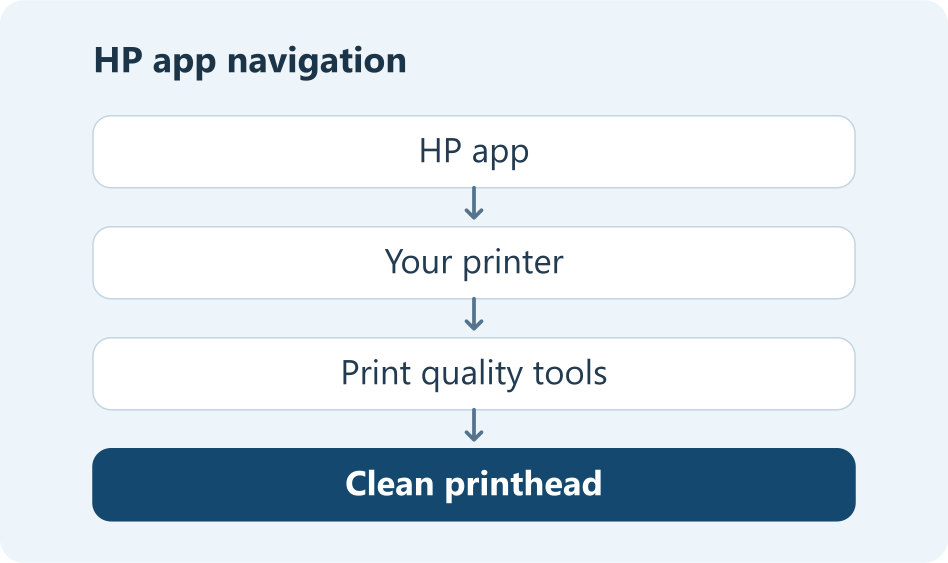
- Open the HP app on your computer or phone, then select the picture of your printer.
- Scroll to Diagnostics or Tools, then select Print Quality Tools.
- Select Clean Printhead. If you don’t see it, select View all print quality tools, then OK, then Clean Printhead.
- Check the page that prints. HP says a badly clogged head may need up to two more cleaning cycles.
HP’s printhead maintenance article also describes a Windows driver route through Printing Preferences, a Service tab and Printer Services, then Clean Printheads. That layout appears in some HP drivers but not all, so the app is the more reliable path.
Canon Printers
Canon’s Windows driver guide for the MB2000 series puts cleaning on the driver’s Maintenance tab:
- Open the printer driver setup window (Printing Preferences) and select the Maintenance tab.
- Select Cleaning.
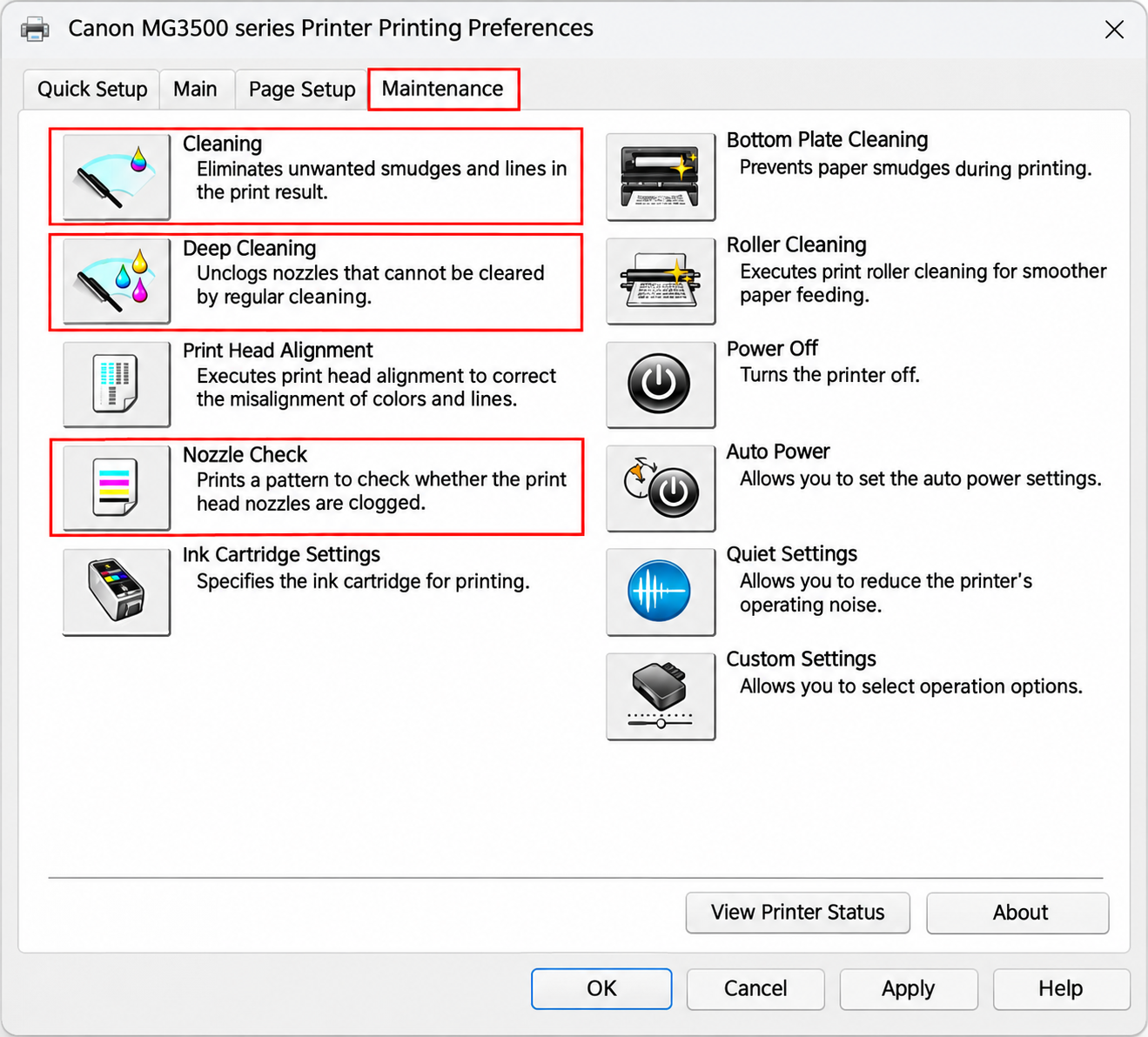
- Choose which ink group to clean, then select Execute.
- When it finishes, select Print Check Pattern to see whether the lines are complete.
- If two regular Cleanings don’t help, use Deep Cleaning, which uses more ink.
PIXMA models with their own screens also offer cleaning from the printer’s setup menu. Labels vary slightly by model.
Epson Printers
Epson’s XP-980 series guide offers the cleaning tool in three places: the printer’s Maintenance menu, the Maintenance tab of the Windows driver, and on a Mac, the Epson Printer Utility (Apple menu > System Settings > Printers & Scanners, select the printer, then Options & Supplies > Utility > Open Printer Utility). After you run a nozzle check, the printer can suggest Cleaning or the stronger Power Cleaning, depending on how the pattern looks. Power Cleaning uses more ink.
How Many Times to Clean, and How Long to Wait
Running cleaning cycles back to back is the fastest way to empty a cartridge without fixing anything. Each brand sets its own limit:
| Brand (documented model) | Cleaning limit | If it still isn’t fixed |
|---|---|---|
| HP (consumer inkjets) | Up to three cleanings in total | Replace the cartridges |
| Canon (MB2000 series) | Two Cleanings, then one Deep Cleaning | Turn it off, wait 24 hours, Deep Clean again |
| Epson (XP-980 series) | Nozzle check and Cleaning up to three times, or one Power Cleaning | Wait at least 12 hours without printing, then run a nozzle check again |
The waiting period matters, so don’t skip it. HP’s article also suggests leaving the printer unplugged overnight when repeated cleaning hasn’t worked.
Take Ingrid’s color inkjet, which sat unused for three weeks; her printouts now show thin white lines through anything blue. Her ink levels read half full, so she prints a nozzle check: the cyan block has gaps. One cleaning cycle fills in most of the gaps, and a second makes the pattern complete. She stops there instead of running a third cycle “just to be safe”, which saves ink she’d otherwise waste.
If the pattern looks complete but text still looks doubled or slightly blurry, the head may be clean but out of alignment. Use the printer’s Align Printhead or Print Head Alignment tool, found in the same maintenance menu. HP’s printhead cleaning support page also suggests aligning when quality is still poor after every cleaning stage.
Manual Cleaning: Only When Your Manual Allows It
When software cleaning fails, some guides suggest wiping or soaking the head. This carries real risk. The nozzle plate is delicate, and the wrong liquid or pressure can ruin it. Check your model’s manual first, and skip this section if your printer is still under warranty and you can get support instead.
If your manual allows it, HP’s guidance follows this pattern:
- Turn the printer on, open the access door and wait for the carriage to stop, then unplug the printer.
- Remove the cartridges (or the printhead, if your model lets you remove it).
- Gently dab the contacts and nozzle area with a lint-free cloth dampened with distilled water. Don’t scrub.
- Let everything dry for about 10 minutes before you reassemble it.
- Plug the printer in, let it initialize and run a software cleaning cycle again.
What to use and what to avoid:
- Use: distilled water and lint-free cloths. HP explains that tap water contains minerals that can damage printheads.
- Avoid: tap water, alcohol and household cleaners. HP’s blank-page article specifically says not to use alcohol or tap water on the nozzle plate.
- Last resort only: HP describes soaking a removable printhead in a shallow dish of warm distilled water for 10 to 15 minutes, never longer, and says it isn’t suitable for every model.
When Cleaning Won’t Help
If the nozzle check still shows gaps after the brand’s full cleaning limit, more cleaning won’t fix it. The usual causes are an empty or faulty cartridge, a head that has dried out beyond recovery, or a worn printhead. Canon’s guide says the same: if nothing improves after Deep Cleaning, the ink may have run out or the head may be worn.
Your next move depends mostly on where the head lives:
- Head in the cartridge: replace the cartridge. HP’s support page says to replace the cartridges after three cleanings fail. For HP DeskJet models, see how to change the ink in an HP DeskJet 2800 or 4200; for Canon, see how to change the ink in a Canon PIXMA TR4720.
- Check for a firmware update. HP’s printhead article lists installing available firmware updates among the steps for persistent problems.
- Head in the printer: contact the maker’s support. Some models accept a replacement head, and some need service.
- Older printer with an expensive repair: HP’s rule of thumb is that if a repair costs more than half the price of a comparable new printer, replacement is usually the better choice.
Before buying, read the cartridge number from your old cartridge or the printer’s manual. If your printer uses HP 67, there’s an HP 67 black and tri-color 2-pack; if it uses Canon PG-275 and CL-276, there’s a Canon PG-275 and CL-276 value pack.
Keep the Printhead From Clogging Again
A few habits prevent most clogs:
- Turn the printer off with its power button. Epson explains that the power button caps the printhead, while unplugging a running printer can leave it uncapped and let nozzles dry.
- Print regularly. HP suggests using the printer at least once a week. A single page with some color is enough.
- Don’t run cleaning as routine maintenance. HP’s support page notes that cleaning uses ink, so run it only when you see a problem.
- Print color occasionally even if you mostly print black. Colors you never use can dry out.
- Refill ink tanks before they run dry. On Epson EcoTank models, follow the steps to refill an Epson EcoTank ET-2800 and keep each tank above its lower line.
Printhead Cleaning Questions
Does printhead cleaning use a lot of ink?
It uses enough to matter. HP’s support page describes cleaning in stages that each use more ink than the last, and Canon and Epson both note that their stronger cleaning modes use more ink than a regular cycle. That’s why the nozzle check comes first.
Can I clean the printhead when the ink is low?
Usually not. Epson’s guide warns that when ink is low, you may not be able to clean the print head, and some printers won’t start a cycle when a cartridge is nearly empty. Replace the low cartridge first.
Why do I still see streaks after three cleanings?
Either the head is too clogged for software cleaning, the cartridge is faulty or empty, or the problem isn’t the head at all. Let the printer rest for the time your brand recommends, run one more cycle, then replace the cartridge if nothing changes.
Do ink tank printers clog more easily?
Not necessarily, but a clog matters more on them. They keep the same printhead for the printer’s whole life, so a stubborn clog can’t be fixed with a new cartridge. Regular printing and turning the printer off with the power button matter more on these models.
Should I clean the printhead on a schedule?
No. Clean it only when you see a quality problem and a nozzle check confirms it. Regular printing does more to prevent clogs than scheduled cleaning, and it wastes less ink.
With the nozzle check finally complete, print one everyday page that uses every color, such as a chart or a photo, and look it over before you commit to a long job.

Matthew Burleigh is the founder, head writer, and editor of Solve Your Tech, which he launched in 2012. He has written technology tutorials since 2008 and worked in IT since 2003, including small-business support, IT management, and consulting. He holds Bachelor’s and Master’s degrees in Computer Science from Arizona State University.
Matthew writes practical guides for Windows, iPhone and iPad, Microsoft Office, Outlook, Google apps, and Android. Solve Your Tech’s guides are checked step by step against the device or app maker’s own documentation and tested on his own devices whenever he has the hardware or software, with clear steps, sources, and update dates.
Read more about Matthew and how Solve Your Tech writes and updates its guides, or report a correction.