If you send mail through Apple’s Mail app, you can remove “Sent from my iPhone” in Settings > Apps > Mail > Signature. Delete the text to send without a signature, or replace it with your name or another short sign-off. This changes new messages you compose in Mail; it does not edit messages already sent. New to the app? Start with our guide on how to use the Mail app on iPhone.
These steps follow Apple’s current iPhone Mail settings. On older iOS versions, Mail may appear directly in Settings instead of under Apps. The setting applies to Apple Mail, even when you use a Gmail, Yahoo, or Outlook address inside that app. If you send from the separate Gmail or Outlook app, change its signature in that app instead.
If a message sent from your wrist still includes a device sign-off, remove the Apple Watch email signature in the Watch app on your paired iPhone. Watch Mail has a separate signature preference, so clearing the iPhone Mail field does not complete that change.
Remove or replace the signature
- Open Settings on your iPhone. From the main Settings list, tap Apps.
- Find and tap Mail. You can use the search field at the top of the Apps list if you do not see it immediately.
- Scroll to Composing and tap Signature. The text field shows the signature Mail will add to new outgoing messages.
- Tap the field and delete “Sent from my iPhone.” Leave the field empty for no signature, or type the text you want Mail to use. For example, you might enter your name and a phone number. Apple says this setting supports text signatures.
- Return to Mail settings or close Settings. Open Mail and start a new message to check the signature at the bottom of the draft. Start a fresh draft for this check; an older draft may already contain the previous signature. You can discard the test draft afterward.
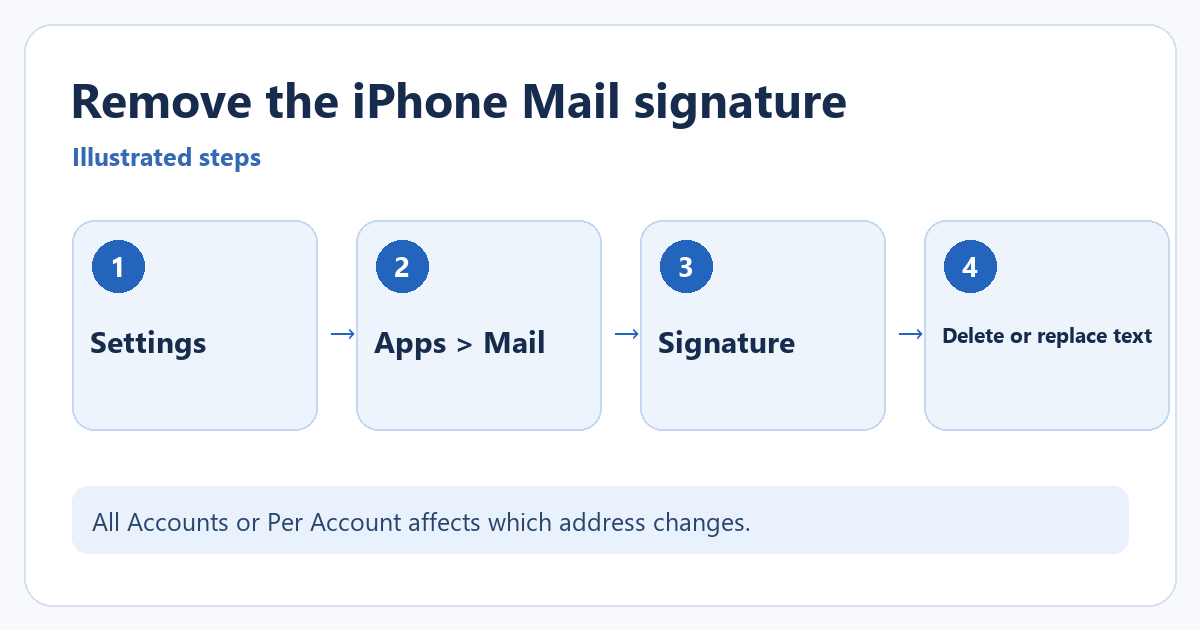
If you have several accounts in Apple Mail, choose All Accounts when you want the same signature everywhere. Choose Per Account to edit the text under each address separately. With only one account, the choice may not appear. Check which account is in the From field of your test draft before deciding whether the change worked.
If “Sent from my iPhone” still appears
First, check whether the message was composed in Apple Mail. The Mail setting does not control signatures in a separate email app. If it was composed in Mail, return to Signature and check Per Account for another address that still has the default text. Also check the From address of the draft; a different account may be selected.
If the phrase appears only when you reply or forward, inspect the draft carefully. It may be quoted from an earlier message rather than the new signature. Removing the signature setting cannot erase text already included in a conversation. If the Signature control is missing, use Settings search for “Signature” and confirm that the Mail app is installed and at least one email account is configured.
For the message actions and recipient checks, see our guide to forwarding and replying in iPhone Mail. Review the quoted content separately from the signature added to your new draft. An iPad keeps its own Mail signature, so if you also send from a tablet, see how to get rid of Sent from my iPad on emails.
To restore the familiar line later, return to the same field and type Sent from my iPhone. For a different Mail task, see our guide to adding, turning off, or deleting an email account on iPhone.
All Accounts or Per Account?
Choose All Accounts when you want the same signature for every address configured in Apple Mail. Choose Per Account if your personal and work addresses need different text. In the latter view, edit each account's field separately. If an unwanted phrase still appears after you changed one field, the draft may be sending from another account. Check its From address before editing more settings.
The signature is added to new drafts; it does not clean up messages that were already sent or quoted text in a reply. To test without sending anything, open Mail, start a new message, inspect the bottom of the draft, then discard it. Repeat with a different From address if you use Per Account signatures. If the phrase appears only inside quoted correspondence, removing the new-message signature is already working.
Can I add a picture or logo here? Apple's iPhone Mail signature setting is intended for text. For complex branding, check the capabilities of the mail service or another mail app rather than assuming an image pasted into the field will display consistently to recipients. If you also send from Outlook on a computer, our guide to adding a signature in Outlook covers logos and images.
Apple documents the current path and the per-account option in Change your Mail settings on iPhone.

Matthew Burleigh is the founder, head writer, and editor of Solve Your Tech, which he launched in 2012. He has written technology tutorials since 2008 and worked in IT since 2003, including small-business support, IT management, and consulting. He holds Bachelor’s and Master’s degrees in Computer Science from Arizona State University.
Matthew writes practical guides for Windows, iPhone and iPad, Microsoft Office, Outlook, Google apps, and Android. Solve Your Tech’s guides are tested on current devices or checked against official product documentation, with clear steps, sources, and update dates.
Read more about Matthew and how Solve Your Tech writes and updates its guides, or report a correction.