To reload a page in the Firefox app on your iPhone, scroll to the top of the page, pull down, and let go. Firefox loads the page again. You can also tap the circular-arrow Reload button, or press Command + R if a keyboard is connected to your iPhone.
Mozilla added pull to refresh in Firefox for iOS version 38, so any current version of the app has it. The same steps apply to Firefox on an iPad. Reloading is the first thing Mozilla suggests when a page stops partway, because loading sometimes gets interrupted by a connection problem.
Before you reload
A reload asks the website for the page again. That is harmless most of the time, but two things are worth knowing first.
- Unsent text can be lost. If you have typed into a form, a comment box, or a checkout page and have not submitted it, reloading can clear what you typed. Copy long text before you reload.
- You cannot undo a reload. There is no button that brings back the earlier copy of the page. If the page changed, the old version is gone from your screen.
Reloading does not close your tab, delete your history, or remove bookmarks.
How to reload a page in Firefox on iPhone

- Open the Firefox app and go to the tab with the page you want to refresh.
- Scroll all the way to the top of the page. The gesture only works from the top, because a pull anywhere else just scrolls the page.
- Place a finger on the page, drag down, and release.
- Wait while the page loads again. Content that changed on the website, such as new comments or a new score, should now appear.
To confirm that it worked, look for something on the page that you expected to change. If the page looks exactly the same, the website may not have anything newer to show, or Firefox may be showing saved files. The troubleshooting section below covers that.
Firefox for iOS also has a Reload button, drawn as a circular arrow. Mozilla’s help pages refer to it as the refresh button. In current versions of the app it normally appears in the address bar while a page is open, although its exact position can change between versions and between iPhone and iPad layouts.
- Open the page in Firefox.
- If the toolbar is hidden, scroll up until it comes back.
- Tap the circular-arrow Reload button once.
The button is handy on pages where pulling down does something else, such as a map, a game, or a web app with its own pull gesture.
Can’t find the toolbar?
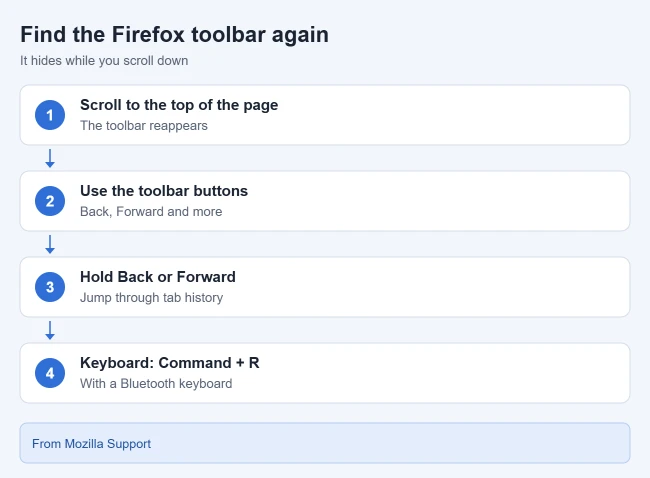
Firefox hides its bars while you read so the page gets more room. Mozilla’s toolbar guide says the toolbar hides when you scroll down and reappears when you scroll up. Its navigation bar article adds that scrolling all the way to the top of the page makes the navigation bar visible again.
The toolbar was redesigned in Firefox for iOS version 141. The Tabs and Menu buttons swapped places, and you can choose whether the address bar and tabs sit at the top or the bottom of the screen. If a guide or screenshot shows a button somewhere different from your phone, that setting or an older app version is the likely reason.
Reload with a keyboard
These shortcuts need a Bluetooth keyboard, or a keyboard connected through an adapter. They come from Mozilla’s Firefox for iOS keyboard shortcuts list.
| Action | Shortcut |
|---|---|
| Reload page | Command + R |
| Reload without the cache | Ctrl + F5 |
| Select address bar | Command + L |
| Back | Command + [ or Command + Left Arrow |
| Forward | Command + ] or Command + Right Arrow |
| Close tab | Command + W |
The cache is the set of page files Firefox saves on your iPhone so that sites open faster next time. A reload without the cache makes Firefox download those files again. Mozilla added the Ctrl + F5 shortcut for this in version 108 as a way to troubleshoot site problems. Mozilla does not document a touch gesture that does the same thing, so without a keyboard the closest option is clearing the site’s data, described below.
Reload without Tracking Protection
Enhanced Tracking Protection is the Firefox feature that blocks known trackers. It has two levels, Standard and Strict. Mozilla warns that Strict can block parts of a website that the page needs, which can leave a video, a login box, or a comment section missing.
If you use Strict and a page will not load properly, Mozilla’s Enhanced Tracking Protection article gives a quick test:
- Touch and hold the Reload button.
- Tap Reload without Tracking Protection.
This is temporary and applies to the current tab only, so there is nothing to switch back afterward. It turns off blocking for that page while you view it, so use it on sites you trust. If the option does not appear, your protection level may be set to Standard, or your app version may differ.
If reloading doesn’t fix the page

Work through these in order. The first items are quick and change nothing; the later ones remove saved data. Most of them come from Mozilla’s guide to pages that won’t load in Firefox for iOS.
- Check your connection. Open a different website. If nothing loads, switch between Wi-Fi and cellular data, then reload.
- Open the page in a new tab. Close the current tab and load the same address in a fresh one.
- Request the desktop site. Some sites are not built to work well on phones. Open the page menu and tap Desktop Site. Firefox keeps showing that site in desktop view on later visits until you open the same menu and tap Mobile Site. Mozilla’s desktop site instructions have the details.
- Switch from Strict to Standard. Tap the menu button, then Settings, then Tracking Protection, and choose Standard. You can change it back the same way.
- Clear that site’s cookies and data. Tap the shield icon next to the address, tap Clear cookies and site data, then tap Clear. Firefox reloads the site. Your history and bookmarks stay, but you will be signed out of that website.
- Update Firefox. Check the App Store for a newer version of the app.
Be careful with one similar-looking option. Under Settings > Data Management, the Clear Private Data button removes data for every website at once, and Mozilla cautions that this cannot be undone. To remove data for a single site from that screen, tap Website Data, pick the site, and tap Clear Items. Mozilla lists both routes in its guide to clearing data in Firefox for iOS, and our walkthrough on how to delete cookies and history in Firefox on iPhone shows each screen.
If a page is still broken after all of that, the problem is probably on the website’s side. Firefox for iOS includes a way to report a broken site to Mozilla, and waiting a while before trying again is often all that is needed.
Frequently asked questions
Will reloading log me out of websites?
Usually not. A reload keeps your cookies, which are the small files that remember your sign-in, so most sites keep you logged in. Clearing cookies and site data is what signs you out. Some banks and other secure sites end a session on their own after a period of inactivity, and a reload will then show the sign-in page.
Why does nothing happen when I pull down?
The page is probably not scrolled to the very top. Scroll up until the page stops, then pull down again. On pages that use their own pull gesture, such as maps and some web apps, tap the Reload button instead.
Can I do a hard refresh in Firefox on iPhone?
With a keyboard connected, press Ctrl + F5 to reload a page without the cache. Without a keyboard, clear the cookies and site data for that website from the shield icon, which also reloads the site.
Is this the same as “Refresh Firefox”?
No. Refresh Firefox is a feature of desktop Firefox that resets add-ons and settings. Reloading a page only loads that one page again. If you reloaded because a site would not open a new window, see how to allow pop-ups in the Firefox iPhone app.
Does reloading work in a private tab?
Yes. Pull to refresh and the Reload button work the same way in private tabs. A site may ask you to sign in more often there, since private tabs do not keep cookies after you close them.
Next step
If you reload a page often because a site keeps signing you out, saved logins make it quicker to get back in. See how to save passwords in the Firefox iPhone app.

Matthew Burleigh is the founder, head writer, and editor of Solve Your Tech, which he launched in 2012. He has written technology tutorials since 2008 and worked in IT since 2003, including small-business support, IT management, and consulting. He holds Bachelor’s and Master’s degrees in Computer Science from Arizona State University.
Matthew writes practical guides for Windows, iPhone and iPad, Microsoft Office, Outlook, Google apps, and Android. Solve Your Tech’s guides are tested on current devices or checked against official product documentation, with clear steps, sources, and update dates.
Read more about Matthew and how Solve Your Tech writes and updates its guides, or report a correction.