Smart Fill in Google Sheets uses examples in a neighboring column to infer a transformation, such as extracting the first word from a full name. On a computer, enter a few examples, then press Ctrl + Shift + Y on Windows or Command + Shift + Y on Mac. Review the proposed output rather than assuming every row is correct.
Try a first-name extraction
Use a desktop browser and a spreadsheet you can edit. For this exercise, the names below deliberately have two words. The goal is to extract the first word—not to establish a rule that works for every real person’s name.
Enter Full name in A1 and First name in B1. Put Maya Chen, Leo Morgan, Nora Patel, and Owen Brooks in A2:A5.
- Type Maya in B2 and Leo in B3. Leave B4:B5 empty. These examples show the relationship you want Sheets to find.
- Continue working in the output column and watch for a suggestion. To request Smart Fill, use Ctrl + Shift + Y on Windows or Command + Shift + Y on Mac.
- If Sheets presents a suggestion, inspect its preview and use the acceptance control shown on screen. A suggestion is not guaranteed for every dataset; more consistent examples may help.
- Check B4 and B5. The desired results for this exercise are Nora and Owen. Select a completed cell and inspect the formula bar to see the formula used.
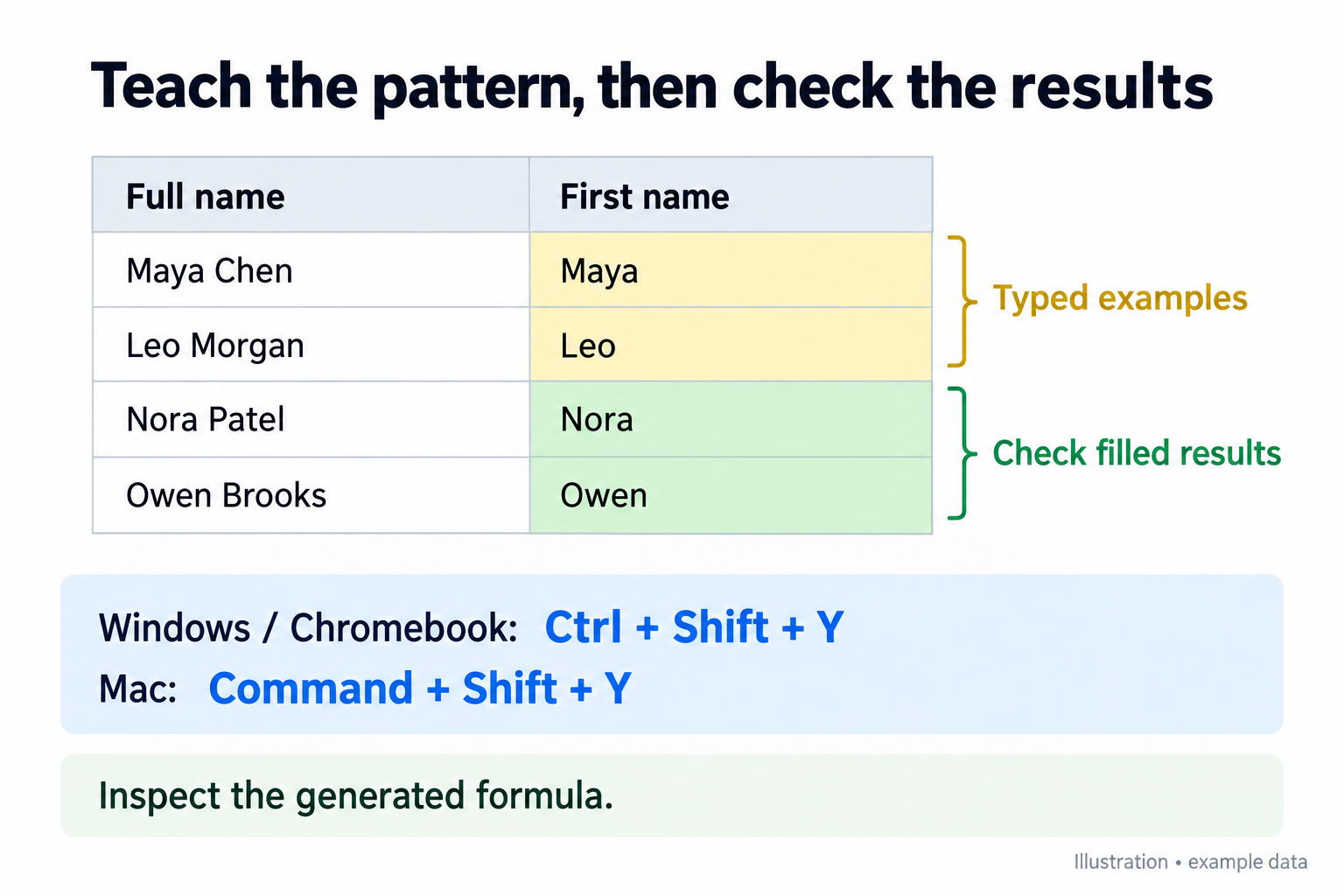
Do not assume an entire column has become formula-driven. Click both the example cells and the newly filled cells to check whether they contain typed values or formulas. If a source name changes later, a typed result will not automatically follow it.
Check whether Smart Fill is enabled
Open Tools > Suggestion controls and check Enable autocomplete. Google uses this control to turn Smart Fill on or off. Select it to enable the feature, or deselect it to stop these suggestions.
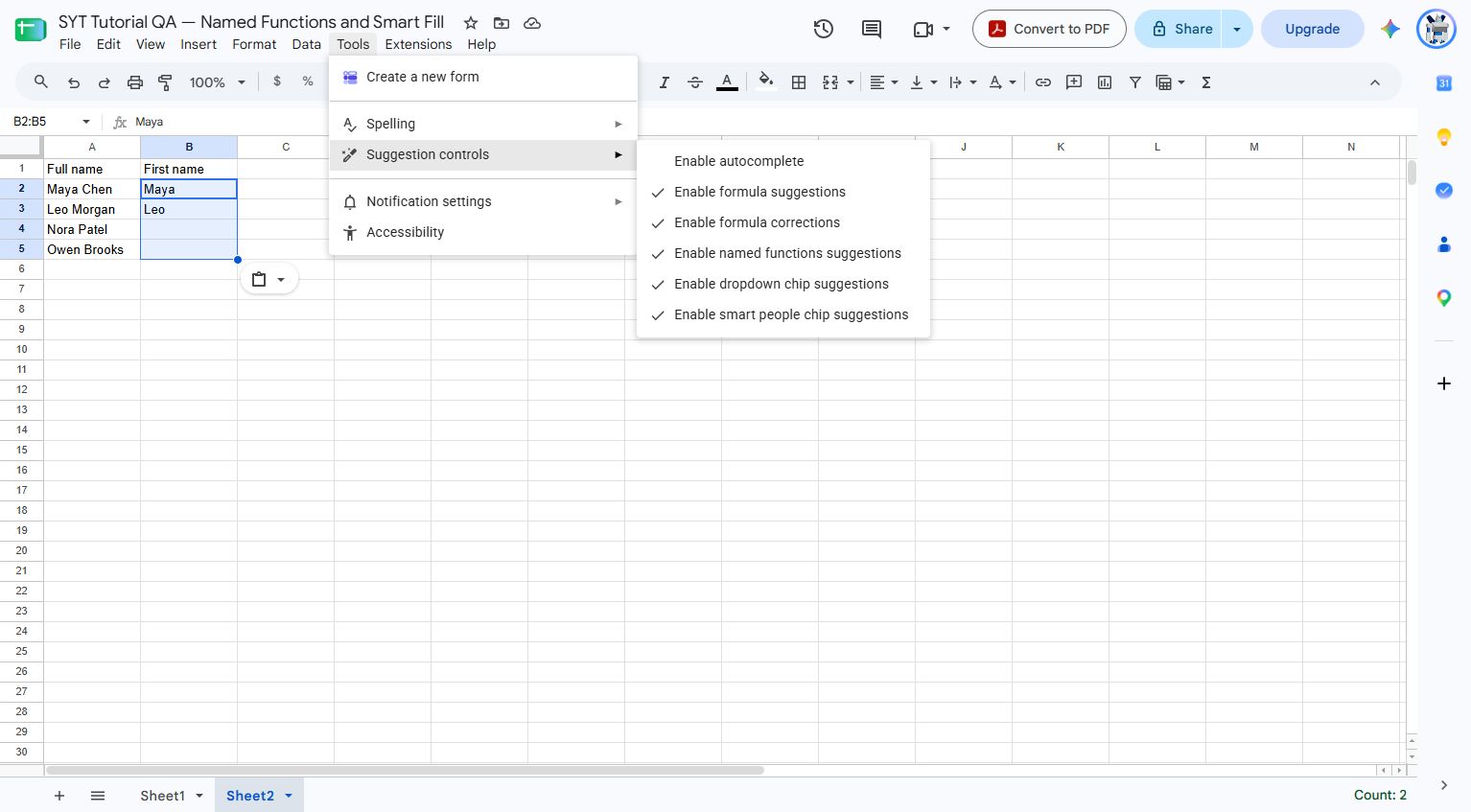
In our test sheet, this setting was off, which explained why the shortcut produced no fill. We left the account setting unchanged. The diagram above shows the intended output, not a claim that Sheets generated that output in this test.
If no useful suggestion appears
- Give clearer examples: use the same transformation in each row. Mixing first names, initials, and nicknames does not describe one consistent operation.
- Look for exceptional rows: single-word names, compound given names, blank cells, and extra spaces can expose an unsuitable extraction rule. Review them explicitly.
- Do not substitute fill-down blindly: dragging Maya down merely repeats data. Ordinary autofill copies values, extends sequences, or adjusts an existing formula; it does not infer the name-extraction rule from the neighboring column.
- Reject incorrect output: use Undo immediately if an accepted fill is wrong, then correct your examples or choose an explicit formula.
A formula fallback you can inspect
For the specific “first word” rule used here, enter this formula in B2 and copy it through B5:
=LEFT(TRIM(A2),FIND(" ",TRIM(A2)&" ")-1)
This is a manual fallback, not a promise about the exact formula Smart Fill will generate. TRIM removes ordinary leading and trailing spaces; appending a space lets a single-word entry return its whole word rather than failing to find a separator. The four example outputs should be Maya, Leo, Nora, and Owen.
For a name such as “Mary Jane Ellis,” the formula returns Mary. If the desired result is Mary Jane, you need a different rule or a reviewed name field. Neither Smart Fill nor this formula can reliably infer naming conventions from a short list.
Standard Smart Fill versus enhanced Smart Fill
This tutorial covers the standard pattern-based feature. Google also documents enhanced Smart Fill, which uses AI for broader text tasks and has separate availability requirements. Do not assume a missing enhanced feature means the standard keyboard shortcut or autocomplete setting is unavailable.
See Google’s Smart Fill instructions for the supported shortcuts, controls, and links to enhanced Smart Fill.

Matthew Burleigh has been writing tech tutorials since 2008. His writing has appeared on dozens of different websites and been read over 50 million times.
After receiving his Bachelor’s and Master’s degrees in Computer Science he spent several years working in IT management for small businesses. However, he now works full time writing content online and creating websites.
His main writing topics include iPhones, Microsoft Office, Google Apps, Android, and Photoshop, but he has also written about many other tech topics as well.