To hide the red number on the iPad's Mail icon, open Settings > Apps > Mail > Notifications > Customize Notifications, select an email account, and turn Badges off. Repeat for the other accounts whose badges you want hidden. On older iPadOS versions, start from Settings > Notifications > Mail instead.
This hides the icon's unread indicator. It does not delete email, mark messages as read, or remove the account. You can keep other notifications while turning off the badge.
Decide whether to hide the count or change unread status
| What you want | Action |
|---|---|
| No red Mail number | Turn off the relevant Badges controls. |
| Fewer messages marked unread | Read them or deliberately mark them as read. |
| A count that includes every Mail category | Review All Unread Messages, when available. |
| No Mail notifications at all | Turn off Allow Notifications, a broader change. |
If the number is distracting but you still want to identify unread messages inside Mail, hide the badge. Marking an entire mailbox as read is unnecessary for that preference and changes the status of those messages.
This guide covers Apple's Mail app on iPad, including current iPadOS. A red number on Gmail, Outlook, or another app's icon has its own notification setting. Check which icon actually carries the badge before changing Mail. On an iPhone, a third-party app works the same way, as in our guide to removing the badge from the Dunkin’ app icon.
Turn off Mail badges for an account
- Open Settings on the iPad.
- On current iPadOS, tap Apps, then Mail.
- Tap Notifications. If your version does not have Apps on the main Settings screen, use Notifications > Mail instead.
- Keep Allow Notifications on if you want other Mail alerts. Turning it off changes more than the red number.
- Tap Customize Notifications.
- Select the email account you want to change.
- Turn Badges off. Leave Alerts and sounds configured as you prefer.
- Return to the Home Screen and check the Mail icon.
Apple's email notification guide for iPad documents the account-specific Alerts and Badges controls. Some layouts also offer a Badges switch on the main Mail notification screen; review that control if it is present.
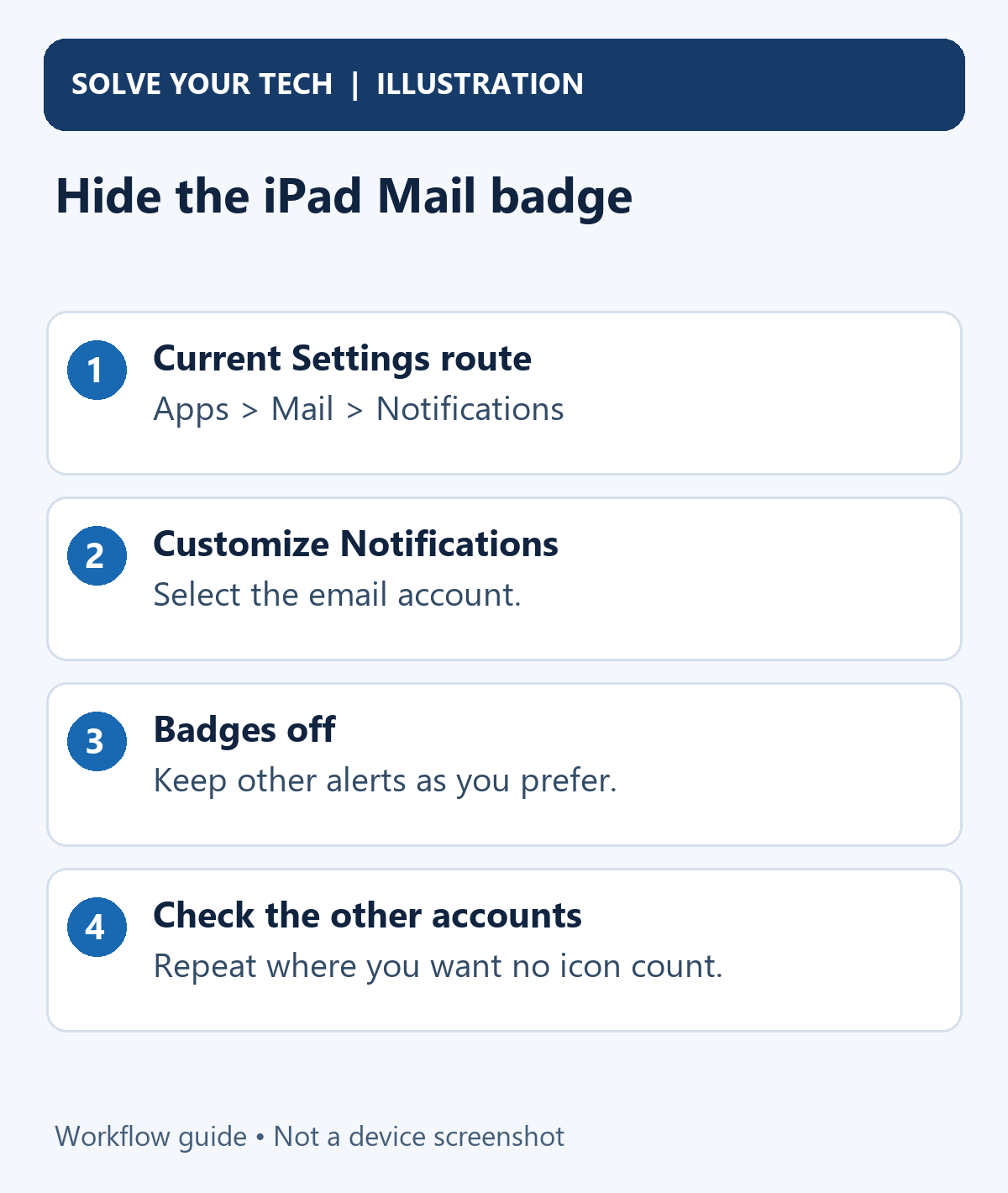
Repeat the change for other accounts
Mail can receive email from more than one account. Turning off one account's badges may leave a number supplied by another account.
Return to Customize Notifications, open each remaining account, and turn Badges off where you do not want a count. Review all the accounts rather than deleting an account to remove its number.
You can also keep the badge for an important account and disable it for a less important one. That makes the icon a narrower reminder while leaving both accounts available inside Mail.
After changing the accounts, return to the Home Screen again. If a number remains, check the main Mail Badges control when your version offers one and verify that you changed every relevant account.
A badge is the indicator on the app icon. A banner is a notification that appears on the screen, and an alert sound is the audio that can accompany a notification. They are separate presentation choices.
In Mail's notification settings, keep Allow Notifications on and review the available Lock Screen, Notification Center, banner, alert, and sound controls. Change Badges specifically when the red number is your only concern.
If you turn Allow Notifications off, you are choosing a broader interruption change. To restore other alerts later, turn it on again and review the individual presentation controls rather than assuming every previous choice has returned.
Mail also offers Mute for busy email conversations and Notify Me for replies you want to follow. Those are thread-specific alert choices. They do not replace the account's badge preference or erase unread email.
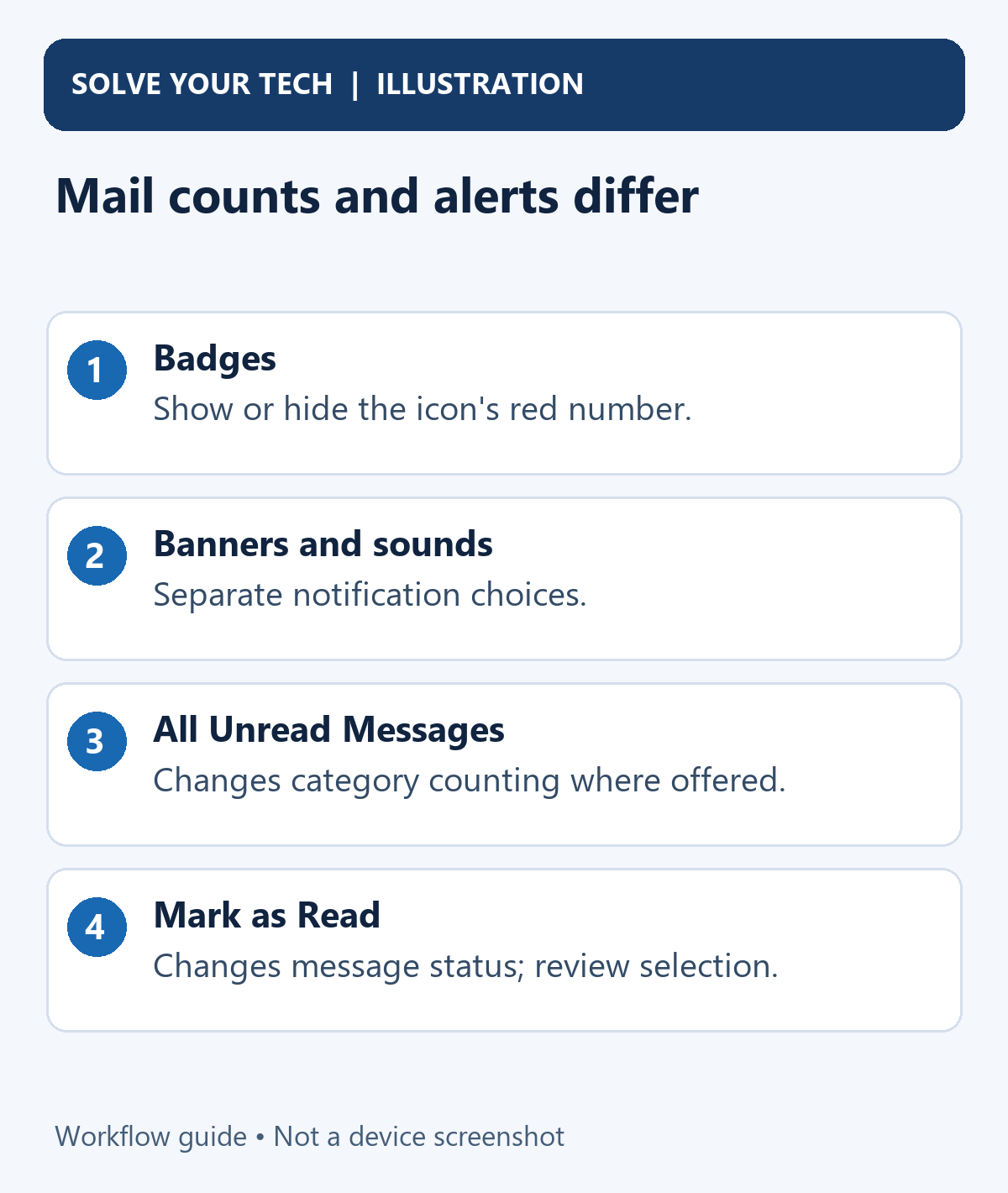
Why the badge may not match every unread message
With Mail categories, Apple's current guide to checking email on iPad says the Home Screen number reflects unread messages in Primary. Other categories include Transactions, Updates, and Promotions.
To have the badge show total unread messages across categories, use Settings > Notifications > Mail > Customize Notifications and enable All Unread Messages, when the option is available.
That is a counting preference. It does not turn off the badge. Conversely, disabling Badges can hide the icon number without changing which category contains a message.
If your iPad does not use categories or does not offer All Unread Messages, do not expect the exact same counting control. Check the active mailbox and account before treating a difference as a software fault.
Mark messages as read only if that is what you intend
Marking email as read changes the messages' status and can synchronize to other devices using the account. Review the mailbox and selected messages before applying a batch action.
On current iPadOS, open a message list in Mail, use More > Select, select the intended messages, then use the action control at the bottom of the list and choose Mark as Read. Earlier layouts may start with Edit.
Apple warns that selecting a message in Transactions, Updates, or Promotions selects the messages in that category from the sender. Check the selection before confirming; it may include more than the single visible item you first tapped.
Our guide to marking email as read on iPad explains the separate status action. To avoid changing unread status, return to the badge controls instead.
Troubleshoot a number that remains or looks incorrect
The number remains after changing one account
Inspect the other accounts under Customize Notifications. Also look for a main Badges control on your version. A count from another account does not mean the first setting was ignored.
The icon is not Apple's Mail app
Open Settings > Notifications, select the app whose icon has the number, and review its Badges setting. Turning off Apple Mail's badge does not configure Gmail or Outlook.
The badge says unread, but my current Inbox is empty
Check every relevant account and the selected category. Look inside Mail for unread messages rather than considering only the mailbox currently on screen. If you simply want the icon number hidden, you do not need to establish that every unread item is an error first.
The controls look correct but the display has not refreshed
Return to the Home Screen after changing the setting. Reopen Mail to check its status and, if the display appears stuck, restart the iPad before trying a broader account change. Check for a relevant iPadOS update if the problem persists.
Do not erase the iPad or remove and recreate an email account as an initial way to hide a badge. Account removal can affect local data and require credentials or configuration to restore. The notification preference is the appropriate starting point.
Restore the Mail badge later
Return to Settings > Apps > Mail > Notifications > Customize Notifications, select the account, and turn Badges on. Repeat for any other account you want counted. Re-enable a main Mail Badges switch too if you previously disabled one.
Then check the Home Screen after receiving or retaining an unread message. If there is no number, review whether messages are already read and whether the category counting preference matches your expectations.
For another independent Mail preference, see removing “Sent from my iPad” from your signature. Changing the signature does not control the badge.
Will hiding the badge stop new email?
No. It changes the icon's notification presentation. You can still open Mail and receive email according to the account's normal setup.
Will the same change hide badges on my iPhone or Mac?
Check each device's notification preferences separately. Do not confuse synchronized message read status with a local choice about displaying the app icon badge.
If you also want to remove the Mail badge on your iPhone, review its Mail notification controls separately. You can preserve unread message status while hiding the icon number, and account-specific Badges choices may need checking on each device.
Finish by checking the icon and one account inside Mail. That confirms the number is hidden while your messages remain available.

Matthew Burleigh is the founder, head writer, and editor of Solve Your Tech, which he launched in 2012. He has written technology tutorials since 2008 and worked in IT since 2003, including small-business support, IT management, and consulting. He holds Bachelor’s and Master’s degrees in Computer Science from Arizona State University.
Matthew writes practical guides for Windows, iPhone and iPad, Microsoft Office, Outlook, Google apps, and Android. Solve Your Tech’s guides are tested on current devices or checked against official product documentation, with clear steps, sources, and update dates.
Read more about Matthew and how Solve Your Tech writes and updates its guides, or report a correction.