To record audio on your iPhone, open the Voice Memos app (it may be in the Utilities folder), tap the red Record button, and tap it again to stop. Your recording saves automatically.
Voice Memos comes with every iPhone and is free. You can use it for notes, lectures, meetings, or music ideas. These steps follow Apple’s Voice Memos guide.
How to Record Audio With Voice Memos
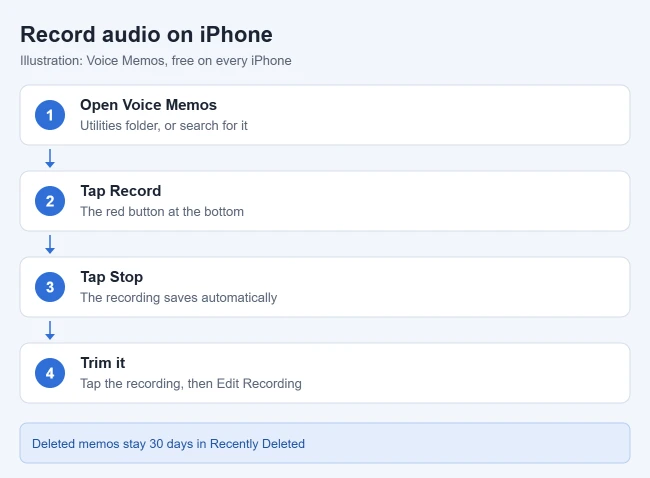
- Open the Voice Memos app. If you can’t find it, swipe down on the Home Screen and search for it.
- Tap the red Record button.
- Hold the iPhone closer to or farther from the sound to change how loud it records.
- Tap the red Stop button when you’re done.
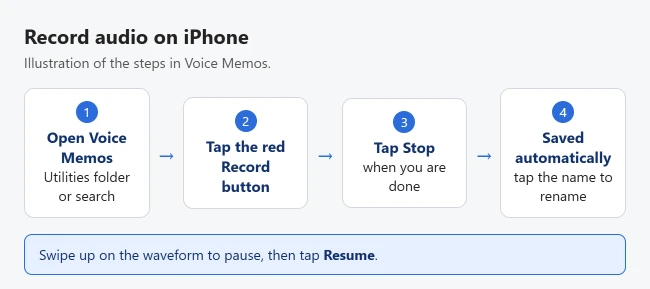
The recording is saved as “New Recording” or with your location’s name if Location Services is on. To rename it, tap the recording, tap the name, and type a new one. To stop location names, see how to stop location naming for voice memos.
How to Pause and Resume a Recording
- Start a recording.
- Swipe up on the waveform to see the full recording screen.
- Tap the Stop button to take a break, then tap Resume to keep recording.
- Tap Done to save.
How to Trim or Edit a Recording
- In Voice Memos, tap the recording.
- Tap the three-dot More button, then Edit Recording.
- Tap the trim button (a square with lines), then drag the yellow handles around the part you want to keep or remove. Pinch to zoom in for more precise edits.
- Tap Trim to keep the selection, or Delete to remove it.
- Tap Apply, then Done.
- Choose Save Recording to overwrite the original, or Save as New Recording to keep both.
To record over part of a memo, open Edit Recording, drag the waveform to where you want to start, and tap Replace. Apple covers both tools in its edit or delete a recording guide.
How to See a Transcript of a Recording
Voice Memos can turn speech into text on iPhone 12 and later, in English, Spanish, French, German, and several other languages.
- Tap a recording in Voice Memos.
- Tap the three-dot More button.
- Choose View Transcript to read it, or Copy Transcript to paste the text into a note or email.
While recording, swipe up on the waveform and tap the transcript button to watch the words appear live. You can also search Voice Memos for a word, and it finds recordings where that word was spoken, according to Apple’s transcription guide.
Tips for Better Recordings
- Cut background noise: While in Voice Memos, open Control Center, tap Voice Memos at the top, and choose Voice Isolation.
- Change the sound: Go to Settings > Apps > Voice Memos > Recording Mode and pick Mono, Stereo, or Spatial Audio. See more about stereo recording on iPhone.
- Silence the start and stop tones: Turn on Silent mode before you record.
- Use other apps while recording: Go to the Home Screen and open another app. The recording keeps going unless that app plays sound.
An orange dot at the top of the screen means the microphone is in use. That’s normal while you record. If another recording app can’t hear you, check its microphone access on iPhone.
Tap the recording, tap the three-dot button, and choose Share. Then pick where to send or save it. Here’s more on sharing a voice memo by text message.
How to Delete or Recover a Recording
- Tap the recording, then tap the trash can button.
- To get it back, open the Recently Deleted folder (tap the back arrow if you don’t see folders).
- Tap the recording and tap Recover.
Apple keeps deleted recordings for 30 days by default. Change that in Settings > Apps > Voice Memos > Clear Deleted.
Record Audio Without Voice Memos
The Notes app can record audio too, and it can write out what’s said as you record. Open a note, tap the attachment (paper clip) button, then tap Record Audio and the red record button. Apple says the live transcript works on iPhone 12 and later in supported languages, according to its Notes recording guide.
To record a phone call, use the built-in call recording feature instead. See how to record a conversation on iPhone.
Frequently Asked Questions
Where is Voice Memos on my iPhone?
Apple keeps it in the Utilities folder. You can move it to your Home Screen or find it with search.
Do my recordings sync to my Mac or iPad?
Yes, if Voice Memos is turned on in your iCloud settings and you use the same Apple Account on each device.
How do I record video or my screen instead?
Use the Camera app for video. To record what’s on your screen, see how to screen record on iPhone.
How long can a Voice Memos recording be?
Apple doesn’t list a time limit. Long recordings are limited mainly by your free storage space, so check Settings > General > iPhone Storage before recording a long lecture or meeting.
Can I record audio while the screen is locked?
Yes. Start a recording, then lock the iPhone. Voice Memos keeps recording, and you can stop it from the Lock Screen or the Dynamic Island on supported models.

Matthew Burleigh is the founder, head writer, and editor of Solve Your Tech, which he launched in 2012. He has written technology tutorials since 2008 and worked in IT since 2003, including small-business support, IT management, and consulting. He holds Bachelor’s and Master’s degrees in Computer Science from Arizona State University.
Matthew writes practical guides for Windows, iPhone and iPad, Microsoft Office, Outlook, Google apps, and Android. Solve Your Tech’s guides are tested on current devices or checked against official product documentation, with clear steps, sources, and update dates.
Read more about Matthew and how Solve Your Tech writes and updates its guides, or report a correction.