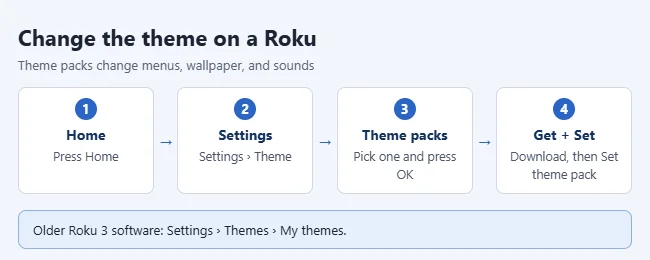
To change the theme on a Roku, press Home on the remote, open Settings > Theme > Theme packs, highlight a theme pack, and press OK. Select Get theme pack to download it, then Set theme pack to switch to it. Roku says a theme pack sets the color and style of the menus, the background image, the screensaver, and the navigation sounds with one selection.
These steps match current Roku OS software on Roku streaming players. They also apply to an older player such as the Roku 3 once its Settings menu shows Theme. Roku’s theme article does not describe Roku TV models separately, so the labels on a TV may differ slightly.
What a Roku theme pack is and what you need
A theme pack is a bundle that controls the overall look and feel of the Roku interface. Instead of picking a wallpaper (the background image behind the menus), a screensaver (the moving picture that appears when the device sits idle), and menu sounds one at a time, you choose a pack and all of them change together.
These steps follow Roku’s current support article, How to change the theme pack to adjust the look of the Roku interface, which covers Roku streaming devices in general. Here is what to know before you start:
- Cost: one default theme pack comes with the device, and additional theme packs are a free download from the Settings menu.
- Internet: a new theme pack has to be downloaded and installed before you can use it, so the Roku needs to be online.
- Roku account PIN: if you set up a PIN on your Roku account, you will be asked to enter it to add theme packs.
- Older software: menu names have changed over the years. An older Roku, such as a Roku 3, may show different wording than the labels below. See the troubleshooting section if yours does not match.
How to change the theme pack on a Roku
- Press Home on your Roku remote. This returns you to the Home screen from any app.
- Scroll to Settings and select it.
- Select Theme. This menu holds everything related to how the interface looks and sounds.
- Select Theme packs to browse the packs that are available.

- Highlight a theme pack and press OK. A details page opens with a description of that pack.
- Optional: select View screenshots to see sample images of the pack before you install it.
- Select Get theme pack. The pack downloads and installs. If the pack is already installed, you can skip this step.
- Select Set theme pack. Roku switches the wallpaper, screensaver, and navigation sounds all at once.
To confirm that it worked, press Home and move around the menus. The background and menu style should match the pack you chose, and the sounds you hear while navigating may be different too.
What the options on the theme pack page do
The details page for a theme pack can show four actions. Which ones you see depends on whether the pack is already installed.
| Option | What it does | When to use it |
|---|---|---|
| View screenshots | Shows sample screenshots of the theme pack. | Before you download, to check that you like the look. |
| Get theme pack | Downloads and installs the pack. | The first time you want a pack. It must be installed before you can set it. |
| Set theme pack | Switches the wallpaper, screensaver, and navigation sounds to that pack. | After the pack is installed. |
| Remove theme pack | Deletes the pack from the device. | When you no longer use a pack and want to free up storage space. |

How to change only the wallpaper, screensaver, or sounds
You do not have to accept every part of a theme pack. Roku’s advice is to pick a theme pack first and then change individual elements. Setting a theme pack switches all of the elements together, so if you set a different pack later, check your individual choices again.
- Press Home and open Settings > Theme.
- Select Wallpapers, Screensavers, or Navigation sounds.
- Browse the options and make your selection.

Screensavers work a little differently from theme packs. Roku’s screensaver article says the Screensavers menu lists the ones already installed under My screensavers, along with others you can add. Some are free and others are paid:
- A free screensaver shows Get screensaver. After it downloads, select Set as screensaver.
- A paid screensaver shows a Buy button with its price. Roku asks for your account PIN if you have one, and the payment method on your Roku account must be up to date.
- An installed screensaver shows Set as screensaver right away.
- View screenshots lets you preview one that is not installed yet.
Roku also lists a free Aquatic Life 4K screensaver that is only offered on 4K devices. The same Theme menu has a Screensaver wait time setting that controls how long the Roku waits before the screensaver starts, and it is also where you can turn the screensaver off. If you want a specific example, you can set a clock as the screensaver on a Roku.
How to turn off seasonal or sponsored wallpapers
If your Roku background changes without you touching it, one of two settings is the likely reason. Roku releases seasonal wallpapers around occasions such as Valentine’s Day or Halloween. The device shows one automatically for a short period and then switches back after it expires. Sponsored wallpapers are a separate setting. Both are turned on by default.
- Press Home on your Roku remote.
- Select Settings, then Theme.
- Select Seasonal wallpapers or Sponsored wallpapers.
- Select Off.
Each setting is separate, so repeat the steps for the other one if you want both off. To turn either one back on, return to the same menu and select On.
How to go back to the previous theme
A theme change is easy to reverse. Open Settings > Theme > Theme packs, highlight the pack you used before, press OK, and select Set theme pack. Roku includes a default theme pack with the device, so you can return to the original look by setting that pack again.
If you tried several packs and do not plan to use them again, open each one and select Remove theme pack. Removing a pack only deletes that download from the device. Since theme packs are free, you can get it again later from the same menu.
Troubleshooting Roku theme problems
- The menu names do not match. Older Roku software used different wording, such as Themes instead of Theme, with a list of installed themes rather than Theme packs. Look under Settings for the entry with “Theme” in its name. To get the current menus, go to Settings > System > Software update and select Check Now. The device restarts when an update finishes installing. An older model may not receive the newest software, in which case its menus stay as they are.
- Set theme pack is missing. The pack is not installed yet. Select Get theme pack first, wait for the download to finish, and then set it.
- The Roku asks for a PIN. This is the Roku account PIN, a 4-digit number the account owner creates. It is not a code printed on the device. The account owner can manage it by following Roku’s steps in How to create, change, or remove your Roku PIN.
- A theme pack will not download. A download needs a working internet connection, so check the network first. If storage is the problem, remove theme packs you no longer use to free up space.
- The wallpaper changed back or looks different. A seasonal or sponsored wallpaper may be showing. Turn those settings off with the steps above. Also remember that setting a new theme pack replaces the wallpaper, screensaver, and sounds together.
- Another guide mentions hidden theme menus or button codes. Roku’s support pages show theme packs only in Settings > Theme > Theme packs, as a free download. They do not describe hidden menus, remote button codes, or paid “premium” theme packs, so stick to the Theme menu.
- The screen still looks odd after a change. Restarting the device is a reasonable first step, and there is no need for a factory reset just to fix a theme. There are a few ways to reboot a Roku.
Frequently asked questions
Do Roku theme packs cost money?
No. A default theme pack is included with the device, and additional theme packs are a free download from the Settings menu. Individual screensavers are different: some are paid, and those show a price before you buy.
Does changing the theme affect my apps or settings?
In Roku’s terms, a theme pack changes the look and feel of the interface: menu color and style, background image, screensaver, and navigation sounds. Its theme article does not list any effect on your installed apps, your account, or picture and audio settings.
To clear out apps you no longer watch, delete those channels from your Roku TV.
Can I use my own photo as the Roku wallpaper?
Roku’s theme pack article only covers choosing from the options in the Wallpapers menu. It does not describe a way to upload your own image as the Home screen background, so plan on picking from the wallpapers Roku offers.
Your own pictures can also run as a screensaver if you view iPhone pictures on a Roku with Photo Streams.
Why can’t I find Theme packs on my Roku 3?
The Roku 3 is an older model and may run older software with different menu names. Check for an update at Settings > System > Software update > Check Now. If no newer software is offered, use the theme option that your Settings menu does show.
How do I stop someone else from adding theme packs?
Create a Roku account PIN. Roku’s theme article says a Roku with an account PIN asks for that PIN, which keeps other people in your household from adding theme packs. You create and change the PIN on Roku’s website while signed in to your Roku account.
Will a seasonal wallpaper replace my theme permanently?
No. A seasonal wallpaper appears for a short period, and the device switches back after it expires. Set Seasonal wallpapers to Off if you would rather not see them at all.
More ways to personalize your Roku
Once the theme looks right, these related guides cover other display and Home screen settings:
- Turn off the screensaver on a Roku TV
- Change the brightness on a Roku TV
- Change the display type (resolution) on a Roku
- Rename an input on a Roku TV

Matthew Burleigh is the founder, head writer, and editor of Solve Your Tech, which he launched in 2012. He has written technology tutorials since 2008 and worked in IT since 2003, including small-business support, IT management, and consulting. He holds Bachelor’s and Master’s degrees in Computer Science from Arizona State University.
Matthew writes practical guides for Windows, iPhone and iPad, Microsoft Office, Outlook, Google apps, and Android. Solve Your Tech’s guides are checked step by step against the device or app maker’s own documentation and tested on his own devices whenever he has the hardware or software, with clear steps, sources, and update dates.
Read more about Matthew and how Solve Your Tech writes and updates its guides, or report a correction.