A Roku streaming player works with any TV that has an HDMI port, no matter how old the TV is or whether it’s a smart TV. If your old TV has no HDMI port, a Roku player can’t plug into it directly, though an HDMI-to-AV converter may get you a picture. A Roku Streaming Stick plugs straight into the HDMI port and doesn’t need a cable.
This guide follows Roku’s support articles Do I need a special TV? and How to change the display type.
How to Tell if Your TV Will Work With a Roku
- Look at the back or side of your TV for a port labeled HDMI.
- If you find one, any Roku streaming player will work. When it arrives, follow our guide on how to set up a Roku. Roku says all its players, including the Streaming Stick and Streambar models, work with any TV that has an HDMI connection. Our comparison of the three Roku streaming sticks can help you pick one.
- If you only see red, white, and yellow jacks or a round antenna connector, your TV doesn’t have HDMI. See the section below on TVs without HDMI.
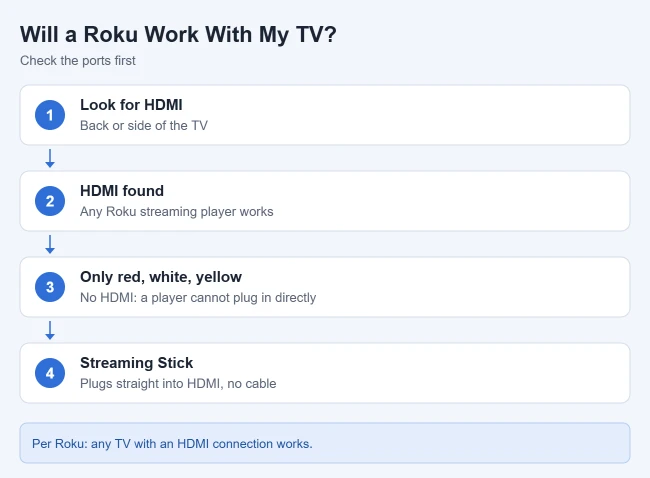
Result: If your TV has HDMI, you can buy any Roku player and set it up normally. Many TVs people think of as “old” still have at least one HDMI port, so it’s worth checking before you buy anything else.
What About 4K and HDR?
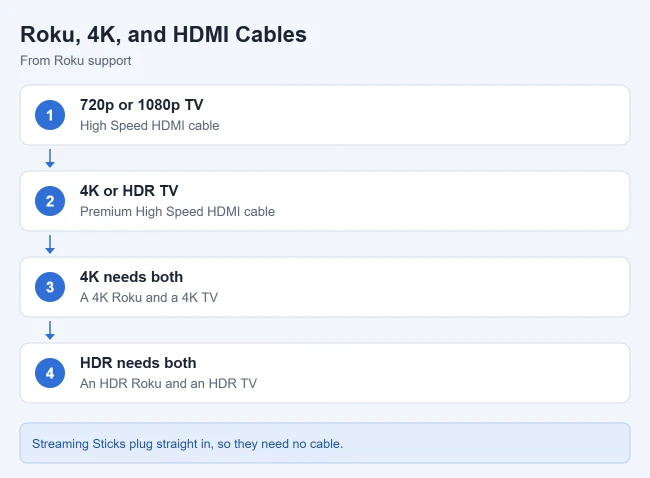
Roku says every Roku player works on any HDMI TV, including 4K models on older HD TVs. To actually watch in 4K or HDR, though, you need both a Roku that supports it and a TV that supports it. On a 1080p or 720p TV, a 4K Roku still works, just not in 4K.
Roku also says some HDR TVs don’t turn on HDR by default. You may need to update the TV’s software and enable HDR for the HDMI input your Roku uses.
Which HDMI Cable Should I Use?
Roku recommends these cables for players that aren’t Streaming Sticks:
- 720p or 1080p TV: a High Speed HDMI cable.
- 4K or HDR TV: a Premium High Speed HDMI cable. Roku says HDR players ship with an HDMI 2.0 compatible cable, and that unlabeled or “standard speed” cables may not be enough for 4K HDR at 60fps.
What If My TV Doesn’t Have HDMI?
Roku’s support article only covers HDMI TVs. For older sets with only red, white, and yellow (composite/RCA) inputs, use a converter that takes the Roku’s HDMI output and turns it into a composite signal your TV can accept. A few things to know:
- The picture may not look as good as it would on an HDMI TV.
- Set the converter to NTSC if you’re in North America, then switch the TV to its AV input.
- A TV with only a coax antenna connector is harder to connect. Roku usually won’t connect directly to an RF-only TV without a more complex workaround, such as a converter, or replacing the TV.
The Roku Express+, a model that came with composite connectors, but check whether it’s still sold before you count on it.
After You Connect: Check the Picture Settings
Roku says your player checks the HDMI connection during setup and picks the best resolution and frame rate automatically. If the picture looks wrong, press Home, go to Settings > Display type, and pick a different option. Roku says the player goes back to the previous setting after 20 seconds if your TV can’t show the new one. See how to change the display type on a Roku.
Frequently Asked Questions
Does my TV need to be a smart TV to use a Roku?
No. Roku’s only requirement is an HDMI connection. The Roku player provides the streaming apps.
Will Roku wireless speakers work with any TV?
No. Roku says its wireless speakers must connect to a Roku host device, such as a Roku TV or Roku Streambar, and won’t work with other TVs or Roku streaming players.
More Roku Guides

Matthew Burleigh is the founder, head writer, and editor of Solve Your Tech, which he launched in 2012. He has written technology tutorials since 2008 and worked in IT since 2003, including small-business support, IT management, and consulting. He holds Bachelor’s and Master’s degrees in Computer Science from Arizona State University.
Matthew writes practical guides for Windows, iPhone and iPad, Microsoft Office, Outlook, Google apps, and Android. Solve Your Tech’s guides are tested on current devices or checked against official product documentation, with clear steps, sources, and update dates.
Read more about Matthew and how Solve Your Tech writes and updates its guides, or report a correction.