To change the display type on a Roku, press Home on the remote, go to Settings > Display type, highlight the resolution you want, and press OK. The screen may go black for a few seconds. When a picture appears, select Yes, I can see it and press OK to keep the new setting.
If you do nothing because the screen stays black, the Roku goes back to the previous setting by itself after 20 seconds. That makes this a low-risk change. The rest of this guide explains what the options mean, when to leave the setting on automatic, and what to check when 4K or HDR is missing.
What display type means on a Roku
Roku uses the name display type for two things together: the resolution and the frame rate that the player sends to your TV.
- Resolution is how much detail the picture has. Common TV resolutions are 720p, 1080p, and 4K. A higher resolution looks sharper.
- Frame rate is how many still images are shown each second, measured in frames per second (fps) or hertz (Hz). A higher frame rate makes motion look smoother.
- HDR (High Dynamic Range) adds more color and contrast information on TVs that support it. Formats include HDR10, HDR10+, Dolby Vision, and HLG.
During setup, a Roku player checks the HDMI connection to see which resolutions and frame rates your TV supports, then picks the best match. Roku says this automatic setting is appropriate for most situations. Change the display type by hand only when the Roku picks the wrong one or the picture has a problem.
Before you start
- This is for Roku streaming players. Roku’s instructions cover players that plug into a TV, such as a Streaming Stick, Express, Ultra, or Streambar. A Roku TV is covered in its own section below.
- You need a picture to begin with. You change the setting from the on-screen menu, so the TV must be on the Roku’s HDMI input.
- The choices depend on your player and TV. A 4K HDR player can list 720p, 1080p, 4K, and 4K HDR choices. An older HD player such as the Roku 3 should list fewer choices. You can only pick from what your model shows.
- Use the right cable for 4K and HDR. Choose a Premium High Speed HDMI Cable or an Ultra High Speed HDMI Cable. A Streaming Stick plugs straight into the TV and needs no cable. If you are choosing one, compare models in the Roku Streaming Stick comparison.
How to change the display type
These steps follow Roku’s support article, How to change the display type on your Roku streaming player.
- Press Home on your Roku remote.
- Scroll to Settings and select it.
- Select Display type. You see a list of display types. The current one has a check mark.
- Highlight the display type you want and press OK. The screen may go black for a few seconds while the Roku switches.
- When a picture appears, select Yes, I can see it and press OK.
- The Roku returns to the Display type menu. A check mark now sits next to the new setting.
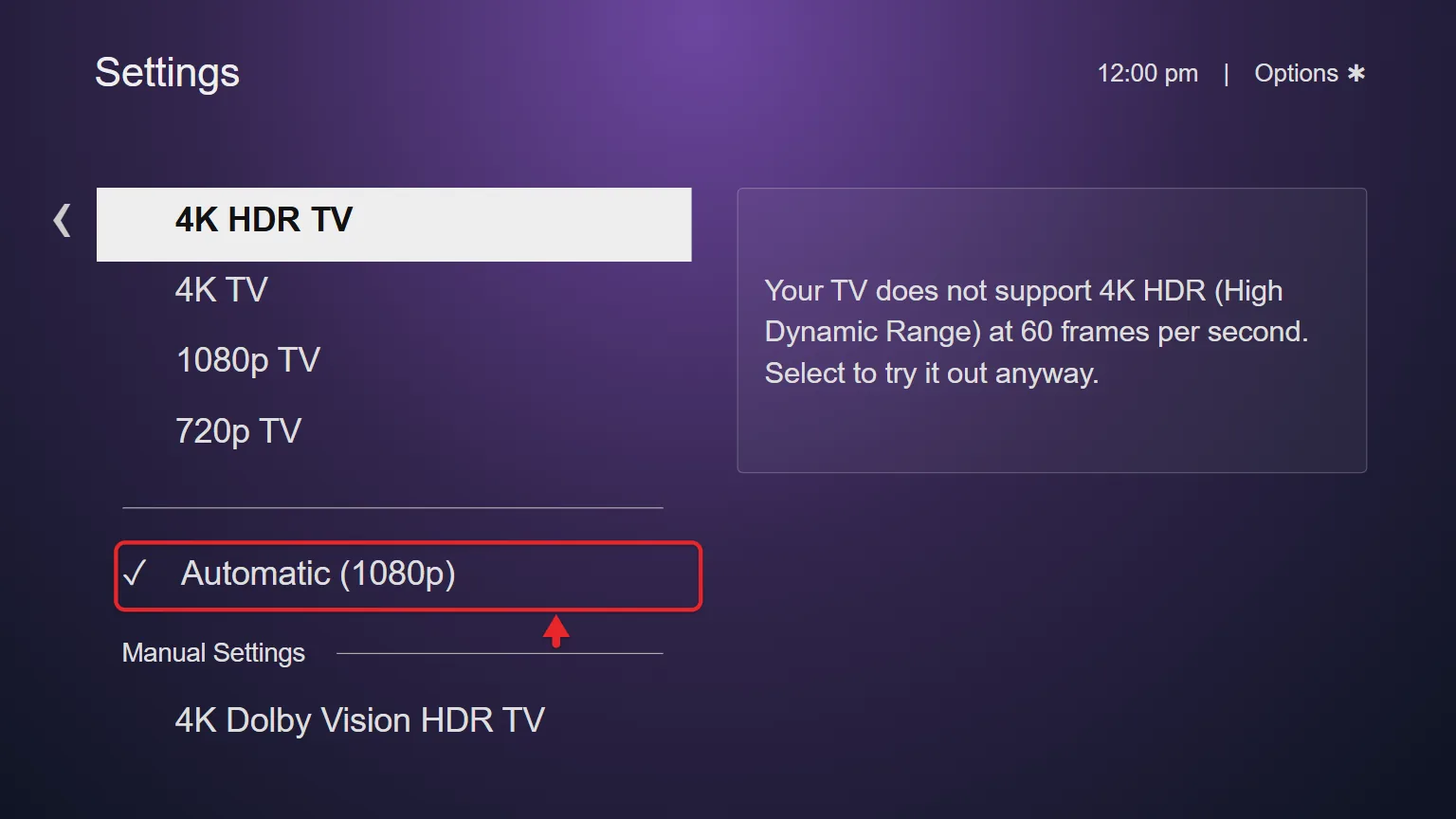
The Roku may show a message that your TV does not support the display type you picked. You can still select it and try it anyway. If the TV really cannot show it, the screen stays black and the Roku reverts after 20 seconds.
Which display type should you pick?
Start with Automatic. It tells the Roku to read what the TV supports and choose for you. Pick a specific display type only to fix a problem.
| Situation | Display type to try |
|---|---|
| Normal use, no picture problems | Automatic |
| The picture looks soft on a 1080p or 4K TV | Automatic first, then the TV’s own resolution if the Roku detected a lower one |
| Gray picture or other display issues on a 4K HDR setup | Switch from 4K HDR to 4K or 1080p |
| An older TV that only handles 720p | 720p |
| You changed the TV’s HDMI settings, the cable, or the HDMI port | Automatic, so the Roku checks the connection again |
A higher setting is not always better. If the TV cannot display it, you get no picture. If the TV is an older model, read does a Roku work with old TVs? to see what to expect.
How to confirm the change or undo it
Open Settings > Display type again. The check mark shows the display type in use.
To undo the change, select your earlier display type or select Automatic, then confirm with Yes, I can see it. Nothing else on the Roku changes. Your apps, account, and network settings stay the same.
Display type only changes the video signal. To change how the Roku menus look, follow the steps to change the theme on your Roku.
No picture after changing the display type
A black screen after you choose a display type means the TV does not support that resolution or frame rate. Do not unplug anything yet.
- Wait. The Roku reverts to the previous setting after 20 seconds.
- When the menu comes back, choose a lower display type or Automatic.
- If you are sure the TV supports the setting you picked, check the 4K and HDR requirements in the next section before you try again.
4K or HDR is missing or will not work
When a 4K TV only gets 1080p from the Roku, the cause is usually the HDMI connection, not the Display type menu. For the full requirements, read Set up your Roku streaming player for 4K HDR.
- Check the TV and the port. You need a 4K HDR TV with an HDMI 2.0 port that supports HDCP 2.2. HDCP 2.2 is a copy protection standard that 4K streaming requires. Some TVs support it on only one HDMI input, so try another port.
- Check the Roku. The player itself must support 4K and HDR.
- Turn on the TV’s HDMI 2.0 mode. Many 4K TVs ship in an older HDMI 1.4 mode, which limits 4K HDR to 30 frames per second. The setting has a different name on each brand, such as an enhanced format or UHD color option, and it is often set per HDMI input. Sample menu paths for each brand are on Roku’s What settings to adjust to play 4K Ultra HD and HDR content at 60fps page.
- Check the cable. Use a Premium High Speed or Ultra High Speed HDMI cable. Unlabeled, standard speed, or high speed cables may not be adequate for 4K HDR at 60fps.
- Take the soundbar or receiver out of the chain. Every device between the Roku and the TV must support HDMI 2.0 and HDCP 2.2. Connect the Roku directly to the TV to test.
- Re-detect the TV. Go to Settings > Display type > Automatic so the Roku checks the HDMI connection again.

Two more things can keep a show from playing in 4K or HDR even when the display type is right. The movie or show itself must be offered in 4K or HDR, and your streaming plan must include it. Roku also says 4K streaming may need up to 25 Mbps of internet speed.
If the picture still looks wrong, update the TV’s software, then restart the Roku from Settings > System > Power > System restart. You can also reboot a Roku in other ways.
The screen flashes black or motion looks jerky
That is a separate setting. Roku players output everything at 60fps by default. A setting named Auto-adjust display refresh rate lets the player switch to the frame rate a movie or show was made in, such as 24fps.
- Press Home and select Settings.
- Select System > Advanced system settings > Advanced display settings.
- Select Auto-adjust display refresh rate and choose Enabled or Disabled.
Enabled can reduce subtle jerkiness in movies, but the TV may flash black when a video starts or stops. Disabled removes the flash. The setting is only on compatible players and does not apply to some apps, such as Netflix or Hulu. See Roku’s article on changing the display refresh rate for details.
What about a Roku TV?
Roku’s display type article is written for streaming players, and Roku does not document a Display type menu for Roku TVs. A Roku TV is the screen itself, so its picture controls are in other places.
- For a device plugged into a Roku TV, go to Settings > TV Inputs > the input > HDMI Mode, and set it to Standard or Auto.
- For the look of the picture, you can change the brightness on a Roku TV.
Frequently asked questions
What display type should my Roku be on?
Automatic is the right choice for most people. The Roku reads what your TV supports over HDMI and picks the best resolution and frame rate. Choose a display type yourself only if the automatic result is wrong or the picture has a problem.
Why is my Roku picture blurry?
The display type may be lower than your TV’s resolution. A 1080p or 4K TV that receives 720p looks softer. Go to Settings > Display type, select Automatic, and see which resolution the Roku detects. A slow internet connection can also lower the quality of a stream, and the display type does not fix that.
Can I pick a display type my TV does not support?
Yes. Roku lets you select it and try it anyway, even after a warning. If the TV cannot show it, the screen stays black and the Roku returns to the previous display type after 20 seconds.
Does changing the display type erase anything?
No. It only changes the video signal the Roku sends to the TV. You can switch back at any time from the same menu.
Why does my 4K Roku only show 1080p?
Wrong HDMI settings on the TV or an incompatible HDMI port can limit a player to 1080p. Turn on HDMI 2.0 mode for the input you use, try another HDMI port, use a Premium High Speed cable, then select Settings > Display type > Automatic. Roku’s guide to setting up a player for 4K Ultra HD lists the full requirements.
Do I need to set the display type when I set up a new Roku?
Usually not. The guided setup checks your TV and chooses a display type for you. If you are starting from scratch, follow the steps on how to set up a Roku.
Next step
Open Settings > Display type and note which setting has the check mark. If it is lower than your TV’s resolution, select Automatic first, then work through the HDMI checklist above if 4K or HDR still does not appear.

Matthew Burleigh is the founder, head writer, and editor of Solve Your Tech, which he launched in 2012. He has written technology tutorials since 2008 and worked in IT since 2003, including small-business support, IT management, and consulting. He holds Bachelor’s and Master’s degrees in Computer Science from Arizona State University.
Matthew writes practical guides for Windows, iPhone and iPad, Microsoft Office, Outlook, Google apps, and Android. Solve Your Tech’s guides are checked step by step against the device or app maker’s own documentation and tested on his own devices whenever he has the hardware or software, with clear steps, sources, and update dates.
Read more about Matthew and how Solve Your Tech writes and updates its guides, or report a correction.