To set a clock as the screensaver on a Roku, press Home, go to Settings > Theme > Screensavers, highlight a clock screensaver, press OK, and select Set as screensaver. If no clock is installed yet, you can add one from that same menu first. The clock then appears whenever the Roku has been idle for the wait time you choose.
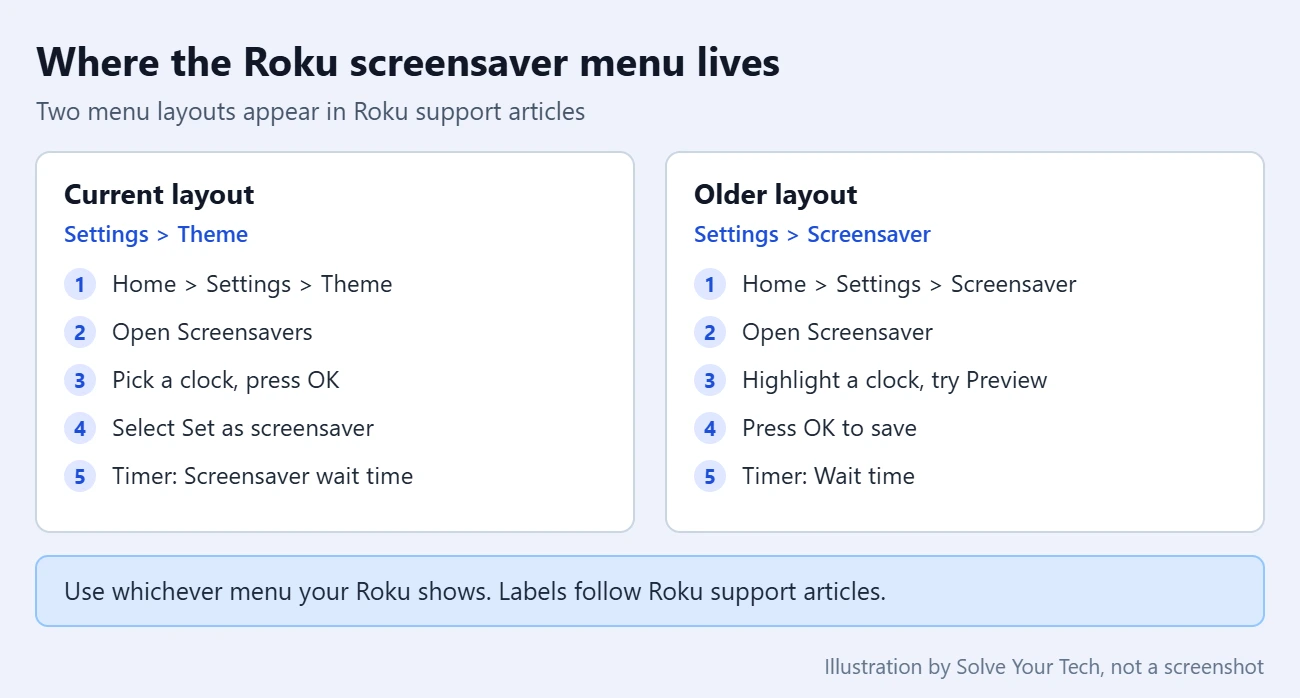
These steps match the current Roku OS menus on Roku streaming players, Streaming Sticks and Roku TVs. Older players such as the Roku 3 may show the older Settings > Screensaver layout, which has its own steps below.
What you need before you start
A screensaver is a small app that fills the TV screen with moving images or patterns while the Roku is not in use. A clock screensaver is one that shows the time instead of artwork.
- Any Roku player, Roku Streaming Stick, or Roku TV. Roku documents the same screensaver menu for its streaming players and Roku TVs. Older models like the Roku 3 also have screensavers, though their menu may use the older layout.
- A Roku remote or the Roku mobile app. All of the steps use the Home button, the arrows, and OK.
- An internet connection. You need it to download a clock screensaver that is not already on the device.
- Your Roku PIN, if you set one. A Roku PIN is an optional 4-digit code on your Roku account. Depending on how it is set up, Roku asks for it when you buy something or add an app. If you have no PIN and want to block surprise purchases, create one in your Roku account on the web.
Roku changes the default screensaver from time to time and runs different screensavers on some devices. That means the built-in choices on your Roku may not match someone else’s, and a clock may not be pre-installed.
These steps follow the current menu layout in Roku’s article How to change the screensaver on your Roku streaming device.
- Press Home on your Roku remote.
- Scroll and select Settings. On the redesigned Roku Home Screen, press the left arrow to open the menu that contains Settings.
- Select Theme to open the Theme menu.
- Select Screensavers.
- Look through the My screensavers section. It lists the screensavers already installed on this Roku.
- Highlight a clock screensaver and press OK. A page opens with its description and details.
- Select Set as screensaver.
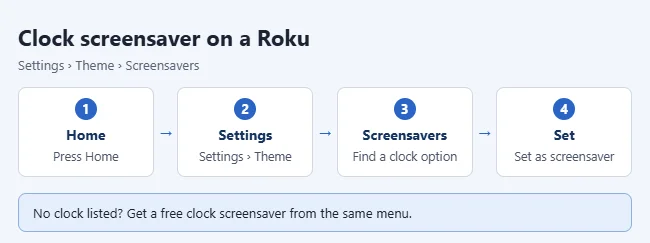
The clock is now the active screensaver. It does not appear right away. It starts after the Roku has sat idle for the wait time, which is covered below.
Add a clock screensaver if you do not have one
If My screensavers has no clock, download one. Some screensavers are free and others are paid, so check the button on the details page before you select it.
- Go to Settings > Theme > Screensavers.
- Browse past My screensavers to the screensavers available to download, and look for one with a clock in its name or picture.
- Highlight it and press OK to open its details.
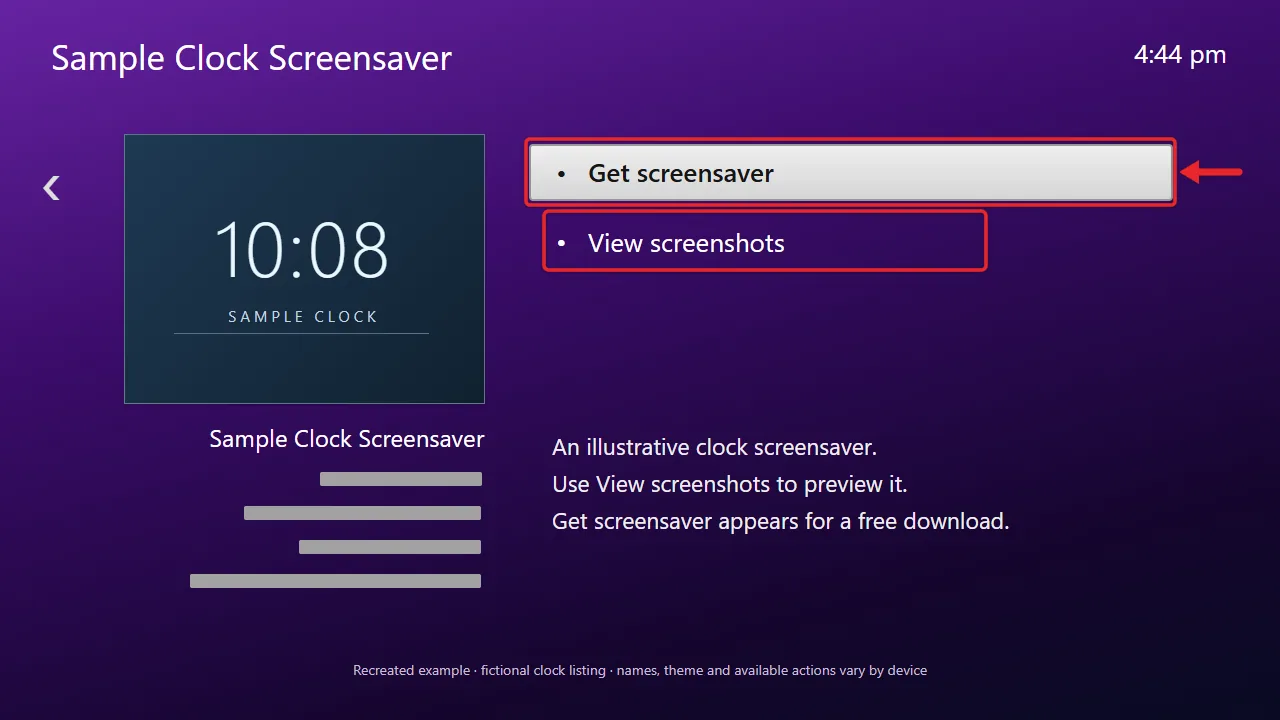
- Select View screenshots to see a preview before you install anything.
- Select Get screensaver if it is free. A paid screensaver shows a Buy button with the price instead.
- Enter your Roku PIN if the Roku asks for it.
- Wait for the download to finish, then select Set as screensaver.
Before you select a Buy button: a paid screensaver is charged to the payment method on your Roku account. Roku also notes that out-of-date payment information has to be updated before a purchase can continue. If you only want the time on screen, look for a free clock first.
Look for names such as Digital Clock or Analog Clock. Several clock screensavers come from outside developers rather than Roku, and the selection changes over time, so names and features vary. Any screensaver with a clock in its name sets up the same way.
Read the details page before you choose one. Some free clocks show the time at no cost but offer extras, such as current weather, as a paid add-on or subscription. You can skip the extras and still use the clock.
Prefer family photos to a clock? Here’s how to view iPhone pictures on a Roku, including a Photo Streams screensaver.
Some Roku devices show a Screensaver item directly in Settings instead of a Theme menu. Roku still describes this older layout in some of its regional support articles. If that is what you see, use these steps.
- Press Home and select Settings.
- Select Screensaver to open the Screensaver menu, then select Screensaver again.
- Highlight a clock in the list. Select Preview to see how it looks.
- If Custom settings appears, open it to adjust that screensaver. Not every screensaver has custom settings.
- Highlight the screensaver name and press OK to save. A check mark appears next to the selected screensaver.
In this layout, new screensavers come from the Screensavers category of the Roku store on the device rather than from the Screensaver menu itself.
Choose when the clock appears
The wait time is how long the Roku sits idle before the screensaver starts. A short wait time puts the clock on screen sooner.
- Go to Settings > Theme.
- Select Screensaver wait time. On the older layout, go to Settings > Screensaver > Wait time.
- Choose the amount of time to wait.
- Press OK to save.
The same list includes an option to disable the screensaver. If that option is selected, no screensaver starts at all, including your clock. Roku TV owners who want that result on purpose can disable the screensaver on a Roku TV.
Confirm it worked, or switch back
To confirm the change, return to the Home screen and leave the remote alone for the length of the wait time. The clock should replace the Home screen. Press any button to dismiss it.
To undo the change, go back to Settings > Theme > Screensavers, open a different screensaver from My screensavers, and select Set as screensaver. Your clock stays installed, so you can switch back to it later the same way.
Fix a clock that shows the wrong time or format
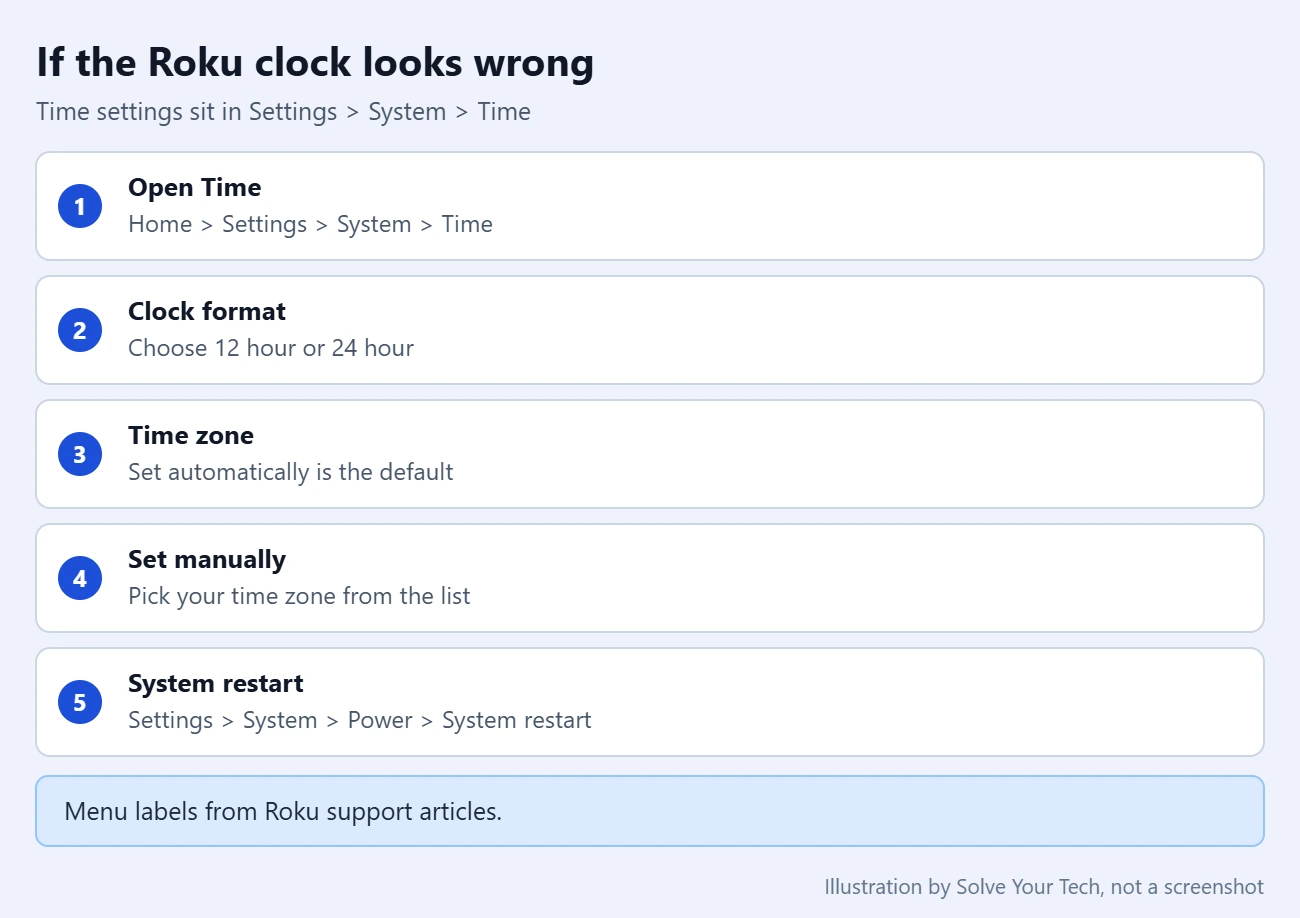
Roku keeps its time settings in a separate menu. These settings control the clock at the top of the Roku screen. A screensaver made by another developer may or may not follow them, so treat this as the first thing to check rather than a guaranteed fix.
- Press Home and select Settings.
- Select System, then Time.
- Select Clock format and choose 12 hour or 24 hour. The 12-hour format looks like 1:21 pm and the 24-hour format looks like 13:21. There is also an Off choice.
- Go back and select Time zone.
- Choose Set automatically, which is the default, or choose Set manually and pick your time zone from the list.
Roku covers both settings in How to change the format of the clock.
Troubleshooting
- There is no Theme item in Settings. Look for Screensaver in the Settings list and use the older steps above.
- You cannot find Settings. On the redesigned Home Screen, press the left arrow on the remote to open the Home Screen menu.
- The clock never appears. Open Screensaver wait time and make sure a time is selected rather than the option that disables the screensaver.
- A different screensaver came back. A theme pack sets the wallpaper, screensaver, and navigation sounds all at once. If you or someone else selected Set theme pack, set the clock again in Screensavers.
- Your clock vanished from the list. Owners on Roku’s community forum have reported this, mostly on older players that no longer get software updates. Search for the clock in Screensavers, install it again, and select Set as screensaver. If it will not install on a very old model, try a different clock.
- The Roku asks for a PIN you do not remember. Roku PINs are managed in your Roku account on the web, not on the device.
- The menu is frozen or the screensaver will not load. Go to Settings > System > Power > System restart. If there is no Power submenu, System restart is directly under System. A system restart does not affect your settings. There are a few more ways to reboot a Roku.
Frequently asked questions
Can I switch between a 12-hour and a 24-hour clock?
The Roku system clock can be switched in Settings > System > Time > Clock format. Whether a particular clock screensaver follows that setting depends on the screensaver. On the older menu layout, some screensavers also offer their own Custom settings.
Will the clock show while I am watching something?
No. A screensaver only starts when the Roku is not in use. It fills the screen when your streaming player or Roku TV is idle.
Do I have to pay for a clock screensaver?
No, not for the time itself. Free clocks are available, and the details page shows Get screensaver for free ones and a Buy price for paid ones. Some free clocks sell optional extras like weather.
Can I change the rest of the look too?
Yes. The Theme menu also holds wallpapers, navigation sounds, and theme packs. Here’s how to change the theme on a Roku. Just remember that setting a theme pack replaces your clock screensaver, so set the clock again afterward.

Matthew Burleigh is the founder, head writer, and editor of Solve Your Tech, which he launched in 2012. He has written technology tutorials since 2008 and worked in IT since 2003, including small-business support, IT management, and consulting. He holds Bachelor’s and Master’s degrees in Computer Science from Arizona State University.
Matthew writes practical guides for Windows, iPhone and iPad, Microsoft Office, Outlook, Google apps, and Android. Solve Your Tech’s guides are checked step by step against the device or app maker’s own documentation and tested on his own devices whenever he has the hardware or software, with clear steps, sources, and update dates.
Read more about Matthew and how Solve Your Tech writes and updates its guides, or report a correction.