To replace an incorrect saved Wi-Fi password on your iPhone, open Settings > Wi-Fi, tap the information button beside the network, choose Forget This Network, and confirm Forget. Select the same network again, enter its current password, and tap Join. A blue checkmark beside the network name shows that the iPhone has joined it.
Get the correct password before forgetting the network. If you use iCloud Keychain, forgetting it also makes other devices using the same Apple Account forget that network. Those devices may need to join again, too.
This guide covers replacing a stale password and troubleshooting an “Incorrect Password” message that continues after you confirm the password. The main Wi-Fi controls apply to recent iOS versions. Password lookup differs: iOS 18 and later has the Passwords app, while iOS 16 and later also supports viewing passwords in Wi-Fi settings. Newer connectivity labels are identified where relevant.
In this guide
- Check the network name and current password.
- Find or share a saved Wi-Fi password.
- Forget the network and enter the replacement.
- Handle a missing Forget This Network option.
- Troubleshoot a correct password that is still rejected.
- Reset network settings only after simpler checks.
- Understand common questions and the next support step.
Check the password before removing the saved network
A Wi-Fi password is case-sensitive. The password for Home may differ from the password for Home Guest, even if both networks come from the same router. Some older routers create a guest network automatically, as shown in this guide to turning off the guest network on a Cisco E1000 router. Confirm the complete network name, also called its SSID, with the person who manages it.
When typing, check capital letters, numbers, punctuation, accidental spaces, and similar characters such as a capital O and the number zero. A different keyboard language or Caps Lock can change what you enter. Retype the current password carefully rather than repeatedly submitting an uncertain saved value.
The router’s administrator password signs you into its settings. Its Wi-Fi password, sometimes labeled a wireless password or network key, lets devices join the wireless network. They are separate credentials. A correct router administrator password can still be rejected when entered into the iPhone’s Wi-Fi password field.
According to Apple’s Wi-Fi password guidance, the router’s label may show its default network name and password. That label is useful only if those defaults are still in use. If the owner changed the password, ask for the replacement or have the authorized owner check the router’s app or settings. For a workplace, school, hotel, or rented router, ask its administrator, staff, or provider.
An already connected laptop is not conclusive evidence that a password someone remembers is current. It might have connected using a different saved credential. A useful comparison is whether another authorized device can newly join the same network with the exact password you intend to use.
Find a saved password on another Apple device
A saved password can help you avoid a typing mistake. However, it can also be outdated after a router password change. Compare it with the current password supplied by the network owner if the iPhone still rejects it.
iOS 18 and later: use Passwords
- Open the Passwords app on an iPhone that has saved the network. Authenticate when requested so you can view protected entries.
- Tap Wi-Fi, then choose the exact network name. Its saved network details appear.
- Tap Password to reveal the saved value. Use Copy Password if you need to enter it on another device you control.
- Compare the value with the network owner’s current password before using it to rejoin. If the router has changed, a saved entry alone does not settle which value is correct.
Apple’s current find and share Wi-Fi password guide also lists Show Network QR Code in the network’s Passwords entry. A trusted recipient can scan that code to join. Treat the code like the password: show it only to people who should have access to that network.
iOS 16 and later: use Settings
- Open Settings > Wi-Fi on the device with the saved connection.
- Tap the information button beside the network, then tap Password.
- Authenticate with Face ID, Touch ID, or the device passcode. The stored password becomes visible and can be copied.
For a previously joined network that is not the current connection, tap Edit in Wi-Fi settings, authenticate, then open that network’s information page and its Password field. These version requirements come from Apple’s saved-password instructions. Older iPhones may not offer either lookup method; ask the network owner instead of assuming a missing field is an error.
Share the password without typing it
Apple’s nearby password-sharing feature is useful when the network owner has a connected iPhone. Before trying it, both devices should have Wi-Fi and Bluetooth enabled and Personal Hotspot turned off. Both people should be signed in to their own Apple Accounts and have the other person’s Apple Account email address or phone number saved in Contacts. Keep the devices nearby and use current software.
- On the receiving iPhone, open Settings > Wi-Fi and tap the network you want to join. Leave its password request open.
- Keep the sending device unlocked and connected to that Wi-Fi network. When its sharing prompt appears, tap Share Password.
- Tap Done on the sending device. On the receiving iPhone, check whether a blue checkmark appears beside the intended network.
If no sharing prompt appears, recheck the prerequisites. Apple suggests restarting both devices and trying again, or entering the password manually. Sharing is an alternative way to supply a credential; it does not guarantee that every router connection problem will disappear. See Apple’s full sharing requirements.
Forget the network and enter the current password
Forgetting is the focused way to remove one saved connection. It is less disruptive than resetting every network setting. Have the replacement password available first, and consider other Apple devices that share this entry through iCloud Keychain.
- Open Settings, then tap Wi-Fi. Make sure Wi-Fi is on so nearby networks can appear.
- Find the correct network and tap the information button, the circled i, beside its name. This opens its connection details rather than attempting another join.
- Tap Forget This Network, then Forget to confirm. The saved connection and password are removed. The network may still appear among available networks because the router continues broadcasting its name.
- Return to Settings > Wi-Fi and tap that same network name. Enter the confirmed current password when prompted, then tap Join.
- Look for the blue checkmark beside the network and the Wi-Fi indicator. Open a webpage to check internet access as a separate final test.
For a saved network that is not currently connected, use Settings > Wi-Fi > Edit, authenticate if requested, and tap its information button before choosing Forget This Network. Apple documents this known-network route in its forget a Wi-Fi network guide.
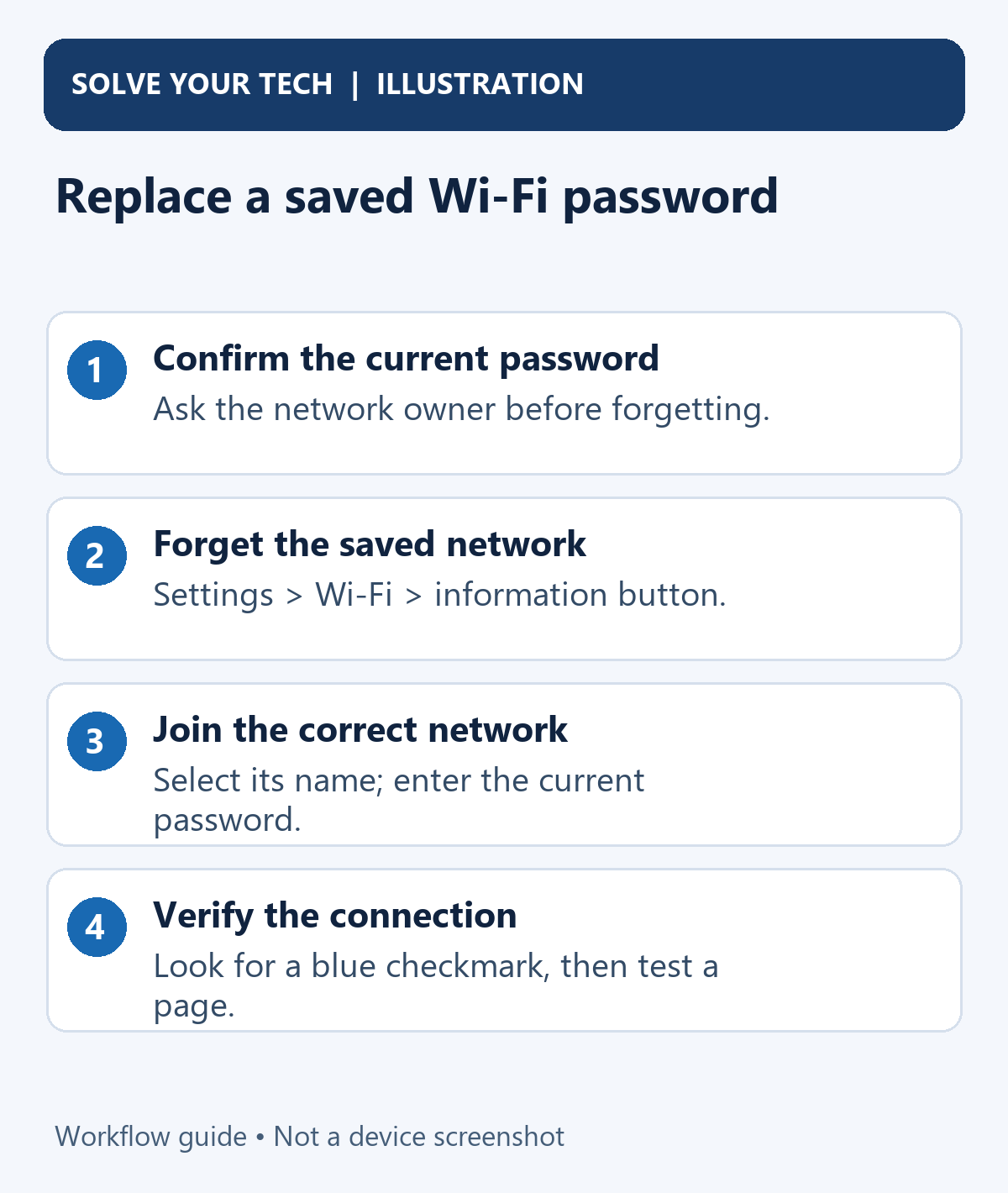
For example, if the owner changed the password for Home yesterday, forgetting Home Guest removes a different entry and leaves the original problem unresolved. Check the exact name before confirming. After rejoining, confirm that the checkmark is beside Home rather than another nearby network.
There is no need to find an editable password box for the old connection. Forgetting and joining again gives you a new opportunity to enter the password. To recover from forgetting the wrong network, select that network again and enter its valid password. If you no longer know it, obtain it from its owner.
If Forget This Network is missing
First distinguish an available network from a known network. A known network is one the iPhone has joined before or one installed through device management. If you have never successfully joined it, there may be no saved connection to forget. Tap its name and enter the correct password directly.
For a previously joined network, check Wi-Fi > Edit and inspect the known-network entry. On some supervised devices or managed networks, Apple says you may not have permission to forget the network or turn off Auto-Join. Contact the organization’s administrator; removing a work or school management profile can also remove accounts, certificates, and required settings.
If your aim is simply to stop automatic connections, Auto-Join is different. Turning it off keeps the network and password while preventing automatic rejoining after you disconnect. You can still join manually. It does not replace an incorrect saved password. For a related automatic-connection setting, see how to stop connecting to hotspots automatically.
When the correct password is still rejected
An “Incorrect Password” message tells you the connection attempt failed, but it is not enough to identify the cause by itself. Work through the checks below and note the result after each one.
| What you observe | Useful next check |
|---|---|
| Another device also cannot newly join with this password | Confirm the current network key and exact network name with the owner. |
| Only this iPhone fails on one network | Forget and rejoin, restart, and ask the owner about compatibility or device registration. |
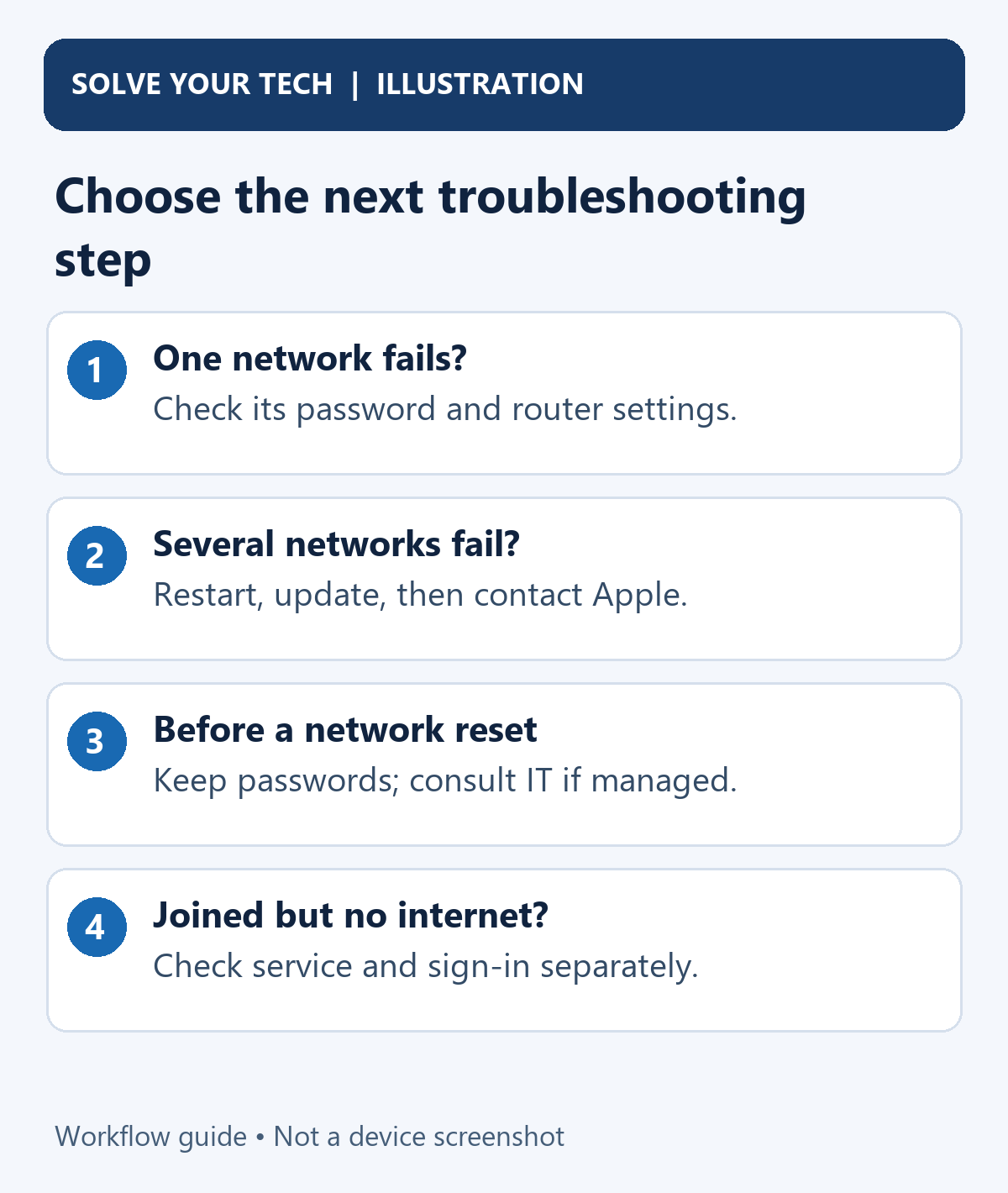
| The iPhone cannot join several known working networks | Restart, update iOS, then follow Apple’s connection guidance or contact Apple. |
| A blue checkmark appears but pages do not load | Investigate internet service, a sign-in page, or VPN/security software separately. |
Check Wi-Fi, range, and an ordinary restart
Make sure Airplane Mode is off and Settings > Wi-Fi is on. Turn Wi-Fi off and back on in Settings, then select the intended network. Move closer to the router during the next attempt. If the Wi-Fi switch is grayed out, Apple recommends restarting the iPhone.
Apple’s current connection guidance also recommends turning off Connectivity Assist in Wi-Fi settings while troubleshooting, where that control is available. Older iOS versions may not show that name. This check does not change the router’s password.
Use an ordinary power restart appropriate to your model:
| iPhone model | Buttons to show the power-off slider |
|---|---|
| iPhone X or iPhone 11 and later | Hold either volume button and the side button. |
| iPhone 6, 7, 8, or SE second/third generation | Hold the side button. |
| iPhone SE first generation, iPhone 5, or earlier | Hold the top button. |
Drag the slider, wait about 30 seconds, then hold the side or top power button until the Apple logo appears. Return to Wi-Fi settings and try again. An ordinary restart does not erase saved networks. If the phone is frozen and cannot show the slider, use the model-specific help linked from Apple’s restart instructions.
Ask the owner to check the router
A router power restart means disconnecting and reconnecting power. A factory reset restores configuration defaults and can disrupt every device using it. Do not press the router’s reset button as though it were a routine reboot. Coordinate a power restart with the owner and other users, and follow the manufacturer’s instructions for the router and any separate modem.
Check that the router has power, its cables are connected, and the iPhone is within range. If the network already has separate 2.4 GHz and 5 GHz names, testing the other available band can help identify a compatibility issue. This does not require renaming all your networks or prove that the iPhone hardware is defective.
For an owner-managed router, Apple’s recommended router settings provide a useful checklist:
- Use WPA3 Personal, or WPA2/WPA3 Transitional for compatibility. If those are unavailable, WPA2 Personal with AES is the supported fallback. Avoid WEP, WPA, TKIP, WPA/WPA2 mixed security, and open networks, including temporary unsecured guest networks.
- Keep firmware current using the manufacturer’s app or instructions. Our guide on updating router firmware covers the usual steps. Back up configuration before changing router settings.
- Use a single unique network name and consistent settings across bands and access points. A mesh node or extender with a different password or security configuration deserves checking when failures depend on location.
- Use automatic channel selection. Apple recommends 20 MHz for 2.4 GHz and Auto or all supported widths for 5 GHz and 6 GHz. A forum suggestion to force one particular channel width is not a universal password fix.
Keep the iPhone’s location setting for Networking & Wireless enabled as Apple recommends, rather than disabling it based on an old comment. Changing DNS or manually assigning an IP address is also not a substitute for authenticating with the correct password. Those settings address later network configuration, not a mistyped network key.
Check registered-device access without discarding privacy
Private Wi-Fi Address normally works without interfering with joining. It gives the iPhone a network-specific address to reduce tracking. On iOS 18 and later, its modes can include Off, Fixed, and Rotating; older versions use different controls.
If a school, workplace, or home router admits only registered device addresses, ask its administrator which address it expects. The address under that network’s Settings > Wi-Fi information page can differ from the hardware address in General > About. Our guide to finding the iPhone’s Wi-Fi address explains that distinction.
Forgetting or resetting can matter here: Apple says a network-settings reset causes a different private address to be used the next time the iPhone joins. On iOS 18 and later, forgetting also changes it unless the network was forgotten within the preceding 24 hours. An administrator may need to update registration. Keep the privacy feature enabled unless the network requires a considered change; a blanket recommendation to turn it off for every password error is unnecessary. See Apple’s private-address explanation.
Separate joining from getting internet access
A blue checkmark means the iPhone has joined the Wi-Fi network. No Internet Connection after joining is a different symptom from a rejected password. A hotel or public network may require its own sign-in or terms page; ask staff for the authorized process if it does not appear.
VPN or security software can also affect connectivity. Apple’s troubleshooting advice includes uninstalling such software, restarting, and testing again, then contacting its developer or administrator. For required work or school software, consult IT before removal. Do not delete device-management profiles as a guess.
If other devices browse successfully while this phone cannot, see our broader guide to Wi-Fi not working on iPhone when other devices work. If all connected devices lack internet access, check the modem/router service and contact the internet provider.
Reset network settings only if the earlier checks fail
Before this step, update the iPhone to current software when possible and try another known working Wi-Fi network. On a managed phone, consult IT first.
Reset Network Settings removes saved Wi-Fi networks and passwords and resets cellular, VPN, and APN settings. APN settings govern a carrier’s data connection. Have the necessary passwords and setup information available. This reset also changes the device name to “iPhone,” makes manually trusted certificates untrusted, and may turn off cellular data roaming. VPN settings installed by a configuration profile or device-management system remain in place.
The command resets network settings rather than erasing photos, apps, or messages. It is different from Reset All Settings, Erase All Content and Settings, or a command that deletes eSIMs. Read the selected command before confirming.
- Open Settings > General > Transfer or Reset iPhone. This is the current reset entry point; older iOS versions may have a differently placed Reset menu.
- Tap Reset, then select Reset Network Settings. Check the name carefully so you do not choose a broader reset or erase command.
- Enter the device passcode if asked and confirm the network reset. Allow the phone to complete the process.
- Return to Settings > Wi-Fi, select the correct network, enter its current password, and check for a blue checkmark and working webpage.
- Restore required authorized VPN, carrier, device-name, or other affected settings. If the network uses device registration, ask whether the new private Wi-Fi address needs registering.
These consequences are documented in Apple’s reset-settings guide. There is no need to factory-erase the phone simply because a password message appeared. If a broad reset has not helped, stop repeating it and seek support with the results of your checks.
Frequently asked questions
Does forgetting a network change its password?
No. It removes the iPhone’s saved connection and password. It does not change the router’s credentials or disconnect every other router user. Devices sharing the entry through iCloud Keychain are the important exception: Apple says they forget it too.
Why is the network still listed after I forget it?
Forgetting removes the saved record, not the router’s broadcast. Seeing its name among available networks is expected. Select it and enter the current password to join again.
Do I need a Mac to remove the wrong saved password?
No. Current Apple guidance supports forgetting the network on iPhone, including the synchronized iCloud Keychain consequence. Start with that documented route rather than signing in to a borrowed Mac or deleting unrelated Keychain entries.
What if the password belongs to an iPhone hotspot?
Use the hotspot owner’s current password and check the correct device name. If you own the hotspot and need to change its credential, see how to change the Personal Hotspot password on iPhone. That changes what other devices must enter; forgetting a router network does not change your hotspot password.
What information should I give support?
Explain whether one or several networks fail, whether another device can newly join, the iPhone model and iOS version, the exact error message, and which checks changed the result. Do not post the Wi-Fi password or a password-sharing QR code publicly. For one managed network, contact its administrator. If the iPhone cannot connect to any known working Wi-Fi network, Apple recommends contacting Apple Support.
Start by confirming the network name and current key, then forget and rejoin that specific network. Use the result to choose the next check, keeping a network-wide reset for the end of the process.

Matthew Burleigh has been writing tech tutorials since 2008. His writing has appeared on dozens of different websites and been read hundreds of millions of times.
After receiving his Bachelor’s and Master’s degrees in Computer Science he spent several years working in IT management for small businesses. However, he now works full time writing content online and creating websites.
His main writing topics include iPhones, Microsoft Office, Google Apps, Android, and Photoshop, but he has also written about many other tech topics as well.