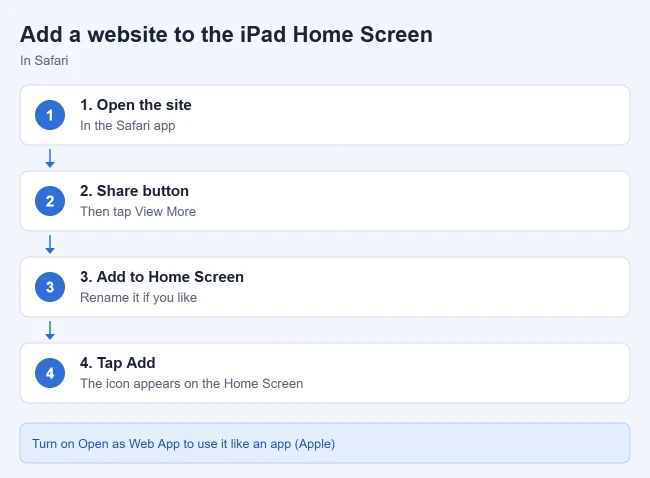
To add a website link to your iPad Home Screen, open the site in Safari, tap the Share button, tap View More, then tap Add to Home Screen and Add. Turn on Open as Web App first if you want the site to open like its own app. To get rid of the icon later, touch and hold it and choose the option to remove it.
The steps come from Apple’s Turn a website into an app in Safari on iPad and Remove or delete apps from iPad. Bookmark steps come from Apple’s Bookmark a website in Safari on iPad.
How to Add a Website to the iPad Home Screen
- Open Safari and go to the website or page you want.
- Tap the Share button, then tap View More.
- Tap Add to Home Screen. You can change the name in the box that appears.
- Turn on Open as Web App if you want it to open like its own app.
- Tap Add.
Result: An icon for the site appears on your Home Screen. Apple notes the icon only appears on the device where you add it, so adding it on your iPad won’t put it on your iPhone.
Why Some Icons Look Better Than Others
Some websites provide their own Home Screen icon. If a site doesn’t, your iPad uses a small thumbnail of the page instead.
What “Open as Web App” Does
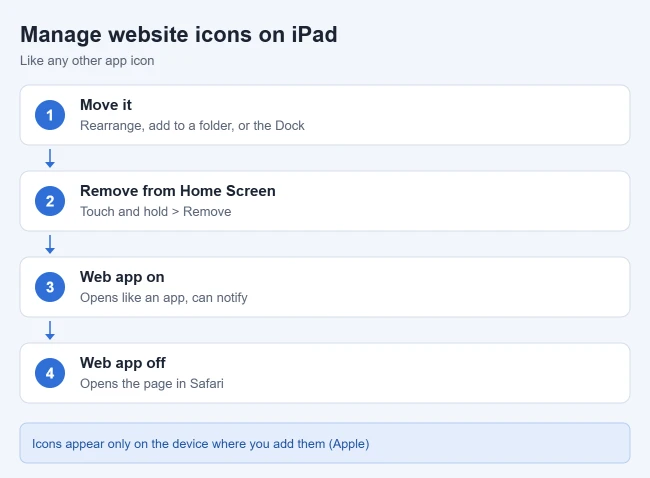
Apple says that with Open as Web App on, tapping the icon opens the website just like an app. You can receive notifications from the web app and quit it like any other app. With it off, the icon simply opens the page you saved in Safari.
How to Organize Website Icons
A website icon behaves like a regular app icon. You can move it around the Home Screen, put it in a folder, or drag it to the Dock. Our guide on how to change the apps in the iPad Dock shows the drag steps.
How to Remove a Web Link From the Home Screen
- Touch and hold the website icon on the Home Screen.
- Choose the option to remove or delete it. The exact wording depends on your iPadOS version.
- Confirm.
Apple’s general rule for Home Screen icons is that Remove from Home Screen moves an app to App Library, while Delete removes it from the iPad.
Home Screen Icon or Safari Bookmark?
Apple treats these as two separate ways to get back to a site. A Home Screen icon opens the site with one tap from anywhere. A Safari bookmark lives inside Safari: open the site, tap the Page Menu button, tap Add Bookmark to, choose a location, and tap Save. To see your bookmarks, tap the Show Sidebar button and then Bookmarks, and touch and hold one to edit or delete it.
Frequently Asked Questions
Can I add a website to the Home Screen from another browser?
Apple’s steps are for Safari. Older guides say only Safari can create these icons, so check your browser’s Share menu for an Add to Home Screen option if you use a different one.
Can I add a specific page instead of the site’s home page?
Yes. The icon opens the specific page you were on when you added it, so go to that page first.
Related Guides
- How to show the favorites bar in Safari on iPad
- How to print a web page on iPad
- How to close apps on iPad
If your Home Screen is getting crowded, you can also remove Home Screen widgets and turn off Today View on the lock screen.

Matthew Burleigh is the founder, head writer, and editor of Solve Your Tech, which he launched in 2012. He has written technology tutorials since 2008 and worked in IT since 2003, including small-business support, IT management, and consulting. He holds Bachelor’s and Master’s degrees in Computer Science from Arizona State University.
Matthew writes practical guides for Windows, iPhone and iPad, Microsoft Office, Outlook, Google apps, and Android. Solve Your Tech’s guides are tested on current devices or checked against official product documentation, with clear steps, sources, and update dates.
Read more about Matthew and how Solve Your Tech writes and updates its guides, or report a correction.