To turn on spell check in Word, go to File > Options > Proofing and check Check spelling as you type. Word then underlines misspelled words in red as you type, and you can press F7 at any time to check the whole document.
These steps cover Word for Microsoft 365, Word 2024, Word 2021, Word 2019 and Word 2016 on Windows, plus Word for Mac and Word for the web. Word 2010 and Word 2013 use the same File > Options > Proofing path. The steps follow Microsoft’s Check spelling and grammar in Office guide.
Turn On Automatic Spell Check (Windows)
Spell check is on by default in a fresh copy of Word, so if you’re here, it was probably turned off in Options, for one document, or for some of the text. These steps fix the first two.
- Open Word and select File at the top left.
- Select Options at the bottom of the left pane. (On a small screen, select More first.) The Word Options window opens.
- Select Proofing in the left column.
- Under When correcting spelling and grammar in Word, check Check spelling as you type. Check Mark grammar errors as you type too if you want grammar help.
- Scroll to Exceptions for at the bottom. Make sure Hide spelling errors in this document only is unchecked.
- Select OK.
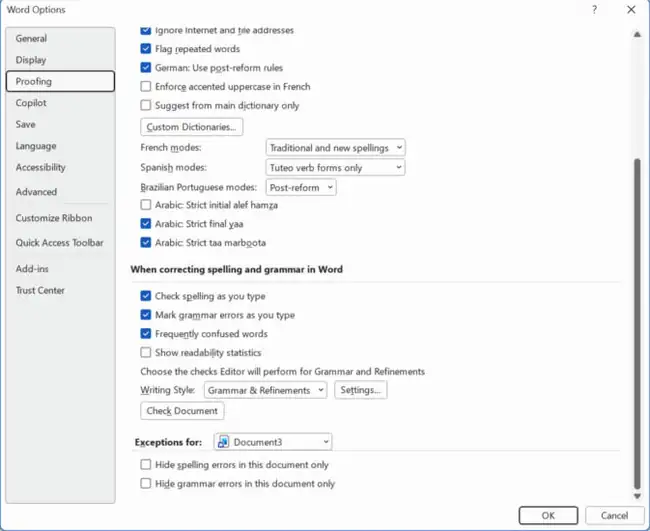
Word marks possible spelling errors with a red squiggly line and, if grammar checking is on, grammar issues with a blue line. In Word for Microsoft 365, you may also see purple underlines for style suggestions, which Microsoft calls refinements. If the underlines don’t appear right away, close Word and open it again.
To test it, type a deliberate mistake such as “recieve.” A red line should show up under it within a second or two.
Check the Whole Document
- Press F7. In Word for Microsoft 365 you can also select Editor on the Home tab. In older versions, go to Review and select Spelling & Grammar.

- Go through each flagged item. Select a suggestion to fix it, select Ignore Once to skip it, or select Add to Dictionary for names and terms Word doesn’t know.
- Keep going until Word tells you the check is complete.
Words you add to the dictionary won’t be flagged again in any Office app. Microsoft notes that items you ignore come back if you close and reopen the document and run the check again.
When the same misspelling shows up many times, you can find and replace it in Word in one pass.
Fix a Single Word
Right-click any underlined word and choose a suggestion, Ignore All, or Add to Dictionary. This is the fastest way to fix typos as you go without opening the full check.
Know What Spell Check Misses
Spell check only catches words that aren’t in its dictionary. A real word in the wrong place, such as “their” for “there” or “form” for “from,” usually gets through. The Frequently confused words option in Proofing catches some of these, and having Word read your document out loud helps you hear the rest.
Word for Mac
- Select Word in the menu bar at the top of the screen, then Settings (called Preferences in older versions of Word and macOS).
- Under Authoring and Proofing Tools, select Spelling & Grammar.
- Check Check spelling as you type, then close the window.
Red underlines appear under misspelled words. To check the whole document on a Mac, go to Review and select Spelling & Grammar (or Editor in Word for Microsoft 365). To fix the proofing language on a Mac, select your text, then go to Review > Language.
Word for the Web
Word for the web checks spelling automatically, and there’s no Options window. If you don’t see underlines:
- Select Editor on the Home tab to open the Editor pane and see every flagged word.
- To change what gets checked, go to Review > Editor > Editor Settings and make sure spelling is turned on.
- If the wrong language is set, select the text and go to Review > Editor > Set Proofing Language, pick the language, and select OK.
To add a word to the dictionary in the browser, select the underlined word, open the three-dot menu on the suggestion card, and choose Add to Dictionary.
Turn Grammar Checking Off but Keep Spelling
In File > Options > Proofing, clear Mark grammar errors as you type and Check grammar with spelling (if your version shows it). Not every Office app shows both options. Spelling checks keep working.
Spell Check vs. AutoCorrect
They’re separate features. Spell check underlines mistakes and waits for you. AutoCorrect fixes common typos as you type, such as changing “teh” to “the.” AutoCorrect’s settings are under File > Options > Proofing > AutoCorrect Options, so turning spell check off won’t stop AutoCorrect, and turning it on won’t add AutoCorrect.
Turn Spell Check Off
Go back to File > Options > Proofing and uncheck Check spelling as you type. You can still press F7 to run a check when you’re ready. To hide the red lines in just one document, use the Exceptions for options instead.
If Spell Check Still Isn’t Working
Work through these in order. Most fixes take less than a minute.
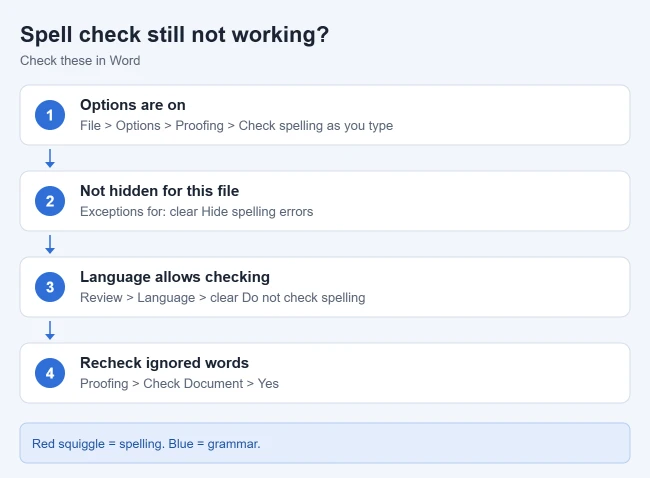
- Check the language. Press Ctrl + A to select all text, go to Review > Language > Set Proofing Language, and make sure Do not check spelling or grammar is unchecked. Pick the right language while you’re there and select OK.

- Check the editing language. Go to File > Options > Language and make sure the language you write in is listed for editing. If proofing tools aren’t installed for it, Word can’t check spelling in that language.
- Recheck ignored words. In File > Options > Proofing, select Recheck Document (some versions show Check Document), select Yes at the warning, then OK. This resets words and grammar you previously told Word to ignore. Press F7 again.
- Check a style. Text copied from a website or email can carry the “don’t check” setting with it. Reapply the Normal style or set the proofing language as in step 1.
- Check the document exception. The Exceptions for boxes only hide errors in one file, so a single document can look unchecked while others are fine.
- Test without add-ins. Grammar tools and other add-ins can take over or block Word’s checker. Press Windows + R, type winword /safe, and press Enter to start Word without add-ins. If spell check works there, go to File > Options > Add-ins, choose COM Add-ins next to Manage, select Go, and clear add-ins one at a time.
- Repair Office. If nothing else works, right-click Start, select Installed apps, find Microsoft Office or Microsoft 365, select the three dots, and choose Modify. Try Quick Repair first, then Online Repair. Microsoft’s repair guide notes that this repairs the whole Office suite.
If Word won’t start at all after a repair, see Microsoft Word won’t open: startup checks and fixes.
A Misspelled Word Isn’t Flagged
You may have added it to the dictionary by mistake. Go to File > Options > Proofing, select Custom Dictionaries, choose your dictionary (usually CUSTOM.DIC), and select Edit Word List. Delete the wrong entry and select OK.
Frequently Asked Questions
What is the shortcut for spell check in Word?
Press F7 on Windows to check the whole document. On a Mac, use Review > Spelling & Grammar.
Why does Word flag a word I know is spelled correctly?
It isn’t in Word’s dictionary, or the text is set to a different language. Right-click it and select Add to Dictionary, or check the proofing language.
Does spell check work in Excel and Outlook?
Outlook checks as you type; its setting is under File > Options > Mail > Spelling and Autocorrect. Automatic checking isn’t available in Excel, but you can press F7 there to run a manual check.
Why is spell check only off in one document?
That document probably has Hide spelling errors in this document only checked, or its text is set to Do not check spelling or grammar.
Do I need to restart Word after turning spell check on?
Usually not. Underlines appear as soon as you select OK. If they don’t, close and reopen Word.
Related: stop Word from flagging frequently confused words, or run spell check in Google Docs. If Docs changes words you typed on purpose, turn off AutoCorrect in Google Docs.
If Word removes letters as you type instead of underlining them, turn off overtype mode in Word.

Matthew Burleigh is the founder, head writer, and editor of Solve Your Tech, which he launched in 2012. He has written technology tutorials since 2008 and worked in IT since 2003, including small-business support, IT management, and consulting. He holds Bachelor’s and Master’s degrees in Computer Science from Arizona State University.
Matthew writes practical guides for Windows, iPhone and iPad, Microsoft Office, Outlook, Google apps, and Android. Solve Your Tech’s guides are checked step by step against the device or app maker’s own documentation and tested on his own devices whenever he has the hardware or software, with clear steps, sources, and update dates.
Read more about Matthew and how Solve Your Tech writes and updates its guides, or report a correction.