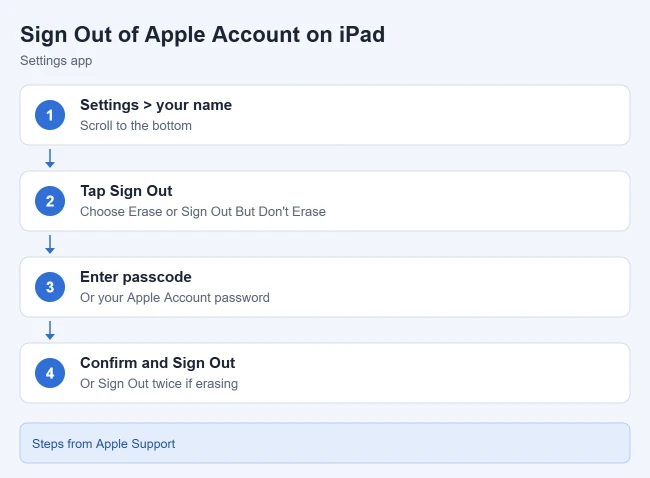
To sign out of your Apple Account on iPad, open Settings, tap your name, scroll to the bottom, and tap Sign Out. Choose Sign Out But Don’t Erase to keep using the iPad, or Erase this iPad if you’re giving it away. Enter your passcode or Apple Account password, then confirm.
These steps match iPadOS 26 and the current iPadOS 27. Apple renamed Apple ID to Apple Account, so older screens and guides may still say Apple ID. Steps for iPadOS 18 and earlier are below. The instructions follow Apple’s Sign out of your Apple Account and iCloud on your devices, If you can’t sign out due to restrictions and Sign in and manage your Apple Account on iPad.
Before You Sign Out
Apple suggests these steps to help prevent data loss:
- Make sure you have an up-to-date iCloud backup.
- If you recently changed content synced with iCloud, wait, or check iCloud.com or another device to make sure the changes synced.
- Not everything is backed up in iCloud, so make sure you can get to anything that isn’t synced. Apple also suggests keeping a copy of the information you store in iCloud.
- If you don’t know your Apple Account password, change it before you sign out of a trusted device.
How to Sign Out of Your Apple Account on iPad
- Open the Settings app.
- Tap your name at the top. Your Apple Account screen opens.
- Scroll to the bottom and tap Sign Out.
- Choose Sign Out But Don’t Erase or Erase this iPad. If you’re asked which account to sign out of, tap Sign out of iCloud and Store.
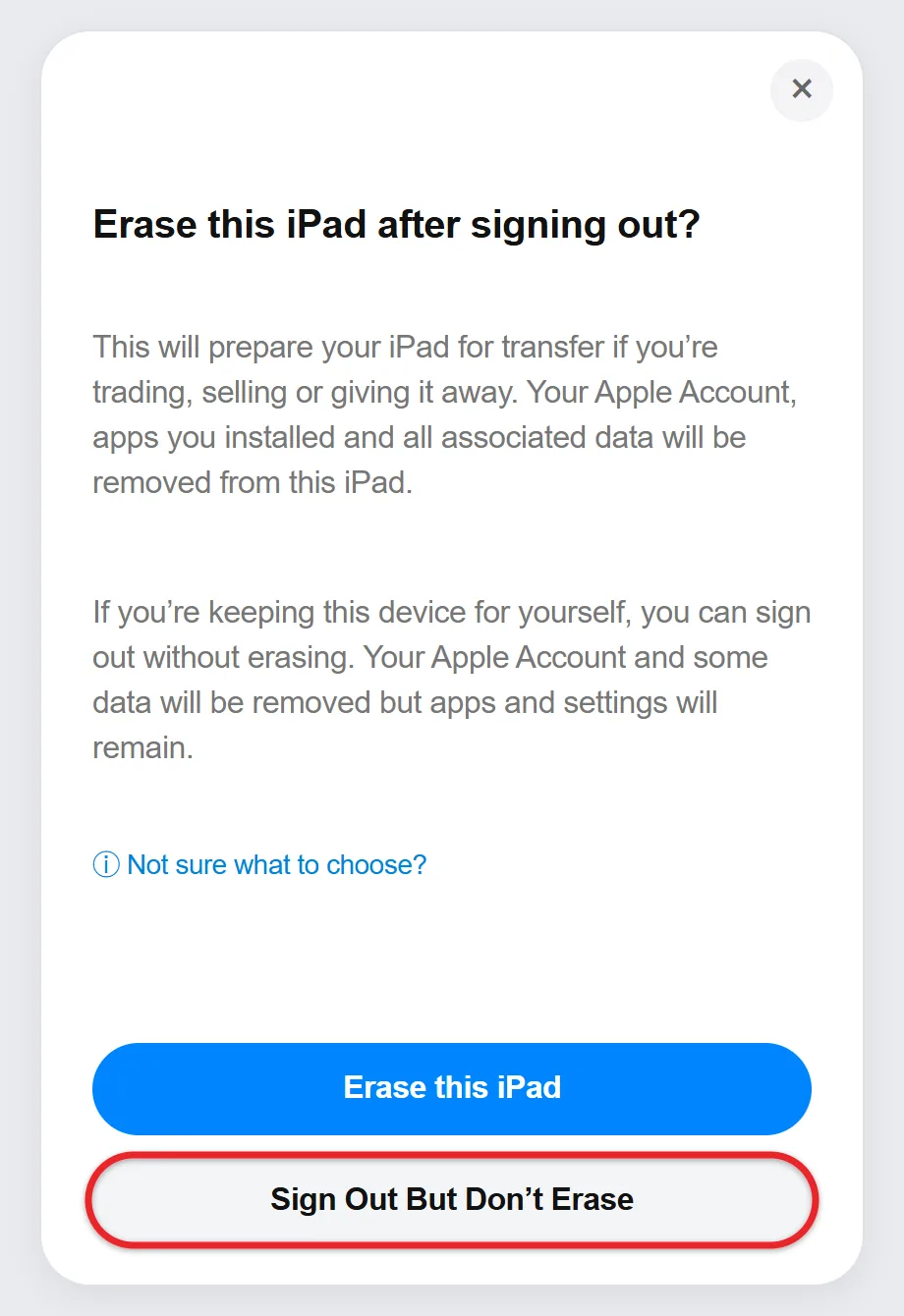
- Follow the prompts. They list what stays on the iPad and what gets erased.
- Enter your iPad passcode or Apple Account password.
- Tap Confirm and Sign Out. If you chose to erase, tap Sign Out, then Sign Out again.
When it’s done, the top of Settings shows Apple Account with a sign-in prompt instead of your name. You’re signed out of iCloud, the App Store and other Apple media services, iMessage and FaceTime on this iPad. Your iCloud data stays in iCloud, but it’s removed from the iPad unless you choose to keep a copy when asked.
If you’re replacing this iPad, transfer your data to the new iPad before you sign out and erase it.
Using an iPhone instead? Here’s how to sign out of your Apple Account on iPhone.
On iPadOS 18 and Earlier
- Open Settings and tap your name.
- Scroll down and tap Sign Out.
- Enter your Apple Account password and tap Turn Off. This turns off Find My for the iPad.
- Turn on any data you want to keep a copy of on the iPad, such as Contacts.
- Tap Sign Out, then tap Sign Out again to confirm.
What Turns Off When You Sign Out
Signing out turns off iCloud features on the device, including:
- Find My and iCloud Backup
- iCloud Photos, iCloud Drive, iCloud Mail, Shared Albums and Messages in iCloud
- iCloud Keychain, Notes and Reminders
- Apple Pay, Apple Cash and Apple Card
- Updates to contacts, calendars, bookmarks and Safari tabs
- Home app control of your accessories, Game Center and Shortcuts
- Handoff, Universal Clipboard and other Continuity features
- App data that third-party apps keep in iCloud
With iCloud+, you also lose access to Private Relay, Hide My Email, HomeKit Secure Video and custom email domains on that device. If you only want to stop some features, change your iCloud settings instead of signing out. Apps and files stored only on the iPad stay unless you choose to erase it.
Can’t Sign Out? Fix Screen Time Restrictions
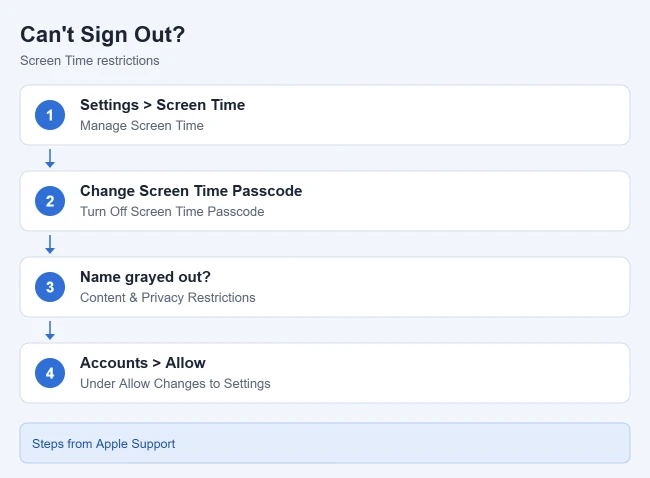
If you see “Sign out is not available due to restrictions,” you might have a Screen Time passcode turned on. Go to Settings > Screen Time > Manage Screen Time > Change Screen Time Passcode > Turn Off Screen Time Passcode.
If your name is grayed out in Settings, go to Screen Time > Content & Privacy Restrictions > Allow Changes to Settings and set Accounts to Allow. On a child’s iPad in Family Sharing, a parent or guardian has to make this change.
If a school or employer manages the iPad, its settings can block account changes. Ask that organization’s IT administrator instead of trying to remove the management profile yourself.
How to Sign Back In
Open Settings, tap Apple Account, and choose Use Another Apple Device (with an iPhone or iPad on iOS 17, iPadOS 17 or later nearby) or Sign in Manually with your email or phone number and password. Enter your verification code if you use two-factor authentication.
Switch to Another Apple Account on iPad
Sign out first using the steps above. Then open Settings, tap Apple Account, choose Sign in Manually, and enter the other account’s email or phone number, password and verification code. Check that Settings shows the right account before you turn on iCloud sync. Signing in to another account does not move the first account’s purchases or iCloud files. Apple’s sign-in instructions for iPad cover these steps.
To check which account your iPhone uses before you switch, read how to find which Apple ID your iPhone uses.
If You’re Selling or Giving Away the iPad
Apple’s checklist for selling or giving away a device puts the steps in this order:
- Back up the iPad.
- Sign out of your Apple Account using the steps above.
- Go to Settings > General > Transfer or Reset iPad > Erase All Content and Settings, then tap Erase iPad. If the iPad uses an eSIM, choose to erase the eSIM too when asked.
- Remove the iPad from your list of devices (see the remote steps below).
Don’t delete photos or notes one by one while you’re still signed in. That deletes them from iCloud and your other devices too.
If You Do Not Know the Account Password
Erasing an iPad does not get around Activation Lock. Your Apple Account password is required to turn off Find My or erase the device, and Activation Lock keeps protecting an iPad even after a remote erase. If you forgot your password, reset it with Apple’s forgotten-password steps, then sign out. If the account belongs to someone else, ask that person to sign out or remove the iPad from their account.
Locked out because you forgot the passcode? You can reset an iPad without its passcode.
Remove an iPad From Your Apple Account Remotely
To remove an iPad you no longer have from your Apple Account:
- Sign in at account.apple.com and select Devices.
- Select the iPad. Verify your identity if asked.
- Select Remove from Account, read the message, and confirm.
- Check the device list to make sure the iPad is gone.
You can also do this from another iPhone or iPad signed in to the same account. Go to Settings > your name, select the iPad, and tap Remove from Account. Apple’s device-list guide covers both routes. An iPad that’s still signed in can show up again when it reconnects, so sign out on the iPad itself if you have it.
Removing an iPad from your account list doesn’t erase it or turn off Activation Lock. If the iPad is lost or stolen, use Find Devices on iCloud.com to mark it lost or erase it before you remove it, then change your Apple Account password.
Frequently Asked Questions
Will signing out delete my photos?
Information stored in iCloud stays in iCloud. It’s removed from the iPad unless you choose to keep a copy when prompted, so make sure your photos are synced or backed up first.
Do I need to sign out before erasing the iPad?
Signing out before erasing is part of Apple’s checklist for selling a device. The Settings erase also asks for your Apple Account password if Find My is on, so have it ready.
What if I no longer have the iPad?
If you can’t get to the device to sign out, you can remove it from your Apple Account instead.
Related Guides

Matthew Burleigh is the founder, head writer, and editor of Solve Your Tech, which he launched in 2012. He has written technology tutorials since 2008 and worked in IT since 2003, including small-business support, IT management, and consulting. He holds Bachelor’s and Master’s degrees in Computer Science from Arizona State University.
Matthew writes practical guides for Windows, iPhone and iPad, Microsoft Office, Outlook, Google apps, and Android. Solve Your Tech’s guides are checked step by step against the device or app maker’s own documentation and tested on his own devices whenever he has the hardware or software, with clear steps, sources, and update dates.
Read more about Matthew and how Solve Your Tech writes and updates its guides, or report a correction.