You see Share App instead of an X because touching and holding an app now opens a Quick Actions menu rather than putting the app in delete mode. To delete the app, tap Remove App in that same menu, then Delete App, then Delete. The small X on app icons was replaced years ago, first by 3D Touch menus and now by the Remove App option.
This covers iPhones running iOS 27, and the same menu appears on recent earlier versions such as iOS 26 and iOS 18. It explains why the menu appears, how to delete an app from it, what to do if the icons start jiggling, the difference between removing and deleting, and why some apps can’t be deleted.
On older versions of iOS, holding an app made every icon wiggle with a small X in the corner. On the iPhone 6s through iPhone XS and other 3D Touch models, pressing firmly instead opened a menu with options like Share, which is why many people first ran into this. Current iPhones use Haptic Touch: Apple’s Quick Actions guide says that when you touch and hold an app on the Home Screen or in App Library, a Quick Actions menu opens.
That menu shows shortcuts for the app (for example, New Note for Notes or Selfie for Camera), and for many apps a Share App option that sends a link to the app’s App Store page. It also includes Edit Home Screen and Remove App, which is where deleting now lives. The X isn’t missing; it has been replaced.
How to Delete an App on iPhone
These steps follow Apple’s Remove or delete apps guide and its Delete apps on your iPhone or iPad article.
- Touch and hold the app on the Home Screen or in App Library. The Quick Actions menu opens. Lift your finger as soon as it appears.
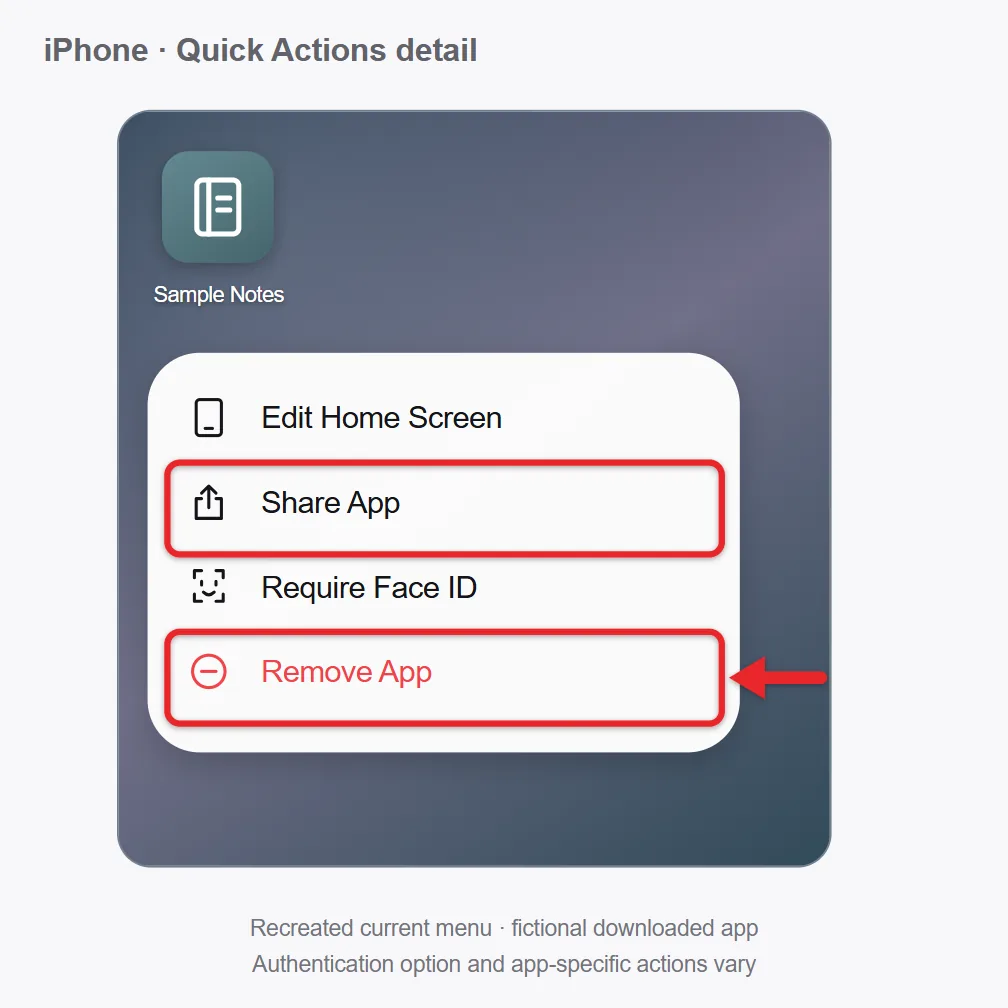
- Tap Remove App. You’re asked whether to delete the app or remove it from the Home Screen.
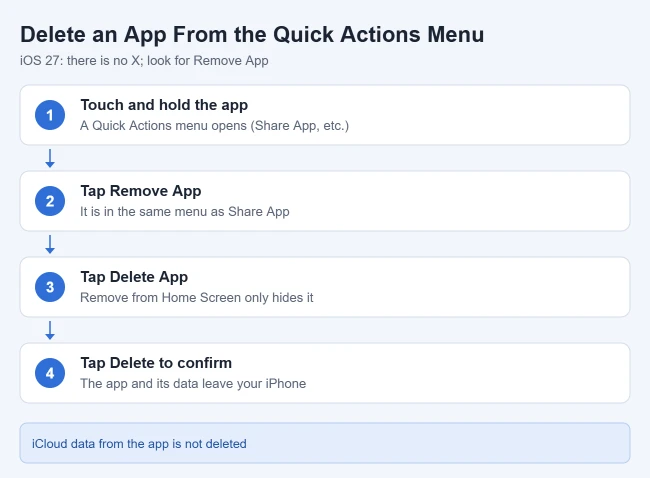
- Tap Delete App. A confirmation appears.
- Tap Delete. The app and its data are removed from your iPhone.
Apple notes that data the app stored in iCloud, such as documents, isn’t deleted. It may also take a moment for your available storage to update. Before you delete, cancel any in-app subscriptions you don’t need, because deleting an app doesn’t cancel them.
Remove from Home Screen vs. Delete App
- Remove from Home Screen: hides the icon. The app moves to App Library and still works from there.
- Delete App: uninstalls the app and removes its data from your iPhone.
If the app seems to come back, you probably chose Remove from Home Screen. Find it in App Library (swipe left past your last Home Screen page) and delete it from there.
If Your Apps Start Jiggling Instead
If you hold an app too long before choosing an option, all the apps begin to jiggle. You can delete from here too:
- Tap the Remove icon (a minus sign) in the upper-left corner of the app. Delete options appear.
- Tap Delete App, then Delete to confirm. The app is removed.
- Tap Done at the top of the screen. The icons stop jiggling.
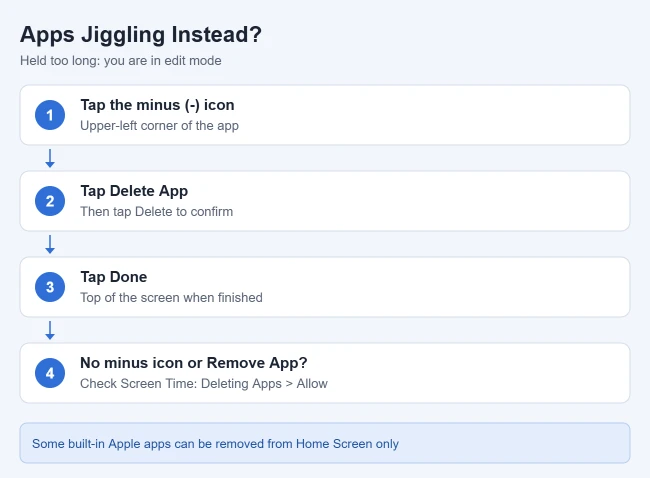
On an iPhone with a Home button, pressing the Home button also exits jiggle mode. On older versions of iOS, jiggling icons showed a small X instead of the minus sign. The steps are the same: tap the X, tap Delete, then press the Home button to finish.
Other Ways to Delete an App
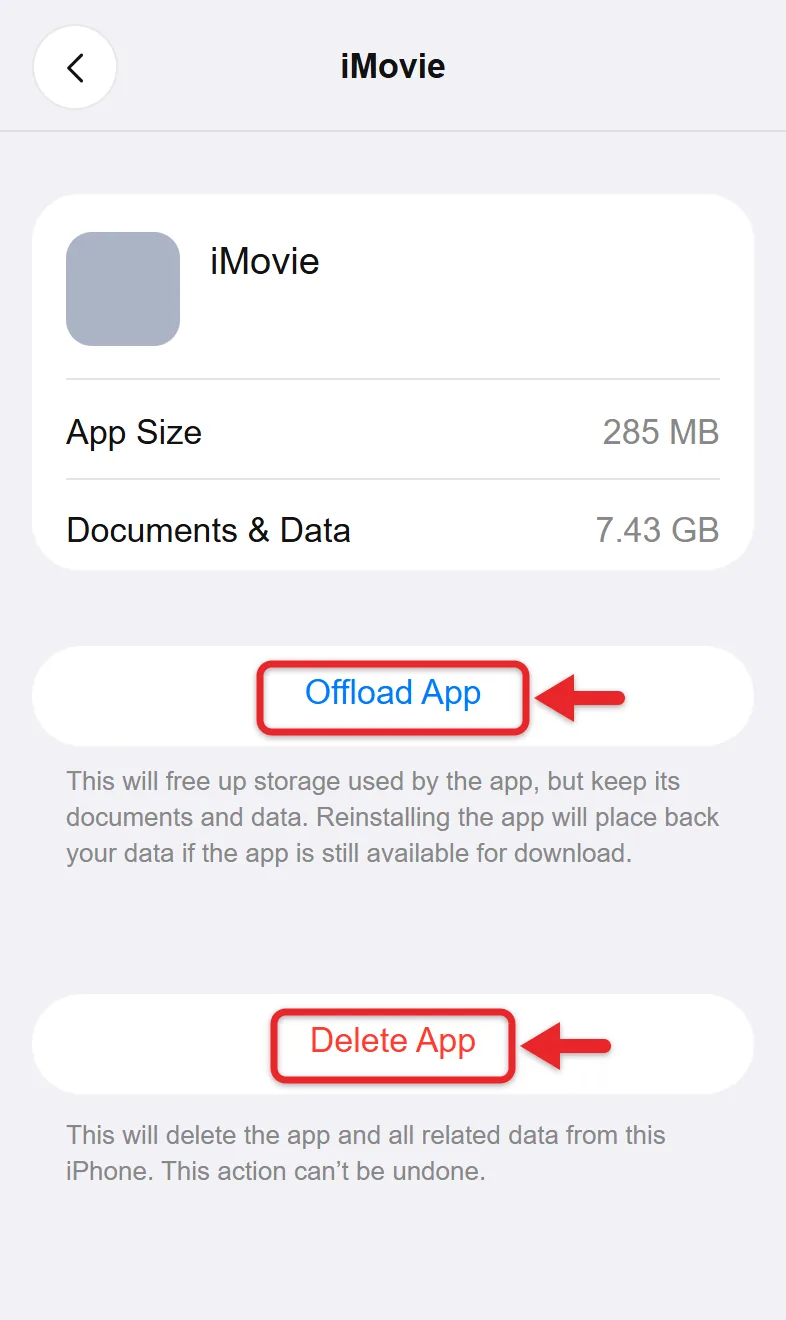
- From Settings: open Settings, tap General, then tap iPhone Storage. Wait for the app list to load, tap the app, then tap Delete App and confirm. This screen also shows how much space each app uses, as described in Apple’s check your iPhone storage article.
- From Spotlight: you can delete apps from Spotlight as well. Swipe down from the middle of the Home Screen, search for the app, then touch and hold it to get the same menu.
- Offload instead of delete: on the same iPhone Storage screen, tap Offload App. Offloading frees the storage the app uses but keeps its documents and data.
- Let iPhone offload unused apps: in Settings > Apps > App Store, turn on Offload Unused Apps. iPhone then removes apps you don’t use when storage is low and keeps their data.
Offloaded apps show a cloud next to their names. See why there’s a cloud icon next to an app to learn how to get them back. For more ways to make room, check the storage recommendations. You can view all of them on iPhone.
Make the Menu Easier to Open
If the menu opens too quickly or too slowly, Apple’s touch settings guide explains how to change it: go to Settings > Accessibility > Touch > Haptic Touch and choose Fast or Slow. You can test the setting on the image at the bottom of that screen. On a 3D Touch iPhone, a light touch and hold works better than a hard press.
When There’s No Remove App or Delete Option
Apple’s If you can’t delete an app on your iPhone article lists these causes. Start by updating iOS in Settings > General > Software Update, then try again.
- Built-in Apple apps: some can be removed from the Home Screen but not deleted. In the European Union, more built-in apps may be deletable.
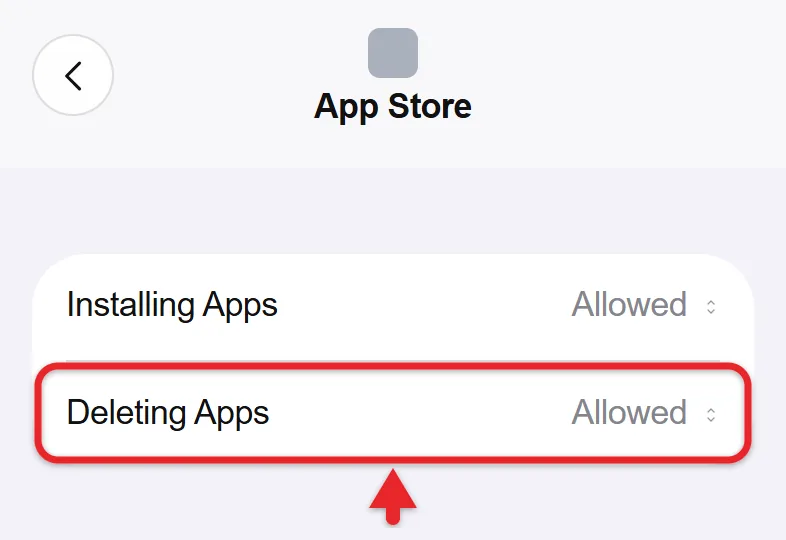
- Screen Time restrictions: go to Settings > Screen Time > Apps & Websites > Restrictions and make sure Deleting Apps is set to Allowed. On older iOS versions, look under Content & Privacy Restrictions > iTunes & App Store Purchases. You may need the Screen Time passcode; if a parent set it, ask them.
- Managed devices: go to Settings > General > VPN & Device Management. If a profile is listed under Mobile Device Management, a school or employer manages the iPhone. Ask that IT team whether the app can be deleted.
- Screen-limiting apps: third-party apps that restrict app use can block deletion. Check that app’s settings, or contact its developer.
If none of these apply and the menu still won’t respond, restart the iPhone and try again.
How to Get a Deleted App Back
You can reinstall any app you previously downloaded if it’s still in the App Store. Open the App Store, search for the app’s name, and tap the download button (a cloud with an arrow). You don’t pay again for an app you already bought with the same Apple Account. Data that was stored only on the iPhone doesn’t come back.
What does Share App do?
It opens the share sheet with a link to the app’s App Store page, so you can send it to someone. It doesn’t send the app itself or any of your data.
Why does my menu show Share App but no Remove App?
The iPhone is probably restricted. Check Screen Time’s Deleting Apps setting and the VPN & Device Management screen described above. Some built-in apps also show fewer options.
Does deleting an app delete my account with that service?
No. Deleting an app only removes it from your iPhone. To close an account, contact the service, and cancel any subscriptions separately.
Where can I learn more about deleting things on iPhone?
There is more on deleting apps on iPhone and in the complete guide to deleting items on iPhone. If the vibration when you hold an icon bothers you, you can turn off system haptics on iPhone.

Matthew Burleigh is the founder, head writer, and editor of Solve Your Tech, which he launched in 2012. He has written technology tutorials since 2008 and worked in IT since 2003, including small-business support, IT management, and consulting. He holds Bachelor’s and Master’s degrees in Computer Science from Arizona State University.
Matthew writes practical guides for Windows, iPhone and iPad, Microsoft Office, Outlook, Google apps, and Android. Solve Your Tech’s guides are checked step by step against the device or app maker’s own documentation and tested on his own devices whenever he has the hardware or software, with clear steps, sources, and update dates.
Read more about Matthew and how Solve Your Tech writes and updates its guides, or report a correction.