To view your history in the Microsoft Edge iPhone app, open Edge, tap the menu button (the three dots, …), and tap History. If you do not see History in the menu, tap Settings and then History. The pages you visited appear in a list, and tapping one opens it again.
This guide is for the current Microsoft Edge app on an iPhone, and the same app runs on an iPad. You do not need to sign in to see the history stored on your phone. You only need a Microsoft account if you want Edge to share history between your devices. The steps follow Microsoft’s Microsoft Edge for mobile FAQs.
How to view your browsing history in Edge on iPhone
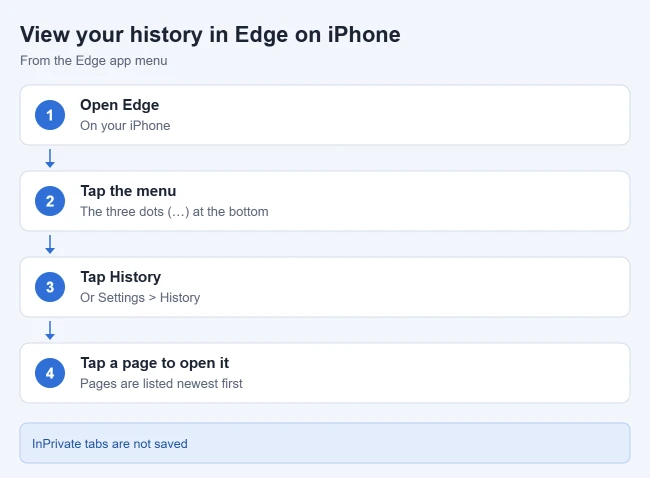
- Open the Edge app on your iPhone.
- Tap the menu button (…). It sits in the toolbar with the tab and navigation buttons.
- Tap History. If the menu does not show it, tap Settings, then History. Microsoft’s FAQ for iOS lists the path as … > Settings > History.
- Scroll through the list to find the page you want.
- Tap a page to open it.
You know it worked when the page you tapped loads in Edge. The history list only covers pages opened in regular tabs. Microsoft says that on iOS devices Edge does not save history or form data for an InPrivate tab, which is Edge’s private browsing mode. See how to open a private browsing tab in Edge on iPhone if you want to browse without adding to this list.
Older instructions, including a 2018 version of this article, describe a star icon at the top of the screen followed by a clock icon. That layout belongs to an old version of the app. If a guide mentions a star icon, use the menu steps above instead.
Reopen a tab you closed by accident
History is also the way to get back a tab you closed by mistake. Microsoft’s advice is to find the page in your history and reopen it.
- Tap the menu (…) > Settings > History, or tap History in the menu if it is shown there.
- Find the page you closed. The most recent visits are normally at the top of the list.
- Tap the page. It opens again in Edge.
This does not work for a closed InPrivate tab, because Edge kept no history for it. Before you look through history, check that the page is not still open: tap the numbered square icon to see all of your open tabs. Our guide to closing tabs in Edge on iPhone shows how that tabs view works.
How to see history from your other devices
By default, the history list shows what you browsed on this iPhone. Microsoft says that when you sign in and sync, Edge shares your favorites, passwords, history, open tabs and other data across the devices that use the same account. Sync is the feature that copies your Edge data between devices through your Microsoft account.
- Tap the menu (…) > Settings.
- Tap your profile picture or your Microsoft account. If you are not signed in, Edge offers a sign-in option here; sign in with the account you use in Edge on your computer.
- Under Sync settings, tap Sync.
- Turn on Sync. The list under it shows the data types you can sync, each with its own toggle.
- Tap Done.
Microsoft’s wording for step 2 differs between its help pages (one says to tap your account under Accounts, another says to select your profile image), so use whichever your version of the app shows. The full process is in Microsoft’s guide to signing in to sync Microsoft Edge across devices. Sync has to be turned on with the same account on each device before history from one can show up on another.
Why a page is missing from your history
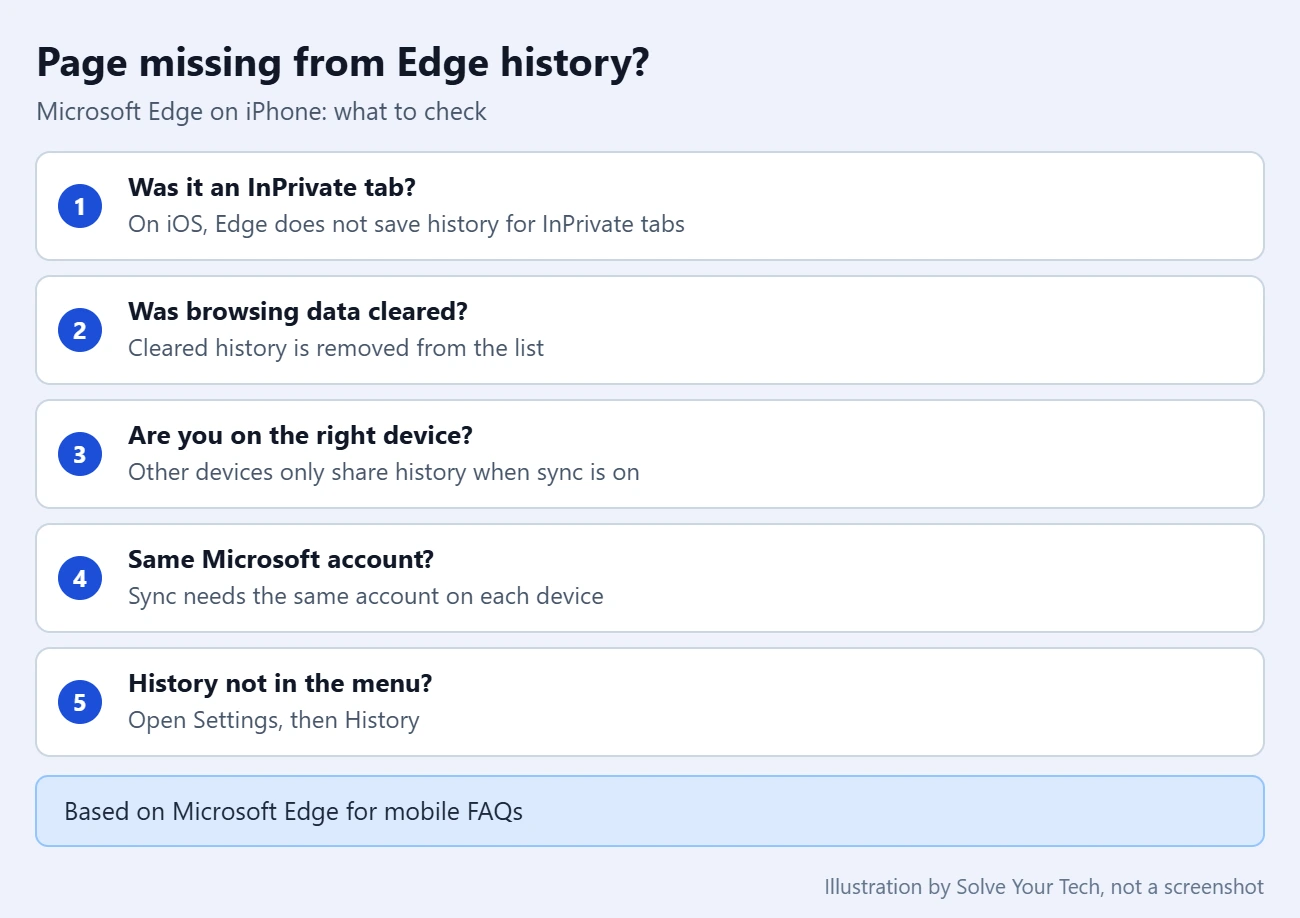
- You were in an InPrivate tab. Edge on iOS does not save history for InPrivate tabs, so there is nothing to show.
- The history was cleared. Clearing browsing data removes the entries from the list. If sync is on, clearing history on another device can remove it here too.
- You visited the page on another device. Without sync, history on your computer stays on your computer.
- You are signed in to a different account. Synced history follows the Microsoft account, so a work or school account will not show history from your personal account.
- You used a different browser. Edge keeps its own history. Pages you opened in Safari or Chrome are stored in those apps, not in Edge.
- History is not in the menu. Look under Settings > History. Edge also lets you rearrange the menu: tap … > Change menu, drag the icons into the order you want, and tap Done.
If the list will not load or the menu looks different from these steps, install the latest version of Edge from the App Store and try again. Menu names change between versions, and Microsoft’s help pages describe the current app.
How to clear your Edge history on iPhone
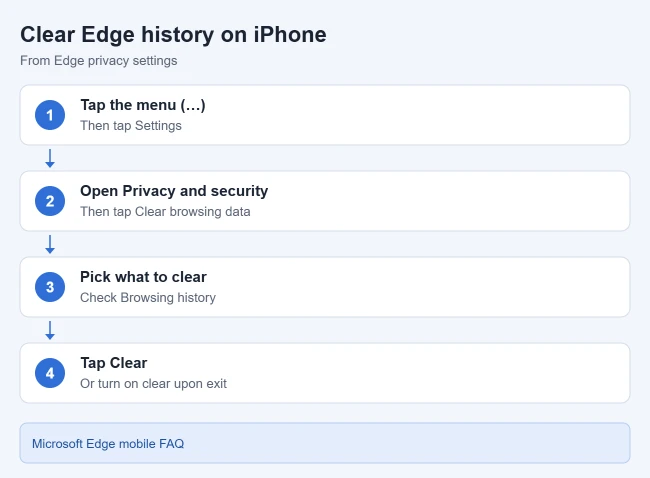
Warning: clearing history cannot be undone, and it may reach beyond your phone. Microsoft warns that deleting data while you are signed in and syncing removes it from all of your synced devices. To clear only this iPhone, turn sync off first.
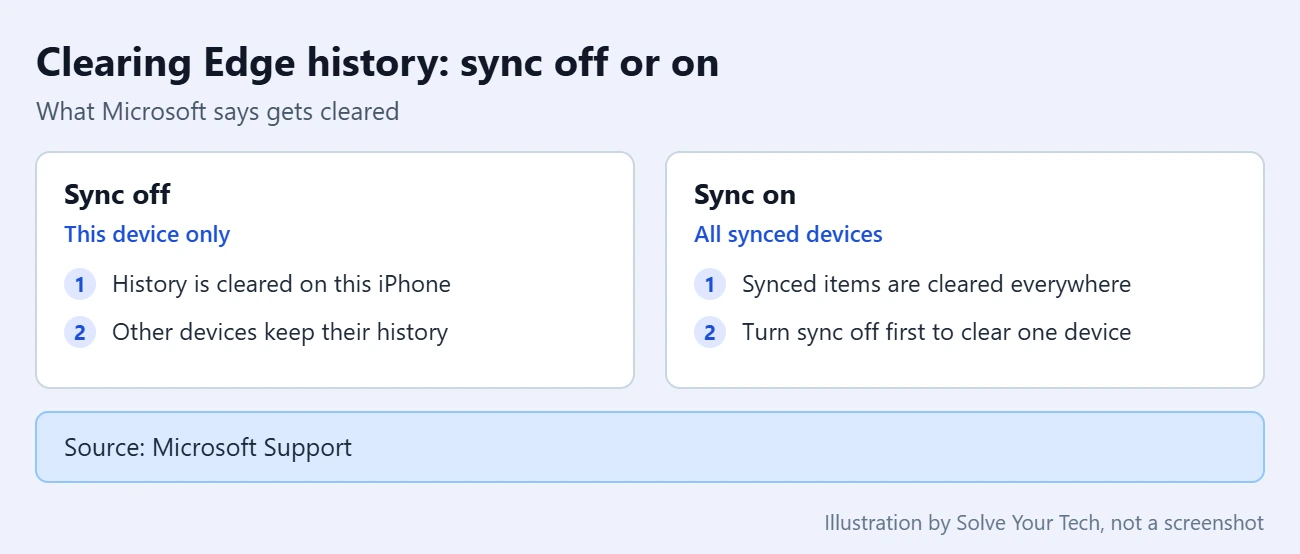
- Tap the menu (…) > Settings.
- Tap Privacy. Depending on your version, the label may read Privacy and security or Privacy & security.
- Tap Clear browsing data.
- Select the types of data you want to remove, such as browsing history. Leave the others unselected if you only want to clear history.
- Tap Clear.
To confirm, open History again. The entries you cleared are gone. Microsoft describes browsing history as the addresses of the sites you visited and the dates and times of each visit, so clearing it does not remove your favorites.
Microsoft’s FAQ also describes a Clear browsing data upon exit switch on the same screen that clears your chosen data each time you close the browser. Microsoft documents that switch in its Android instructions, so it may not appear in the iPhone app. If you do see it and your history keeps disappearing, turn it off.
Edge’s history list may also let you remove one page at a time, usually by swiping left on an entry. Microsoft’s mobile help does not document that gesture, so treat it as something to look for rather than a guaranteed option. For a closer look at clearing, see how to clear history in the Edge iPhone app. History that was synced can also be kept in your Microsoft account. Microsoft’s guide to viewing and deleting browser history in Edge explains that you manage that copy on the Microsoft privacy dashboard, and that deleting it there does not delete it from your device.
Save pages so you do not need to search your history
History is a record, not a safe place to keep a page you need. A favorite, which is Edge’s name for a bookmark, stays put when history is cleared. If the page is one that someone else needs, you can also share a web page link in the Edge iPhone app.
- Add a favorite. While on the page, tap the menu (…) > Add to favorites. Microsoft says the page is saved in Mobile favorites.
- Open your favorites. Tap the menu (…) > Favorites. Microsoft says the Favorites button is on the top row of the menu.
- Find older saved pages. See where saved pages and the old Reading list are in the Edge iPhone app.
Frequently asked questions
Where is the History button in Edge on iPhone?
Tap the menu button (…) and look for History. If it is not in the menu, tap Settings and then History, which is the path Microsoft lists for iOS.
Why is my Edge history empty on iPhone?
The usual reasons are that you browsed in InPrivate tabs, your browsing data was cleared, or you are looking for pages you opened on another device without sync turned on. If your app has a Clear browsing data upon exit switch, check that it is off.
Does Edge on iPhone use Safari history?
No. Edge keeps its own history, separate from Safari and other browsers on your iPhone. To see Safari pages, open the history in Safari.
Can I see my computer’s Edge history on my iPhone?
Yes, if both devices are signed in to Edge with the same Microsoft account and sync is turned on with history included. Microsoft lists history among the data types Edge syncs across devices.
Can I view history from InPrivate tabs?
No. Microsoft says Edge on iOS does not save history or form data for InPrivate tabs, so there is no InPrivate history to view. To move between the two tab groups, see how to switch between regular and InPrivate tabs in Edge on an iPhone.
Can I get back history after I clear it?
Microsoft’s help pages do not describe a way to restore cleared history in the app. Save important pages as favorites before you clear anything.
Next step
Open Edge, tap the menu (…), and find History once so you know where it is. Then add the pages you return to most as favorites. Looking for more Edge tweaks? Here’s how to block ads in Microsoft Edge on an iPhone.

Matthew Burleigh is the founder, head writer, and editor of Solve Your Tech, which he launched in 2012. He has written technology tutorials since 2008 and worked in IT since 2003, including small-business support, IT management, and consulting. He holds Bachelor’s and Master’s degrees in Computer Science from Arizona State University.
Matthew writes practical guides for Windows, iPhone and iPad, Microsoft Office, Outlook, Google apps, and Android. Solve Your Tech’s guides are tested on current devices or checked against official product documentation, with clear steps, sources, and update dates.
Read more about Matthew and how Solve Your Tech writes and updates its guides, or report a correction.