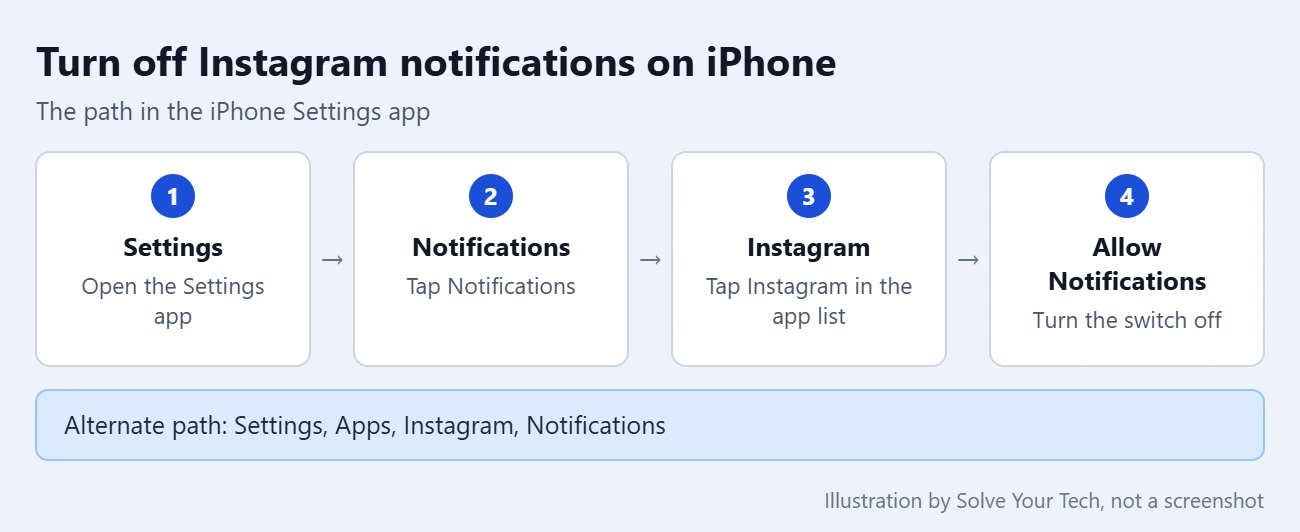
To stop Instagram notifications on an iPhone, open Settings, tap Notifications, tap Instagram, and turn off Allow Notifications. That one switch blocks every Instagram alert on the phone until you turn it back on.
If you only want fewer alerts, or a short break, you do not have to turn everything off. Instagram has its own notification controls inside the app, and the iPhone has several quieter options. This guide covers each one, when to use it, and how to undo it.
How to Stop Instagram Notifications on iPhone: Quick Steps
- Open Settings.
- Tap Notifications.
- Tap Instagram in the list of apps.
- Turn off Allow Notifications.
Before You Start
These steps follow Apple’s current iPhone User Guide. The Notifications menu has been in the Settings app for many iOS versions, so the path is the same on older iPhones, although the screens look a little different.
- Instagram must be installed. An app only appears in the Notifications list after it is installed and has asked for permission to send notifications.
- This only affects this iPhone. Turning off the switch does not change Instagram on an iPad, a computer, or another phone. Emails from Instagram are not iPhone notifications, so this switch does not stop them either.
- Nothing is deleted. Your messages, likes, comments, and follow requests are still waiting inside Instagram. You just will not be told about them until you open the app.
Keep that last point in mind before you continue. With notifications off, you will not get an alert for a new direct message, so check the app yourself if you are expecting one.
Turn Off All Instagram Notifications in iPhone Settings
A push notification is an alert an app sends to your phone even when the app is closed. The iPhone decides whether an app is allowed to send them, which is why the most complete off switch is in the iPhone Settings app and not in Instagram.
- Open the Settings app. It is the gray gear icon.
- Tap Notifications.
- Scroll down to the list of apps under Notification Style and tap Instagram. The apps are listed in alphabetical order.
- Tap the switch next to Allow Notifications to turn it off.
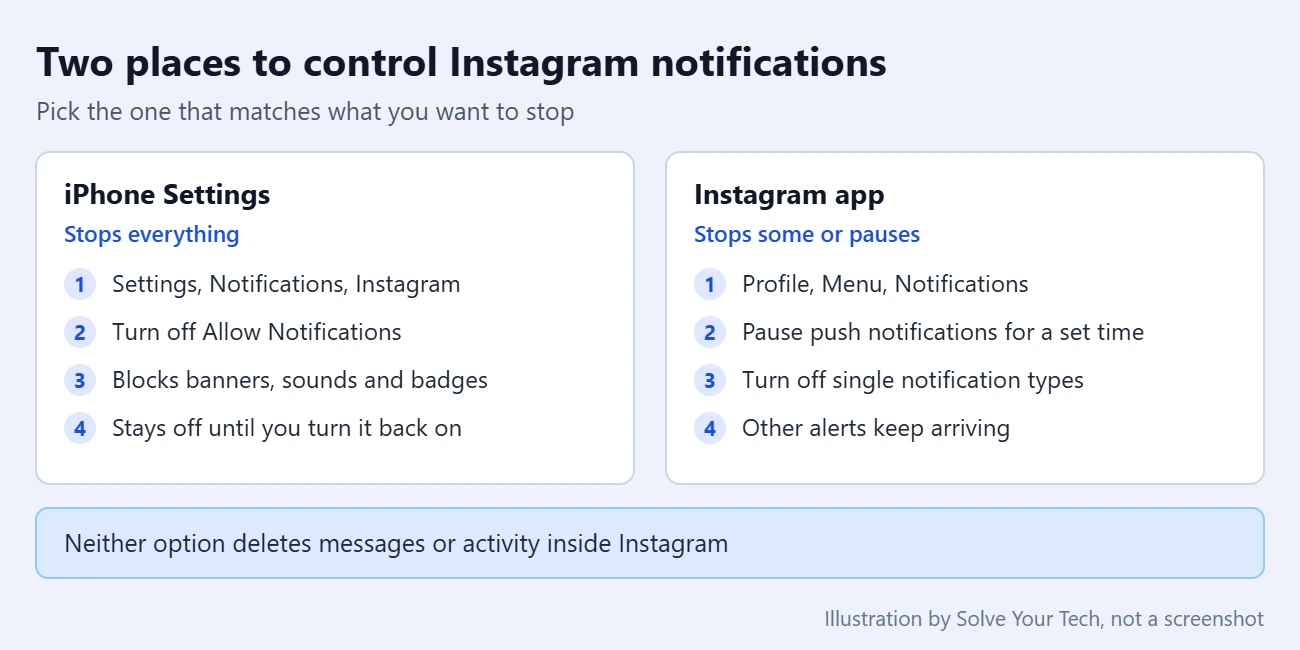
When the switch is off, it is no longer green, and the other options on the screen are hidden because they no longer apply. Instagram can no longer show banners, play sounds, or put alerts on your Lock Screen.
Apple documents this procedure in Change notification settings on iPhone.
Another path: Settings > Apps > Instagram
Apple also describes a second route to the same switch. In the Settings app, tap Apps, tap Instagram, tap Notifications, and then turn off Allow Notifications. The Apps menu is only in newer versions of iOS. If you do not see it, use the Notifications path above. Apple’s short version of these steps is in Turn notifications on or off for a specific app on your iPhone.
Turn it off from a notification
If an Instagram notification is already on your Lock Screen or in Notification Center, swipe left over it and tap Options. Apple lists these choices: Mute for 1 Hour, Mute for Today, View Settings, and Turn Off. Tap Turn Off to stop Instagram notifications, or pick one of the mute options for a short break.
Keep Some Instagram Notifications and Turn Off the Rest
If you still want to know about messages but not about everything else, leave Allow Notifications on and use the controls inside the Instagram app. Instagram says it may notify you when someone follows you, likes or comments on a post, mentions you in a comment, sends you a message, or goes live.
- Open Instagram.
- Tap Profile or your profile picture in the bottom right.
- Tap Menu in the top right. It is the icon with horizontal lines.
- Below How you use Instagram, tap Notifications.
- Tap a notification setting below Pause push notifications and turn off the kinds of notifications you do not want.
Instagram changes the names and grouping of these settings from time to time, so the list on your phone may not match an older guide. Open each group and read the options before you change them. Instagram’s own instructions are in Manage push notifications you receive.
Stop alerts about one account
Some notifications come from accounts where you asked to be told about new posts. To change that, go to the person’s profile, tap Notifications in the top right, and then turn Posts, Stories, Reels, or Live videos on or off. Instagram says people are not notified when you do this. It also notes that you may still get a push notification when someone you follow shares something for the first time in a while.
Pause Instagram Notifications for a While
For a temporary break, Instagram has a pause setting, so you do not have to remember to turn anything back on.
- In Instagram, tap Profile, and then tap Menu.
- Below How you use Instagram, tap Notifications.
- Tap the switch next to Pause push notifications.
- Select how long the pause should last.
Notifications start again by themselves when the time is up. See Instagram’s Mute push notifications on Instagram page for the current steps.
Instagram also has Sleep mode, which pauses notifications on a schedule you choose. Tap Profile, tap Menu, tap Time management, and then tap Sleep mode. Be aware of what it does before you turn it on: Instagram says your activity status changes to show you are in sleep mode, and people who message you get an automatic reply. The details are in Turn sleep mode on or off on Instagram.
Make Instagram Notifications Less Intrusive Instead
You can also keep the notifications but make them quieter. Go to Settings > Notifications > Instagram, leave Allow Notifications on, and change the options below it.
| Setting | What it changes |
|---|---|
| Alerts | Choose whether notifications appear on the Lock Screen, in Notification Center, or as banners. |
| Sounds | Turn the notification sound off so alerts arrive silently. |
| Badges | Turn off the red number on the Instagram app icon. |
| Show Previews | Hide the content of a notification until the iPhone is unlocked, or always. |
| Notification Delivery | If you use Scheduled Summary, deliver Instagram alerts in a bundle at set times. |
Some of these options only appear when the app supports them or when a related feature, such as Scheduled Summary, is turned on.
A Focus is another choice. A Focus is an iPhone mode, such as Do Not Disturb or Work, that silences notifications while it is on. In Settings > Focus, choose a Focus, tap Apps, and use Silence Notifications From to add Instagram. Apple explains the options in Allow or silence notifications for a Focus on iPhone. Our guide on how to turn on Do Not Disturb on iPhone covers that mode in more detail.
How to Confirm It Worked and Turn Notifications Back On
Go back to Settings > Notifications and find Instagram in the list. When notifications are off, the word Off appears under the app name.
To undo the change, tap Instagram on that screen and turn Allow Notifications back on. Your alert, sound, and badge options come back, and you can adjust them again. If you want the full walkthrough, see how to turn on Instagram notifications on an iPhone.
If you paused notifications inside Instagram, return to the Instagram Notifications menu and turn off Pause push notifications, or wait for the time to run out.
Troubleshooting
Instagram is not in the Notifications list
Check that the app is installed, and then open it once. Apps usually appear in the list after they have asked for permission to send notifications. Apple notes that if Notifications does not appear on an app’s settings page, the app might not be able to send notifications.
I still see a red number on the Instagram icon
That number is a badge. With Allow Notifications off, the iPhone should stop updating it. If you left notifications on, turn off Badges on the same screen. A number that is already showing may remain until you open Instagram.
Notifications are off, but I still see activity inside Instagram
That is expected. The iPhone switch stops alerts on the phone. It does not change the activity list inside the Instagram app, which you still see when you open it.
Notifications still arrive on another device
Each device has its own setting. Repeat the steps on your iPad or other phone, or use the pause setting in Instagram for that device.
The menus in Instagram look different
Update Instagram from the App Store and look again. Instagram moves its settings fairly often, so use its help pages linked above for the current labels.
Frequently Asked Questions
Will people know I turned off Instagram notifications?
No. Turning off Allow Notifications in iPhone Settings is a setting on your phone, and nothing in Apple’s or Instagram’s documentation says it is shared with other people. The exception is Instagram’s Sleep mode, which changes your activity status and sends an automatic reply to people who message you.
Will I still receive Instagram messages?
Yes. Messages are still delivered to your Instagram inbox. You will not get an alert on your iPhone, so you need to open the app to see them.
Can I turn off the sound but keep the notifications?
Yes. Go to Settings > Notifications > Instagram and turn off Sounds. Alerts still appear wherever you have allowed them, but silently.
Does this work the same way for other apps?
Yes. Every app that can send notifications has the same Allow Notifications switch in Settings > Notifications. For example, you can use the same menu to show messages on the Lock Screen, and a separate setting lets you turn off the AirPods left behind notification.
Does deleting Instagram stop the notifications?
Removing the app from your iPhone stops notifications on that phone, but it is more than you need. Turning off Allow Notifications has the same effect on alerts and keeps the app ready to use.
Next Steps
Start with the pause setting or the in-app controls if you only need less noise, and use the iPhone switch when you want Instagram completely quiet. For the notifications you keep, you can make your iPhone flash its LED so they are easier to notice.

Matthew Burleigh is the founder, head writer, and editor of Solve Your Tech, which he launched in 2012. He has written technology tutorials since 2008 and worked in IT since 2003, including small-business support, IT management, and consulting. He holds Bachelor’s and Master’s degrees in Computer Science from Arizona State University.
Matthew writes practical guides for Windows, iPhone and iPad, Microsoft Office, Outlook, Google apps, and Android. Solve Your Tech’s guides are tested on current devices or checked against official product documentation, with clear steps, sources, and update dates.
Read more about Matthew and how Solve Your Tech writes and updates its guides, or report a correction.