To stop grouping messages by conversation in Outlook.com, select Settings (the gear icon) at the top of the page, then Mail > Layout. Under Message organization, choose Do not group messages, then select Save. Each reply then appears as its own row in your message list instead of being stacked under one subject.
This guide covers Outlook.com in a web browser, as Microsoft documents it in October 2026. The same settings apply to Outlook on the web for work or school accounts and to the new Outlook for Windows. Classic Outlook and the Outlook mobile app use different controls, which are covered in their own sections below.
What Conversation Grouping Does
Microsoft says that messages are displayed in conversations by default for most account types. A conversation is every message in the same thread with the same subject line. Outlook.com shows the whole thread as one row in the message list, and you open that row to read the replies.
Turning the feature off only changes how your mail is displayed. It is a view setting, so no messages are moved or deleted, and you can switch back at any time.
Before You Start
- Use a web browser on a computer and sign in to your mailbox at Outlook.com.
- You do not need a Microsoft 365 subscription. The setting is part of the free Outlook.com mailbox.
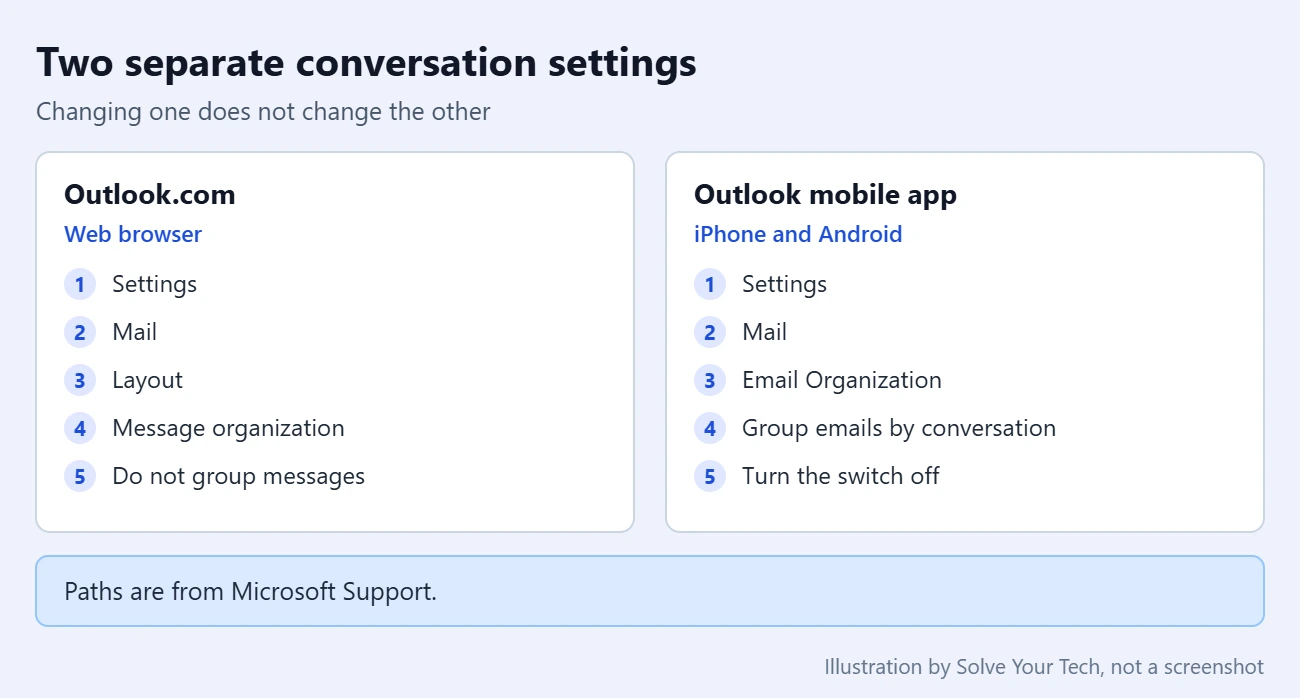
- The setting only affects the place where you change it. The Outlook app on your phone has its own switch.
How to Stop Grouping Messages by Conversation in Outlook.com
- Open Outlook.com in your browser and go to your inbox.
- Select Settings at the top of the page. It is the gear icon near the top-right corner. A Settings window opens.
- Select Mail in the left column.
- Select Layout.
- Scroll to the Message organization section and find the question How do you want your Message List organized?
- Select Do not group messages.
- Select Save if the button appears, then close the Settings window.
Result: your message list shows every email on its own row. A thread with five replies now takes up five rows, each with its own sender and time.
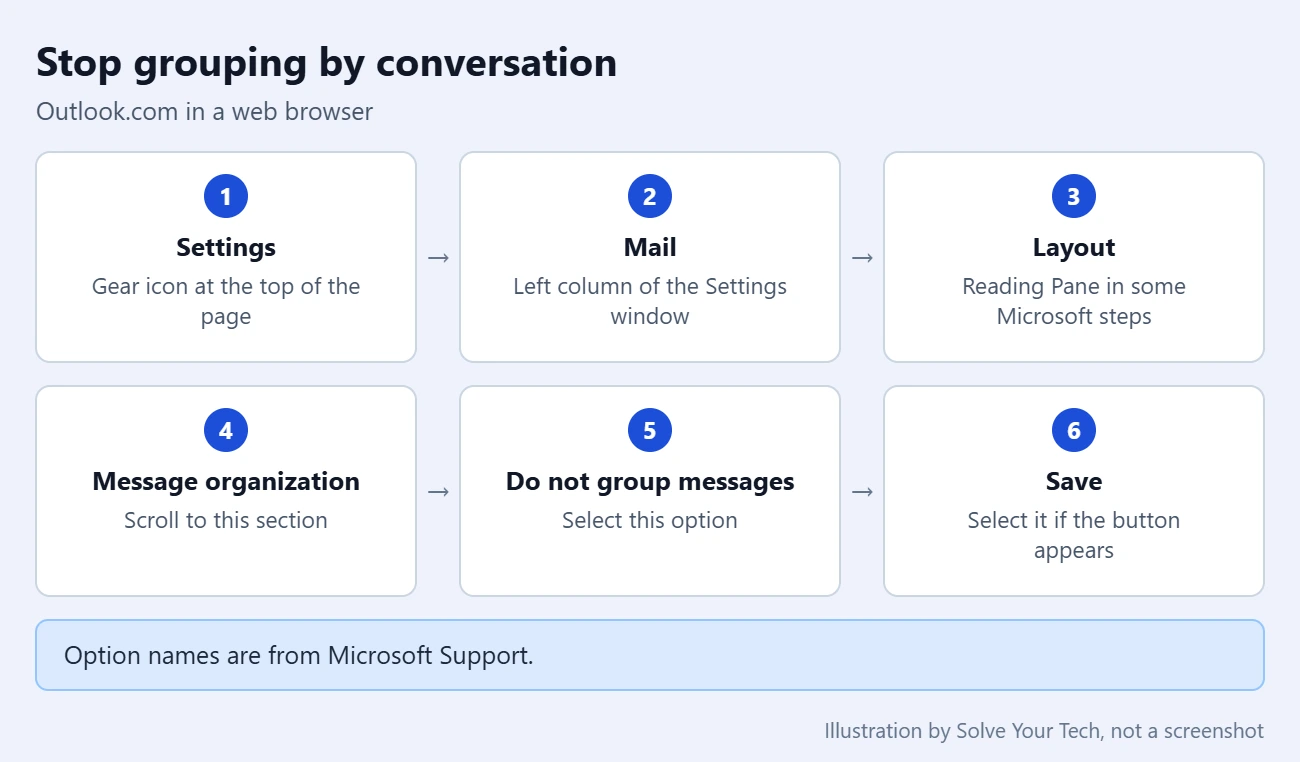
The option names come from Microsoft’s View email messages by conversation in Outlook article. Microsoft is not fully consistent about the page name, though. That article lists the path as Settings > Mail > Reading Pane, while its Change how the message list is displayed in Outlook article lists Settings > Mail > Layout. Both describe the same Message organization section, so open whichever page your Settings window shows and look for that heading.
The Three Message Organization Choices
Microsoft lists three answers to the question How do you want your Message List organized? Only one of them turns grouping off.
| Option | What Microsoft says it does |
|---|---|
| Group messages by conversation | Shows emails grouped by conversation. This is the default for most accounts. |
| Group messages by branches within conversations | Shows emails as branches within conversations. |
| Do not group messages | Stops emails from being grouped by conversation. |
Microsoft does not explain the branches option in more detail on that page, so try it for yourself if you want something between full grouping and none.
The same section has two more questions. They only matter while grouping is on:
- What do you want to see in your Reading Pane? Choose whether the reading pane shows all messages from a conversation or only the message you selected. The reading pane is the area that previews an email next to or below the message list.
- Do you want to see deleted items in your conversations? Choose to show or hide deleted items.
If your real complaint is that opening one email shows the whole thread, you could keep grouping on and change the reading pane question instead.
How to Confirm It Worked and How to Undo It
Go back to your inbox and find a thread that you know has several replies. With grouping off, each reply is a separate row. If the thread is still a single row, reload the page in your browser and check again.
To undo the change, return to Settings > Mail > Layout, choose Group messages by conversation under Message organization, and select Save.
Troubleshooting: Messages Are Still Grouped
You Cannot Find Message Organization
Check both the Layout page and the Reading Pane page under Mail, since Microsoft names both. If the Settings window has a search box, type Message organization into it. A Microsoft Q&A answer for Outlook on the web suggests the same search. On a work or school mailbox, your organization manages the account, so ask your IT administrator if a setting is missing.
The Change Does Not Stick
Open Settings again and confirm that Do not group messages is still selected. If it is not, select it again and make sure you select Save before you close the window. Then reload the Outlook.com page. If you use more than one mailbox, also confirm that you are signed in to the account you meant to change.
The List Is Split Into Sections by Sender or Subject
This is a different kind of grouping. In a Microsoft Q&A thread, a volunteer moderator explains that new Outlook for Windows and Outlook on the web add group headings whenever you sort by something other than date, such as From or Subject, and that this cannot be turned off. That comes from a community answer and not from a Microsoft help article, so treat it as a likely explanation. If your list has headings with sender names or subjects, change the sort order back to date.
Headings Such as Today and Yesterday Remain
Those are date groups, not conversations. Microsoft’s Group or ungroup messages in your Inbox article says Outlook automatically groups items by date, with default groups such as Today, Yesterday, Last Week, Last Month, and Older. The steps Microsoft gives for removing those groups use the View menu in classic Outlook. Microsoft does not document a matching switch for Outlook.com.
Some Emails Seem to Be Missing
Conversation grouping does not hide mail, but Focused Inbox can make it look that way. Microsoft says Focused Inbox separates your inbox into Focused and Other tabs. Select the Other tab to see the rest of your mail. To turn the feature off, go to Settings > Mail > Layout, choose Don’t sort my messages in the Focused Inbox section, and select Save. Microsoft covers this in its Focused Inbox for Outlook article.
How to Turn Off Conversations in the Outlook Mobile App
The Outlook app for iPhone and Android keeps its own setting. Microsoft says the app groups messages by conversation by default and calls the feature Group emails by conversation. Changing Outlook.com does not change the app, and the reverse is also true.
- Open the Outlook app. From the message list, tap your mail icon at the top of the screen to open the folder pane.
- Tap Settings.
- Tap Mail under the General section.
- Tap Email Organization under the Inbox section.
- Turn off Group emails by conversation.
Microsoft says the change takes effect immediately in your message list. These steps are from its How do I disable threaded or conversation mode? article. App menus change between versions, so the wording on your phone may differ slightly.
How to Turn Off Conversations in Outlook for Windows
Microsoft gives separate steps for the two Windows apps.
- New Outlook for Windows: the steps match Outlook.com. Select Settings > Mail, find Message organization, and choose Do not group messages.
- Classic Outlook: from any mail folder, select View > Show as Conversations to switch conversation view on or off, then choose All mailboxes or This folder.
If your Outlook window looks different after you experiment with these options, our guide on how to change the Outlook view back to normal covers resetting it.
Other Settings on the Layout Page
While you are on the Layout page, Microsoft documents two more sections that change how the message list looks:
- Reading pane: choose Right, Bottom, Fill screen, or Popout only.
- Message list format: choose Sender name first or Subject first.
Frequently Asked Questions
Does turning off conversation view delete any emails?
No. The setting only changes how the message list is displayed in Outlook.com. Your messages stay in the same folders, and you can turn grouping back on from the same Message organization section.
Does this change Outlook on my phone or computer too?
Do not count on it. Microsoft documents a separate switch for the Outlook mobile app and a separate Show as Conversations control for classic Outlook. Check each place where you read your mail and change it there as well.
Why are my emails still grouped after I chose Do not group messages?
First confirm the setting was saved and reload the page. If the list is split under sender names or subjects, the cause is most likely the sort order, not conversations, so sort by date. Headings such as Today and Yesterday are date groups, which the conversation setting does not remove.
Can I turn conversations back on later?
Yes. Go to Settings > Mail > Layout, choose Group messages by conversation under Message organization, and select Save.
What is the difference between conversation grouping and Focused Inbox?
Conversation grouping stacks replies that share a thread and subject into one row. Focused Inbox sorts your whole inbox into Focused and Other tabs. They are separate settings on the same Layout page, and you can turn either one off without changing the other.
Can I keep grouping but stop the reading pane from showing every reply?
Microsoft lists a setting for that. Under Message organization, the question What do you want to see in your Reading Pane? lets you choose between all messages from a conversation and only the selected message.
More Outlook.com Guides
With your message list arranged the way you like, these guides cover other Outlook.com settings:
- How to play a sound when new email arrives in Outlook.com
- How to customize the toolbar in Outlook.com
- How to block attachments, pictures, and links from unknown senders in Outlook.com
- How to turn off suggestions in Outlook.com

Matthew Burleigh is the founder, head writer, and editor of Solve Your Tech, which he launched in 2012. He has written technology tutorials since 2008 and worked in IT since 2003, including small-business support, IT management, and consulting. He holds Bachelor’s and Master’s degrees in Computer Science from Arizona State University.
Matthew writes practical guides for Windows, iPhone and iPad, Microsoft Office, Outlook, Google apps, and Android. Solve Your Tech’s guides are tested on current devices or checked against official product documentation, with clear steps, sources, and update dates.
Read more about Matthew and how Solve Your Tech writes and updates its guides, or report a correction.