To reinstall classic Outlook on Windows 11, uninstall Microsoft 365 or Office, then sign in at m365.cloud.microsoft/apps and select Install apps. To reinstall the new Outlook for Windows, uninstall Outlook (new) and install it again from the Microsoft Store. Try a repair first, because it is faster and often fixes the problem without removing anything.
These steps cover Windows 11 Home and Pro with classic Outlook from Microsoft 365, Office 2024 or Office 2021, and the new Outlook for Windows. They follow Microsoft Support’s current install, repair and uninstall articles.
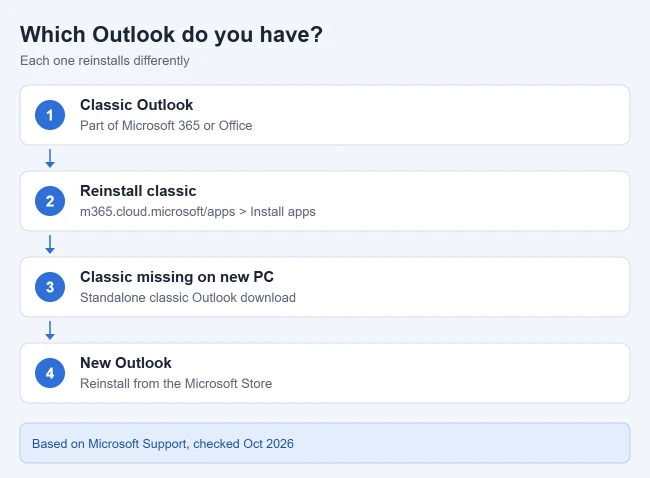
Which Outlook Do You Have?
Windows 11 PCs can have two different Outlook apps, and each one is reinstalled a different way.
- Classic Outlook is the traditional desktop app that comes with Microsoft 365 or Office. It has a File tab in the top-left corner, and the Start menu usually lists it as Outlook (classic). Select File > Office Account to see which Office product you have.
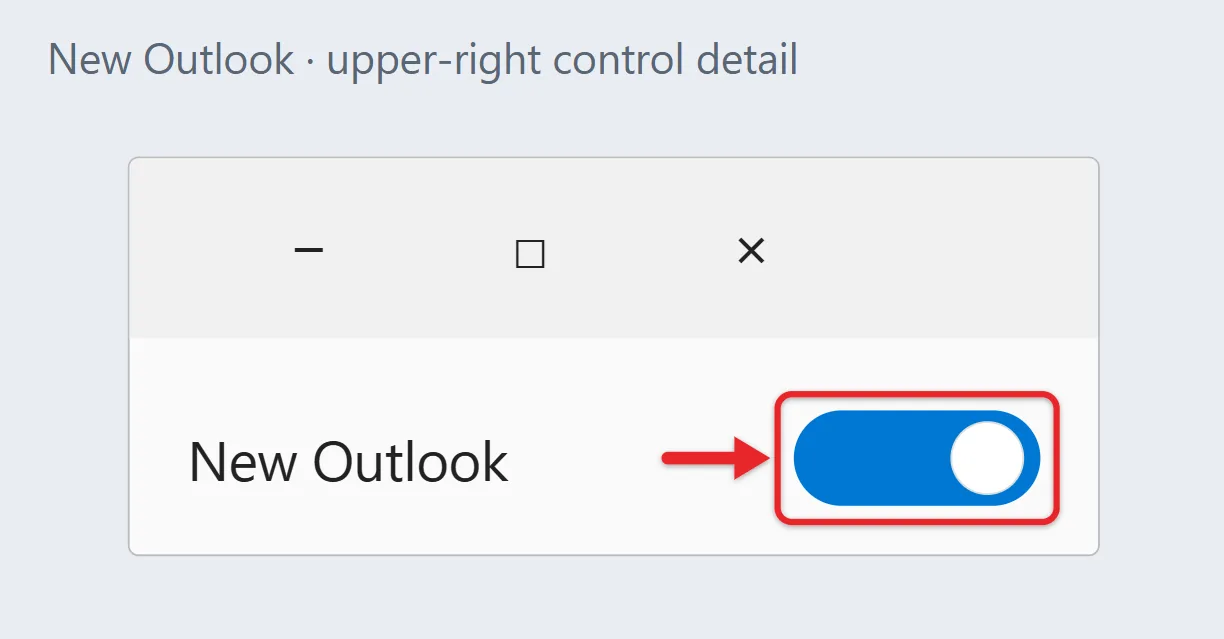
- New Outlook for Windows has no File tab and looks like Outlook on the web. A New Outlook toggle often appears at the top right. Microsoft says many devices sold since 2024 come with new Outlook preinstalled and don’t include classic Outlook.
In Settings > Apps > Installed apps, classic Outlook is part of the Microsoft 365 or Office entry, while new Outlook appears as its own app, usually named Outlook (new). Not sure which Office package you have? See what the Microsoft Office suite includes.
Finding installed programs in Windows 11 shows other places to check.
Switch Between New and Classic Outlook
You may not need to reinstall at all if Outlook only switched versions on you. In new Outlook, select the toggle at the top right and choose Switch back to classic Outlook. The toggle appears only when classic Outlook is installed. If it’s missing, open Outlook (classic) from Start. Changing the Outlook view back to normal covers layout changes too.
Before You Start
- Admin rights. You must be an administrator on the PC to install Microsoft 365 or Office.
- Your account. For Microsoft 365, sign in with the same Microsoft account or work or school account that holds the subscription. You don’t need a product key. If you bought a home product key, redeem it once at microsoft365.com/setup first.
- Work or school PCs. Your organization must assign you a license, and some companies block self-installs. If the install option is missing, ask your IT department.
- Internet connection. Online Repair and the Office installer both download files.
Try a Repair First
A repair replaces damaged program files and keeps your settings and email. It’s the right first move when Outlook opens but crashes, freezes or won’t start.
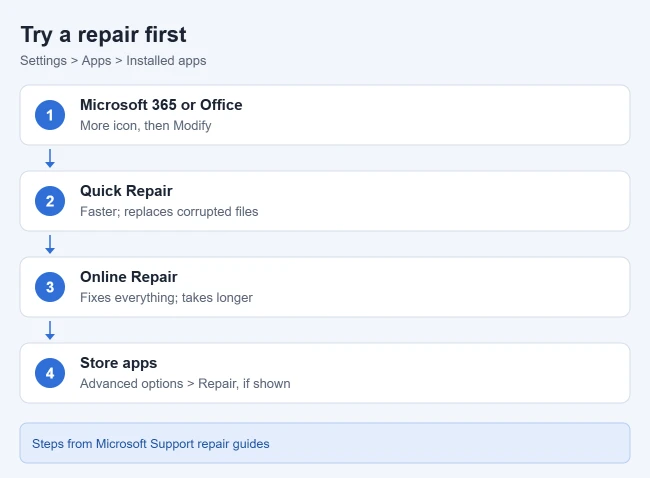
Repair classic Outlook (Microsoft 365 or Office)
Microsoft’s Office repair guide says this repairs the whole Office suite, even if only Outlook has a problem. Close Outlook and the other Office apps first.
- Right-click Start and select Installed apps. Your installed apps are listed.
- Select the More icon (three dots) next to Microsoft 365 or your Office product, then Modify. Select Yes if User Account Control asks. The repair window opens.
- For the common Click-to-Run install, choose Quick Repair or Online Repair, then Repair. Quick Repair is faster and runs offline, but only finds and replaces corrupted files. Online Repair takes longer and fixes more.
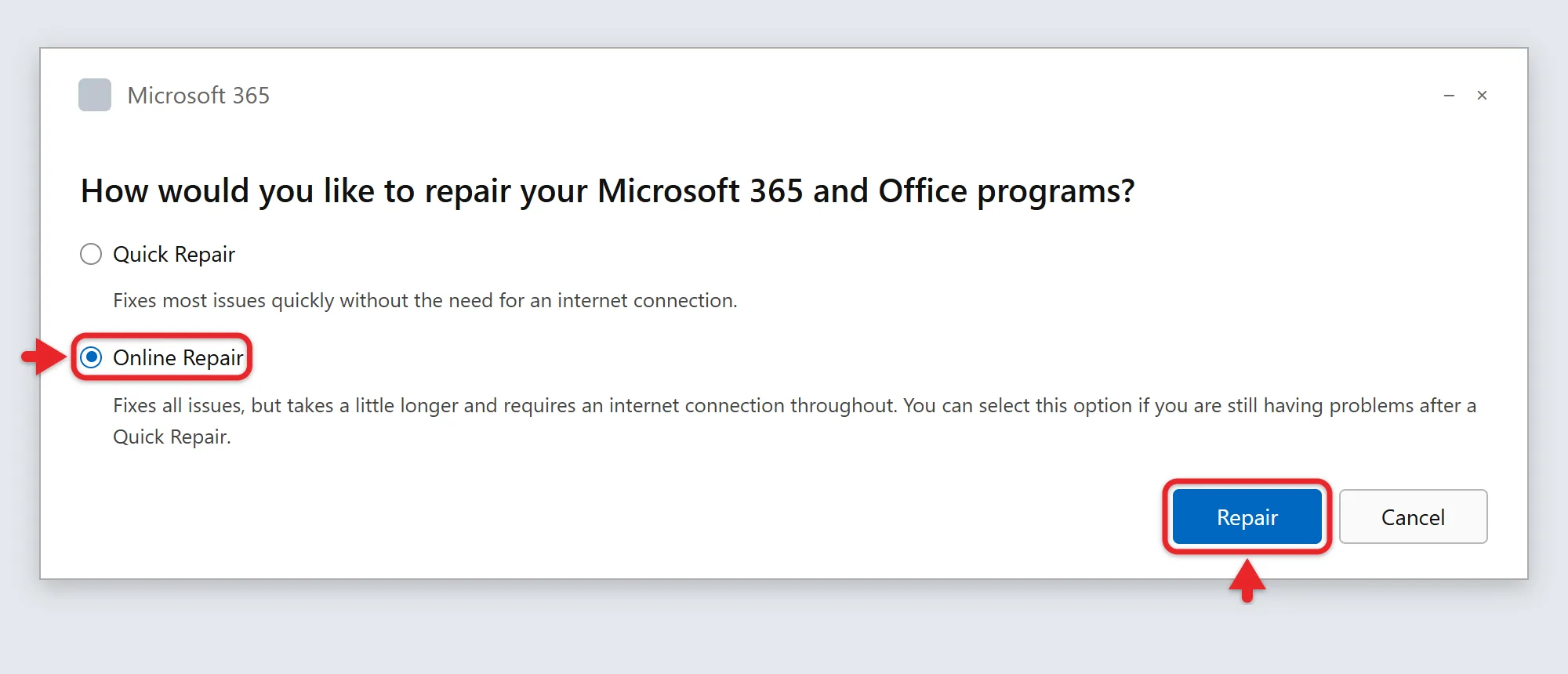
- Restart your computer if asked, then open Outlook.
If Quick Repair doesn’t help, run the steps again and pick Online Repair. If you see a window titled Change your installation instead, you have an older MSI-based install: select Repair, then Continue.
Repair or reset new Outlook
Microsoft’s app repair guide covers Store apps like new Outlook:
- Go to Settings > Apps > Installed apps.
- Select the More icon next to Outlook (new), then Advanced options.
- Select Repair. If that doesn’t fix it, select Reset.
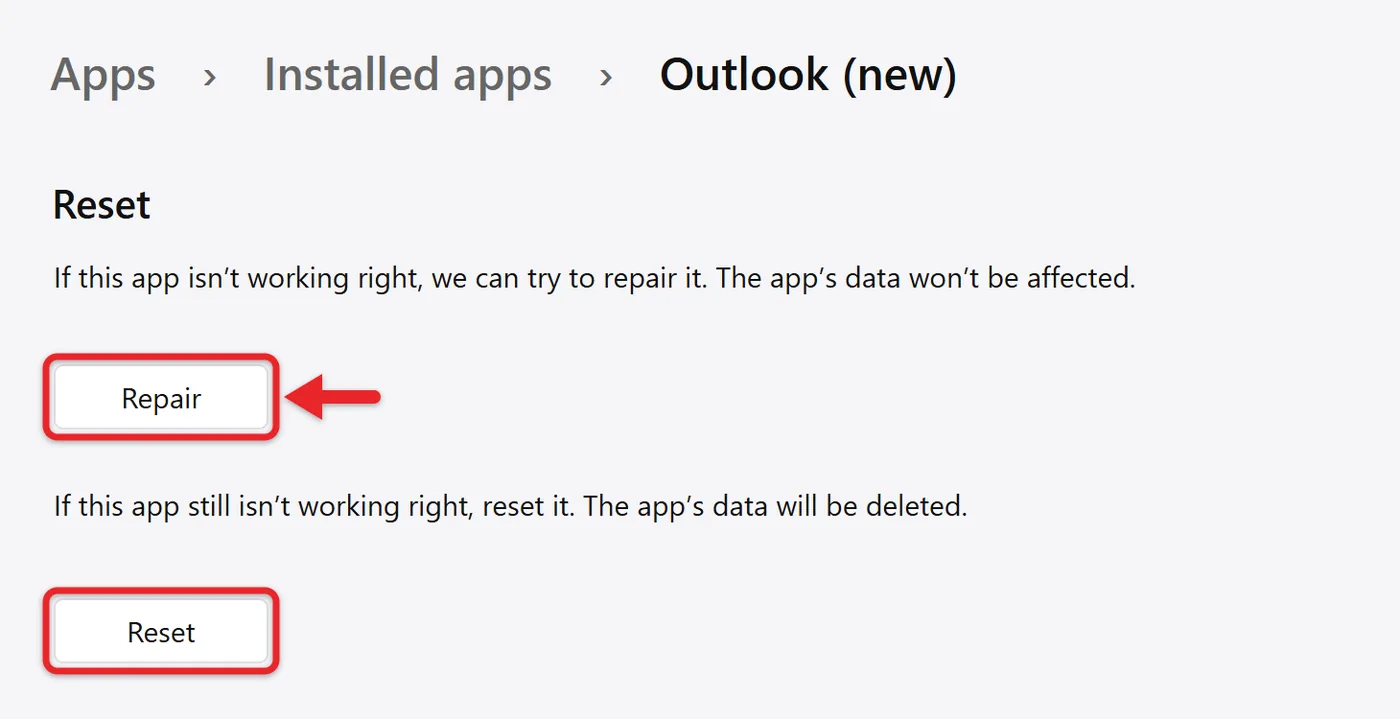
Windows warns that Reset deletes the app’s data on this device, so you may need to add your email accounts again. Not every app shows these options.
Back Up Before You Uninstall
Microsoft 365, Exchange, Outlook.com and IMAP accounts keep your mail on the server, so it comes back when you sign in again. Two things are stored only on your PC and are worth saving first:
- Outlook data files (.pst). POP accounts and old archives keep mail in a .pst file. Microsoft’s default location on Windows 11 is Documents\Outlook Files. Copy that folder to a USB drive or OneDrive. Uninstalling Office doesn’t delete it, but a copy protects you if something goes wrong. To make a fresh backup in classic Outlook, follow Microsoft’s steps to export email to a .pst file: File > Open & Export > Import/Export > Export to a file > Outlook Data File (.pst).
- Signatures. Copy the text of any signature you want to keep, so you can paste it back in later. Once you’re done, you can add a signature in Outlook again.
If you used archiving in classic Outlook, your older mail may live in a separate archive .pst file. Archiving old emails in Outlook explains where it is.
Reinstall Classic Outlook (Microsoft 365 or Office 2024)
Outlook is part of the Office suite, so you uninstall and reinstall the whole suite. You usually can’t remove one app from a suite.
- Go to Settings > Apps > Installed apps, select the More icon next to Microsoft 365 or your Office product, and select Uninstall. Confirm, and Office is removed.
- Restart the PC.
- Go to m365.cloud.microsoft/apps and sign in with the account linked to your subscription, as Microsoft’s install guide describes. The Apps page opens.
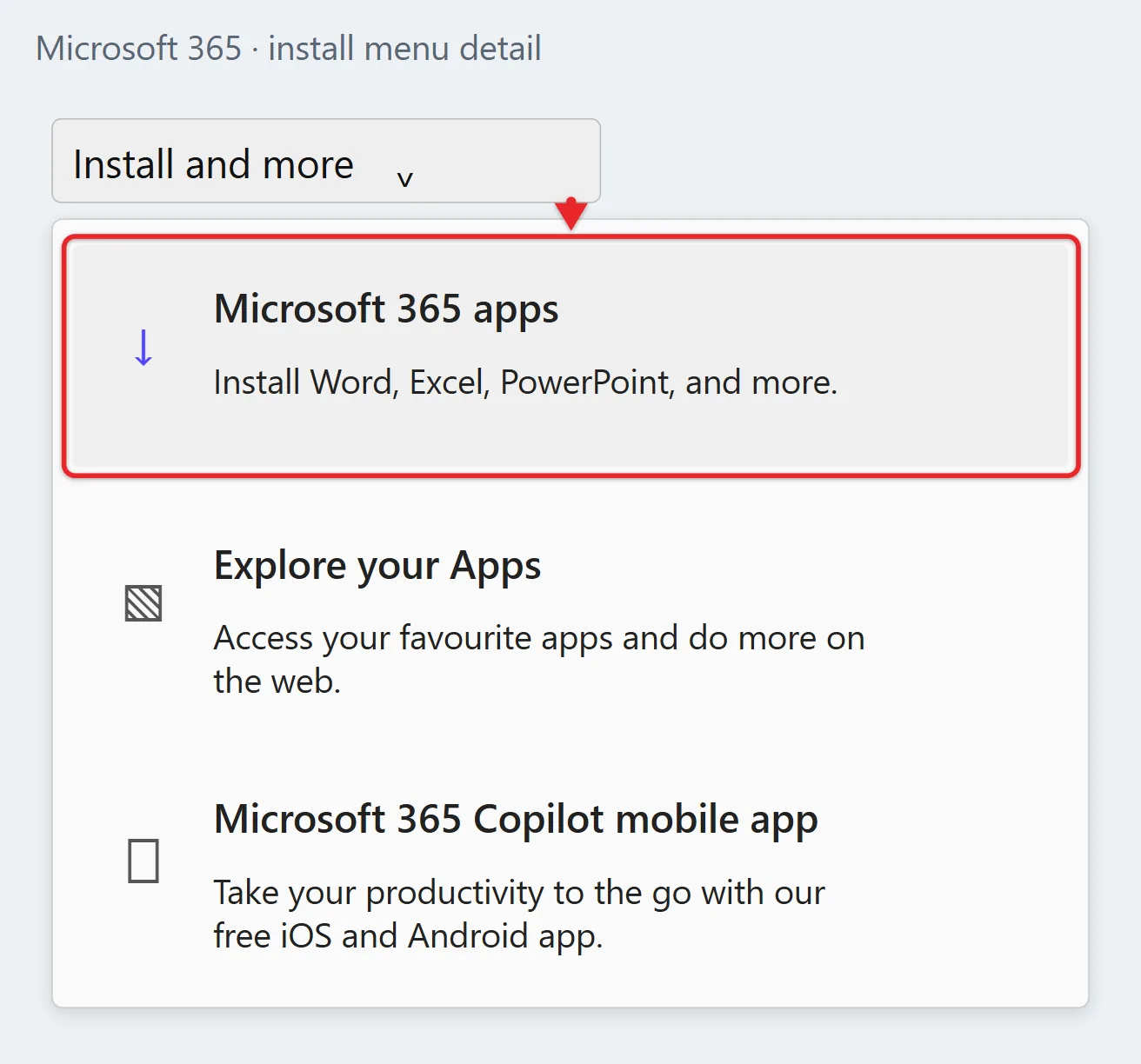
- Select Install apps, then Install (the label varies a little by plan). With a work or school account, select Apps in the left pane first if you don’t see the button, then choose Microsoft 365 apps. The installer downloads.
- Open the downloaded file and select Yes if User Account Control asks. Office installs. Wait for the message “You’re all set! Office is installed now,” then select Close.
- Open Outlook from Start and accept the license agreement if asked. Office activates.
- Sign in or add your email account. Your mail downloads from the server. Not sure which account to use? Follow the steps to sign in to Microsoft Outlook.
The 64-bit version installs by default unless a 32-bit version of Office, Project or Visio is already on the PC. To restore POP mail, open classic Outlook and select File > Open & Export > Open Outlook Data File, then pick your .pst file.
If you’re reinstalling because files don’t show up in your email, try the steps to find missing attachments in Outlook first.
If you have Office 2021 or Office 2019 as a one-time purchase, sign in at the same page with the Microsoft account you used to redeem it. Microsoft keeps separate install steps for those versions.
If Uninstall Fails or Office Won’t Reinstall
When the normal uninstall stops partway or the new install fails because of leftover files, use Microsoft’s uninstall support tool:
- On Microsoft’s uninstall page, select the Uninstall button. The tool downloads.
- If your browser says the site is trying to open Get Help, select Open.
- Follow the prompts and restart the PC when asked. Office is fully removed.
- Reinstall with the steps in the previous section.
The tool needs Windows 10 or later, must run on the PC that has Office installed, and can’t remove Office 2024. You can also uninstall from Control Panel > Programs > Programs and Features. If Microsoft 365 isn’t listed there, it was installed from the Microsoft Store, so remove it from Installed apps instead.
For other desktop apps that won’t remove cleanly, follow the steps to uninstall a program on Windows 11.
If Classic Outlook Is Missing on a New PC
Microsoft’s classic Outlook page explains that some new PCs don’t include classic Outlook. The icon may appear, but opening it shows “We couldn’t verify and install this because it is not available in the Microsoft Store.” To fix it:
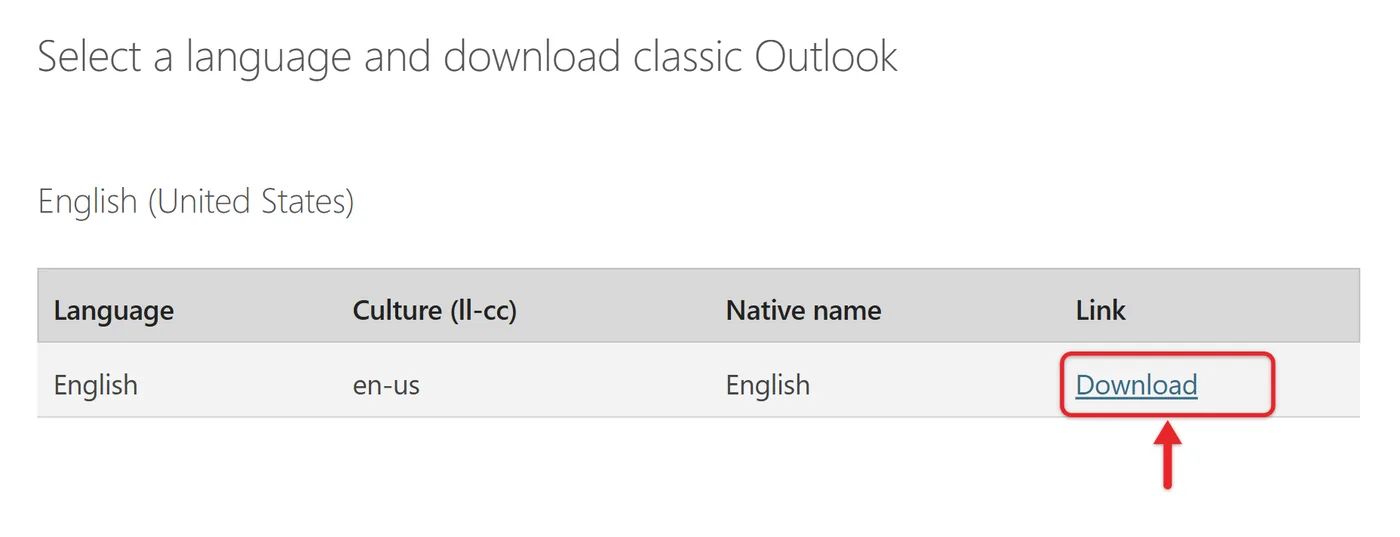
- Open Microsoft’s classic Outlook page. A language list appears.
- Pick your language and select Download. The installer downloads.
- Open the file and follow the prompts. Classic Outlook installs.
Installing classic Outlook from the Microsoft Store is another option. If a work or school account can’t install it this way, contact your IT admin.
Reinstall the New Outlook
- Go to Settings > Apps > Installed apps, select the More icon next to Outlook (new), and select Uninstall. Confirm, and the app is removed.
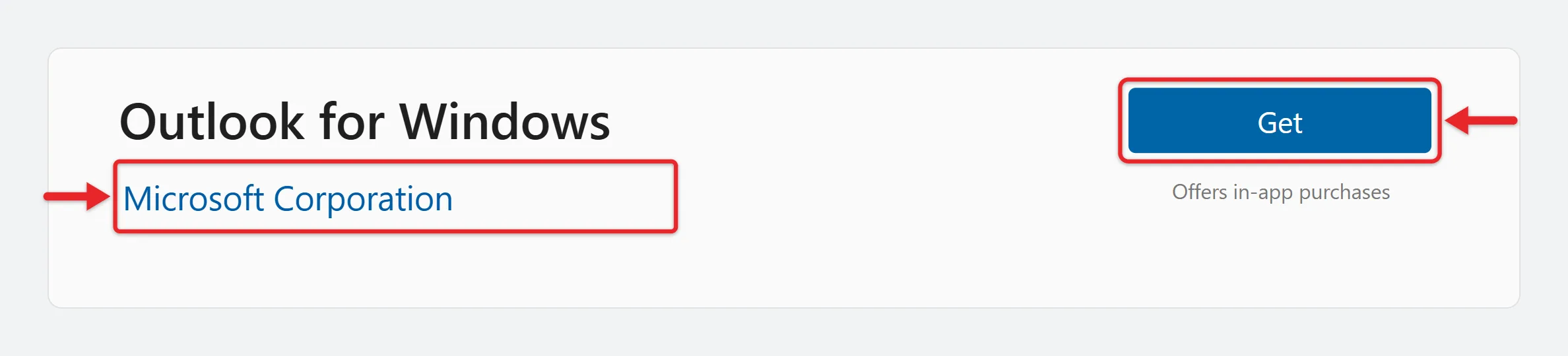
- Open the Microsoft Store, search for Outlook for Windows, and select Get or Install. New Outlook installs. If the Store is missing, you can get the Microsoft Store.
- Open Outlook and add your accounts one at a time. New Outlook works with Outlook.com, work or school accounts, Gmail, Yahoo, iCloud and other IMAP accounts.
Troubleshooting
- Install apps is missing. You may be signed in with an account that has no active Microsoft 365 subscription or license. Sign in at account.microsoft.com to confirm the subscription is active, or ask your IT department to assign a license.
- The installer says you need permission. Sign in to Windows with an administrator account.
- New Outlook doesn’t show in the Store. Check for Windows updates, restart the PC, and search again for “Outlook for Windows.”
- Mail is missing after reinstalling. Give the account time to download. For POP mail, reopen your backed-up .pst file.
- Outlook still won’t start. See what to do when Outlook won’t open for safe mode and profile fixes.
Frequently Asked Questions
Will reinstalling Outlook delete my email?
Not for server-based accounts like Microsoft 365, Exchange, Outlook.com or IMAP. Your mail returns after you sign in. Copy any .pst files from POP accounts or archives first.
Can I reinstall just Outlook without the rest of Office?
For Microsoft 365, Outlook installs as part of the suite. On new PCs where classic Outlook is missing, Microsoft offers a standalone classic Outlook download.
Do I need my product key to reinstall?
Not for Microsoft 365. Sign in with the account tied to the subscription. A one-time purchase key only needs to be redeemed once, and later installs use the same Microsoft account.
Should I repair or reinstall?
Repair first. Reinstall only if Quick Repair and Online Repair both fail, or if Outlook won’t install or open at all.
Once Outlook is back, send yourself a test email to confirm that sending and receiving work.

Matthew Burleigh is the founder, head writer, and editor of Solve Your Tech, which he launched in 2012. He has written technology tutorials since 2008 and worked in IT since 2003, including small-business support, IT management, and consulting. He holds Bachelor’s and Master’s degrees in Computer Science from Arizona State University.
Matthew writes practical guides for Windows, iPhone and iPad, Microsoft Office, Outlook, Google apps, and Android. Solve Your Tech’s guides are checked step by step against the device or app maker’s own documentation and tested on his own devices whenever he has the hardware or software, with clear steps, sources, and update dates.
Read more about Matthew and how Solve Your Tech writes and updates its guides, or report a correction.