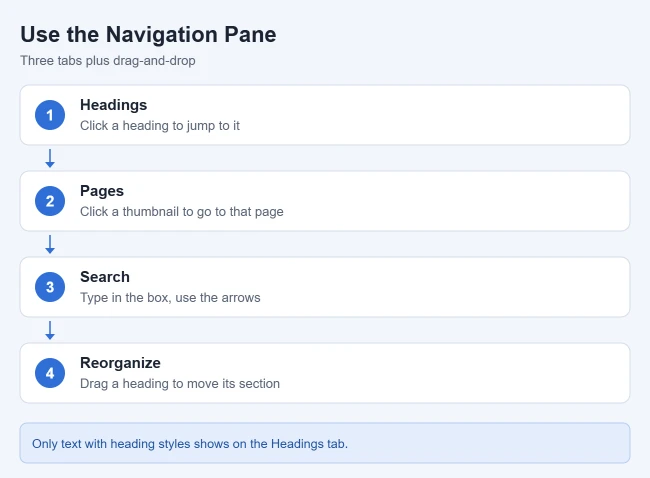
To open the Navigation pane in Word, press Ctrl + F, or go to the View tab and check Navigation Pane. From the pane you can jump to any heading, see page thumbnails, search the document, and drag headings to reorganize sections.
These steps come from Microsoft’s Use the Navigation pane in Word article. They apply to Word for Microsoft 365, Word 2024, 2021, 2019 and 2016 on Windows. Microsoft notes that the Navigation pane works differently in Word for Mac and Word for the web.
In this article:
- Open the Navigation pane
- Browse by headings
- Browse by page
- Search your document
- Reorganize your document
- If headings don’t show up
- FAQs
- Open your document in Word.
- Select the View tab.
- Check Navigation Pane.
Or press Ctrl + F. To close the pane, uncheck Navigation Pane on the View tab.
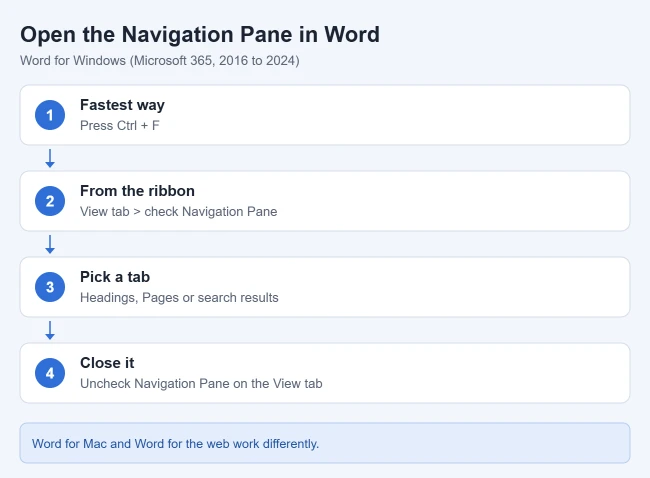
Result: The Navigation pane opens next to your document, ready to browse or search. For the search options, see how to search for a word in Microsoft Word.
How to Browse a Document by Headings
The Headings tab is the quickest way to move around a long report or manuscript.
- In the Navigation pane, select Headings.
- Click any heading to jump straight to it.
- Click the arrow next to a heading to show or hide the subheadings under it.
As you scroll, Word highlights the heading you are in, so you always know where you are. To go back to the top, select the Jump to the beginning arrow.
Result: You move between sections without scrolling through every page.
How to Browse a Document by Page
Select Pages in the Navigation pane, then click a thumbnail to go to that page. Word highlights the page you are on as you scroll, which is handy when you are looking for a table, chart or image you remember by sight.
If you need to move pages around rather than just find them, see how to change the page order in Word.
- Type the text you want to find in the search box at the top of the pane.
- Select a result to see it in your document.
- Use the up and down arrows to move through all the results.
Result: Word shows every match, and you can step through them one at a time.
Microsoft says you can move parts of your document, change heading levels and add new headings right from the pane:
- Select the Headings tab.
- To move a section, drag its heading to a new spot. The text under that heading moves with it.
- To change a heading’s level or add a heading, right-click the heading and choose the action you want.
Microsoft notes that if a document contains protected regions, you might not be able to drag a section past the last protected region.
Result: Whole sections move in one step, with no cutting and pasting.
What to Do If Headings Don’t Show Up
The Headings tab only lists text formatted with heading styles. Select a title in your document, go to the Home tab, and pick Heading 1 or Heading 2 in the Styles group. It appears in the pane right away.
Microsoft also says the pane doesn’t show headings inside tables, text boxes, or headers and footers. The same heading styles power an automatic table of contents, so see how to insert a table of contents in Word once your headings are set.
Frequently Asked Questions
What is the shortcut for the Navigation pane?
Press Ctrl + F in Word for Windows.
Is the Navigation pane the same in Word for Mac?
No. Microsoft says the Navigation pane behaves differently in Word for Mac and Word for the web, so the steps above are for Word on Windows.
How do I repeat text at the top of every page?
That is a header, not a heading. See how to repeat a header on each page in Word.
For more Word help, browse our Microsoft Word guides.

Matthew Burleigh is the founder, head writer, and editor of Solve Your Tech, which he launched in 2012. He has written technology tutorials since 2008 and worked in IT since 2003, including small-business support, IT management, and consulting. He holds Bachelor’s and Master’s degrees in Computer Science from Arizona State University.
Matthew writes practical guides for Windows, iPhone and iPad, Microsoft Office, Outlook, Google apps, and Android. Solve Your Tech’s guides are tested on current devices or checked against official product documentation, with clear steps, sources, and update dates.
Read more about Matthew and how Solve Your Tech writes and updates its guides, or report a correction.