This post contains affiliate links. As an Amazon Associate, solveyourtech.com earns from qualifying purchases, at no extra cost to you.
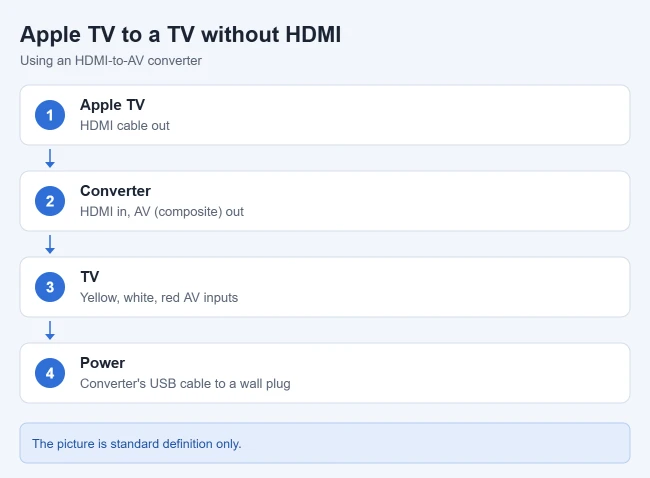
To connect an Apple TV to a TV without HDMI, run an HDMI cable from the Apple TV into an HDMI-to-AV converter, then connect the converter to your TV’s yellow, white, and red AV inputs with a composite cable. Power the converter, switch the TV to its AV input, and the Apple TV picture appears in standard definition.
Apple doesn’t offer a non-HDMI option. Its Apple TV 4K tech specs list the box as “Compatible with HD and UHD TVs with HDMI,” so a converter is a workaround rather than an Apple-supported setup. Below is what you need, how to hook it up, and what to do if you get no picture.
In this article:
- What You Need
- How to Connect the Apple TV
- What to Expect From the Picture
- If You See No Picture
- Is It Worth It?
- Frequently Asked Questions
What You Need
- An HDMI cable (Apple TV doesn’t include one in the box).
- An HDMI-to-AV converter box.
- An AV (RCA) cable with yellow, white, and red plugs, if the converter doesn’t include one.
- A USB power adapter for the converter, if it doesn’t come with one.
Place the converter near a power outlet, since its USB power cable is often short.
How to Connect the Apple TV
- Connect one end of the HDMI cable to the HDMI port on the back of the Apple TV.
- Connect the other end to the HDMI In port on the converter.
- Plug the AV cable into the converter’s output ports, matching the colors.
- Plug the other end into the matching yellow (video), white, and red (audio) inputs on the TV.
- Connect the converter’s USB cable to its power adapter and plug it into the wall.
- Plug in the Apple TV and turn it on.
- Turn on the TV and switch it to the AV, Video, or Composite input.
Result: The Apple TV home screen appears on your TV. Continue with setup using the Apple TV remote.
What to Expect From the Picture
Composite AV is a standard-definition connection. Even though the Apple TV sends an HD or 4K signal over HDMI, the converter turns it into a standard-definition picture, so text and menus look softer than they would on an HDMI TV.
If You See No Picture
Apple’s Apple TV black-screen troubleshooting steps help here too:
- Check the cables. Unplug both ends of the HDMI cable and plug them back in firmly, and confirm the TV is on the right input.
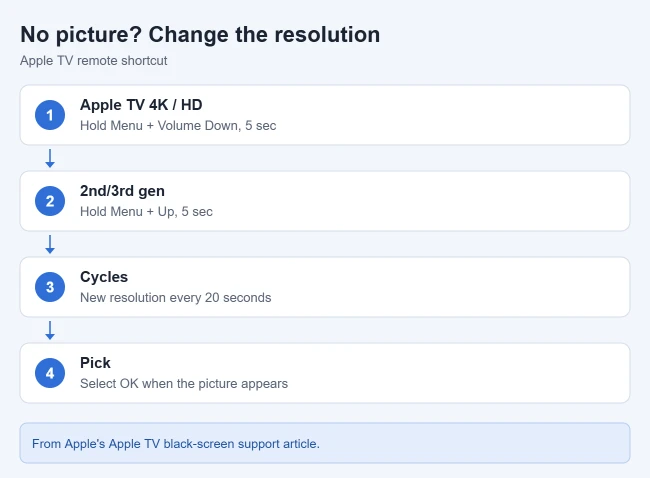
- Try a different resolution. On an Apple TV 4K or Apple TV HD, hold Menu and Volume Down on the remote for 5 seconds. On an Apple TV (2nd or 3rd generation), hold Menu and Up for 5 seconds. Apple TV switches to a new resolution every 20 seconds; select OK when you see a picture.
- Check the converter’s power. If the converter has a power light, make sure it’s lit.
Result: Once the Apple TV lands on a resolution the converter accepts, the picture appears and stays.
Is It Worth It?
A converter is an inexpensive way to use an Apple TV on an older TV you already own. If you watch a lot of video, though, a TV with HDMI will give you the HD or 4K picture the Apple TV is built for.
Frequently Asked Questions
Does Apple make an adapter for non-HDMI TVs?
No. Apple lists the Apple TV 4K as compatible with HD and UHD TVs with HDMI, so you’ll need a third-party converter.
Will I get HD or 4K through a converter?
No. Composite AV carries a standard-definition picture.
Do I need to change any Apple TV settings?
Usually not. If the screen stays black, use Apple’s remote shortcut above to cycle through resolutions.
Once it’s connected, see how to connect your Apple TV to a wireless network.

Matthew Burleigh has been writing tech tutorials since 2008. His writing has appeared on dozens of different websites and been read hundreds of millions of times.
After receiving his Bachelor’s and Master’s degrees in Computer Science he spent several years working in IT management for small businesses. However, he now works full time writing content online and creating websites.
His main writing topics include iPhones, Microsoft Office, Google Apps, Android, and Photoshop, but he has also written about many other tech topics as well.